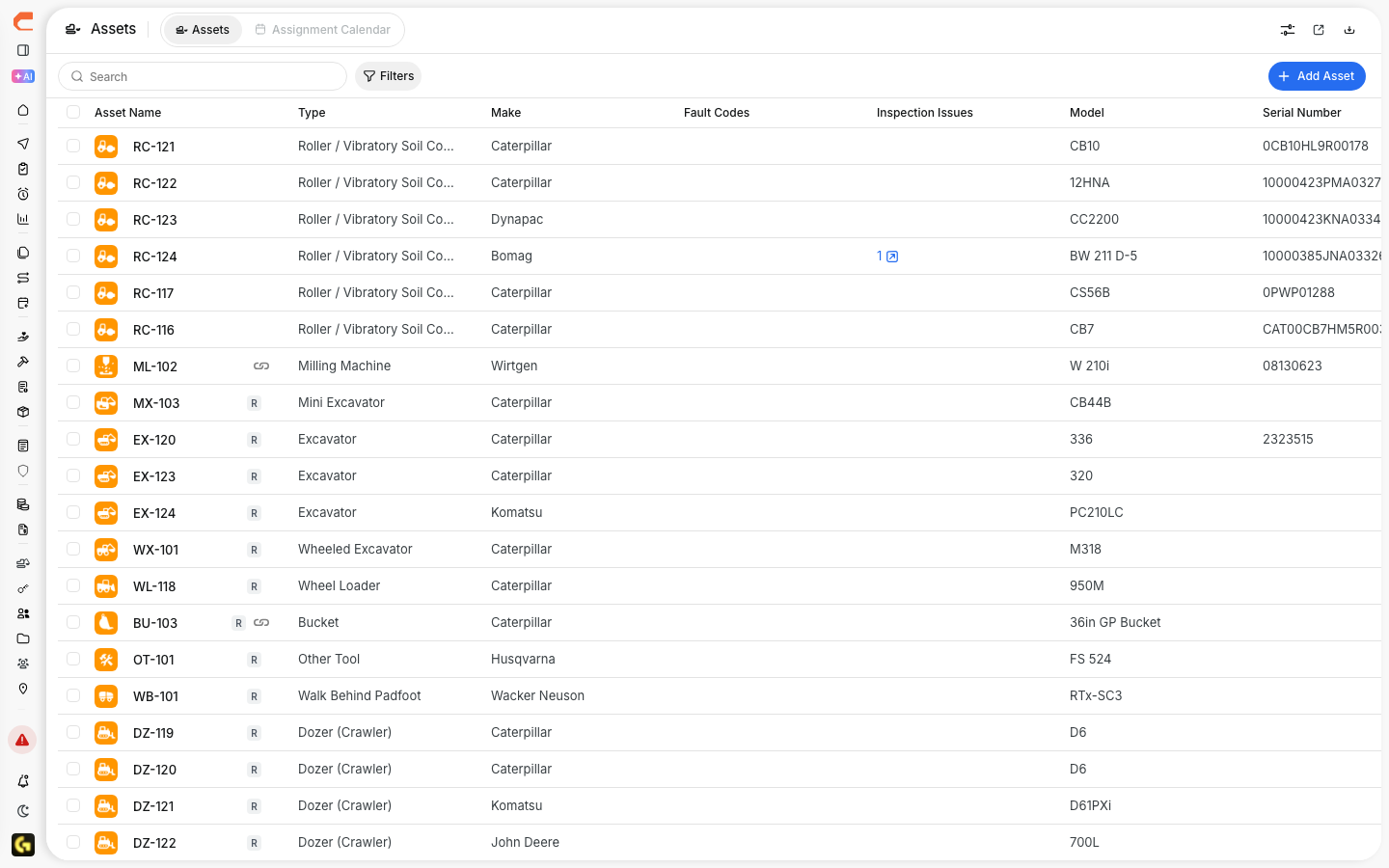
The Asset Directory is where you can see all equipment, vehicles, tools, and other assets in one place.
It shows your full asset list in a table so you can quickly find what you need and check basic details.

CLUE Asset Directory showing list of equipment with make, model, and type
Open the Asset Directory
From the main menu, go to Directory → Assets.
This opens the Asset Directory for your organization.
What You See in the Table
Each row shows basic information about one asset, including:
- Equipment ID - the unique ID for the asset
- Name / Alias - the asset name shown in CLUE
- Type - vehicle, equipment, tool, or another asset type
- Status - active, inactive, or another current status
- Assigned Project - the project the asset is linked to
- Location - the last known GPS location
This table helps you review your asset list without opening each record.
View Asset Details
Click on an asset name to open its details.
Here you can see:
- make, model, and serial number
- current map location
- work order history
- inspection records
- maintenance alerts
This gives you a full view of the asset and its history.

Filter Assets
Use the filters at the top of the page to narrow the list.
You can filter by things like asset type, project, crew, or status. This is useful when you need to find a certain group of assets quickly.

Add a New Asset
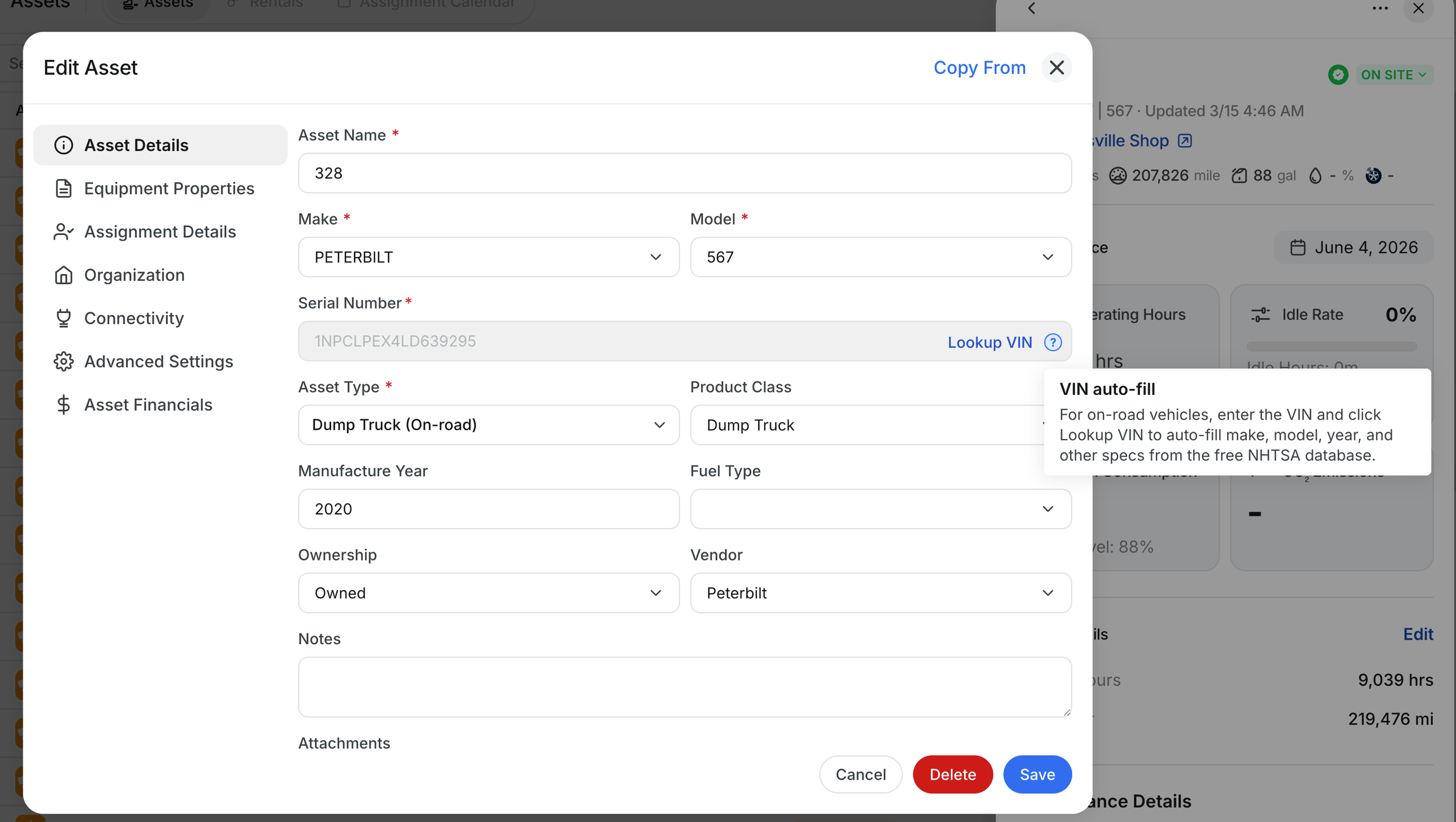
Click + Add Asset to create a new asset.
Enter the required details, such as:
- Equipment ID
- Name
- Asset Type
Then save the asset to add it to your directory.