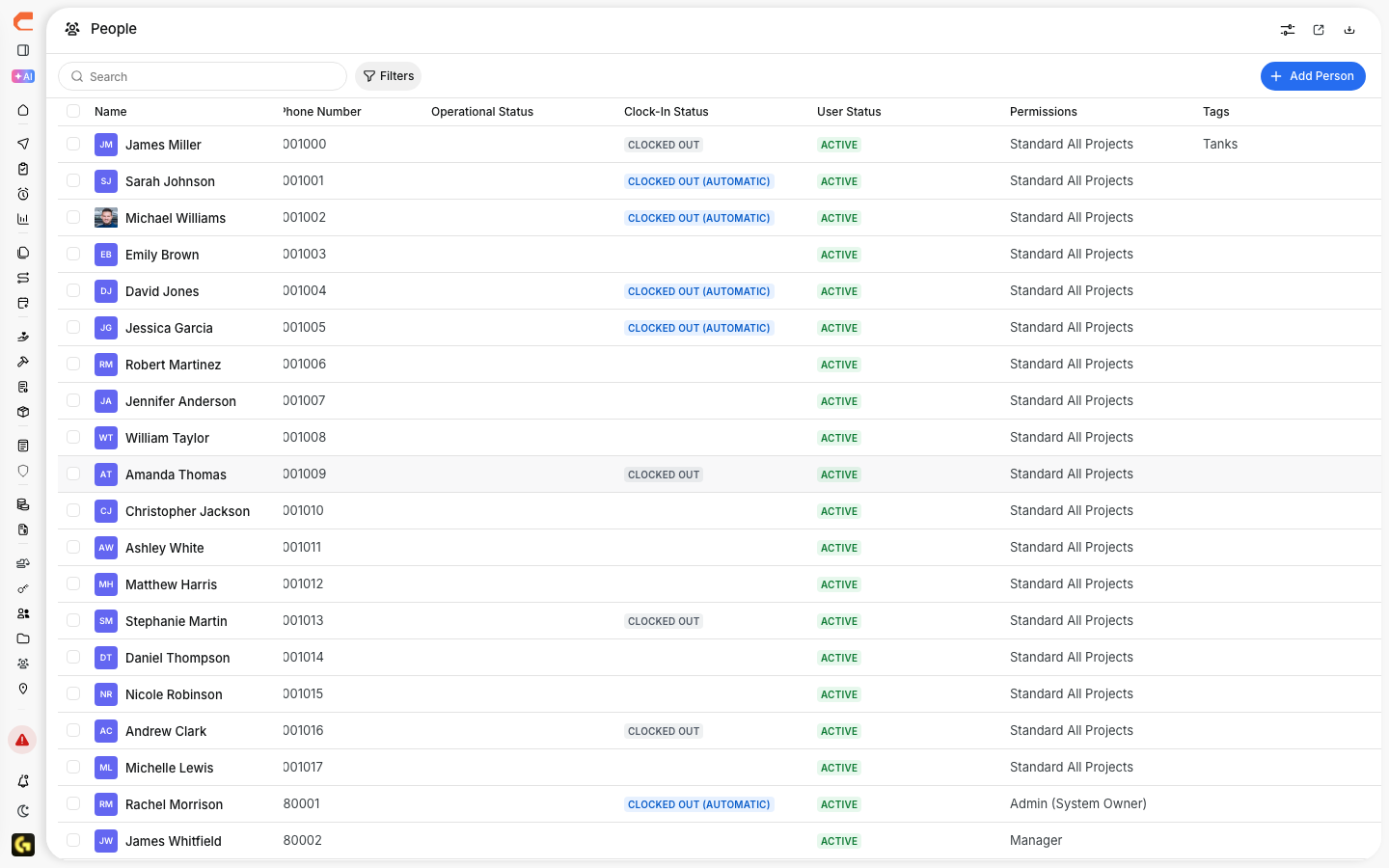
Invite new team members from the People directory so they can access CLUE and start using the web or mobile app. This is the main setup step for adding someone to your organization.
People directory with invite option
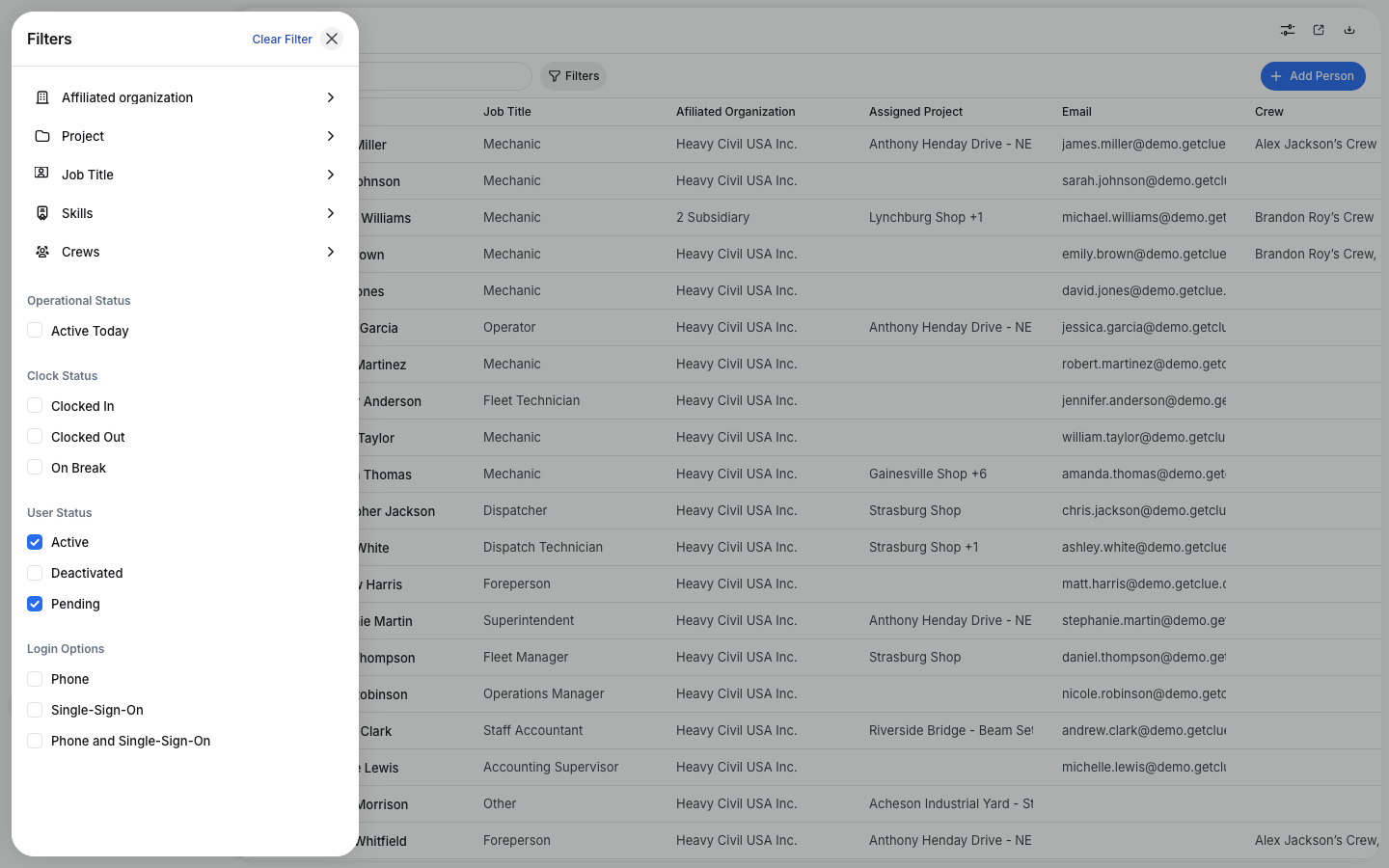
The People directory is where you manage users, roles, and team setup in one place. If you need to review existing users before adding someone new, start with Managing the People Directory.

Add new users from the People directory
You can send a new invite directly from the People directory. Before you send it, make sure you know the person’s email, name, role, and division. If you are not sure which role to assign, check Understanding User Permissions first so the person gets the right access from the start.
Inviting a New User
Follow these steps to send the invite:
- Go to Directory > People
- Click Invite Person
- Enter the person’s email address
- Enter their name
- Select their role and permissions
- Choose their division
- Click Send Invite.

Required Information
A few fields are needed before CLUE can send the invite. Keep these details accurate so the new user can get into the system without problems.
- Email - must be unique in the system
- Name - first and last name
- Role - controls what the person can see and do
- Division - shows where they belong in your organization.

What Happens Next
After you send the invite, the new user receives an email to finish setup. Once they complete that step, they can start using CLUE. If they will be working from the field, the next step is usually Getting Started with the Mobile App.
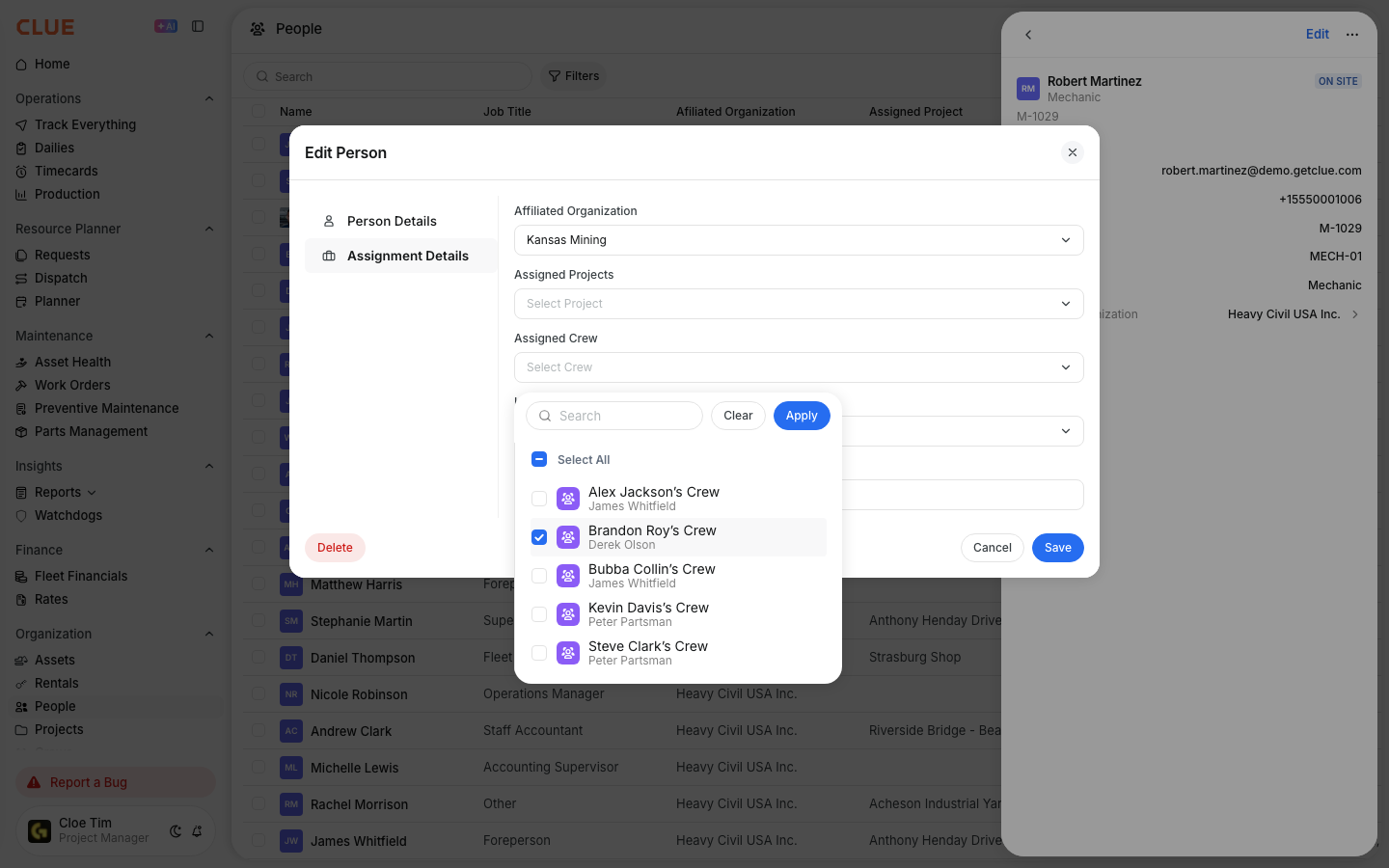
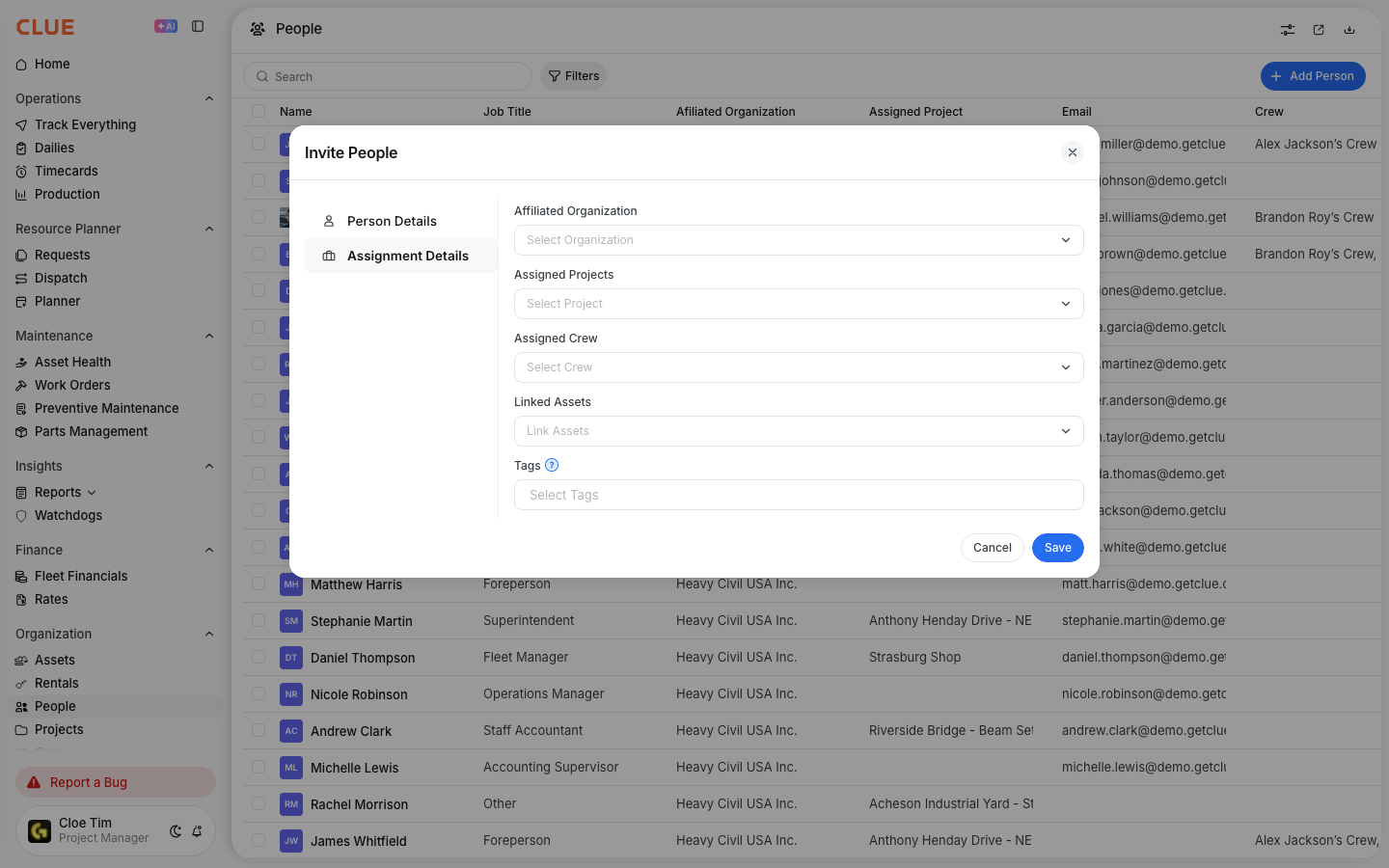
In most teams, the next setup steps are assigning the person to the right crew, project, or asset. That is where Assigning People to Crews, Assigning People to Projects, or Linking People to Assets usually come next.
Tips
A few simple checks can save time when you are inviting new users.
- Double-check the email address before sending the invite
- Choose the right role the first time so the user sees the correct screens
- Resend the invite if they do not receive it
- If the person will use the mobile app, make sure they also have the right login setup for mobile access.