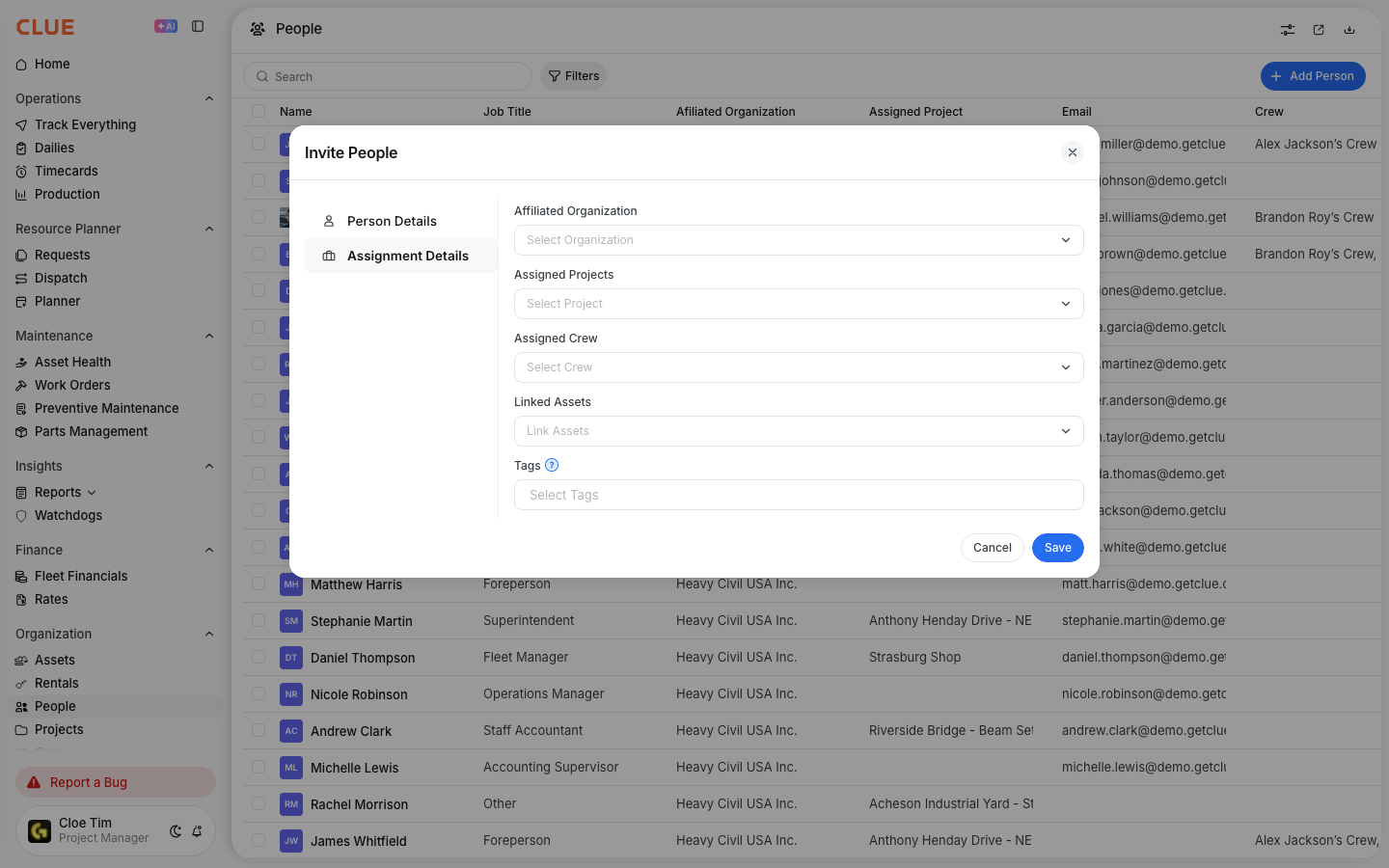
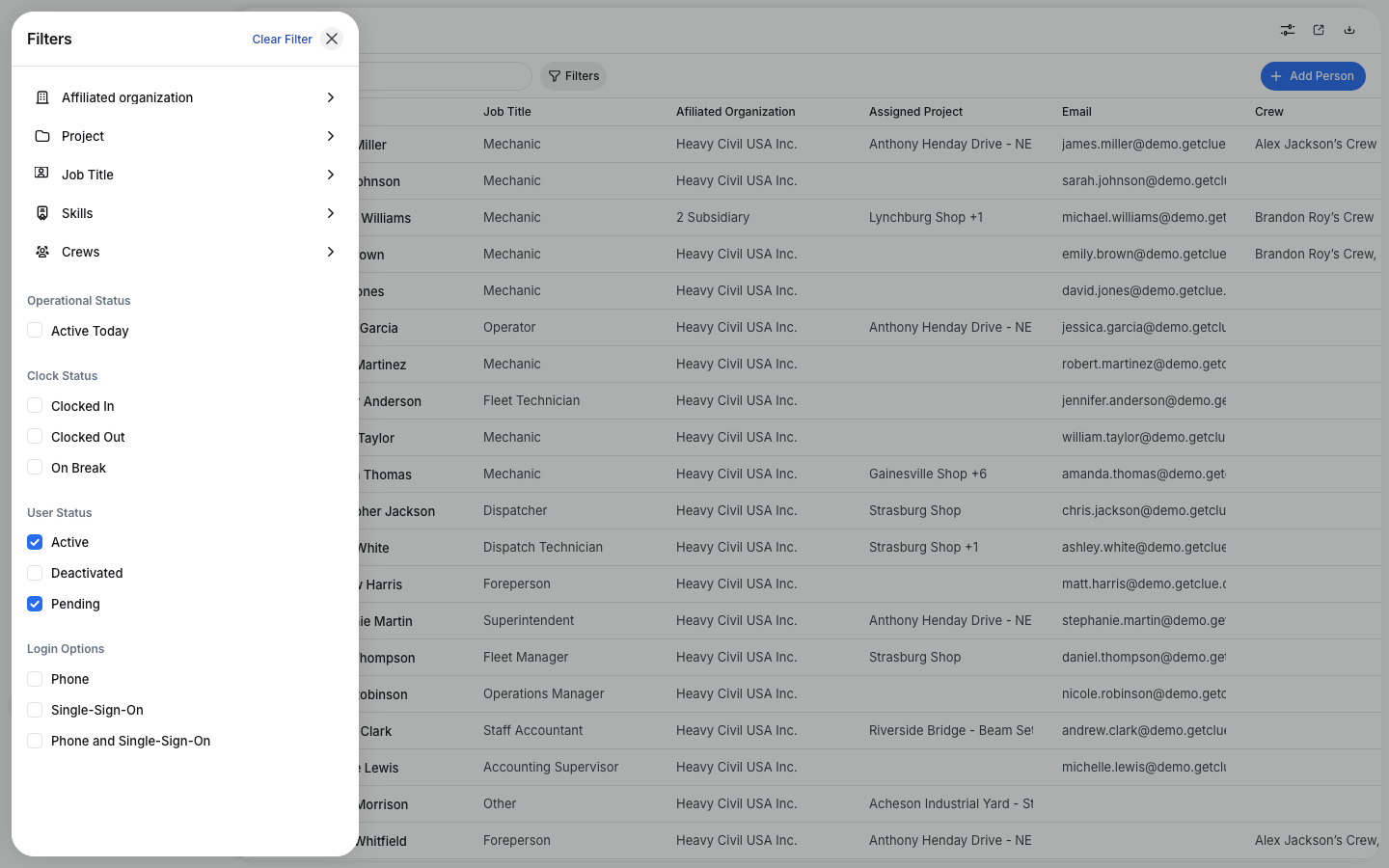
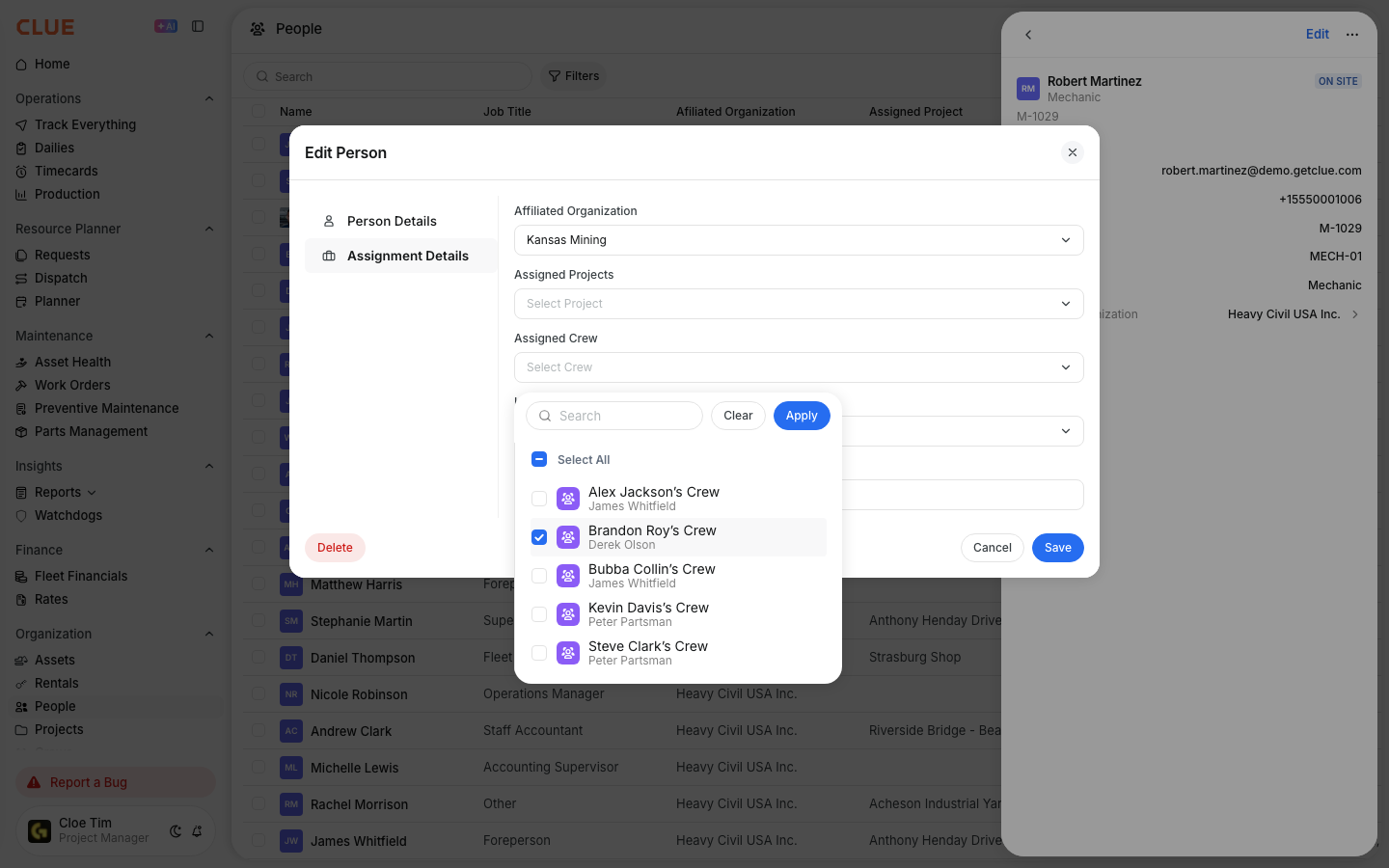
Use activity status in the People directory to see whether users are active in CLUE and when they were last using the system. This helps managers check app usage, confirm field activity, and see whether a user is currently online, idle, or offline.
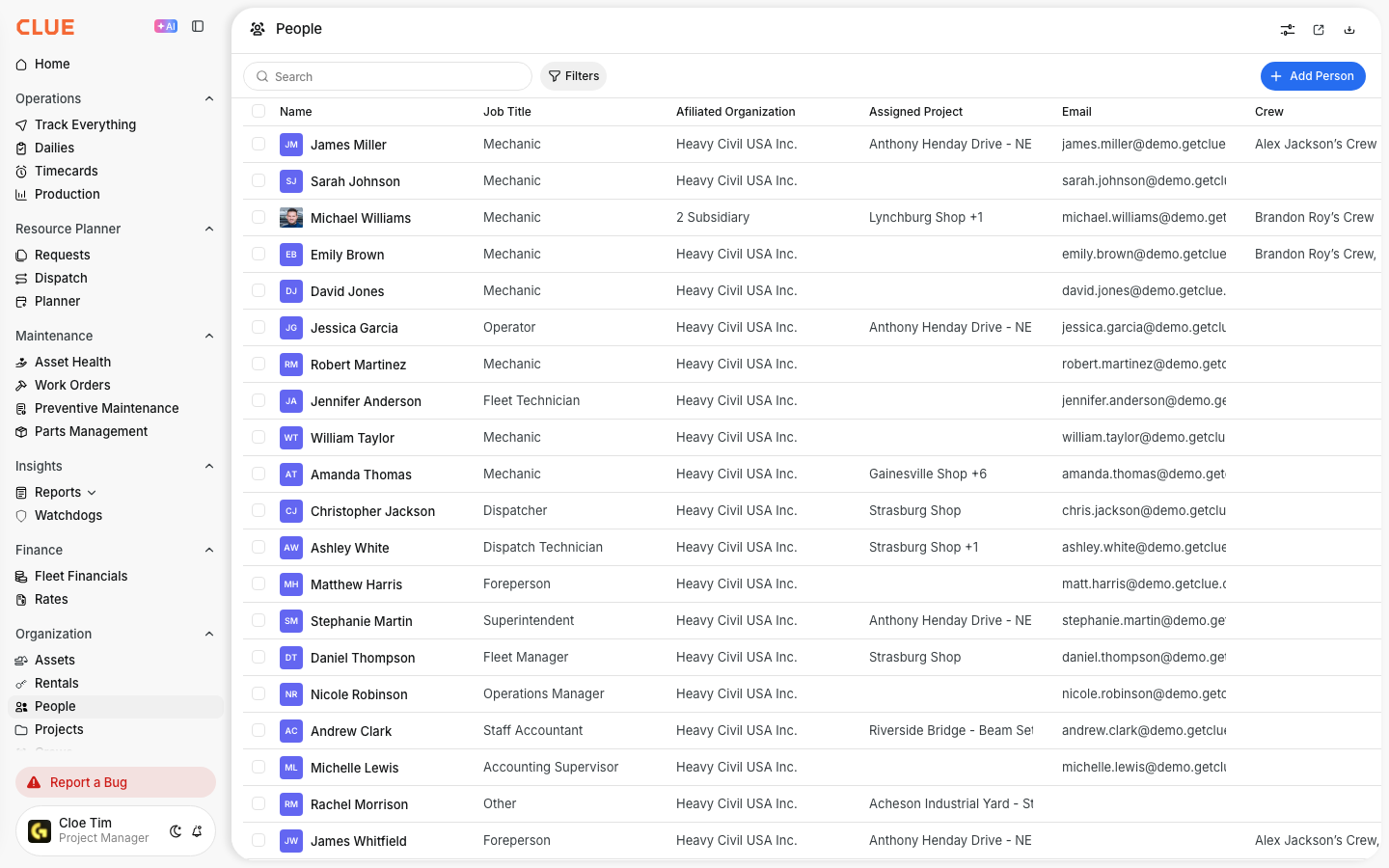
People directory showing activity status
The People directory is the main place to review users in your organization. Along with names, roles, and contact details, it can also show activity status so you can quickly see who is active. If you need the full directory basics first, start with Managing the People Directory.
Monitor user activity and login status
Activity status helps you understand whether a user is currently in CLUE and how recently they have been active. This is useful for checking field adoption, confirming whether dispatched users are using the app, or reviewing who was recently online.
Activity Indicators
CLUE uses simple status indicators to show current user activity. These indicators update in near real time and give a quick view of whether someone is currently using the system.
- Online - currently active in the web app or mobile app
- Idle - logged in, but not actively using the system
- Offline - not currently logged in.
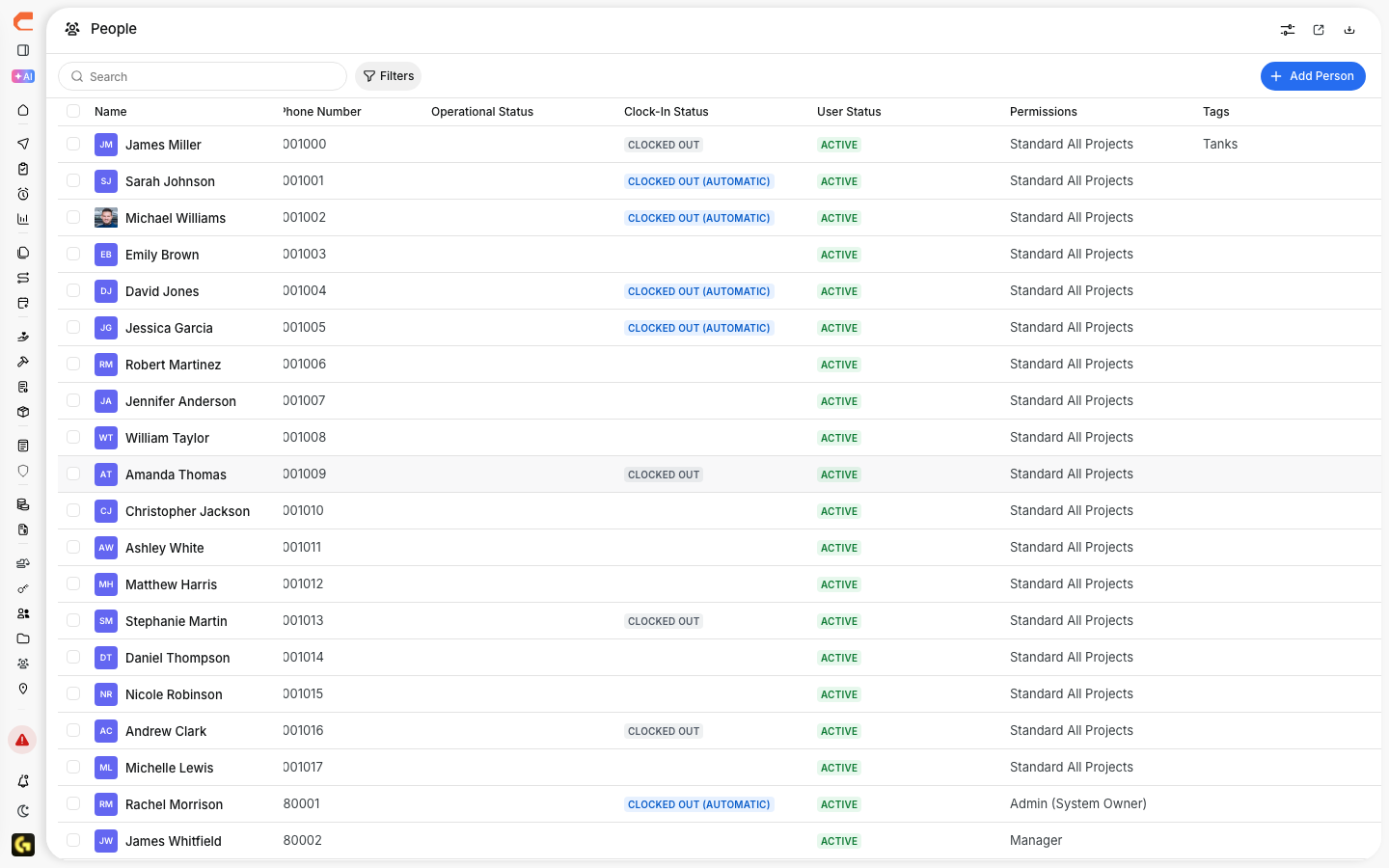
Viewing Status
You can check a user’s activity directly from the People directory. Start in the list view, then open the person’s record if you need more detail.
- Go to Directory > People
- Look for the activity indicator next to the person’s name
- Click the person to open more detail.
If you are checking whether a field user is set up correctly for mobile use, Getting Started with the Mobile App is the best next article to open. If the issue is access or role-based, go to Understanding User Permissions.
Activity Details
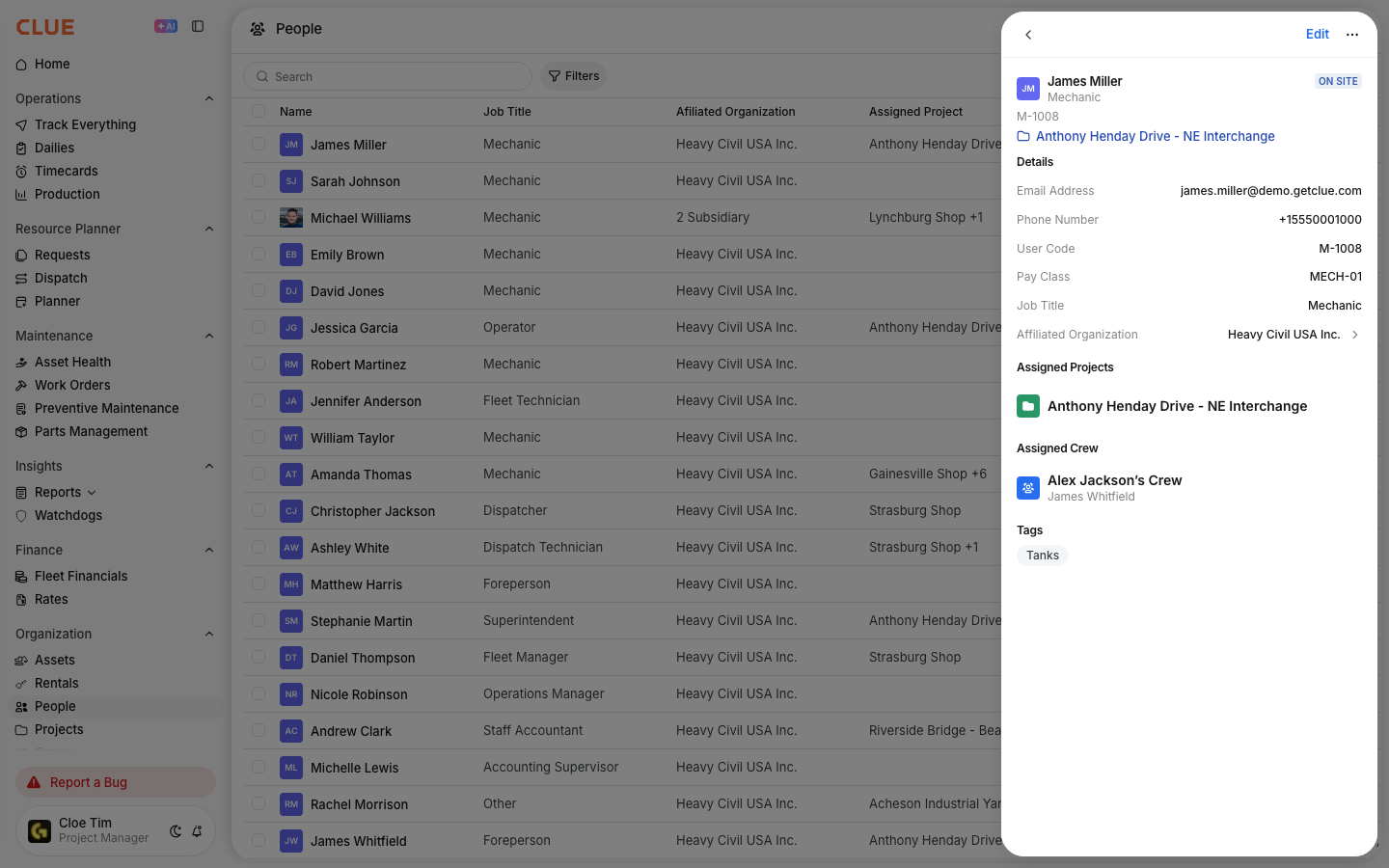
When you open a person’s record, CLUE shows more detail about their recent use. This helps you understand not just whether they were active, but when and where that activity happened.
The detail view can include:
- Last Login - when the user last signed in
- Last Activity - the most recent action recorded
- Device - whether the user was on web or mobile
- Location - if GPS is enabled.
If you also need to see what equipment a person is linked to, this fits naturally with Linking People to Assets. If you need to review where they are assigned, Assigning People to Projects is the better next step.
Use Cases
User activity status is most helpful when you need a quick answer about whether someone is actually using CLUE. It gives supervisors and admins a simple way to check engagement without digging through separate reports.
Common uses include:
- checking whether field workers are using the app
- confirming whether dispatched crews are active
- monitoring system adoption across the team.
Tips
Use activity status as a quick check, not the full story. It is best for seeing recent system use, especially when combined with the user’s role, assignments, and mobile setup.
- Activity status updates in near real time
- Encourage mobile app use if you want better field visibility
- Use it as one signal for remote project check-ins
- If a user is not showing activity, confirm they accepted their invite in Inviting a New Person and completed setup.