First Time Login Guide
This guide will help you log in for the first time and get started with using CLUE via our web interface or mobile apps for the first time.
Accessing CLUE
CLUE can be accessed in several ways. Below we describe these methods.
Web Browser
The first method is by using your web browser. CLUE works best with modern browsers:
- Google Chrome (recommended)
- Safari
- Microsoft Edge
- Mozilla Firefox
Start by going to the URL https://my.getclue.com. This will show you a sign in page if you're not already signed in. If necessary, you can select a different country code by clicking on the flag icon. Then input your phone number which you used when signing up for your CLUE account.

Click on the Sign In button and you'll be directed to the next screen which prompts you to input a six-digit number which our systems sent to your phone via text message.

Input that number and click on the Sign In button. This will complete the sign in process and bring you to the CLUE Dashboard!
Mobile Apps
CLUE offers mobile apps for iOS from the Apple App Store and Android via the Google Play Store. You'll first want to download the app onto your device. Once the app has been downloaded and installed open it and you'll be prompted to Sign In.
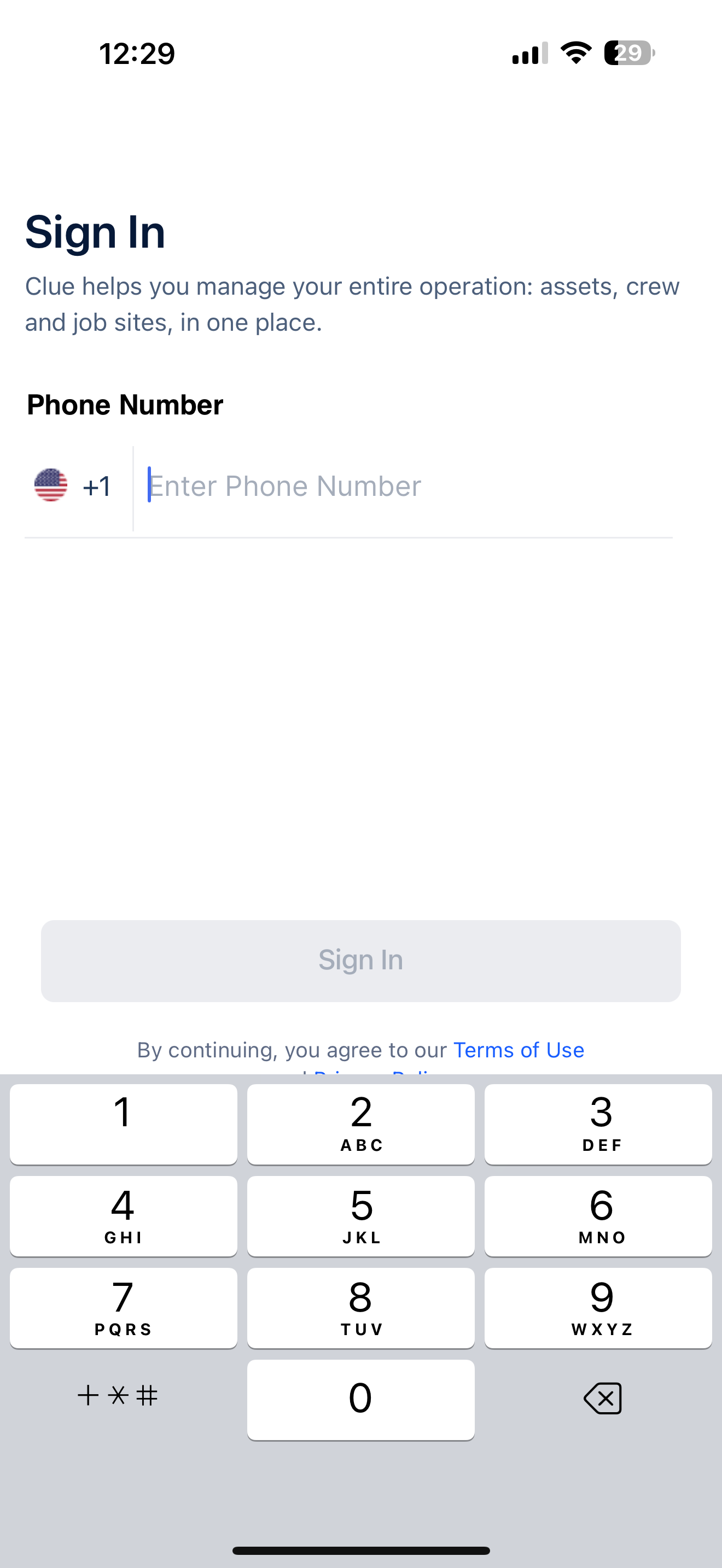
The process is the same for the Android app. Once you input the verification code the login process will complete and you'll see the CLUE Dashboard!
Need Help?
Contact your CLUE company administrator or CLUE support if you have trouble logging in.