Creating a New PM Plan
Creating a PM plan in CLUE helps you schedule regular service before problems turn into breakdowns. A good plan gives your team a clear service schedule and helps keep equipment running longer with fewer surprises.
Overview
PM plans are used to define when service should happen and what work should be included. In CLUE, PM plans can be built around time, engine hours, or mileage, depending on the type of equipment and how it is used.
Understanding PM Plans
A PM plan is the service template your team follows for routine maintenance. It tells CLUE what service is needed, when it is due, and which assets or asset types the plan applies to.
A PM plan usually includes:
- the service being done, such as an oil change, inspection, or filter replacement
- the interval that triggers it, such as days, hours, or miles
- the assets or asset types that should follow the plan
Accessing PM Plans
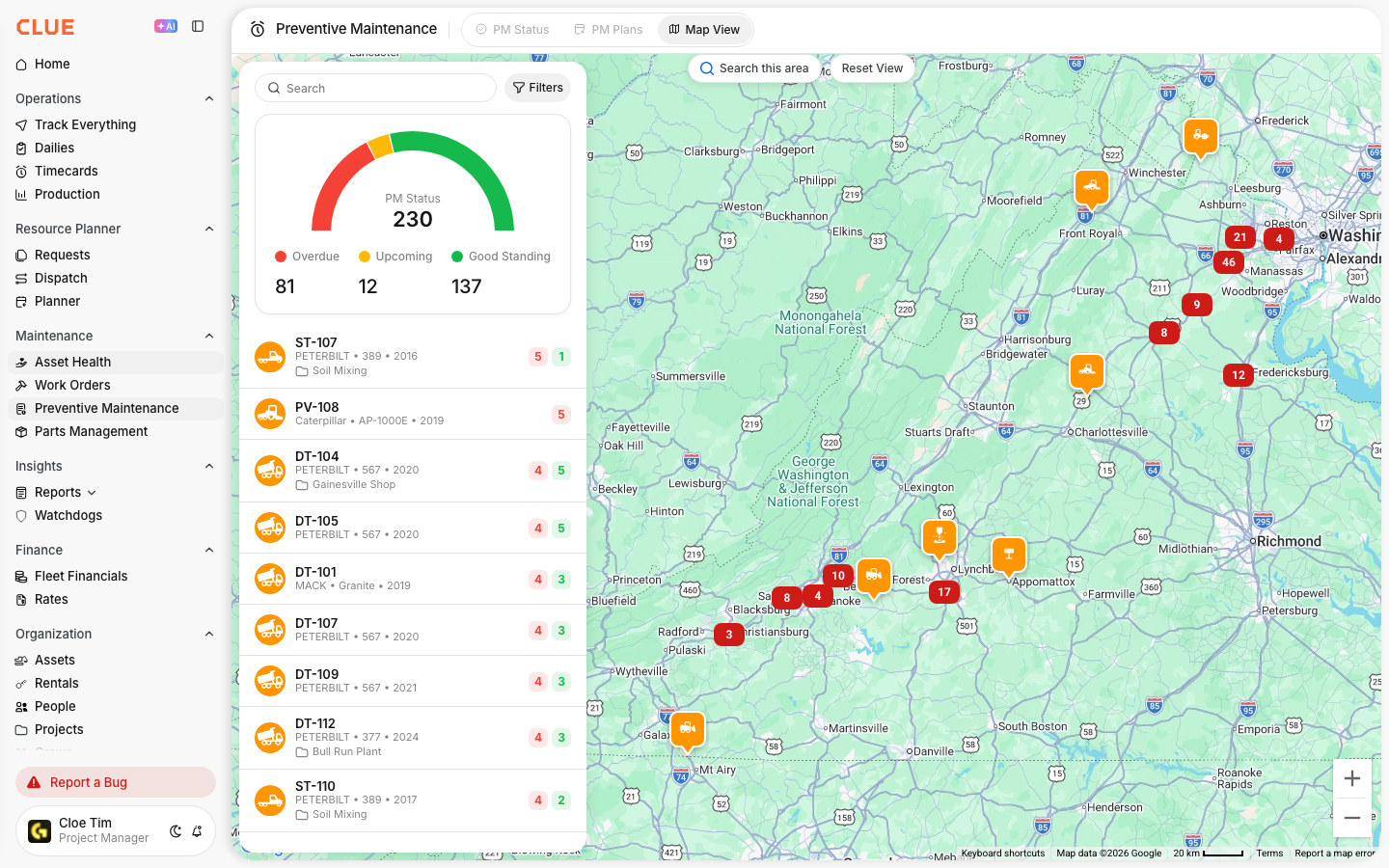
You can create and manage PM plans from the Preventive Maintenance area in CLUE. This is the same section where your team can review PM status and upcoming service activity.

Go to Maintenance > Preventive Maintenance, then open the PM Plans tab. There you can review existing plans or create a new one. If you need a clearer view of how PM Plans differ from the status dashboard, see Understanding PM Status vs PM Plans.
Creating a New PM Plan
Once you are in the PM Plans tab, you can start building the service plan. Keep the plan name clear so your team can tell right away what kind of service it covers.

Click New PM Plan and enter the main details:
- Plan Name - a clear name such as 500 Hour Service
- Description - what is included in the service
- Applies To - the assets or asset types that should use the plan
Setting PM Intervals
The interval tells CLUE when the service should come due. Choose the type that best matches the equipment and the kind of maintenance being scheduled.
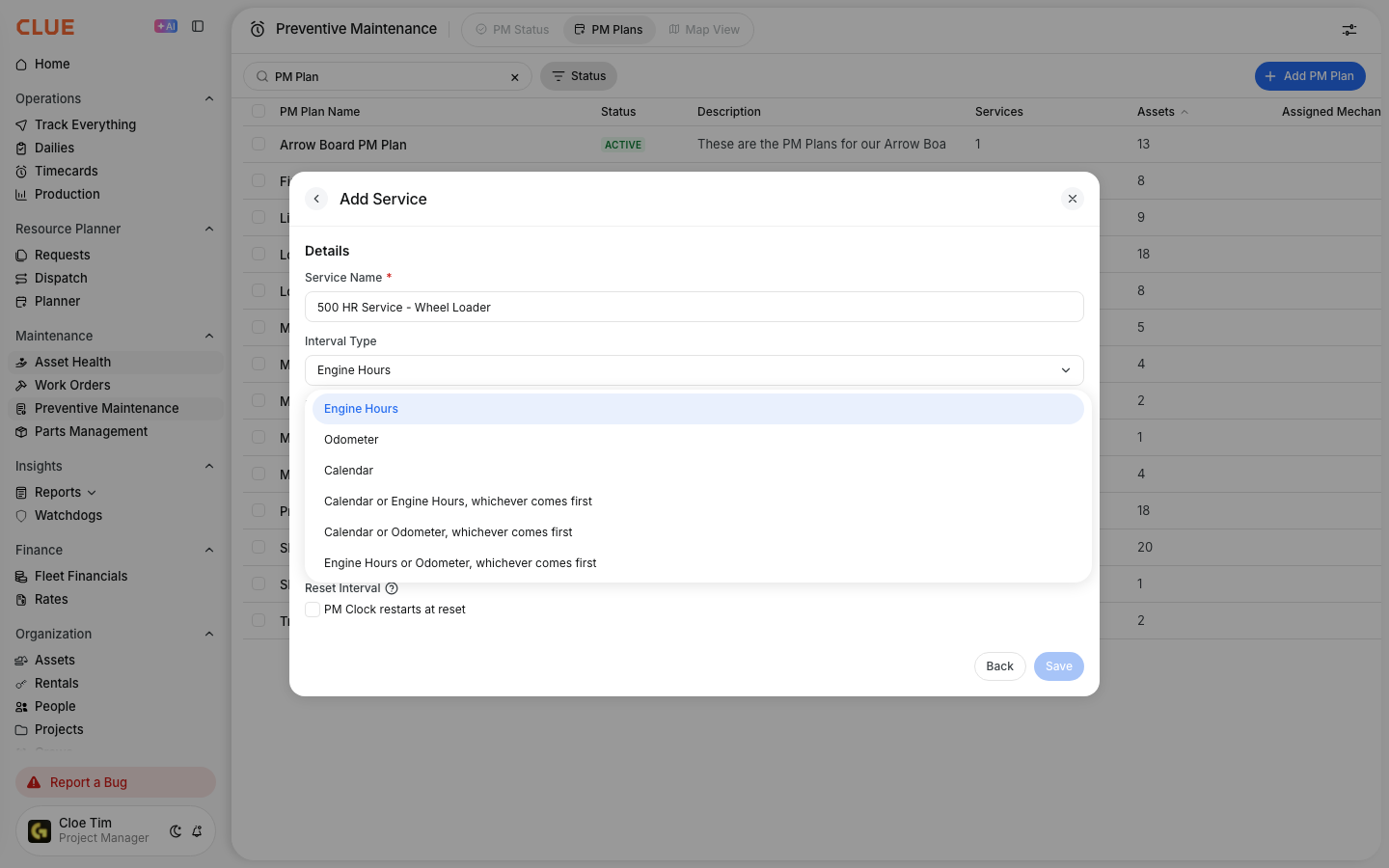
Calendar-Based (Days)
Use a calendar interval when the service needs to happen on a time schedule, even if the asset is not used much.
This works well for inspections, certifications, and other time-based service.
Example: annual safety inspection every 365 days.
Engine Hours
Use engine hours when service should be based on machine usage instead of calendar time.
This is usually the best fit for heavy equipment and engine-driven assets.
Example: oil change every 250 hours.
Odometer (Miles/KM)
Use mileage when the service schedule depends on distance traveled.
This is a better fit for road vehicles and trucks.
Example: tire rotation every 5,000 miles.
If your team needs more help choosing intervals, Setting PM Intervals is the best next page to read.
Adding PM Items
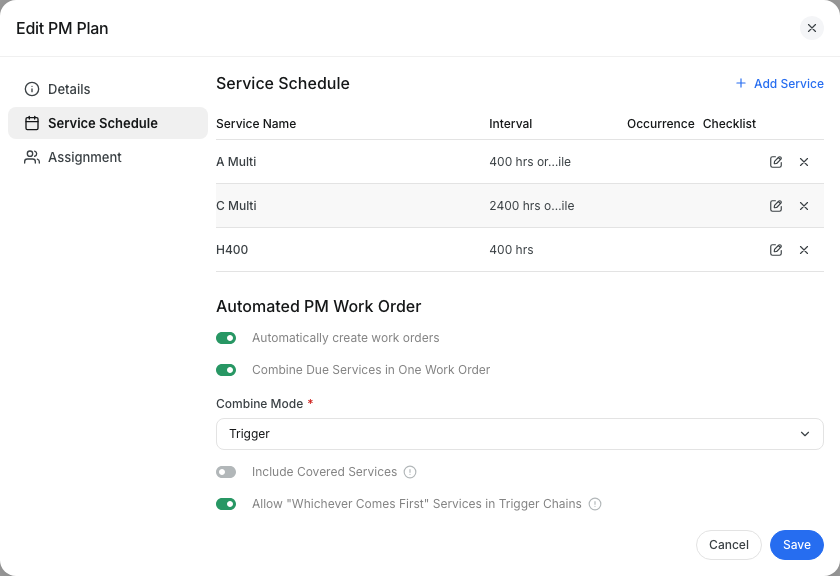
PM items are the actual service tasks inside the plan. A single PM plan can include one task or several, depending on how detailed you want the service to be.
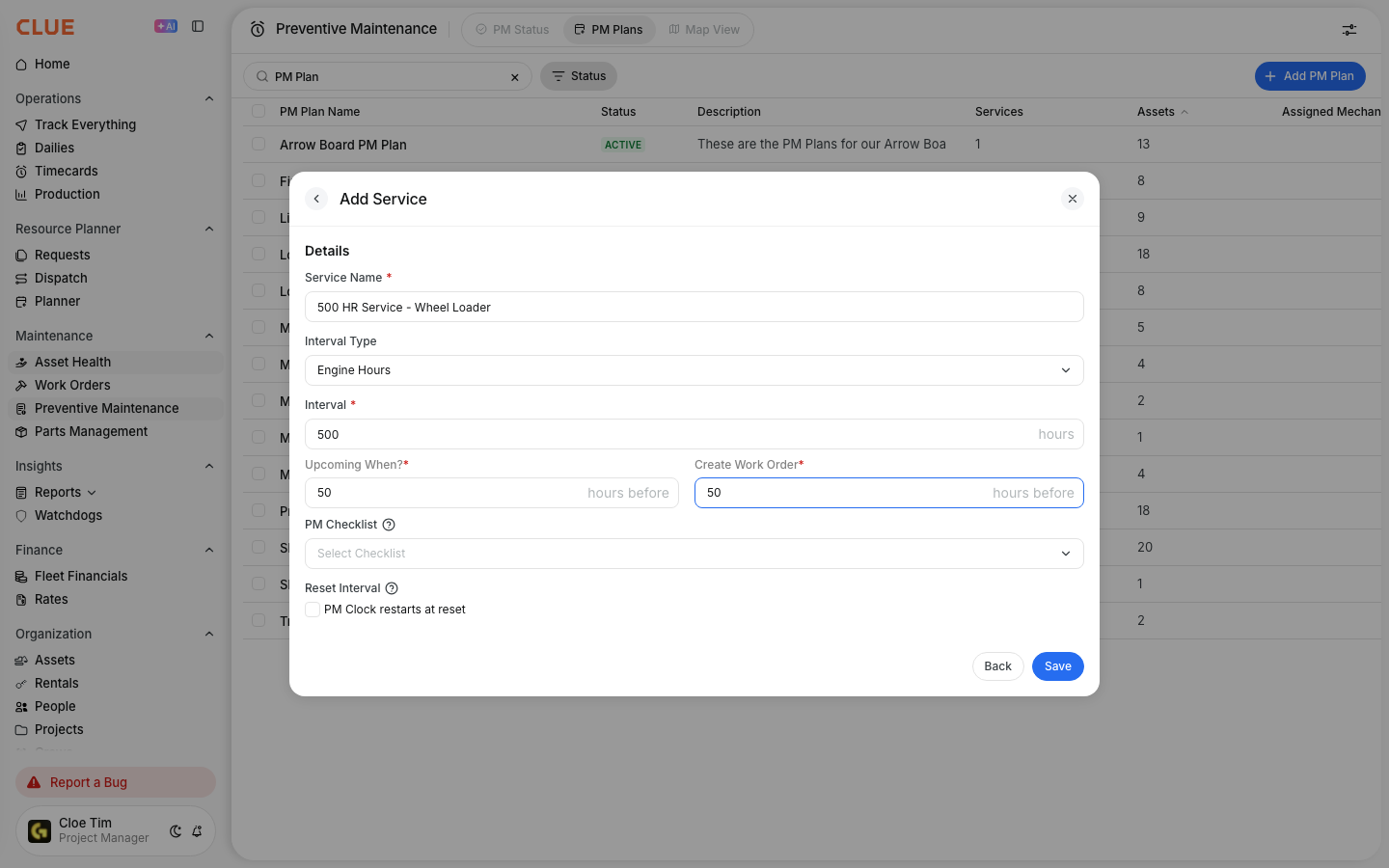
Click Add PM Item and enter:
- Item Name - the task name
- Interval - how often it should happen
- Interval Type - hours, days, or miles
You can add multiple PM items to the same plan when one service includes several checks or replacement tasks.
Assigning Assets to Plans
After the plan is built, assign it to the right equipment so CLUE can start tracking the service schedule. This step connects the plan to the assets that should follow it.
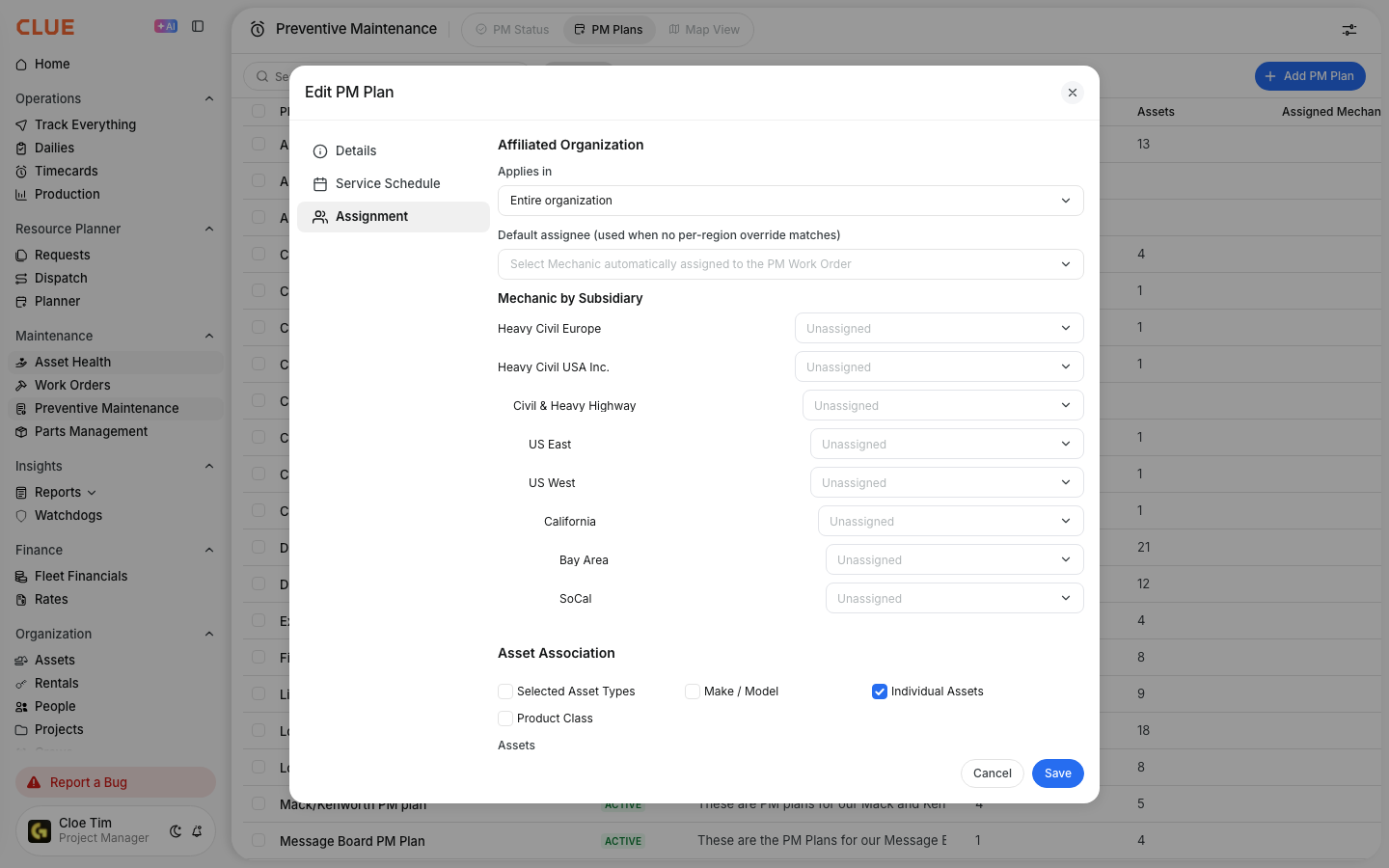
Open the PM plan, go to Assigned Assets, click Add Assets, and choose the equipment to include. Then enter the starting values, such as current hours, current mileage, or the last service date.
Tips
A few simple habits can make PM plans easier to manage and more useful over time. Start with a plan your team will actually maintain, then refine it as you learn more about how the equipment performs.
- Start with manufacturer service recommendations
- Use clear and consistent names for plans
- Begin with major service items, then add more detail later
- Review intervals over time and adjust them based on actual conditions
After the plan is active, Using PM Schedules can help your team track what is upcoming and overdue.