AI Component Suggestions on Work Orders
AI Component Suggestions help you add the right components faster when you create a work order. As you type the work description, CLUE suggests likely matches from your organization’s component library, so you do not have to scroll through a long list by hand.
Overview
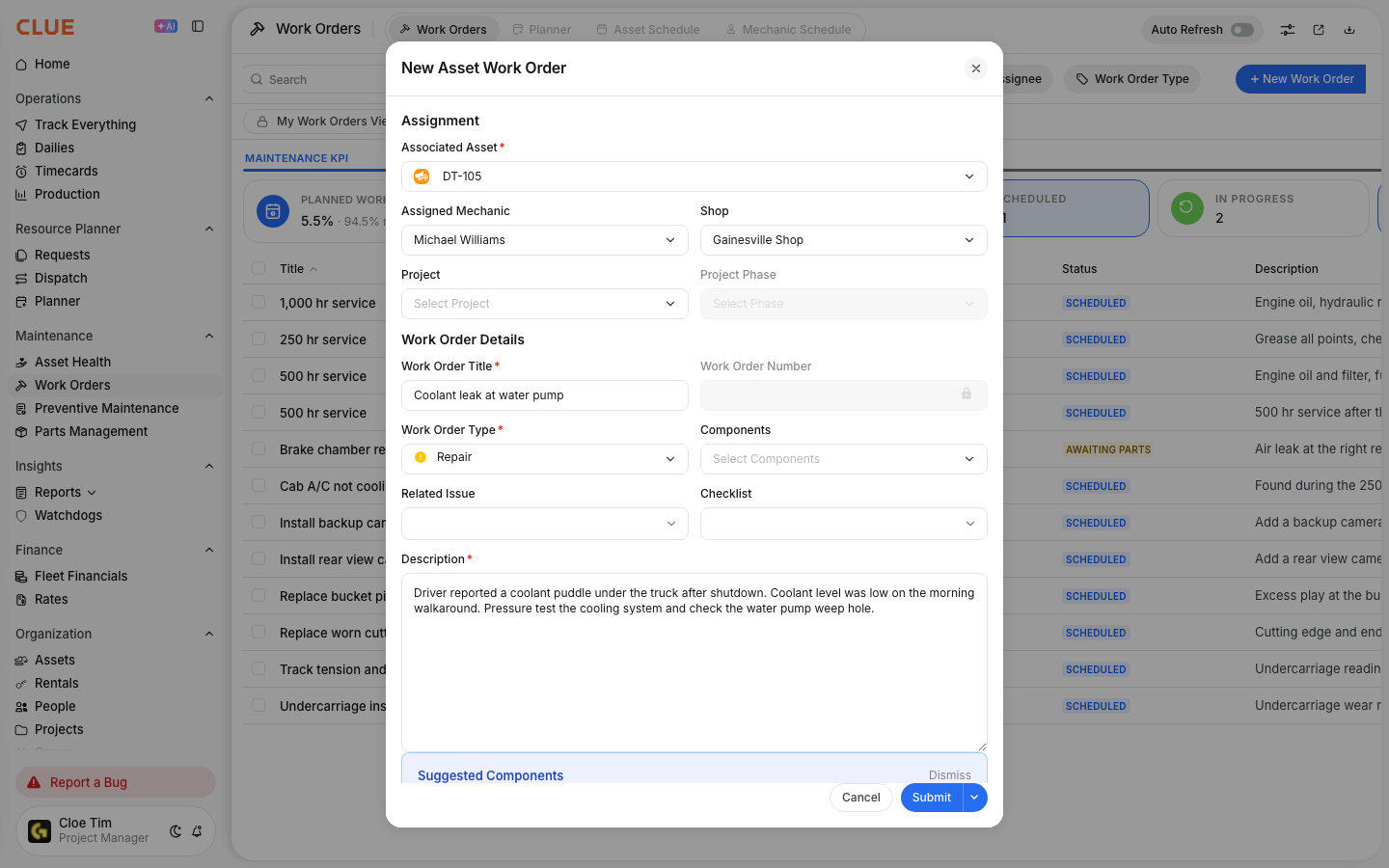
When you create a new work order, CLUE can suggest the components that best match the work you described. The suggestions appear below the description field and are optional, so you can accept them, ignore them, or keep adding components manually. If you are new to the work order flow, this works alongside Creating and Managing Work Orders.
How It Works?
This feature runs in the background while you type. CLUE analyzes the description of the work order and checks it against your organization’s own component library. When it finds a likely match, it shows the suggestion in a banner below the description field. Keeping your component library organized can also make suggestions more useful over time.
Step 1: Create a New Work Order
Start by opening the work order form where the description and component fields are entered.

Go to Maintenance > Work Orders and click New Work Order.
Step 2: Enter a Description
Type a clear description of the work that needs to be done. The more specific the description is, the easier it is for CLUE to suggest useful components.
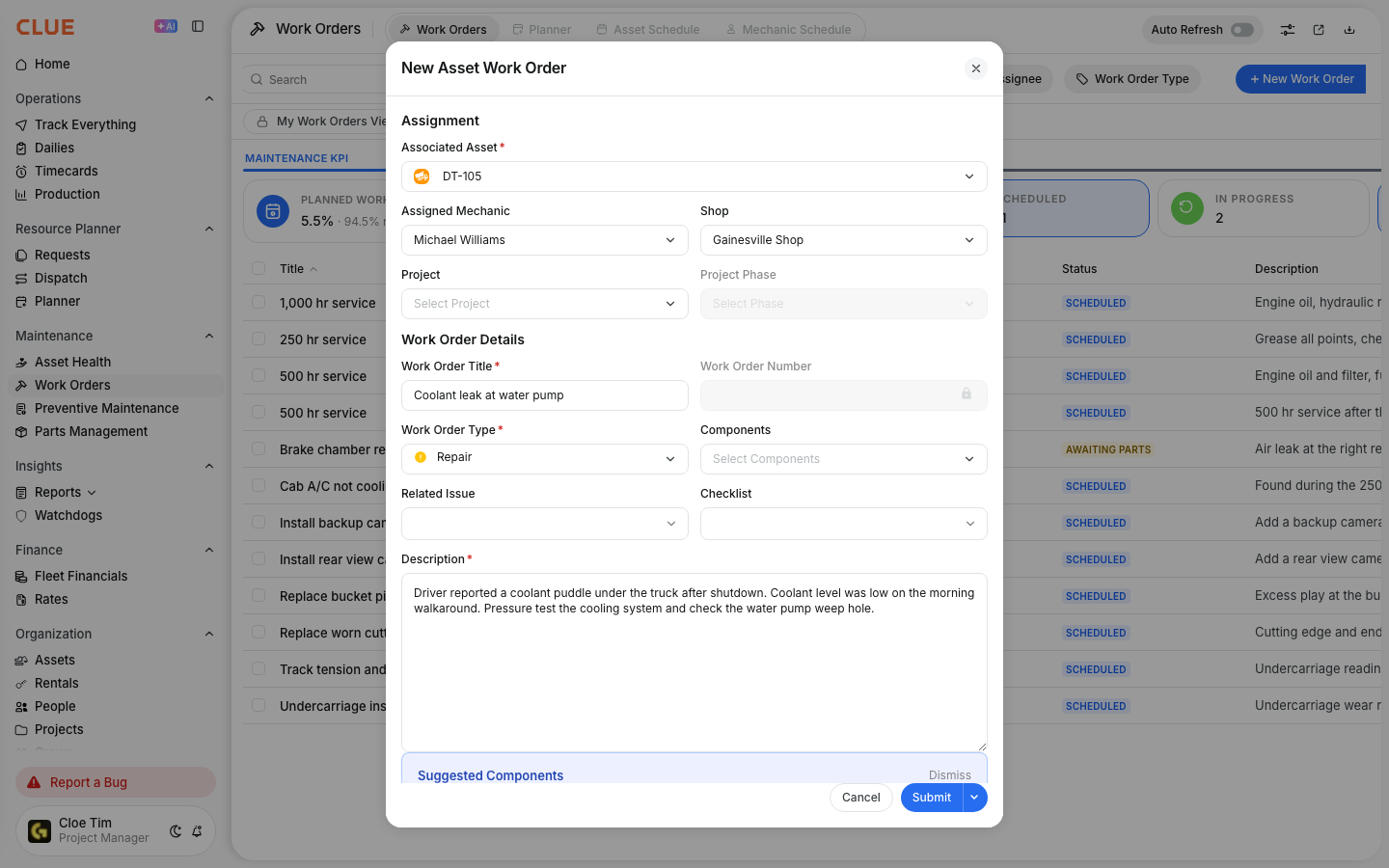
For example, you might enter:
Replace hydraulic pump and check for leaks in the hydraulic system.
After a brief moment, an AI suggestions banner appears below the description field with recommended components.
Step 3: Accept or Dismiss Suggestions
Once suggestions appear, review them and choose what to do next. You can use them right away or continue building the work order manually.
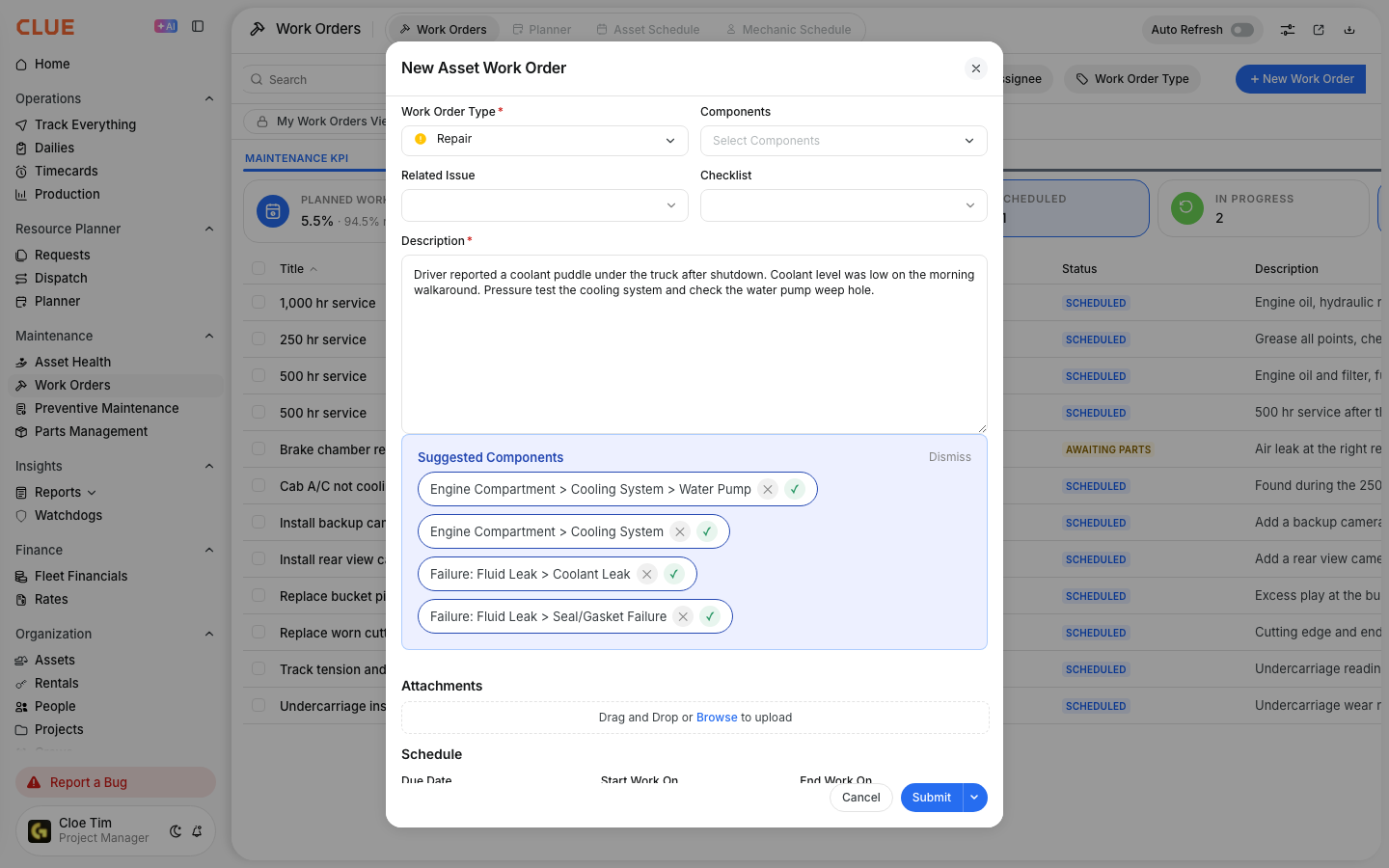
Each suggested component gives you two options:
- Click the checkmark to accept the suggestion and add that component to the work order
- Click the X to dismiss the suggestion
CLUE remembers dismissed suggestions for similar descriptions, so the same unwanted match is less likely to keep showing up.
Tips
A few small habits can make the suggestions more useful and help your team get better results without changing the normal work order process.
- Be specific in the work description
- Use normal equipment and component names your team already uses
- Keep your component library clean and consistent
- Remember that you can still add components manually at any time
FAQs
These are the most common questions teams have when they first start using AI component suggestions.
Do I have to use AI suggestions?
No. Suggestions are optional. You can ignore them and continue selecting components manually.
What if a suggestion is wrong?
Click the X to dismiss it. CLUE uses that feedback so the same type of suggestion is less likely to appear again for similar descriptions.
Will this slow down work order creation?
No. Suggestions load in the background while you continue filling out the form, and they usually appear within a second or two after you start typing.