Warranty and Certificate Tracking
What is this?
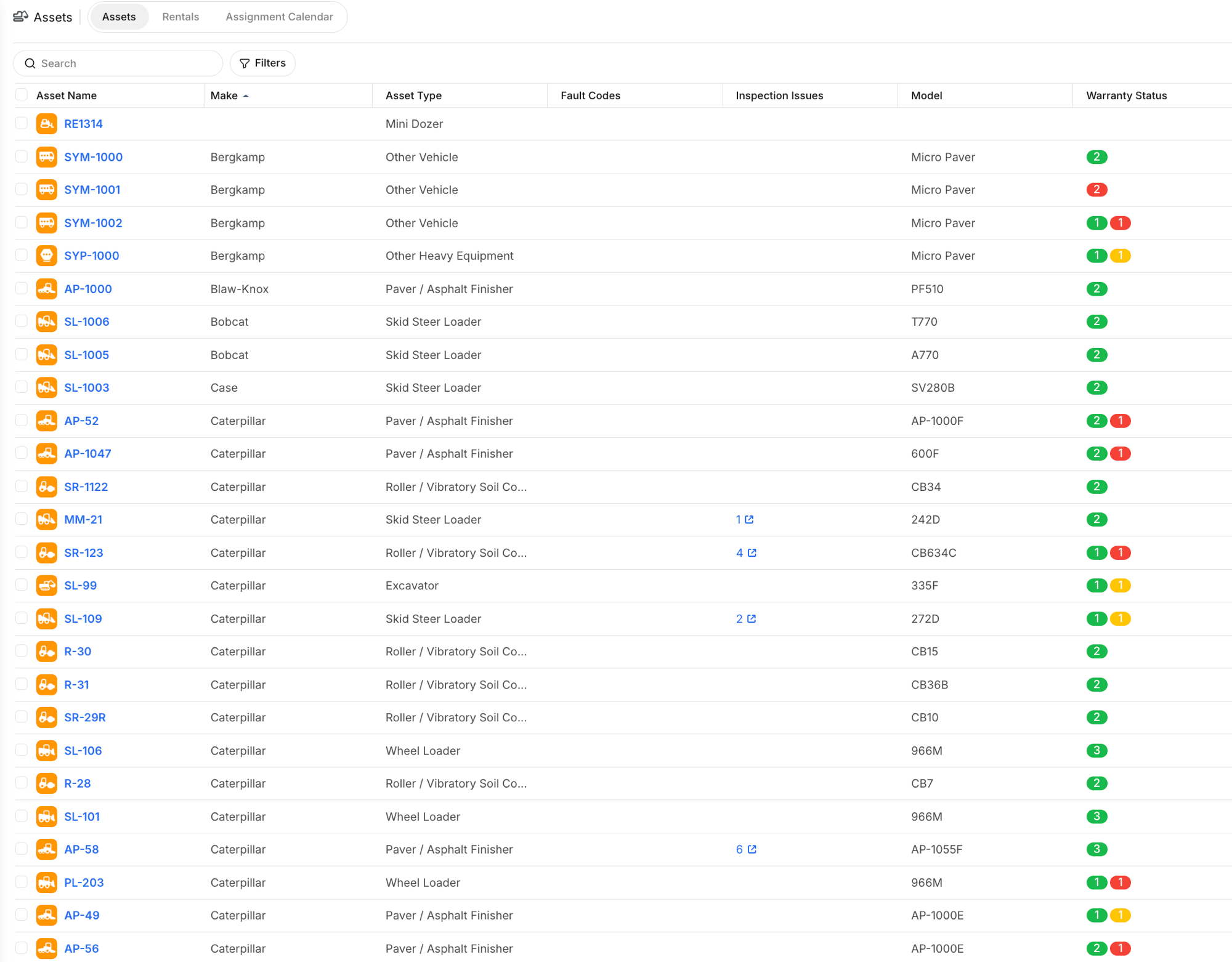
Every asset can carry warranties and certificates. Clue tracks them by date, engine hours, or odometer. The asset directory shows warranty status at a glance with color-coded badges, and the mobile app shows an "Under Warranty" banner so mechanics know before they start work.
Who is this for?
- Equipment Managers – Track warranty coverage across your fleet. Get notified before warranties expire.
- Shop Foremen – See warranty status on work orders before approving repair costs.
- Mechanics – Check warranty on the mobile app before adding parts or labor.
How to use it
Step 1: Check warranty status in the asset list
Go to Assets. The Warranty Status column shows colored badges. Hover over a badge to see the warranty name and whether it is active or expired.
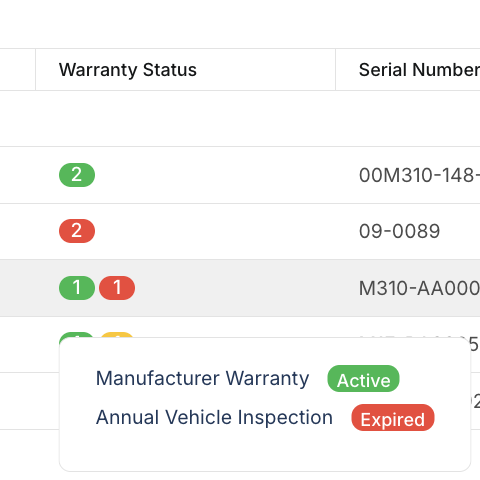
Green means active. Red means expired. The number tells you how many warranties or certificates are on that asset.
Step 2: View warranty details
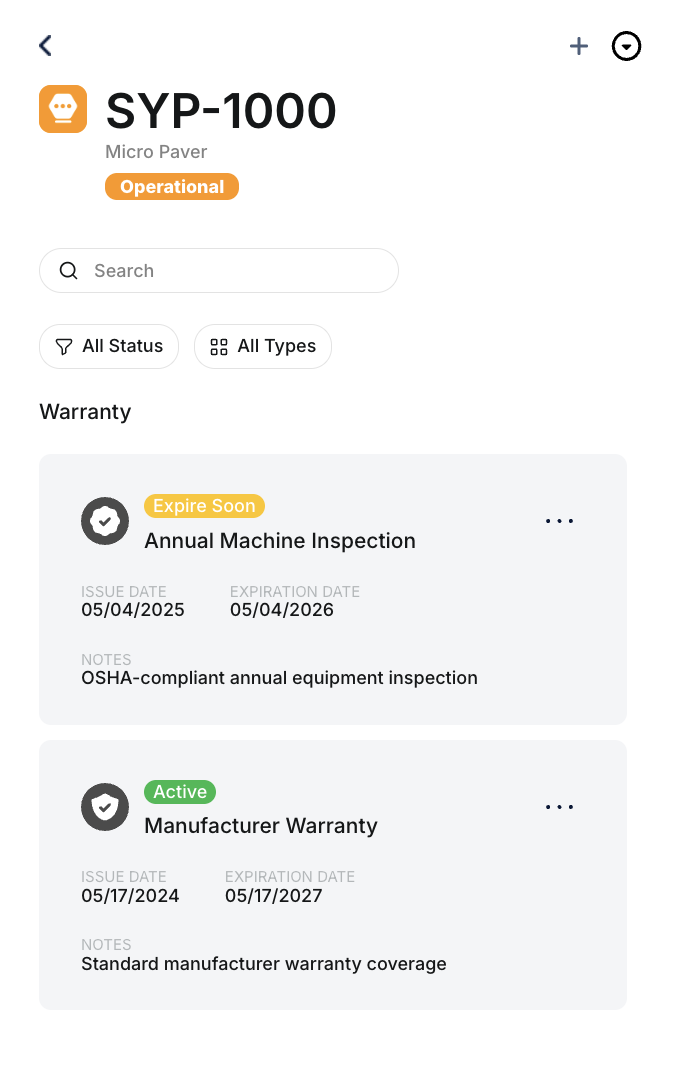
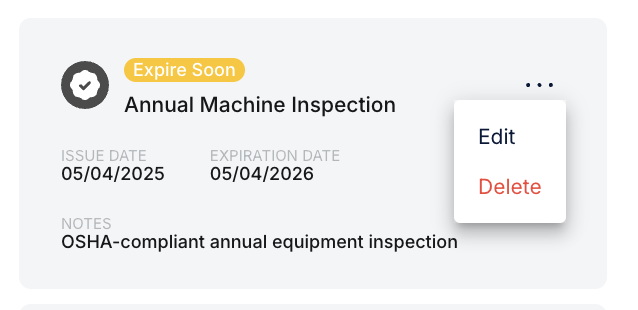
Open an asset and scroll to the Warranty section. Each card shows the title, status badge (Active, Expire Soon, Expired), issue date, expiration date, and notes.
Step 3: Add a warranty or certificate
Click the + button. Choose Warranty or Certificate. Fill in the title, vendor, issue date, and expiration method.
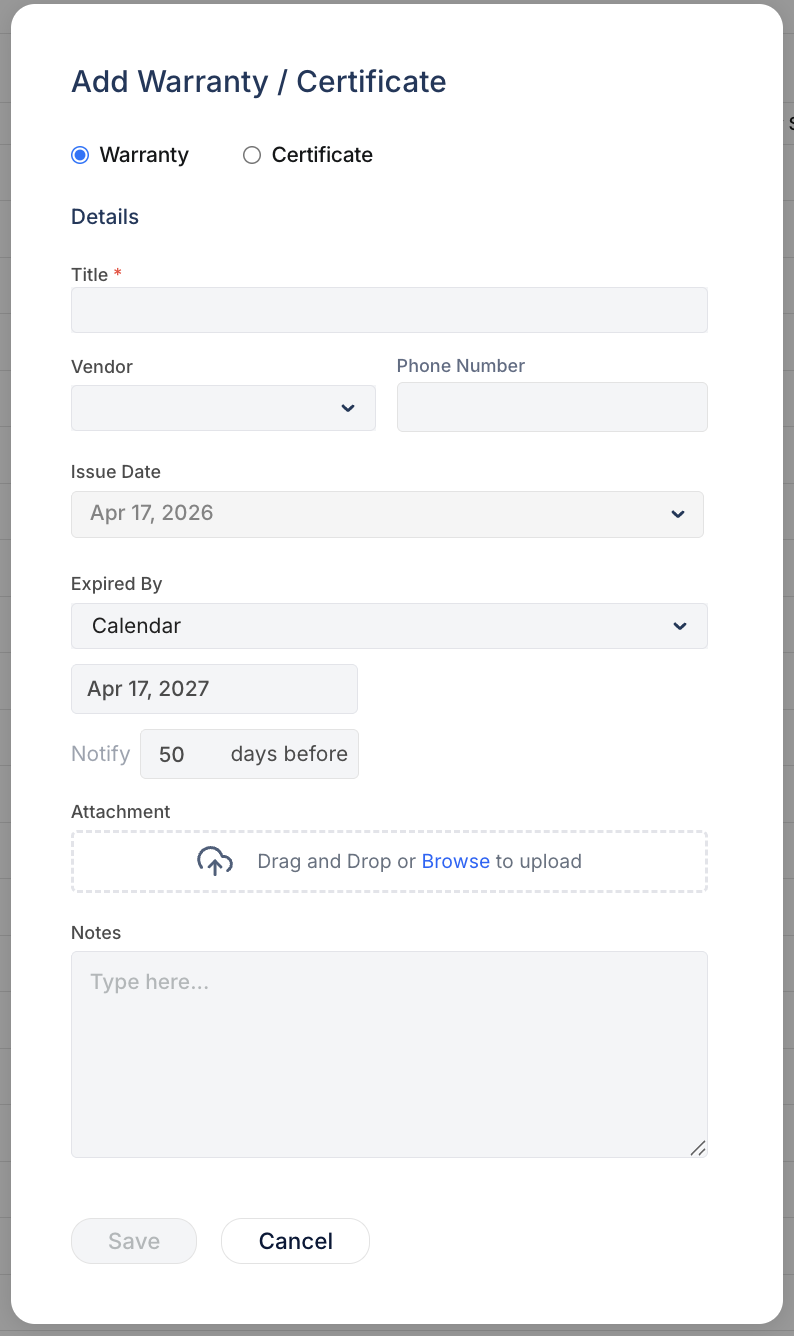
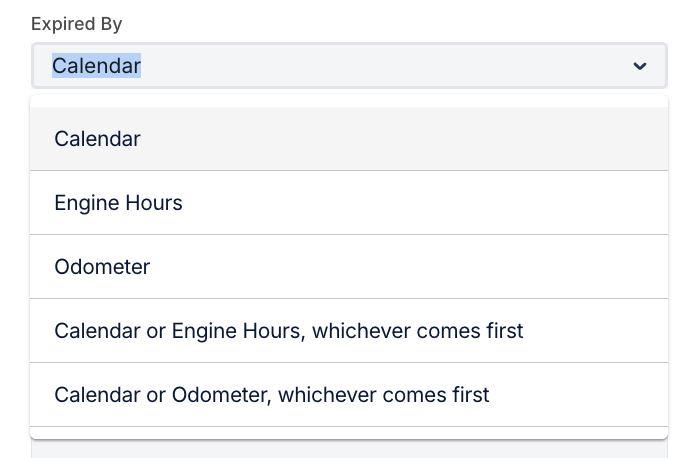
The Expired By dropdown controls how expiration is tracked.
Set the Notify field to get an alert before expiry. Attach documents like warranty certificates or inspection reports.
Step 4: Edit or delete
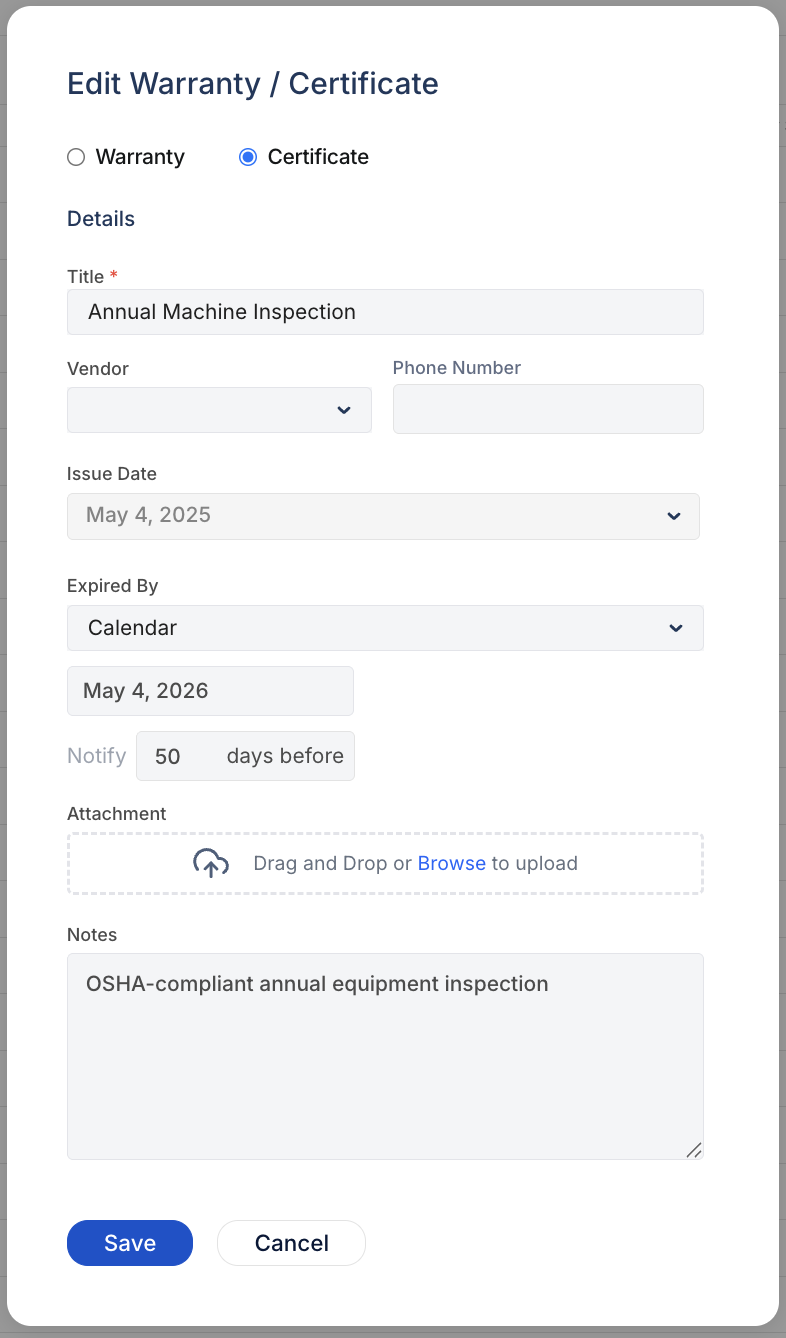
Click the ... menu on any warranty card to edit or delete it.
Step 5: Warranty on work orders
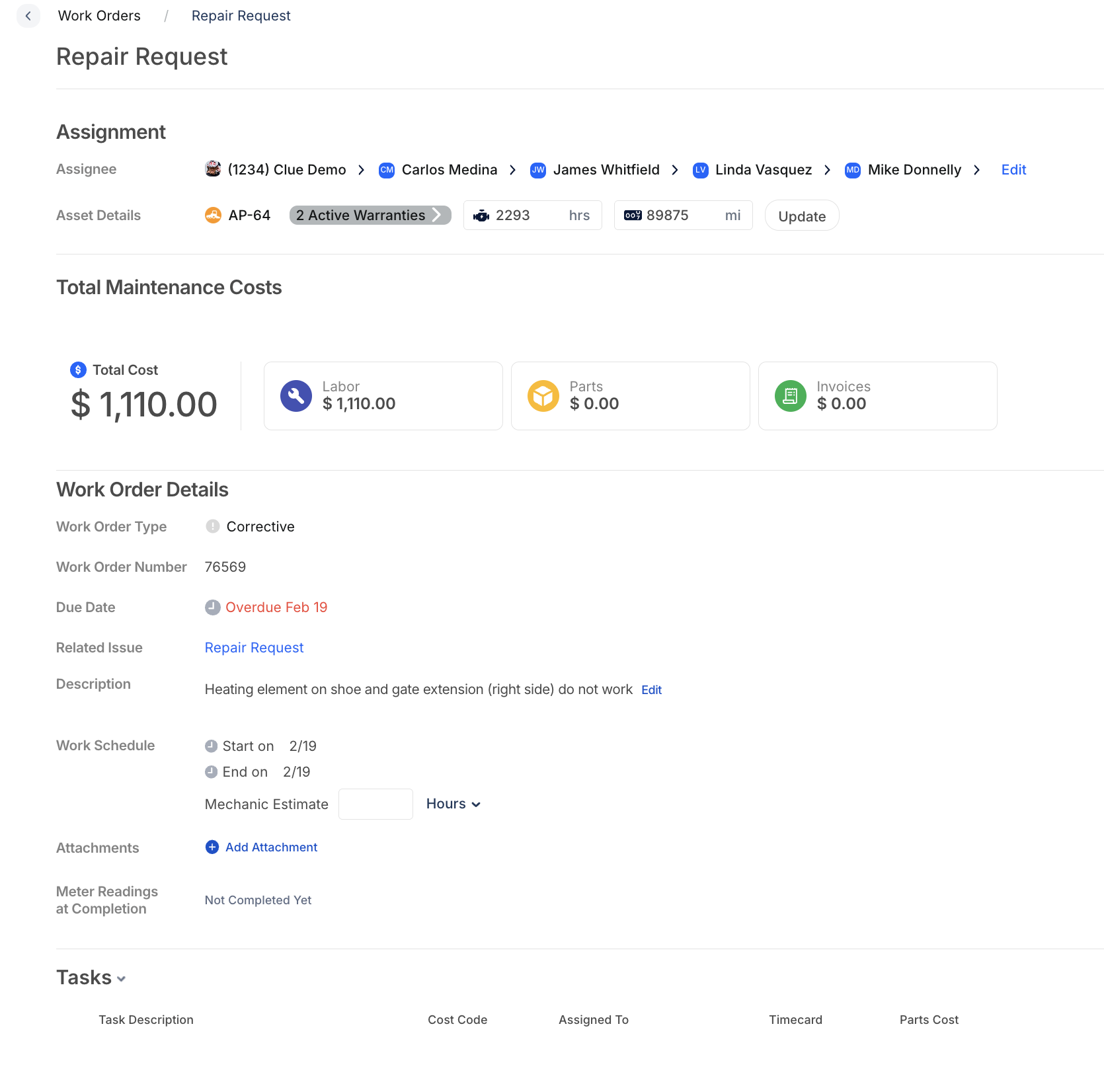
When a work order is linked to an asset with active warranties, a blue "Active Warranties" badge appears in the asset details. This reminds the foreman to check coverage before approving costs.
Step 6: Warranty on mobile
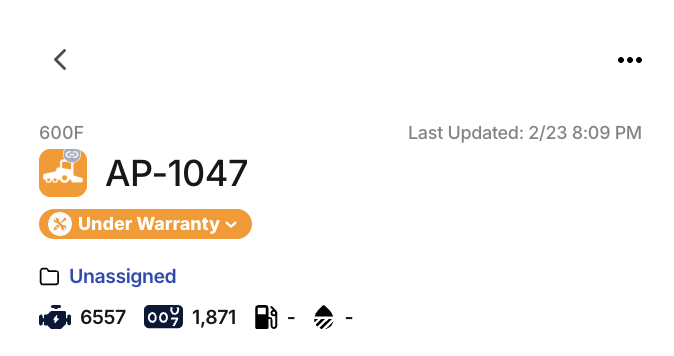
On the mobile app, assets under warranty show an "Under Warranty" banner at the top of the detail screen.
The full details
- Works on: Web app and mobile app
- Location: Assets > [asset] > Warranty section
- Expiration types: Calendar, Engine Hours, Odometer, Calendar or Engine Hours (first to hit), Calendar or Odometer (first to hit)
- Status badges: Active (green), Expire Soon (yellow), Expired (red)
- Notification: Configurable days/hours/miles before expiration
- Certificates: Same form as warranties. Use for inspections, compliance, etc.
- WO integration: Active warranty count badge on work orders
Tips
- Set notifications at 50+ days. Gives time to renew or plan around gaps.
- Use certificates for annual inspections. Track OSHA, DOT, or state inspections alongside OEM warranties.
- Check the badge before approving repairs. If an asset is under warranty, the vendor may cover the cost.