Using Search and Filters
Mastering CLUE's search and filter capabilities to quickly find assets, work orders, people, and more will save you time and help you focus on what matters.
Searching
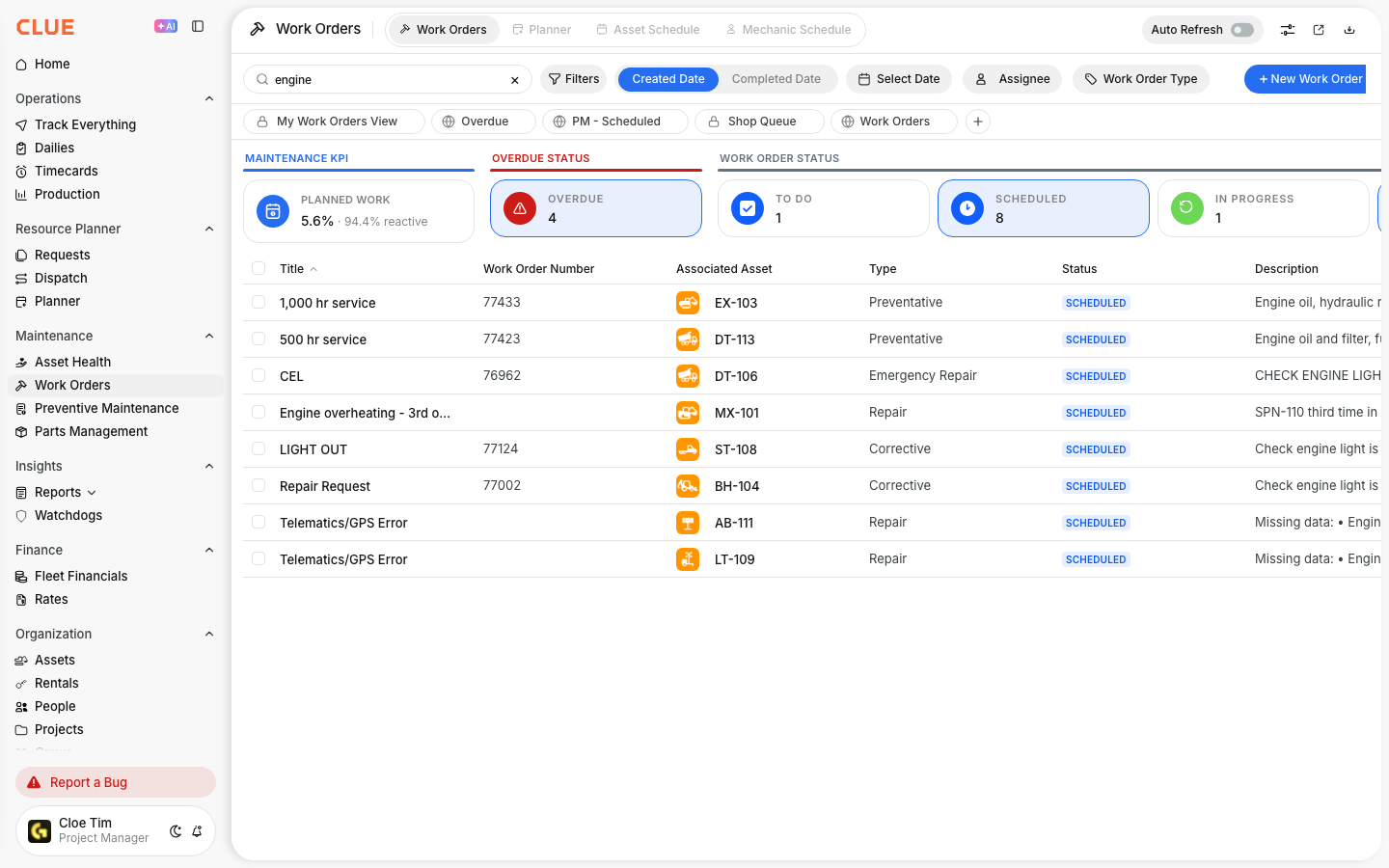
The search bar at the top of most screens lets you quickly find items:
- Click in the search bar and type your search term (asset name, serial number, person name, etc...)
- Results appear instantly below as you type
- Click on a result to navigate directly to that item
Using Filter Chips
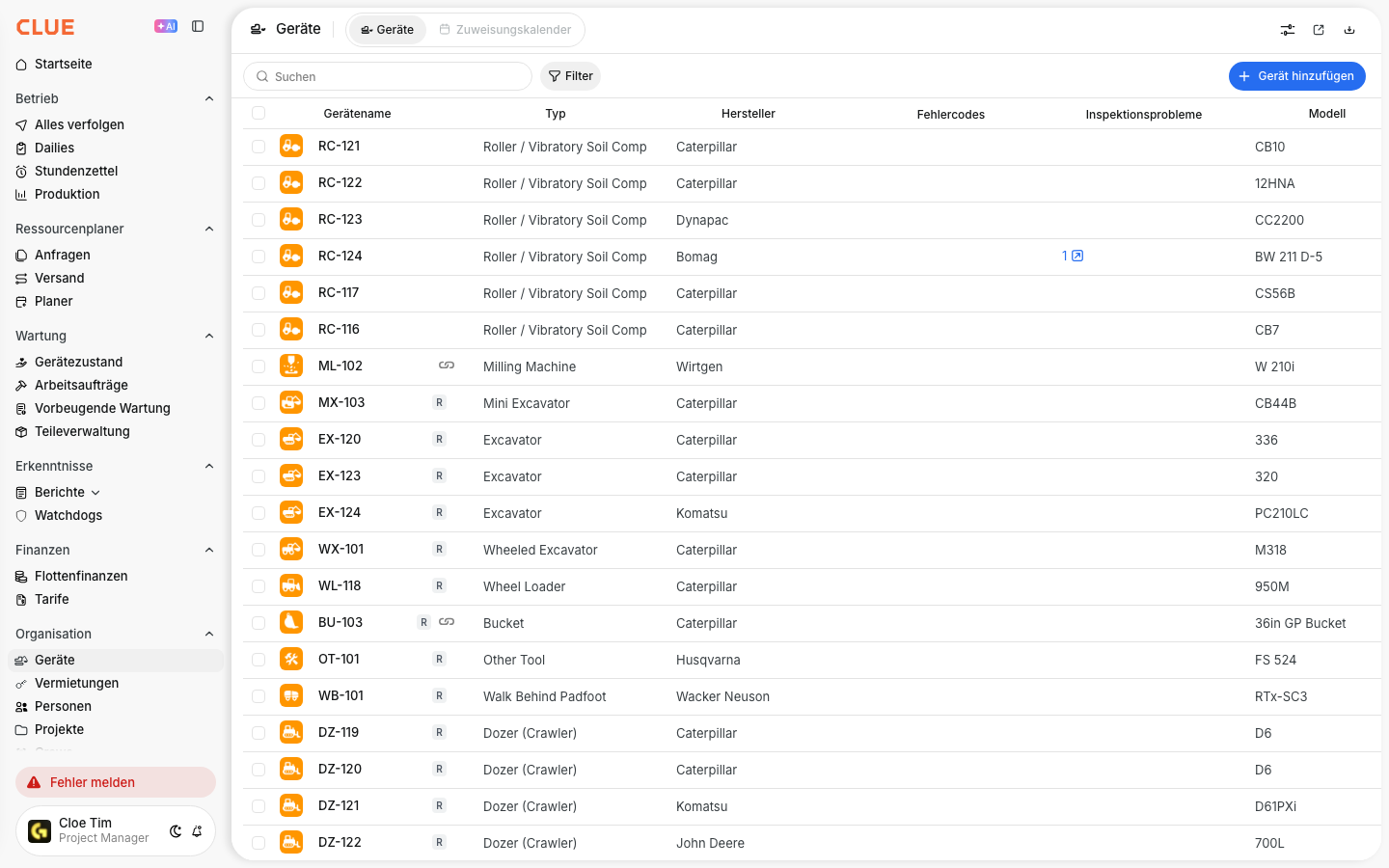
Filter chips appear to the right of the search field and at the top of list views. They provide a quick way to filter and display the information you're looking for:
- Quick Filters - We provide several pre-configured filtering options such as Status, Assignee, Date and Type. These pre-configured filters can change depending on which page you're viewing.
- Click to expand - Click on a chip to see the available options that you filter with.
- Multi-select - Sometimes chips will allow you to select multiple options. This can greatly help narrow down the results!

Common Filter Types
Status Filters
Filter by item status (Active, Inactive, In Progress, Completed, etc...)

Date Range Filters
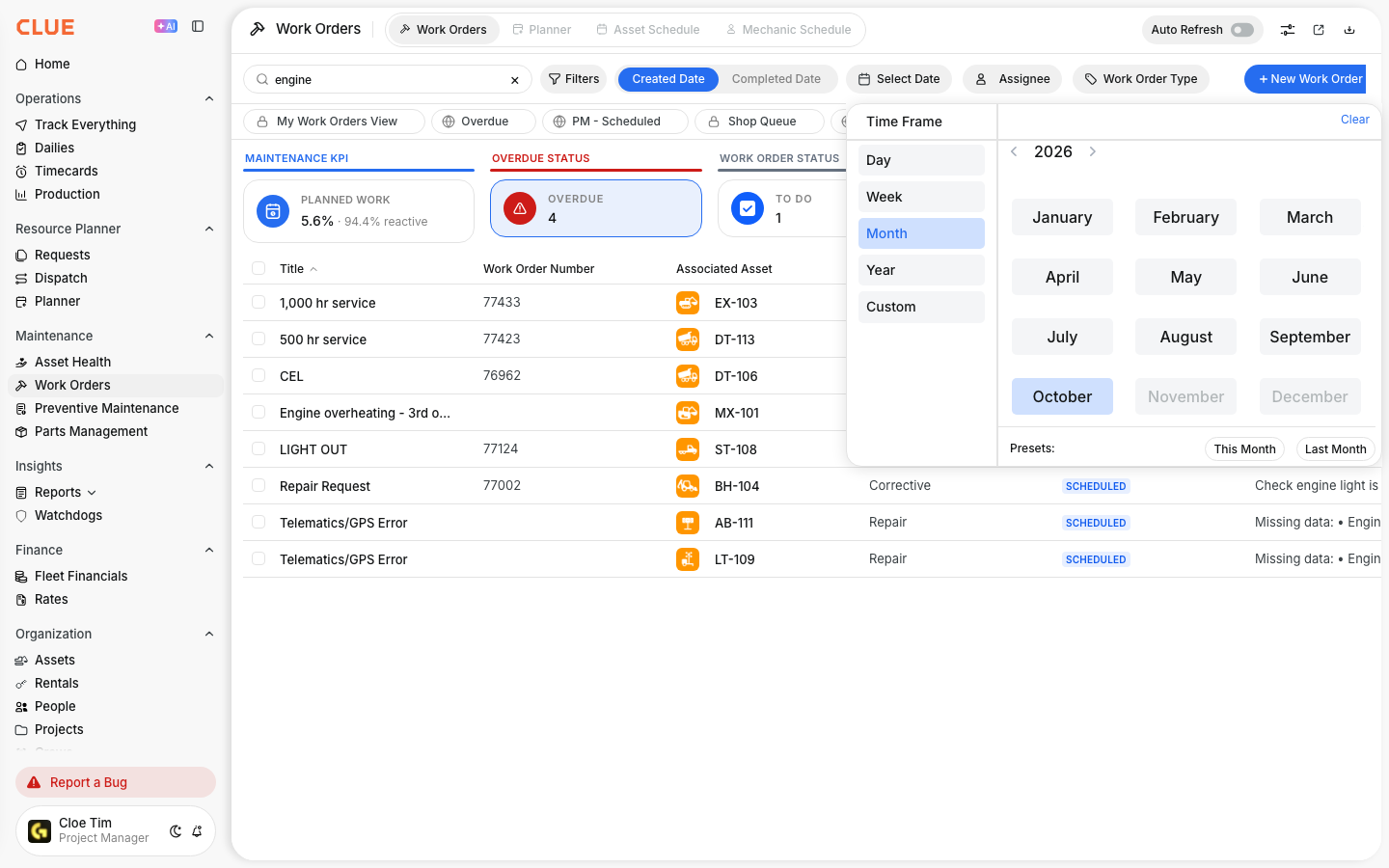
Filter by date using preset ranges (Today, This Week, Last 30 Days) or select your own custom dates.
Assignment Filters
Filter by the person that items are assigned to (Assignee, Project, Division).

Type Filters
Filter by the type of item (Asset Type, Work Order Type, etc.).
Combining Filters
You can apply multiple filters to narrow down results:
- Apply your first filter (e.g., Status = "In Progress").
- Add additional filters (e.g., Assignee = "John Smith").
- Results update automatically to match ALL the criteria you've selected.
Clearing All Filters
To start fresh:
- Click Clear All or Reset Filters button.
- You can also remove filters one by one.
Tips
- If you don't know the exact name of the item you're looking for, you can use partial text in search. For example CAT 320 will return any items that match those words such as CAT 320D Excavator.
- We recommend applying filters first, and then search within filtered results for best performance and results.
- Note which filters you use frequently - consider bookmarking filtered views
- Searching works across multiple fields (name, serial number, description, etc...)