The Dispatch Board helps your team assign equipment and people to projects and keep track of what is happening in the field. It gives dispatchers one place to plan work, review requests, and adjust assignments as schedules change.
Dispatch and Resource Planning
Use Dispatch when you need to see where assets and people are assigned, move resources between projects, or review incoming equipment requests. If you want to focus only on crew assignments later, Dispatching People to Projects is the best next article to open.
Accessing Dispatch
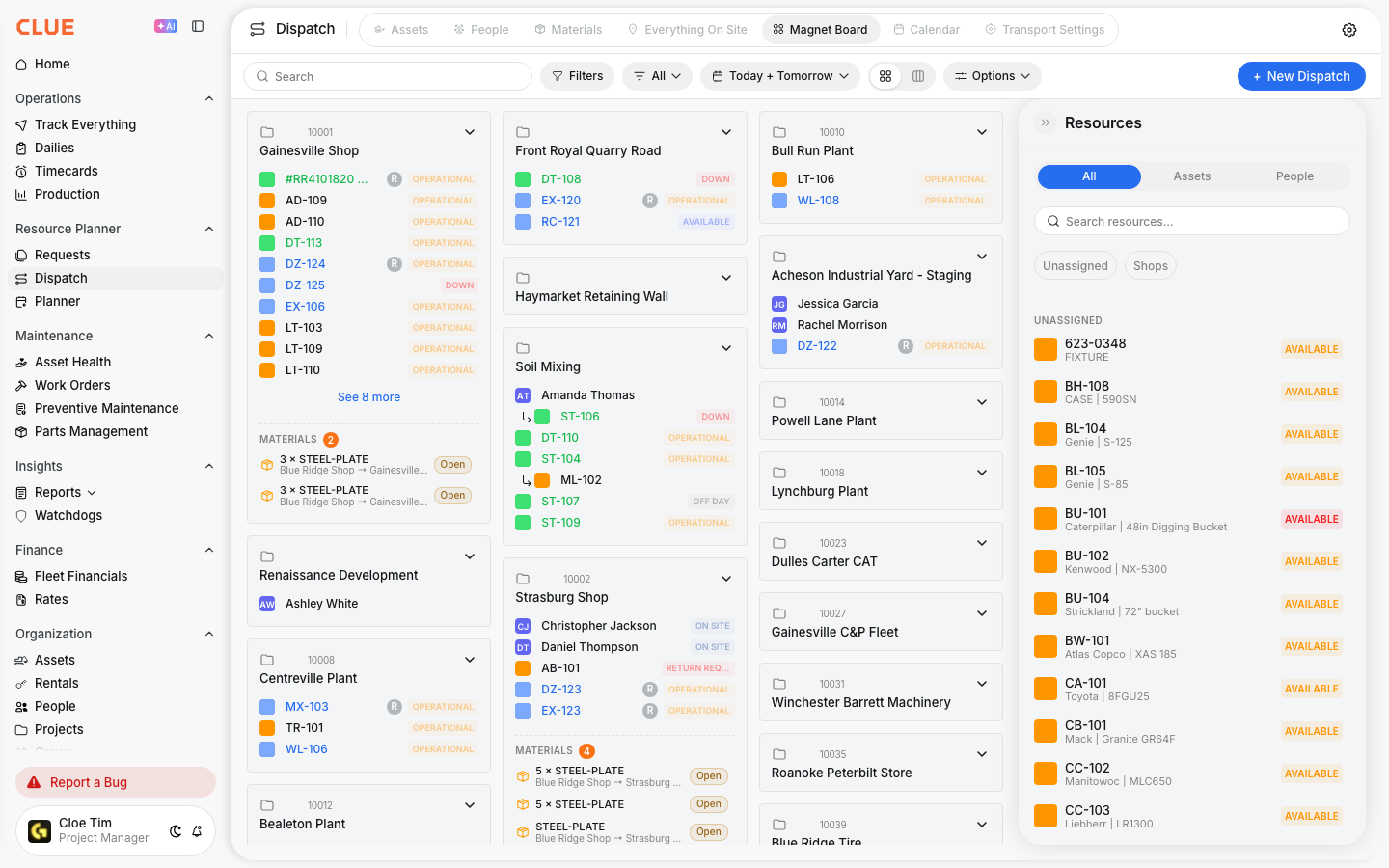
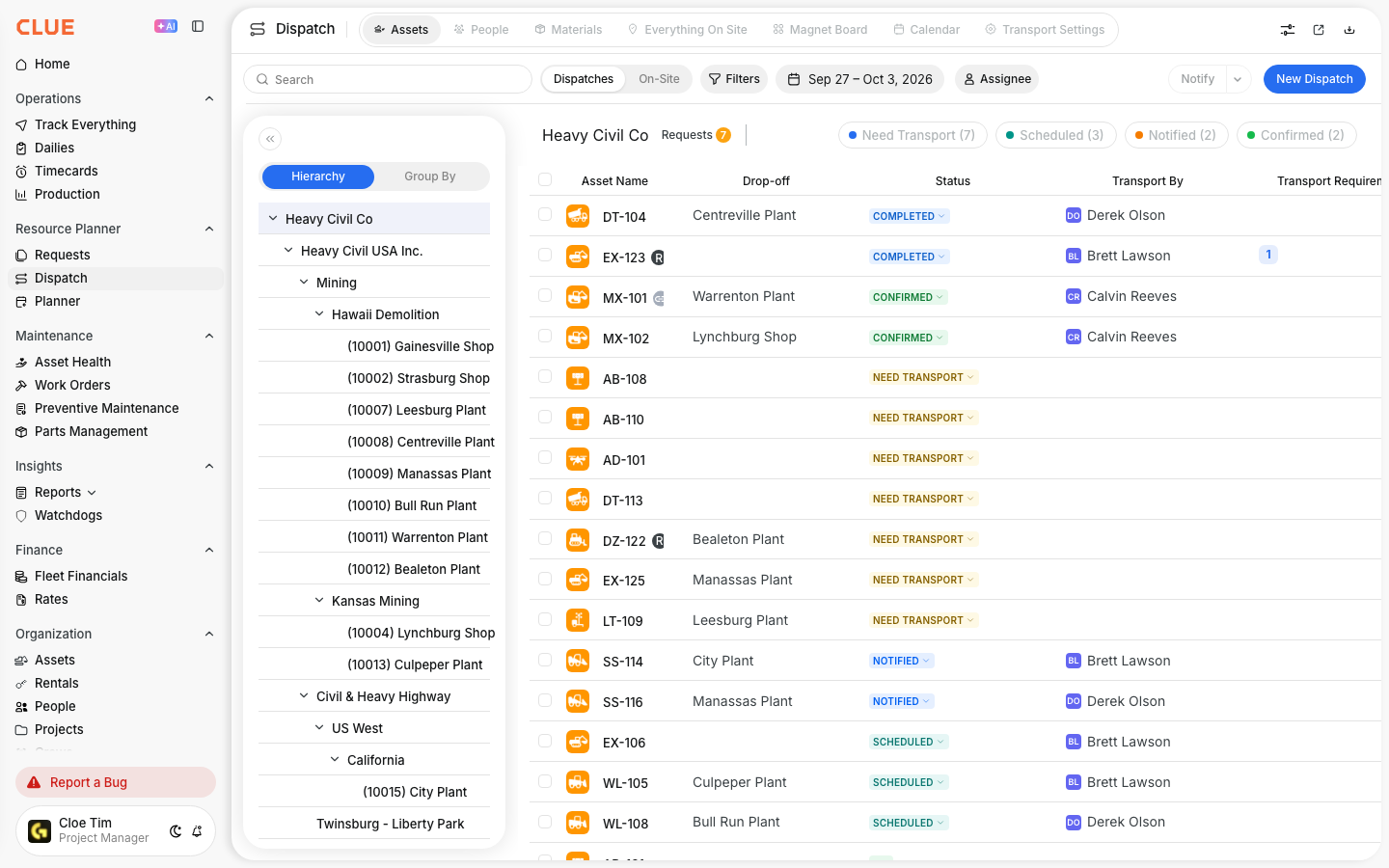
Open Dispatch from the main navigation, then use the board to switch between resources and views.
- Go to Resource Planner > Dispatch from the main menu.
Understanding the Tabs
The Dispatch Board is split into tabs so you can focus on the type of resource or request you want to manage. Start in the tab that matches the work you are planning.
- Assets - view and assign equipment to projects
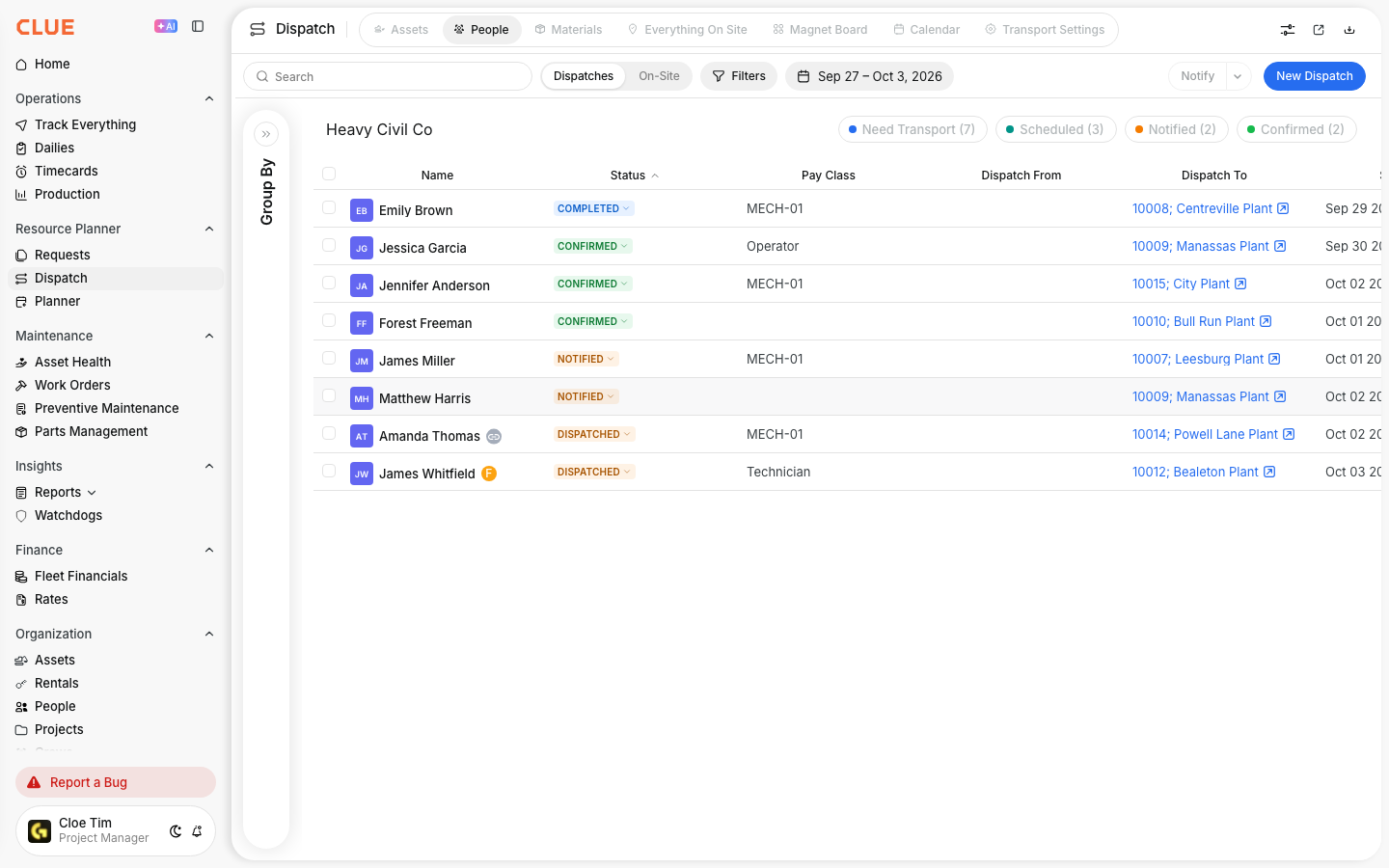
- People - view and assign crew members
- Material - track parts and material requests.
If you are working on labor planning, the People tab fits naturally with Dispatching People to Projects. If the field team still needs equipment assigned, go to Creating Equipment Requests from there.

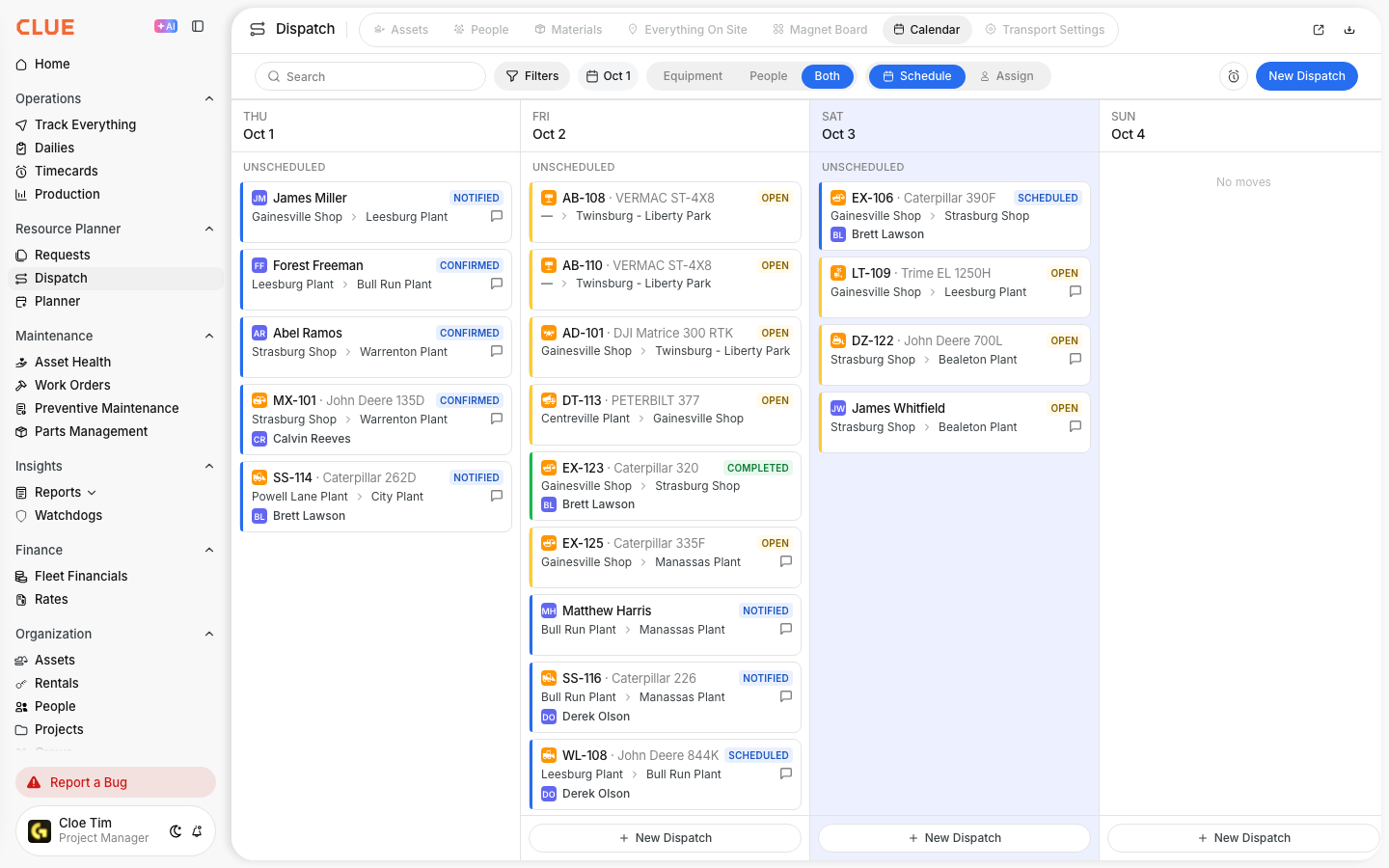
Viewing the Schedule
The Schedule view shows assignments on a timeline so you can see what is already booked and where there may be gaps or overlap. This is useful when you are looking at the week ahead and need a quick calendar view instead of a list.
Using the Planner
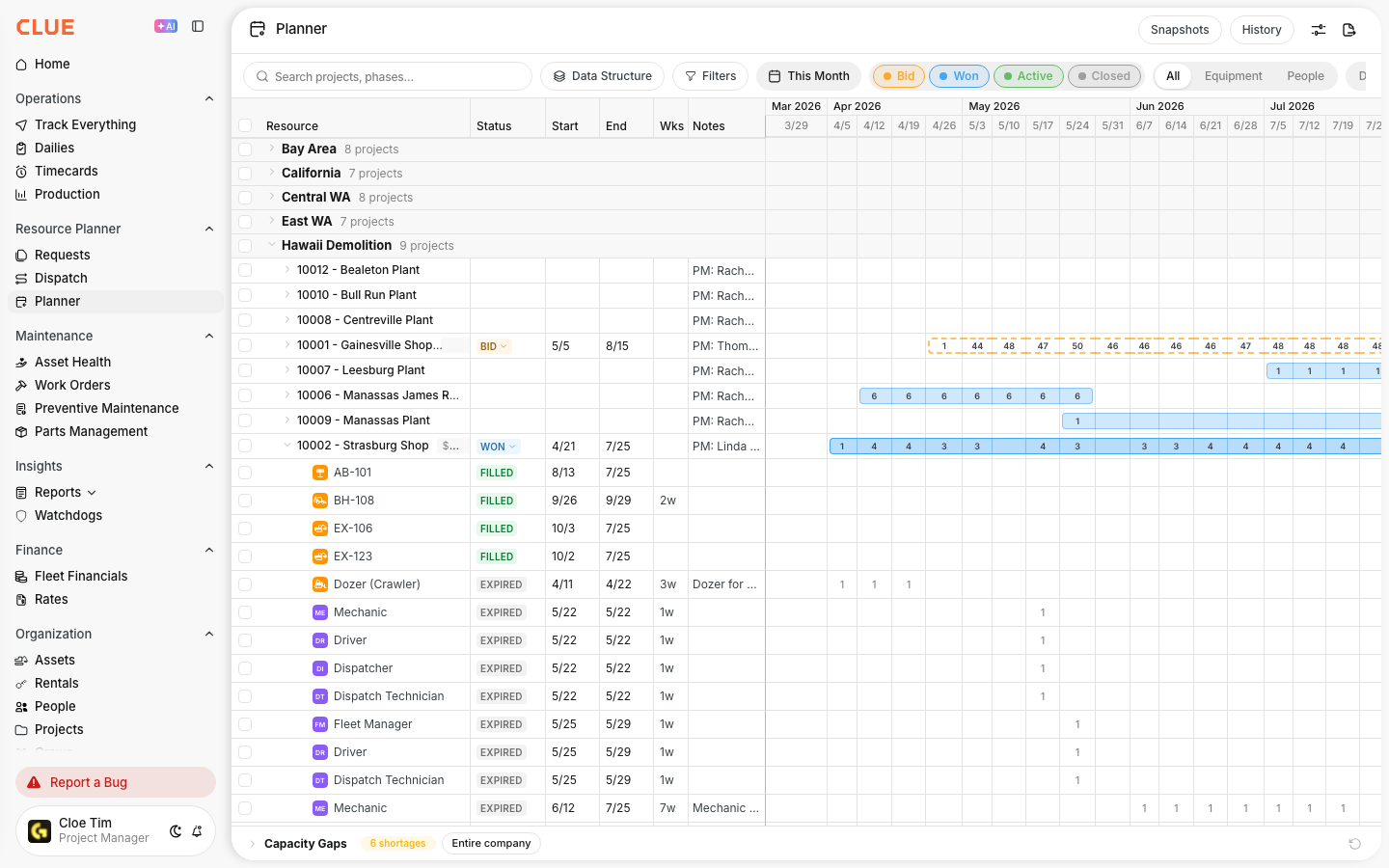
The Planner view gives you a timeline-based layout for managing assignments. CLUE’s Dispatch article describes it as a Gantt-style view where you can drag and drop resources to reassign them or extend assignment dates.
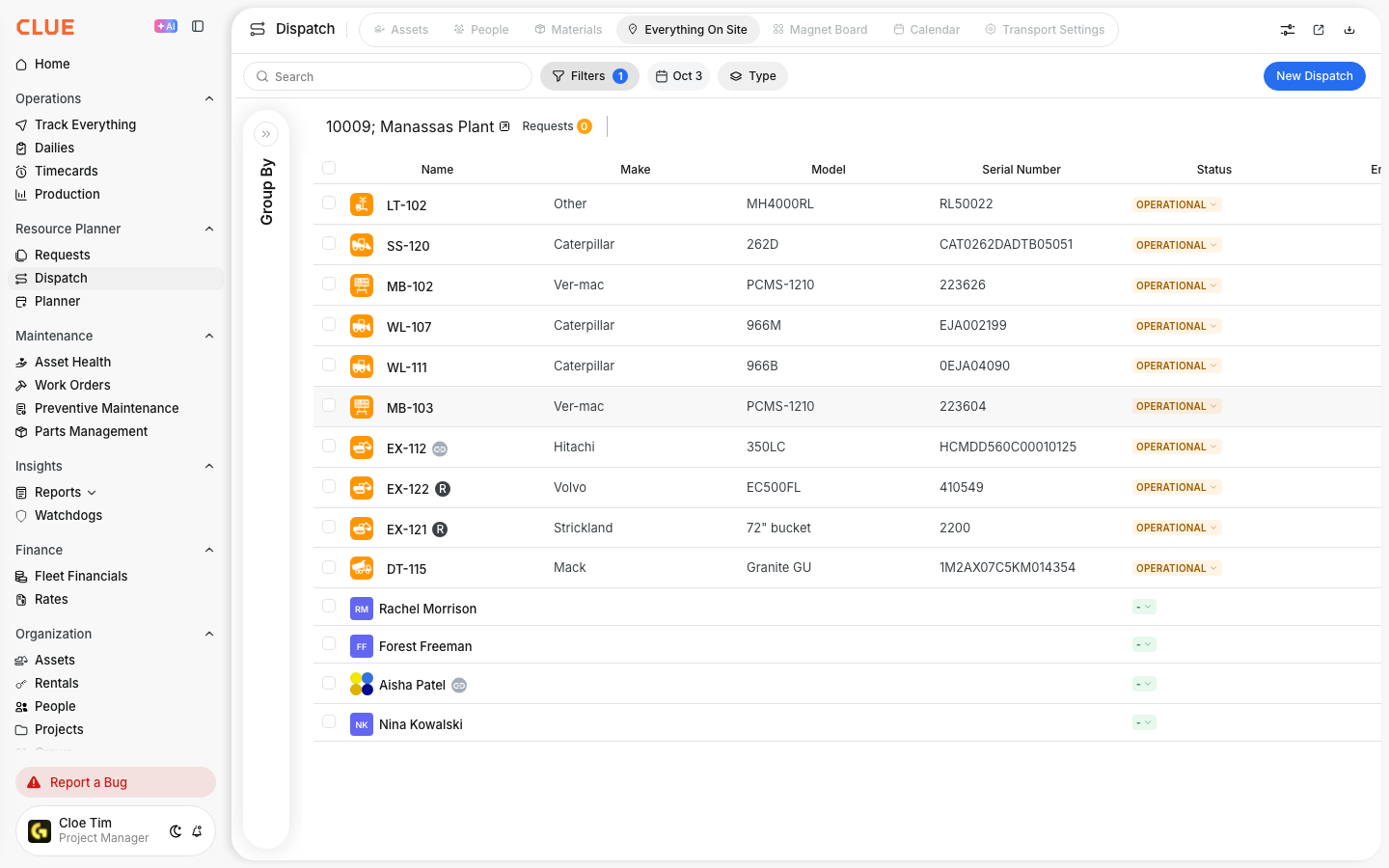
This view is especially useful when the plan changes during the day and you need to move equipment or people without rebuilding the schedule from scratch. If you need to confirm what is already at a project before moving more resources, open Viewing Everything On Site.
Creating an Assignment
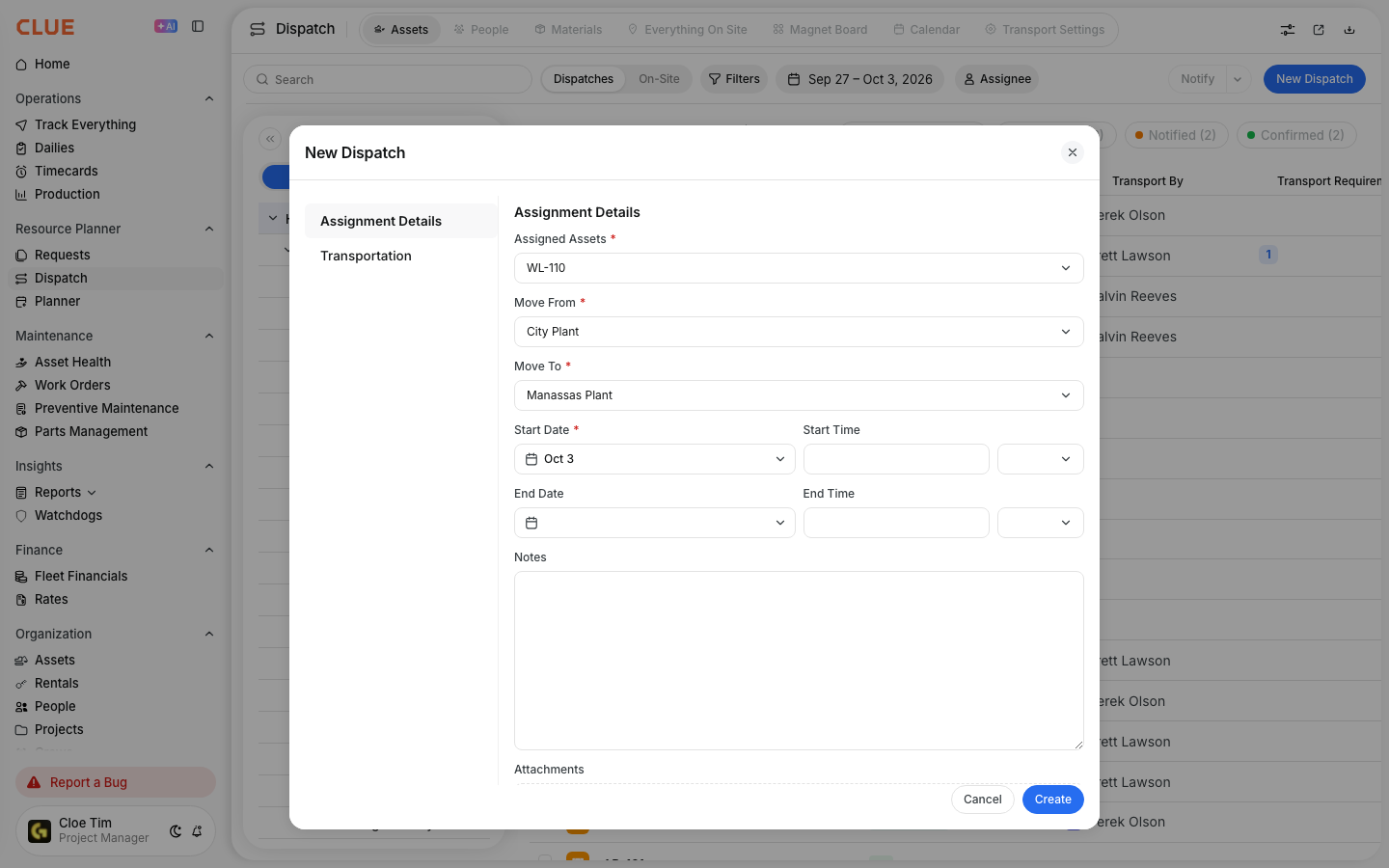
Create an assignment when you need to send a piece of equipment or a person to a project. The process is simple, but it helps to confirm the target project and dates before saving the dispatch.
- Select the Assets or People tab
- Find the resource you want to assign
- Click to select it and choose Assign to Project
- Select the project and date range
- Confirm the assignment.
If you are assigning people instead of equipment, Dispatching People to Projects gives a more detailed walkthrough, including group-by options and crew assignments.
Managing Requests
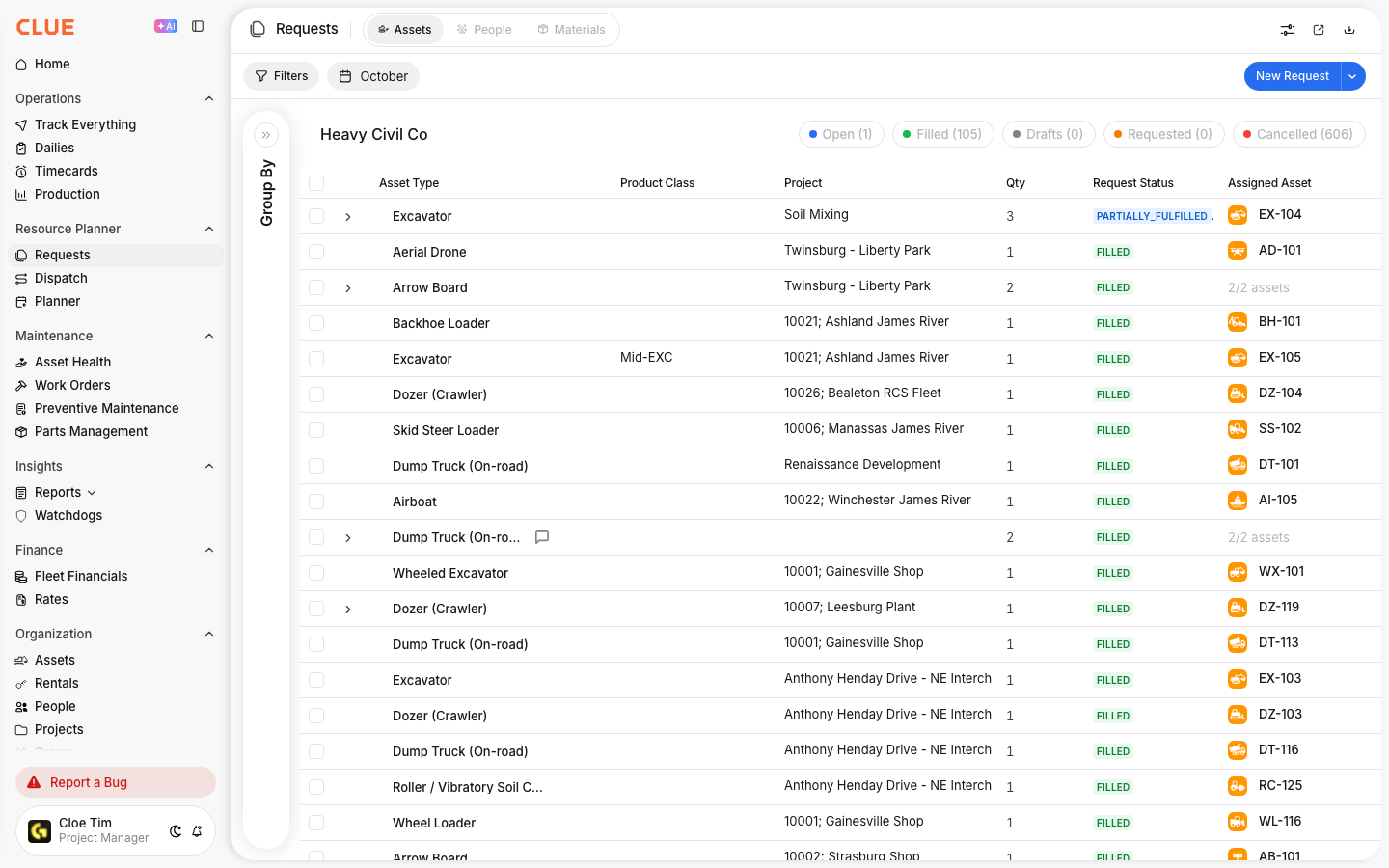
Dispatch also helps you handle equipment requests coming in from the field. Requests appear in the Requests section, where they can be reviewed and either fulfilled or declined as needed.
If a superintendent or project team still needs equipment, they can submit it through Creating Equipment Requests. That request then moves through statuses like Requested, Open, Filled, or Cancelled as the dispatch team works it.