Understanding Fault Codes
Fault codes help your team catch equipment problems early. They show diagnostic alerts from your telematics system so you can review issues, decide what needs attention, and create follow-up work when needed.
Overview
Fault codes are messages sent by the equipment when the system detects a problem or warning. Some need immediate action, while others can be monitored and handled during the next service.
Reviewing fault codes regularly helps your team stay ahead of breakdowns and connect equipment alerts to the rest of your maintenance process, including Creating and Managing Work Orders and Viewing Asset Work History.
Fault Codes Dashboard
The Fault Codes page shows active equipment alerts across your fleet. It gives you one place to review open issues and decide what needs action first.

Go to Maintenance → Fault Codes to open the dashboard.
Severity Summary Cards
The cards at the top help you sort fault codes by severity. This makes it easier to focus on the most urgent problems first.

The cards show:
- Critical - immediate attention required
- Monitor - needs attention soon
- Minor - lower priority issue
- Unknown - code needs review or is not clearly classified yet
Click any card to filter the table by that severity level. This is a good place to connect to Understanding Fault Code Severity if you want a separate article for what each level means.
Header Actions
The header tools help you narrow the list and work with the view you have on screen. They are useful when your team is reviewing codes by date, asset, or priority.
You can use:
- Search - find fault codes by asset name or code
- Date Filter - limit results to a date range
- Filters - apply more filter options
- Share - share the current view
- Download - export the list to Excel
- Dismiss All - clear resolved fault codes from the active view
Fault Codes Table
The table gives you the main details for each fault code so you can review the issue without opening every record first. It helps your team quickly see which asset is affected and where that machine is working.
The table shows:
- Asset Name - the equipment with the fault
- Serial Number - the asset serial number
- Make - the manufacturer
- Model - the equipment model
- Current Project - where the asset is assigned
- Total Engine Hours - the current engine hour reading
These details make it easier to review the fault in context, especially if you also use Asset Types and Categories or the Asset Directory to manage equipment records.
Taking Action
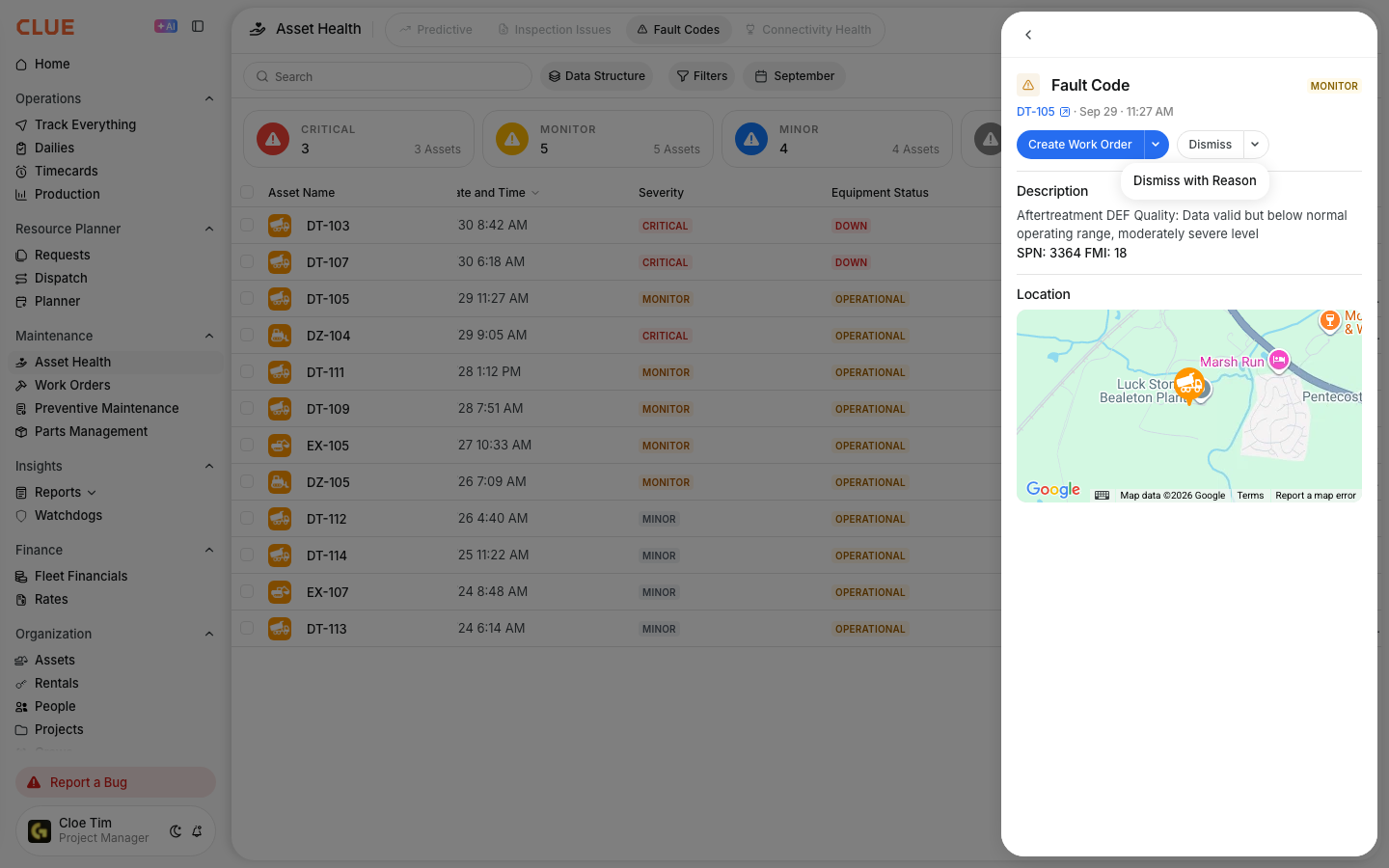
Once you open a fault code, you can review the details and decide what to do next. This is where the fault code turns from an alert into a maintenance action.
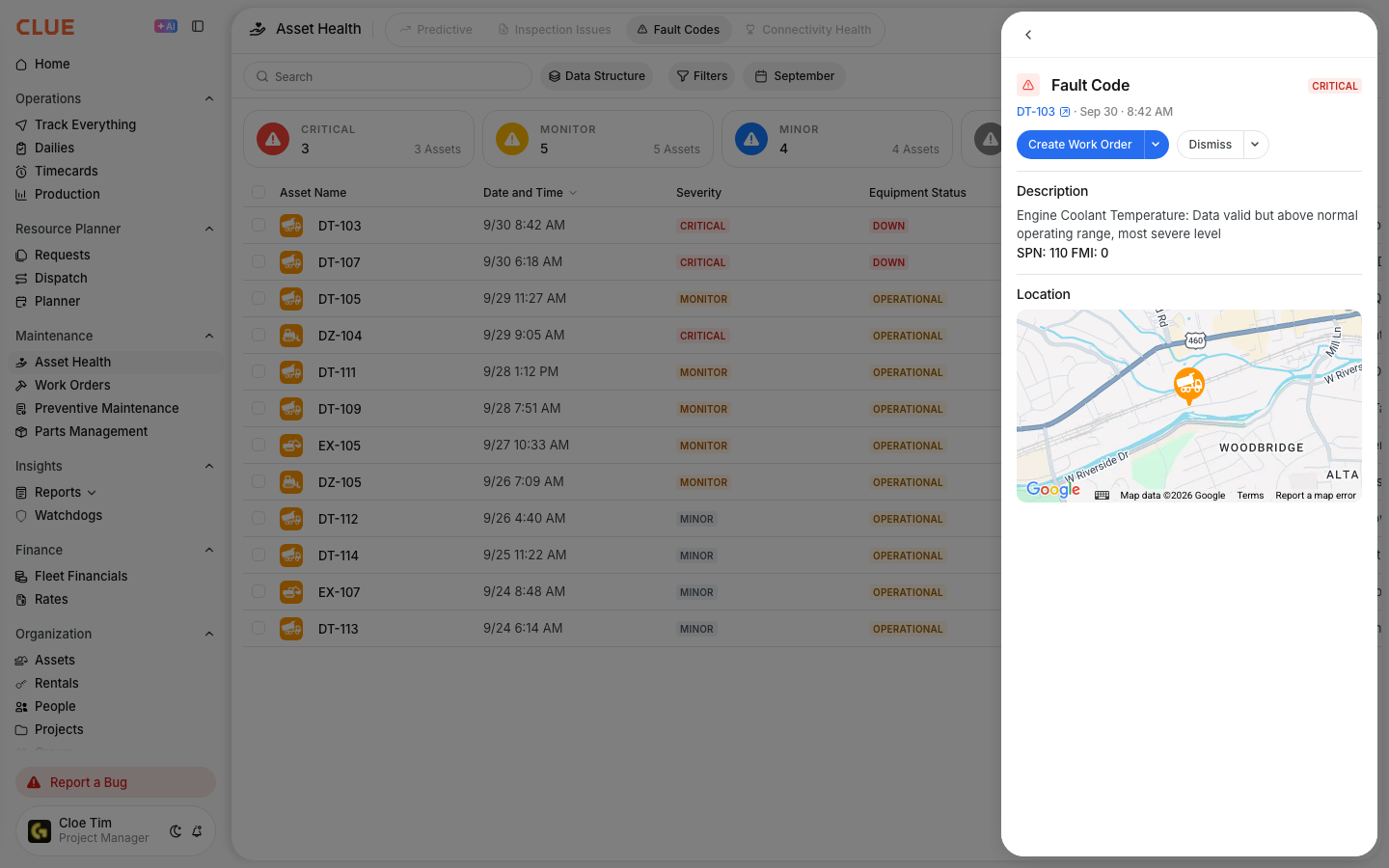
Click any fault code row to open the details. From there, you can:
- view the full fault code description
- create a work order from the fault code
- dismiss the fault code if it has already been addressed
This section creates a strong internal link opportunity to Creating Work Orders from Inspection Issues and Fault Codes. Fault-linked work orders help keep the repair tied to the original equipment alert.
Best Practices
A simple review routine helps your team stay on top of fault codes before they turn into bigger problems. The goal is not just to clear alerts, but to use them to guide better maintenance decisions.
- Review Critical fault codes daily
- Create work orders for fault codes that keep returning
- Use the date filter to look for repeat patterns over time
- Export the list before maintenance planning meetings
- Check fault code history alongside Viewing Asset Work History for a fuller picture of the asset