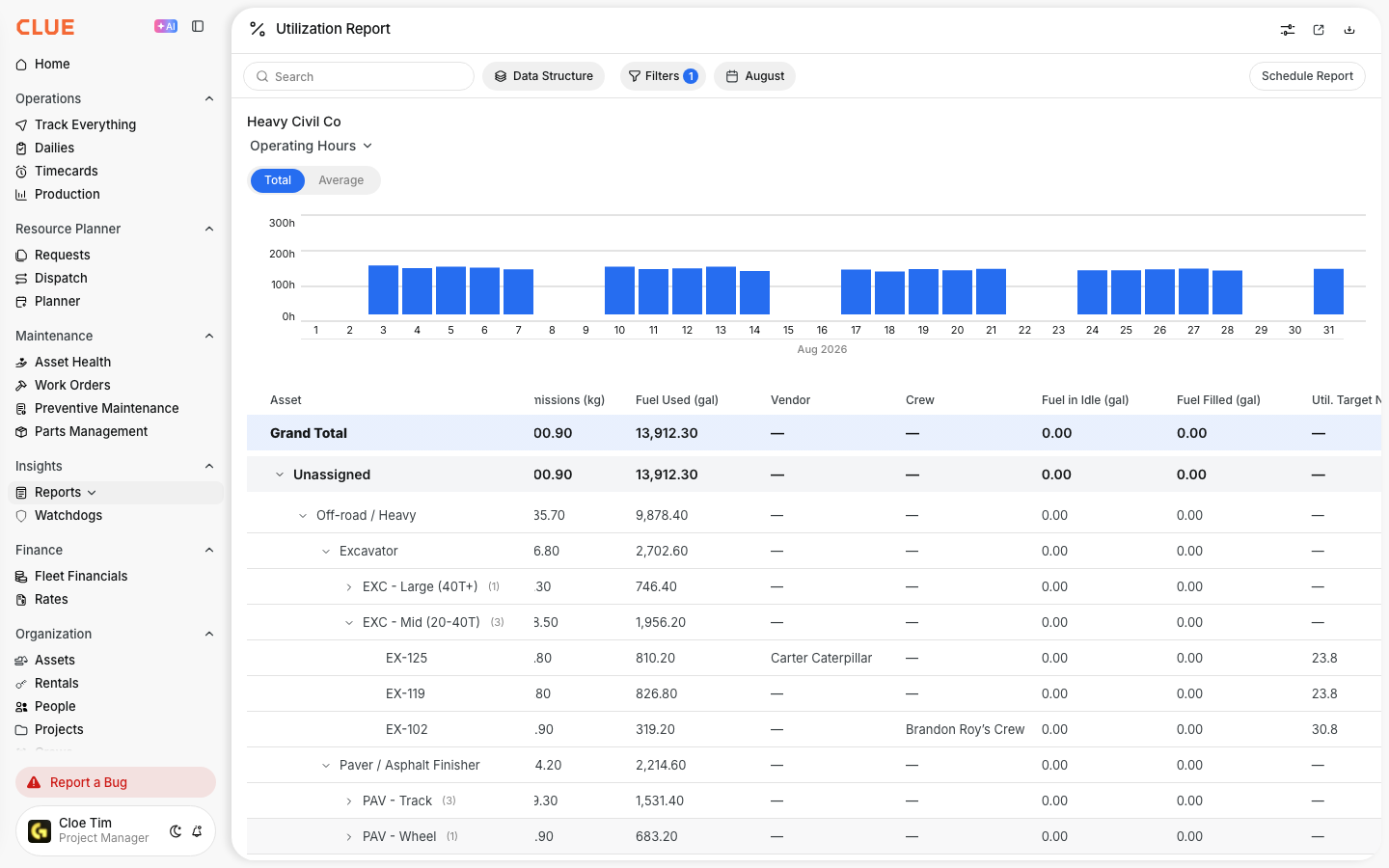
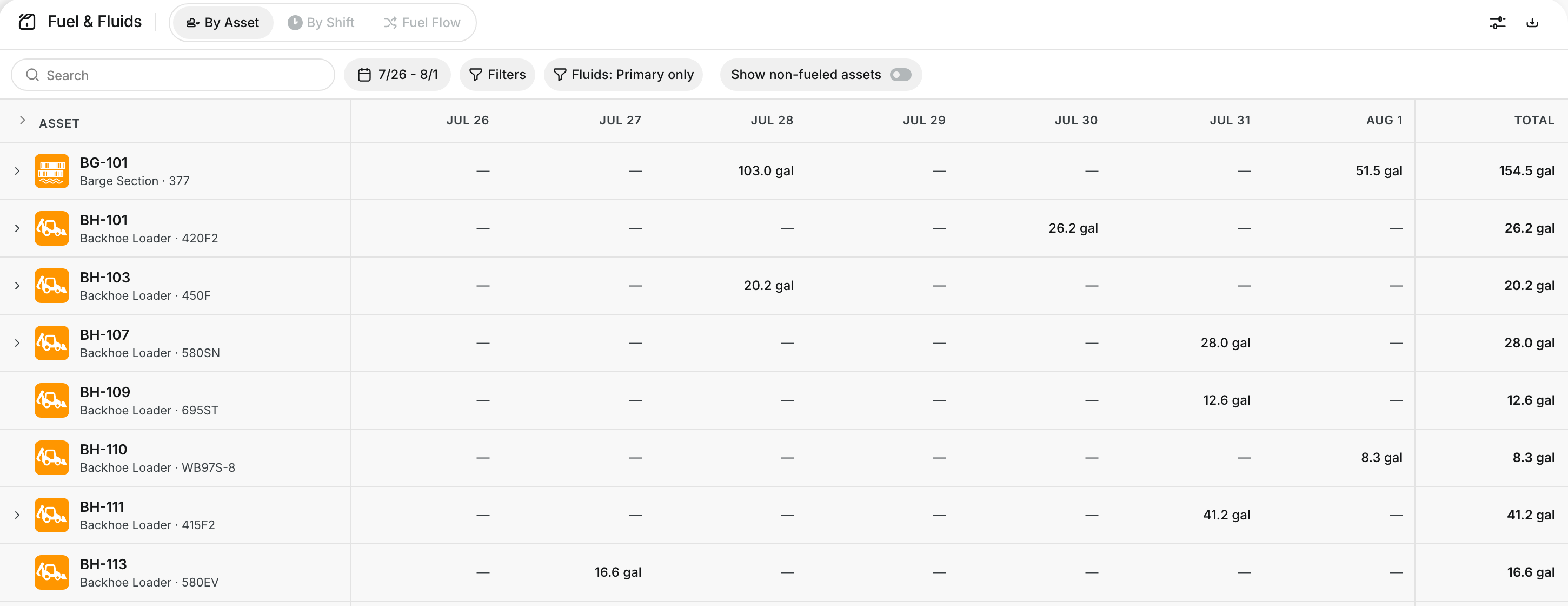
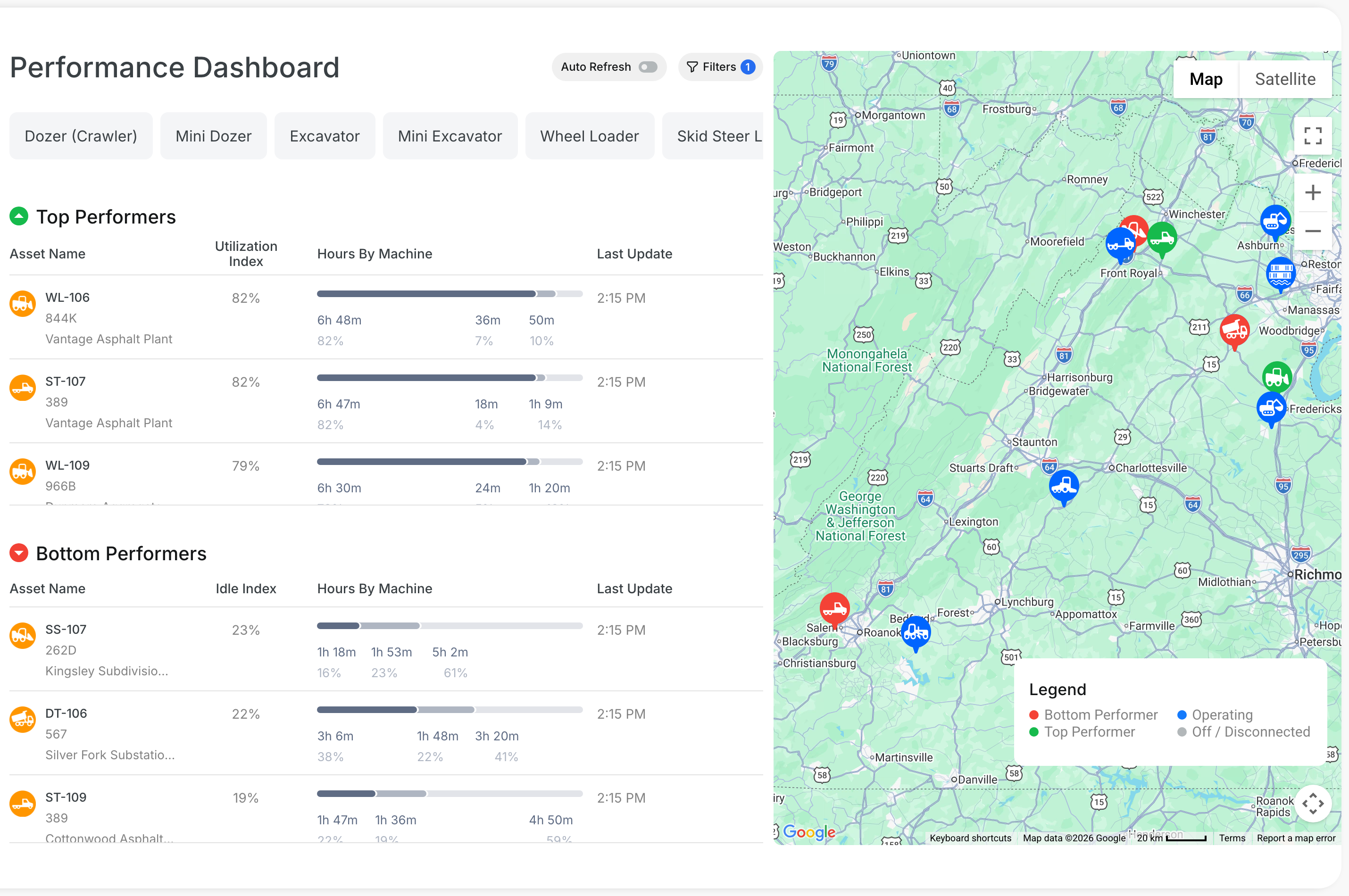
Scheduled reports help your team get the same data automatically without rebuilding the report each time. Once a schedule is set up, you can come back and update it, pause it, or remove it from the same Reports area in CLUE.
Reports section
Use the Reports area to manage saved delivery schedules for the reports your team already uses. If you still need to build the schedule first, start with Creating Scheduled Reports before coming here to manage it.
Overview
After a scheduled report is created, you can manage it from one central place. This is where you go to change delivery settings, update recipients, pause a schedule for a while, or delete it completely if it is no longer needed.
Accessing Scheduled Reports
Open the Reports area from Insights, then go to the section that shows your saved schedules. CLUE’s live guide refers to this area as Scheduled Reports or My Schedules.
Step 1: Open Reports
Go to Insights > Reports.
Step 2: Find your schedules
Open the Scheduled Reports or My Schedules section to see the report deliveries you have already created.
Viewing Your Schedules
The schedules list gives you a quick view of what is set to run and when. This makes it easier to spot old schedules, check who is receiving a report, or confirm whether a schedule is still active.
In the list, you can review:
- Report name and type
- Frequency such as daily, weekly, or monthly
- Recipients
- Next scheduled delivery
- Status such as active or paused.

Editing a Schedule
Edit a schedule when the report still matters, but the delivery settings need to change. This is useful when a team wants a different time, a different filter, or a different list of recipients.
Step 1: Open the schedule
Click the schedule you want to update.
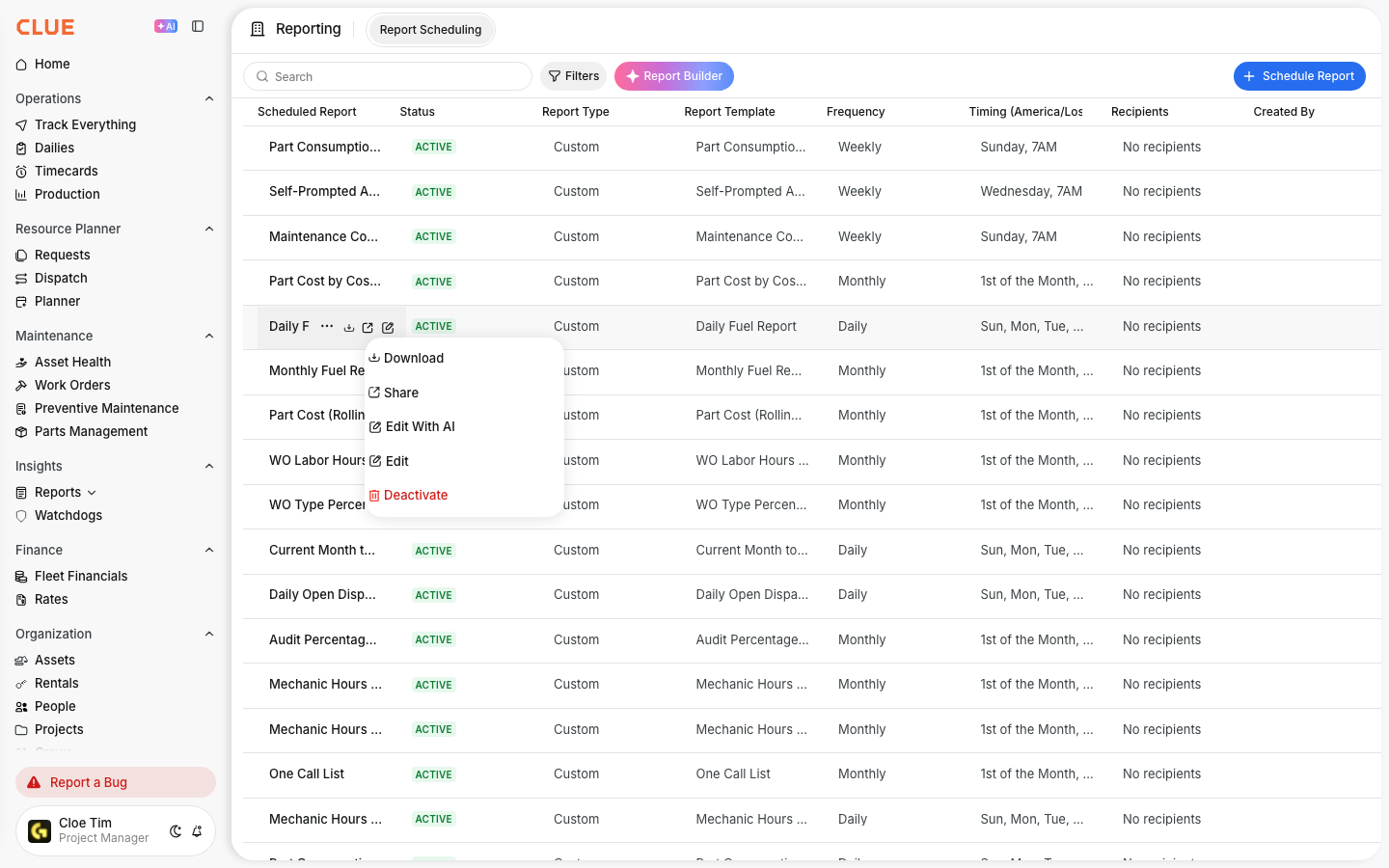
Step 2: Change the settings
You can update things like:
- delivery frequency or time
- recipients
- report filters or parameters.

Step 3: Save the changes
Save the schedule so the next delivery uses the new settings.
Pausing a Schedule
Pause a schedule when you want to stop delivery for now but keep the setup. This is helpful for seasonal reporting, temporary projects, or reports that are only needed at certain times of the year.
To pause a schedule:
- select the schedule
- click Pause or switch it to inactive
- turn it back on later when you need it again.
Deleting a Schedule
Delete a schedule when it is no longer needed at all. This is the better option when the report is outdated, the recipients changed permanently, or the same report is already being sent through another schedule.
To delete a schedule:
- select the schedule
- click Delete
- confirm the deletion.
Troubleshooting Delivery
If a scheduled report is not arriving, start with the simplest checks first. CLUE’s live guide recommends confirming the recipient list, checking that the schedule is still active, and making sure the user has permission to run that report.
Check these first:
- recipient email addresses
- whether the schedule is still active
- spam or junk folders
- whether you have access to run that report.
If the schedule itself looks right but the report content needs to change, go back to Creating Scheduled Reports and review the filters and report type you selected there.
Tips
Review scheduled reports once in a while so old deliveries do not keep going to the wrong people. It also helps to combine similar schedules when possible so teams are not getting too many duplicate emails.
- review schedules regularly
- remove people who no longer need the report
- combine similar schedules when possible
- test important deliveries with your own email before adding a larger group.