Managing Module Visibility
Overview
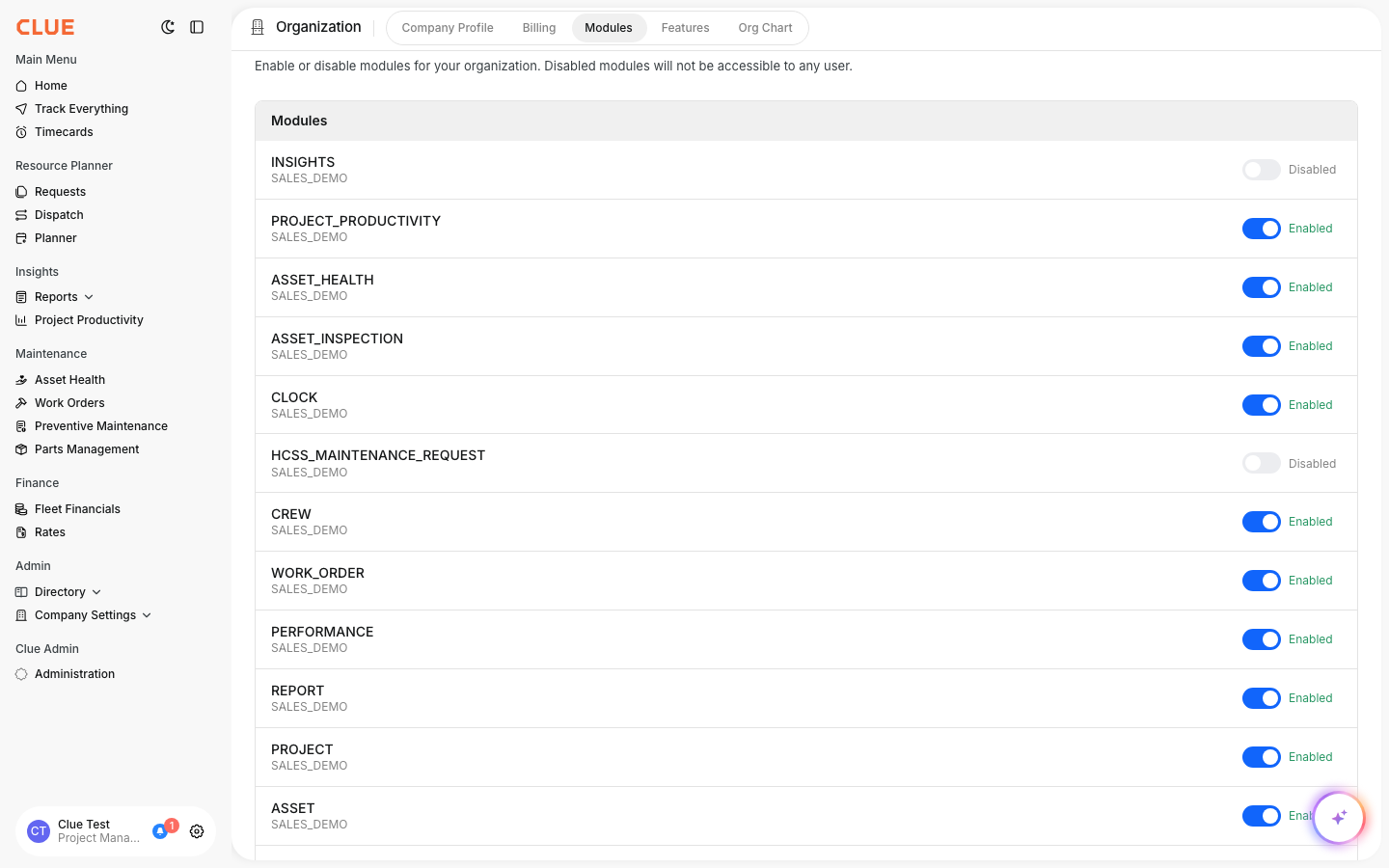
As an organization administrator, you can control which CLUE features and modules are visible to your users. This allows you to roll out new features gradually, hide unused modules to simplify the interface, or preview upcoming features in a beta environment before enabling them for everyone.
Accessing Module Settings
- Open the Admin module.
- Navigate to Company Settings > Configuration.
- Select the Modules tab.
You will see a table listing all available CLUE modules with the following columns:
- Module — The name of the CLUE feature or module
- Description — A brief explanation of what the module does
- Visibility — Current status: Visible, Hidden, or Beta
- Sort Order — The display order of the module in navigation menus
- Launched — The date the feature was released
Understanding Profile Types
At the top of the Modules tab, a profile indicator shows whether your organization uses a Shared or Custom profile.
- Shared Profile — Your organization uses the default module configuration. You cannot make changes until you create a custom copy.
- Custom Profile — Your organization has its own editable module configuration. You can change visibility settings directly.
Converting from Shared to Custom
If your organization is on a shared profile and you need to make changes:
- Look for the Customize button near the profile indicator.
- Click Customize to create an editable copy of the profile for your organization.
- This does not change any current settings — it simply makes them editable.
Changing Module Visibility
Once you have a custom profile:
- Use the checkboxes on the left side of the table to select one or more modules.
- Click the Show button in the toolbar to make the selected modules visible.
- To choose a different visibility option, click the dropdown arrow next to the Show button to reveal additional options:
- Show — Module is visible to all users in the production environment
- Hide — Module is completely hidden from all users
- Beta — Module is visible only in the beta/preview environment
Changes take effect after users reload the application (close and reopen, or refresh the browser).
Common Scenarios
Enable a new feature for your team
"I want to enable the new Magnet Board for my dispatchers."
- Find Magnet Board in the Modules table.
- Select its checkbox.
- Click Show.
Hide a feature from all users
"I want to hide the Predictive Dashboard from users."
- Find Predictive Dashboard in the Modules table.
- Select its checkbox.
- Click the dropdown arrow next to Show.
- Select Hide.
Preview a feature before rolling it out
"I want to preview AI features before making them available to everyone."
- Find the AI module(s) in the Modules table.
- Select their checkboxes.
- Click the dropdown arrow next to Show.
- Select Beta.
- The module will now be visible only in the beta environment, allowing you to evaluate it before enabling it for all users in production.
Important Notes
- Organizations on a shared profile must click Customize before making any changes.
- Changes to a shared profile (by a system administrator) affect all organizations using that profile.
- The Launched column shows when each feature was originally released.
- The Features tab (next to the Modules tab) controls legacy organization settings and is separate from module visibility.
Troubleshooting
I changed a module's visibility but it is not showing or hiding for users.
Module visibility is loaded when users log in or refresh. Ask users to reload the page (Ctrl+R on Windows, Cmd+R on Mac) or log out and back in.
I do not see the Modules tab in Configuration.
You need the organization:profile READ permission to access module settings. Contact your Clue administrator to request access.
The visibility controls are disabled and I cannot make changes.
Your organization is on a shared profile. Click the Customize button to create an editable copy for your organization. Once customized, the controls will become active.