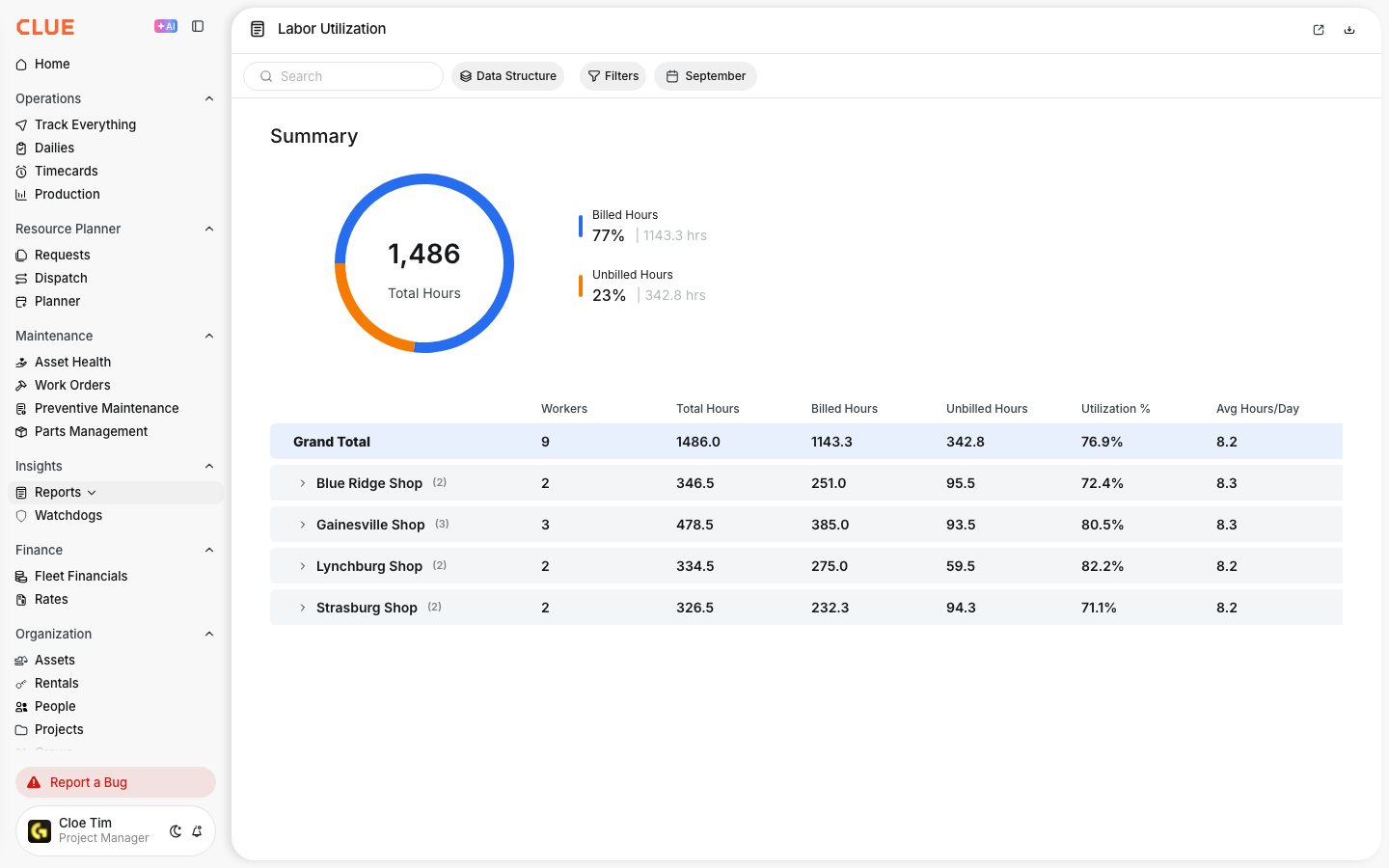
The Labor Utilization Report shows how your team’s hours break down into billed and unbilled time. It gives you a quick way to see overall utilization, then drill into the details by shop and person.
Available now on Beta - This feature is in beta testing and will roll out to everyone soon.
What is this?
This report is built to show where labor hours are going. The summary at the top gives you total hours, billed percentage, and unbilled percentage in one view. The table below helps you see the breakdown by shop and by person, so it is easier to spot unused capacity or labor that is not being billed.
Who is this for?
This report is useful for teams who need a clearer view of labor performance, staffing, and job costing across the business.
- Shop Managers - see which shops are running at high utilization and which ones have idle capacity
- Operations Managers - compare utilization across shops, projects, and time periods for staffing and planning
- Finance - track billed versus unbilled labor for job costing and billing review
How to use it?
The report is simple to work through. Start with the date range, narrow the data with filters, then regroup the table based on the view you need. If you need a broader reporting overview first, this fits naturally with Understanding Fleet Reports.
Step 1: Open the report
Go to Reports in the sidebar and click Labor Utilization.
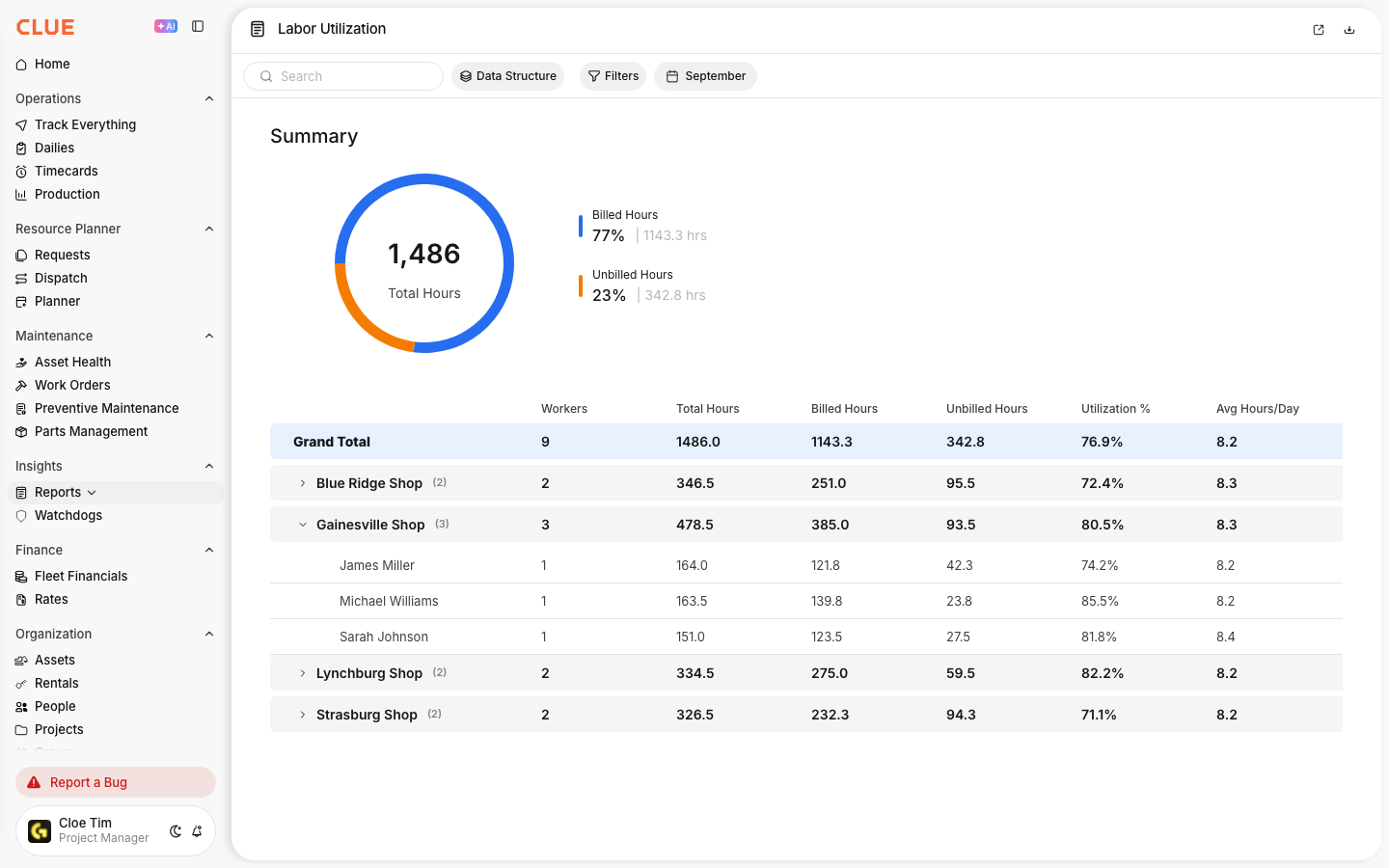
The summary at the top shows total hours, billed percentage, and unbilled percentage in a donut chart. The table below shows the breakdown by shop.
Step 2: Set your date range
Use the date picker in the top bar to choose the time period you want to review.
The default view is the current month, but you can switch to any date range. The summary and table update right away.

Step 3: Filter by shop, job title, or project
Click Filters to narrow the report to the group you want to review.
You can filter by Shop to compare locations, Job Title to compare similar roles, or Project to review labor tied to one job.

Step 4: Choose your data grouping
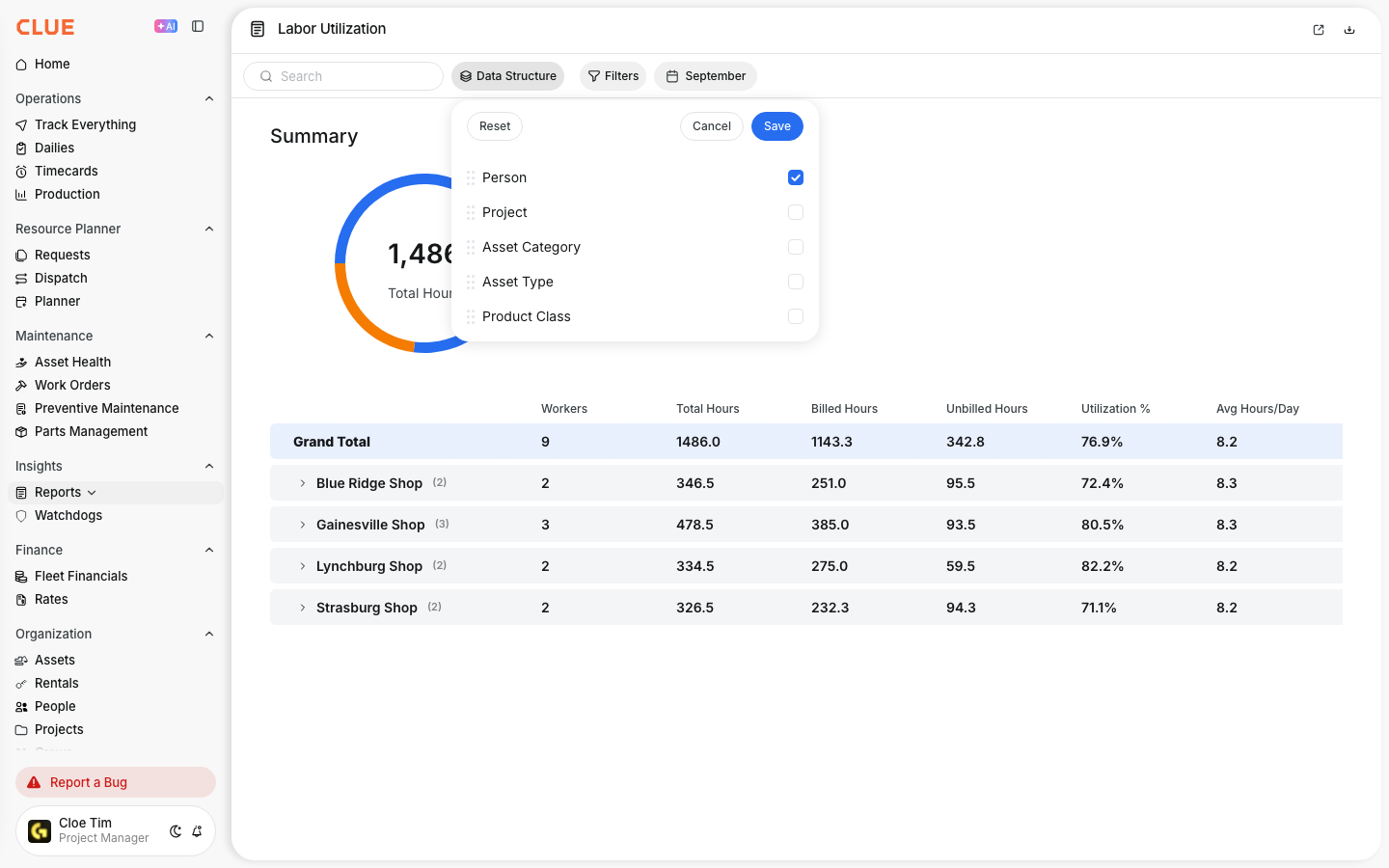
Click Data Structure to control how the table is organized.
You can group the table by Project, Asset Category, Asset Type, Product Class, and Person. The table updates to match the structure you choose.
Step 5: Drill into the details
Use the arrow next to any shop to expand the row and see the people inside it.
Each row shows headcount, total hours, billed hours, unbilled hours, utilization percentage, average hours per day, and top project.
Reading the numbers
Once the report is open, the main value comes from knowing how to read the numbers correctly. A few fields matter more than the others when you are trying to understand staffing and labor performance.
- Utilization % - billed hours divided by total hours; this is the main utilization number
- Avg Hours/Day - total hours divided by working days in the selected date range
- Billed Hours - time marked as billable based on the labor type setup
- Unbilled Hours - time such as travel, training, breaks, and other non-billable labor types
The full details
There are a few setup rules behind this report that are worth knowing before you rely on the numbers. These details affect what the report includes and how utilization is calculated.
- Works on: Web app
- Location: Reports > Labor Utilization
- Only approved timecards count - draft and rejected entries are not included
- Billable time depends on labor type setup - your admin decides which labor types count as billed
- Default behavior - if no billable setup exists, all approved hours count as billed
- Grouping options - Project, Asset Category, Asset Type, Product Class, and Person
- Export - the report can be downloaded for outside analysis
Tips
A few simple habits can make this report much more useful. The biggest one is making sure the labor types are set up correctly before you start comparing utilization numbers.
- set up billed and unbilled labor types first
- compare month over month instead of judging one period by itself
- use the Job Title filter when you want a fair comparison
- check Avg Hours/Day when a person or shop looks unusually low
- filter by Project when you want to see whether unbilled time is hurting job cost performance