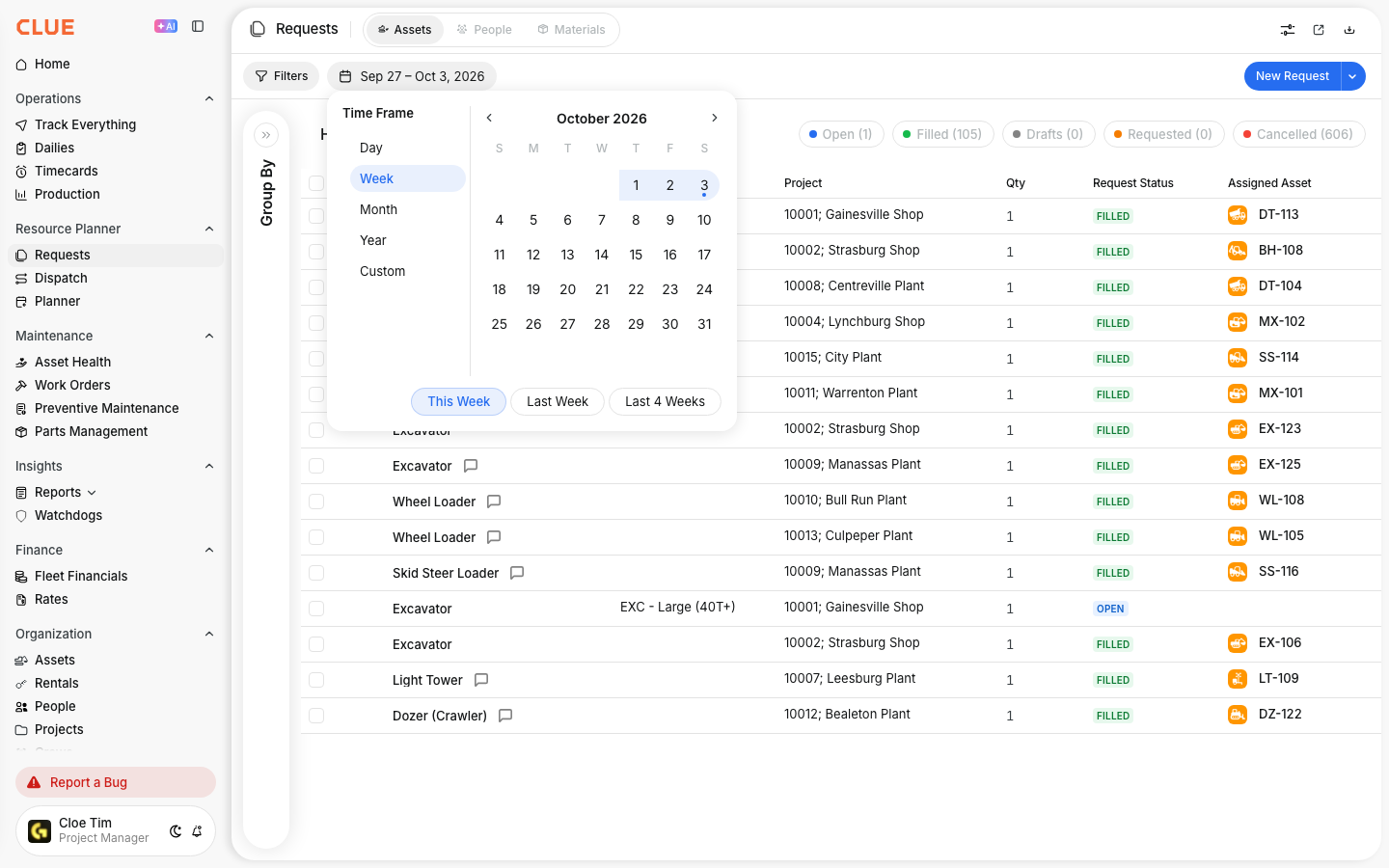
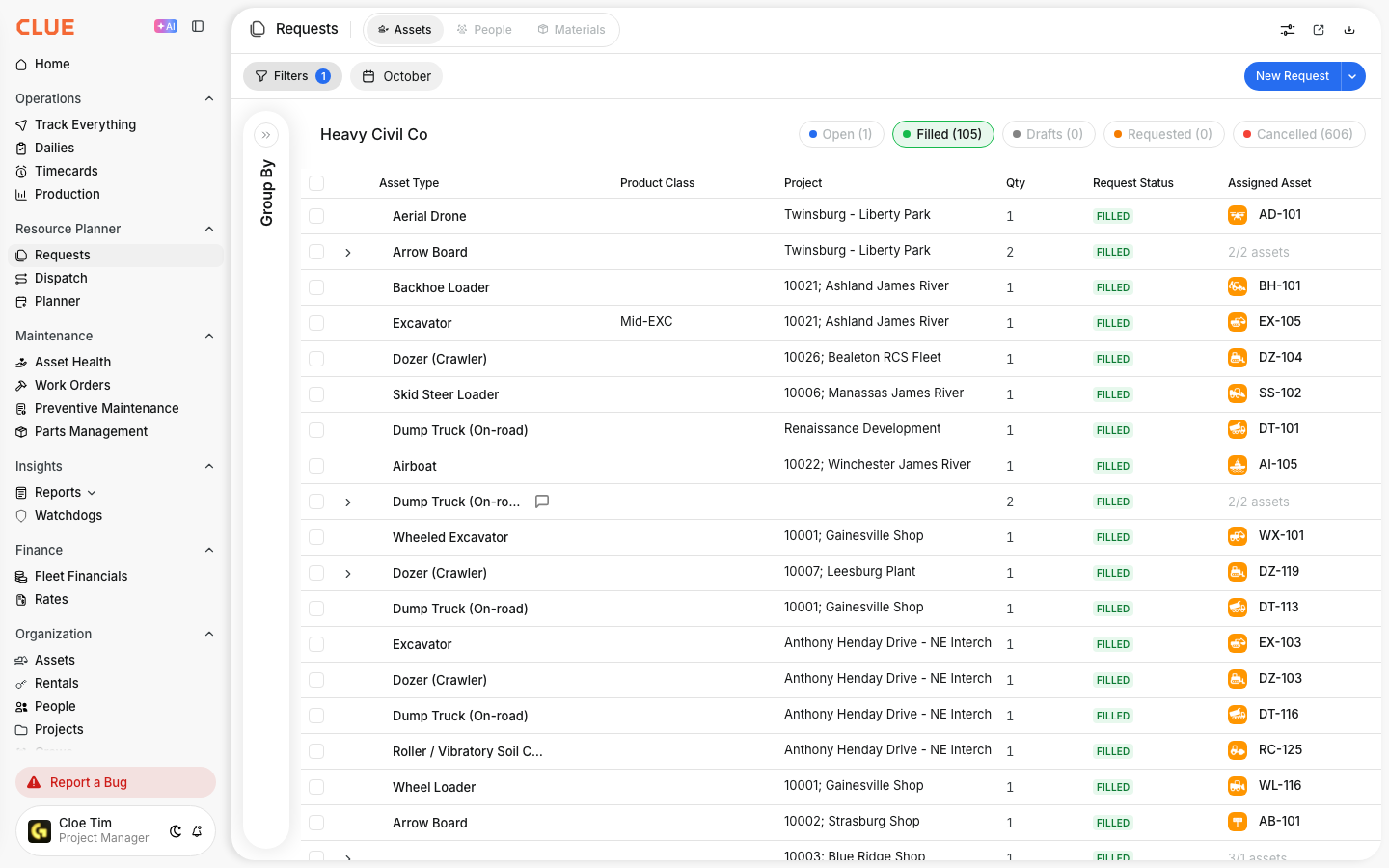
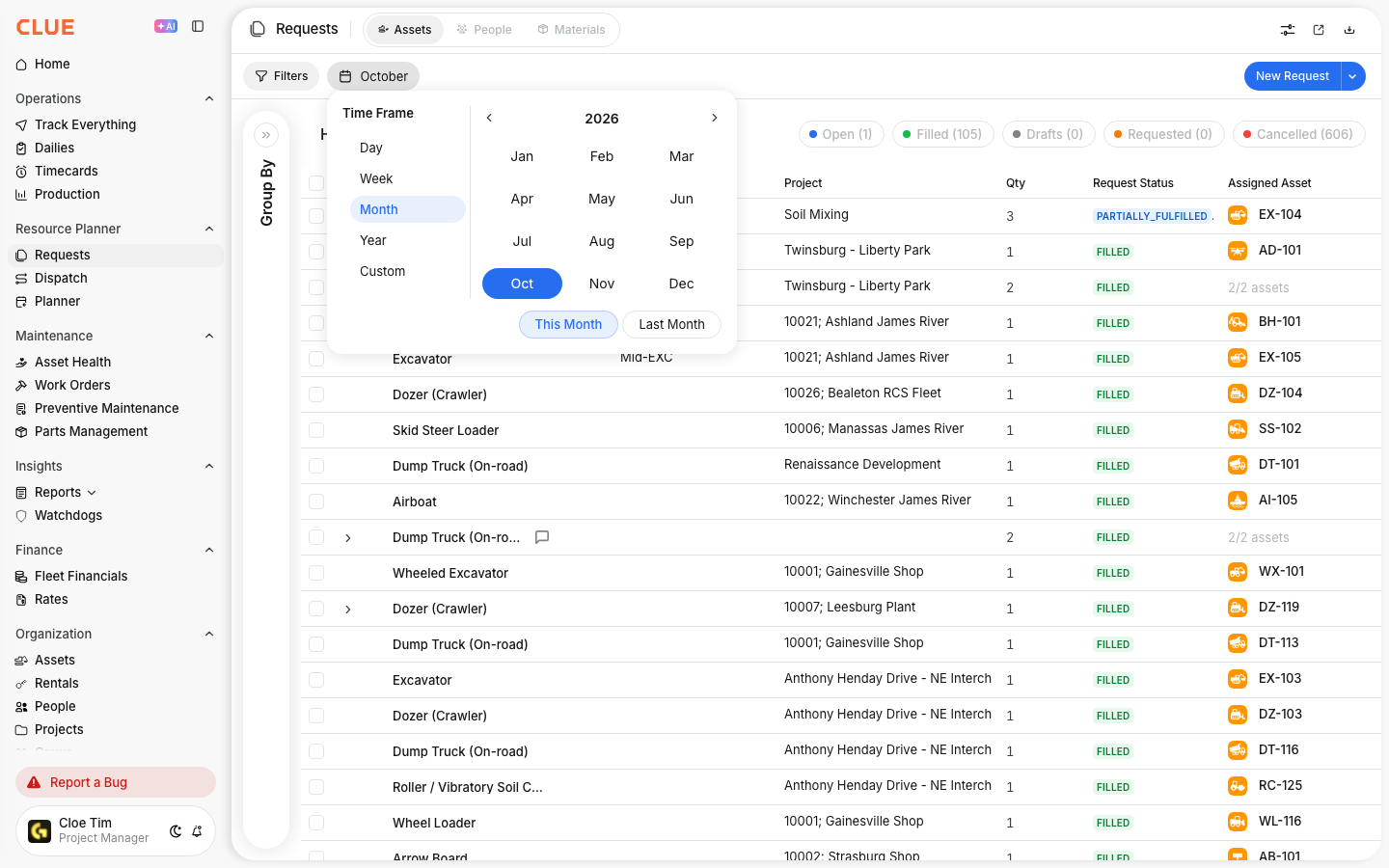
Use the Time Frame picker on the Requests page to narrow what you see by date. The key thing to know is that active requests stay visible, while completed request history changes based on the date range you choose.
Overview
The Requests page in Resource Planner includes a date filter, but it does not work like a simple hide-and-show filter for every request. Open requests are kept on screen so your team does not lose sight of work that still needs action.
That means the filter is mainly used to control which older, finished requests appear in the list. If your team is already using Creating Equipment Requests and Managing Request Statuses, this makes the page more useful for both day-to-day work and past request review.
How the Date Filter Works
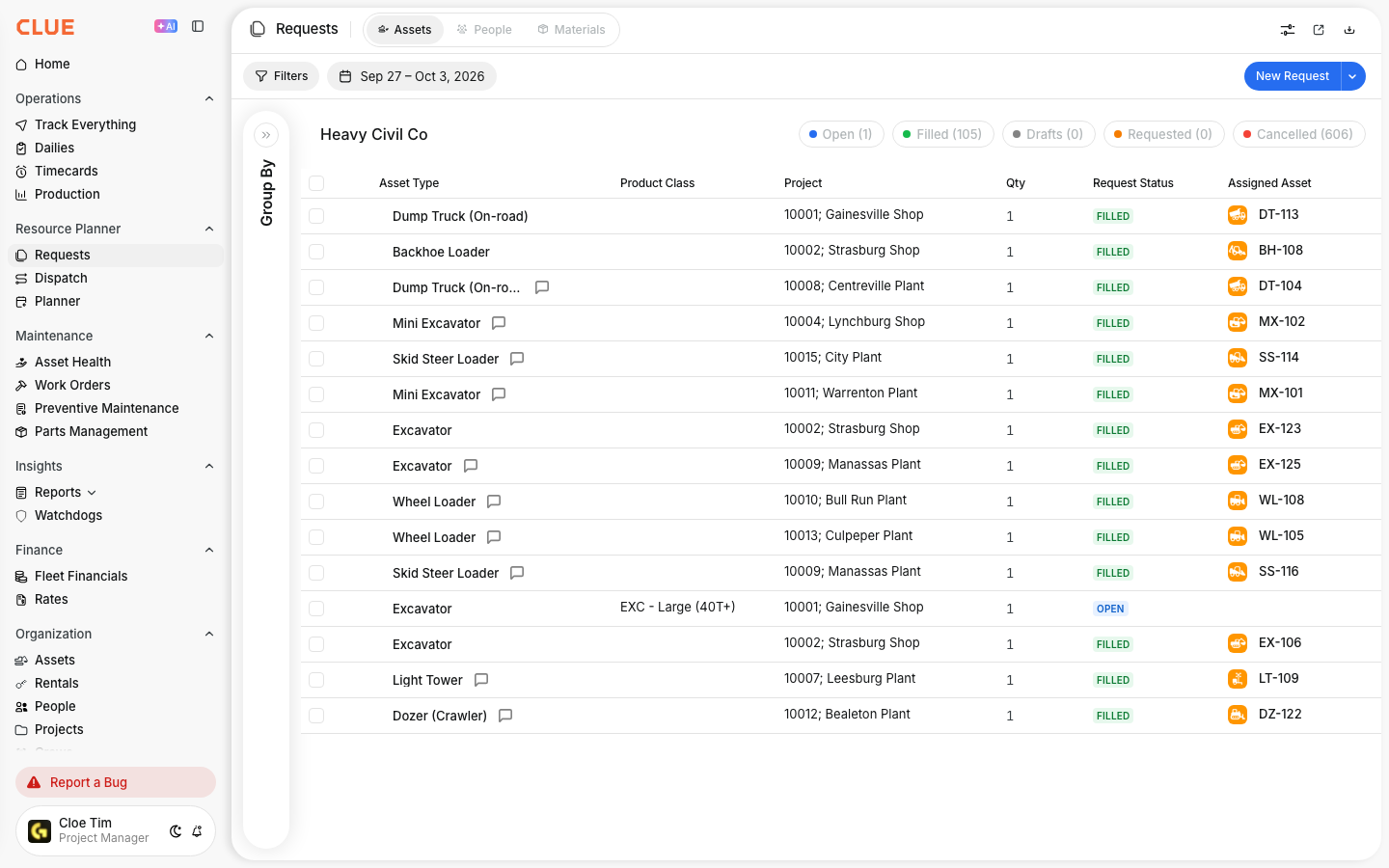
When you use the Time Frame picker, CLUE keeps active requests visible and only filters certain finished statuses by date. This helps the Requests page stay focused on what still needs attention.
- Open, Requested, and Draft requests always stay visible
- Filled and Cancelled requests only appear when their dates fall inside the selected range
Why It Works This Way
This setup helps prevent active requests from being hidden by mistake. Even if a request was created a long time ago, it still stays visible as long as it has not been fully handled.
That makes the Requests page safer to use for dispatch teams, because the date filter does not remove work that is still waiting to be filled.
Common Scenarios
A few common examples make the filter behavior easier to understand. These are the situations most teams run into when they first start using the Requests page.
Scenario 1: I selected a past date but still see current requests
This is expected. If you choose a past week or month, you will still see today’s open requests because they are still active. You may also see filled requests that match the date range you selected.
Scenario 2: I want to see only requests from a specific time period
To focus only on historical requests, first filter the list to a completed status like Filled, then use the Time Frame picker to choose your date range. That removes open work from the view and leaves only the completed requests that match those dates.

Scenario 3: I want to focus on what needs attention right now
Use the default view or a current week or month range. That gives you a working list of active requests along with recent filled activity, which is usually the most useful setup for daily dispatch review.
Quick Reference
This is the simplest way to remember how the filter works. Think of it as active work staying visible, while finished work is filtered by date.
Always visible
- Open requests
- Requested requests
- Draft requests
Filtered by date range
- Filled requests
- Cancelled requests
Tips
A few small habits can make the Requests page easier to use. The date filter works best when you combine it with status filters and use it based on whether you are reviewing active work or past history.
- use the filled requests option when you want a cleaner historical view
- use Time Frame presets like This Week or Last Week for faster filtering
- combine date filtering with Status and Region filters when the list is large
- leave the default view in place when you want to track what still needs action today