Keep your asset records up to date by editing equipment details, ownership, assignments, and operating data as things change. This helps keep maintenance, reporting, and daily tracking accurate.
Accessing Asset Edit Mode
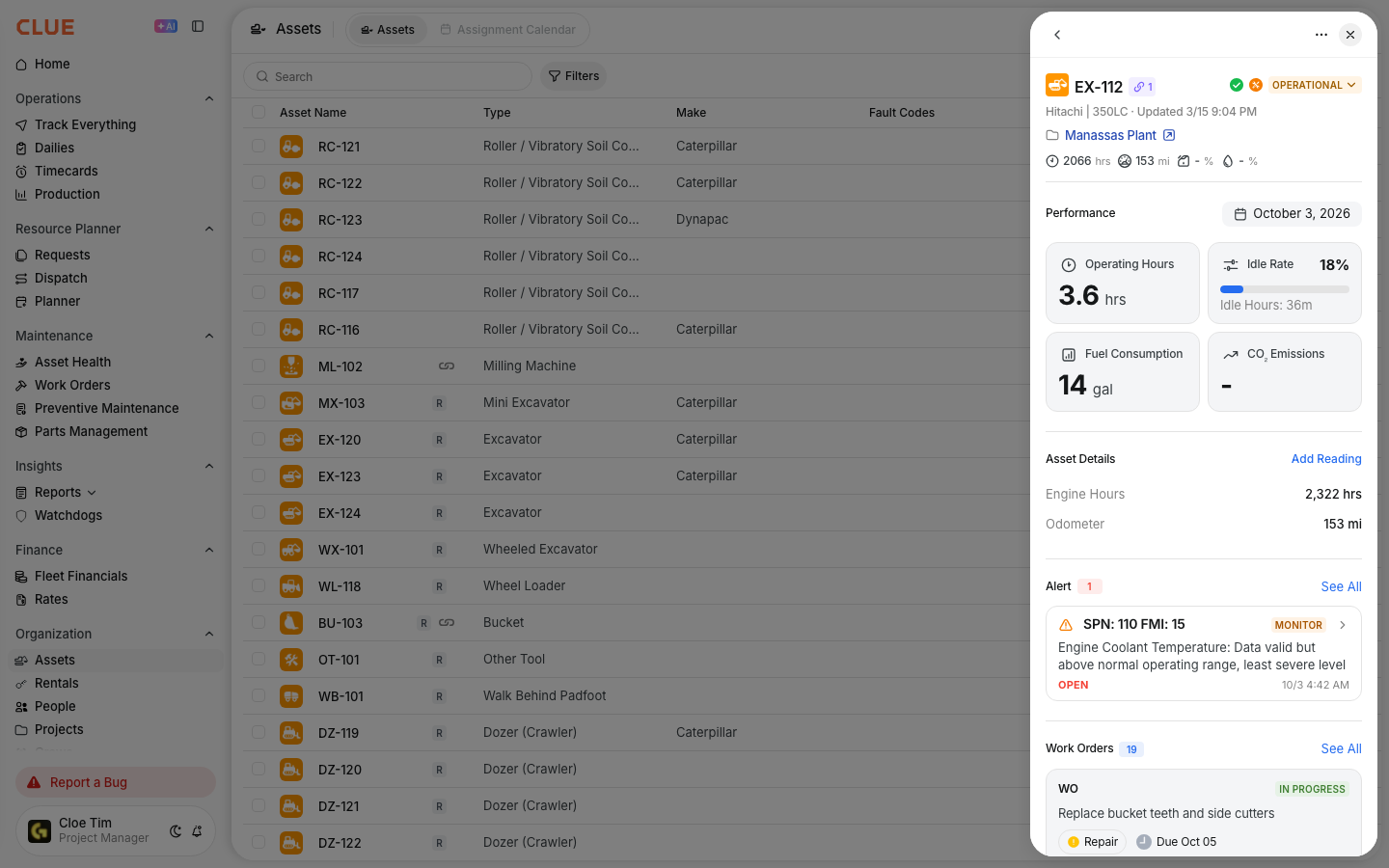
To edit an asset, first open it from the Asset Directory. If you need help finding the right record, start with Managing Your Asset Directory. Once the asset detail view is open, you can switch into edit mode and update the record.
- Go to Directory > Assets
- Click any asset row to open the Asset Detail view
- Click the Edit button to start editing

Editable Asset Fields
You can update different parts of the asset record depending on what needs to change. These fields help keep the asset profile complete and current across CLUE.
Basic Information
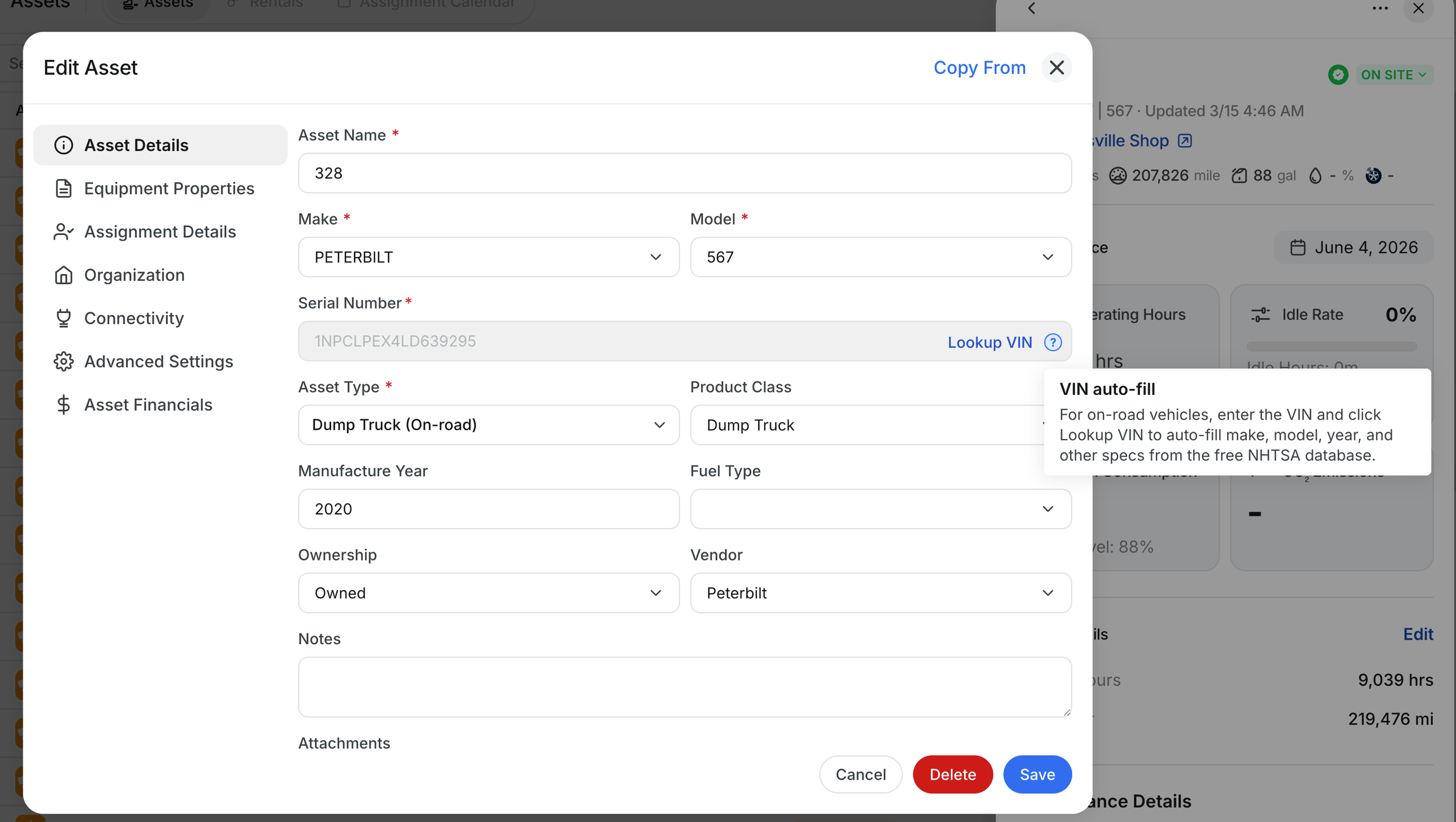
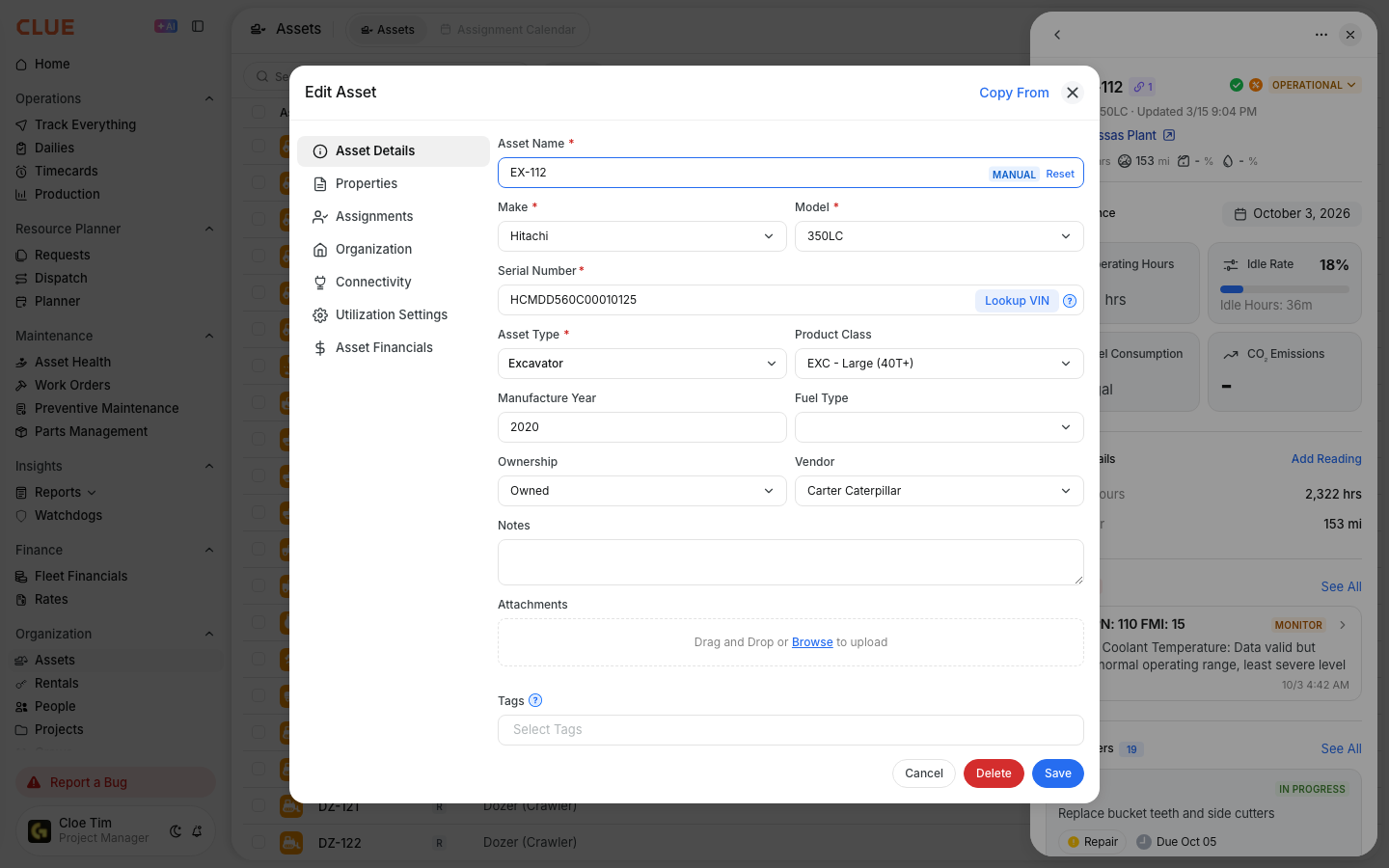
Use this section for the main details that identify the asset across the platform.
- Name - the equipment display name
- Make - the manufacturer, such as Caterpillar or John Deere
- Model - the model name or number
- Serial Number - the equipment serial number or VIN
- Year - the year of manufacture
Classification
Use these fields to control how the asset is grouped in CLUE. If you need to update how the asset is classified, see Equipment Classification: Categories, Types and Product Classes.
- Asset Type - vehicle, equipment, tool, or another asset type
- Product Class - a more specific equipment grouping
- Tags - custom labels used for filtering and grouping
Ownership & Assignment
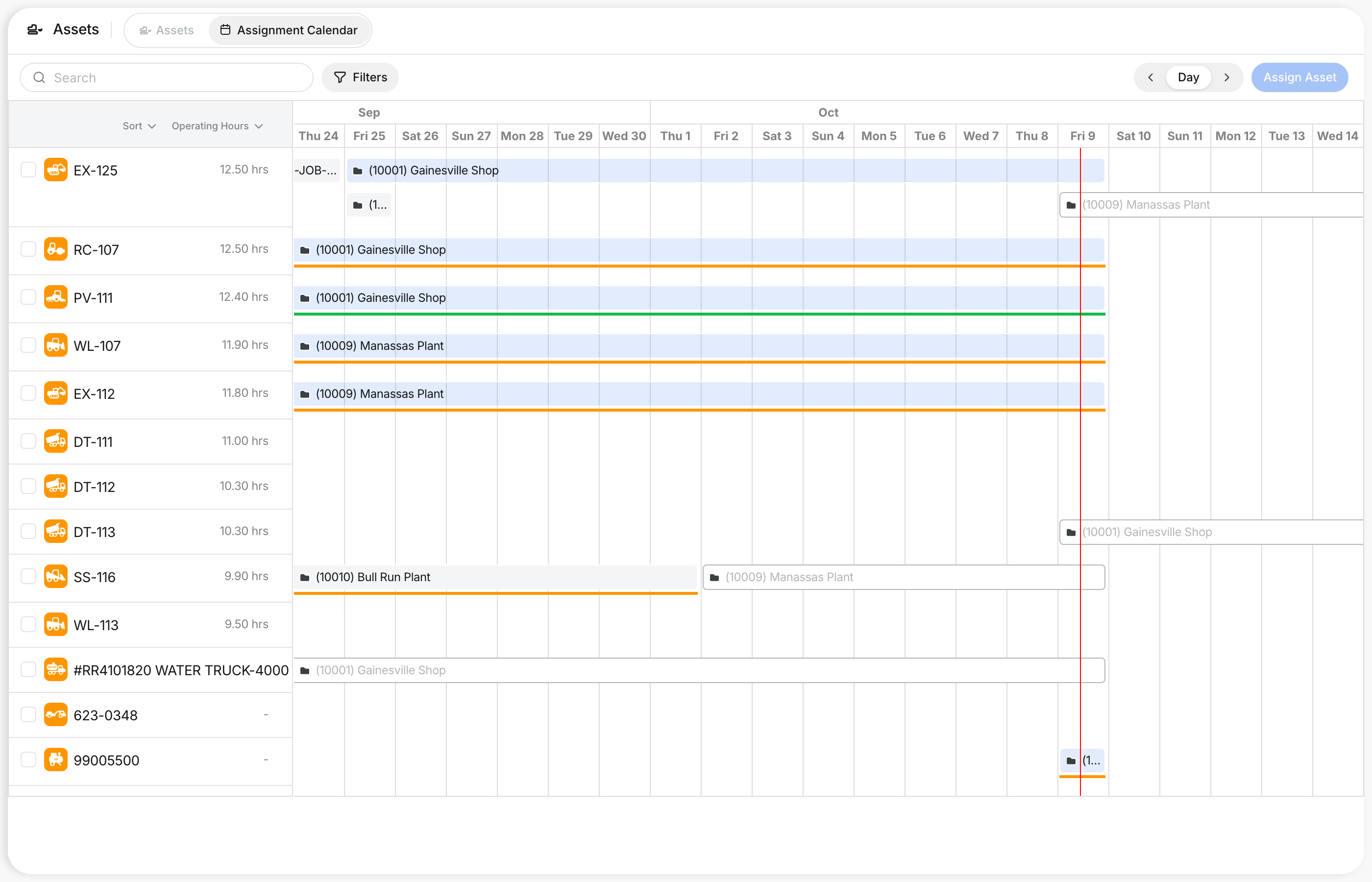
These fields show who owns the asset and where it is currently assigned. If the asset needs to be moved to a different project, users can also refer to Managing the Projects Directory or the article for assigning assets to projects.
- Ownership - owned, rented, or leased
- Division / Department - the internal team or business unit
- Project - the current job site or project assignment
- Linked User - the primary operator or linked person

Operational Data
Use this section to keep usage and current status accurate. These values are important for maintenance planning, tracking, and reporting. If meter updates affect service timing, users may also need Preventive Maintenance Scheduling.
- Hour Meter - current engine hours
- Odometer - current mileage
- Operational Status - active, down, maintenance, or another current status
Saving Changes
After updating the fields you need, save the record to apply the changes. The updated information appears on the asset right away, so the rest of the team sees the latest record.
- Make your changes in the relevant fields
- Click Save
- The changes take effect immediately
Bulk Editing
If you need to update several assets at the same time, use bulk edit instead of opening each one individually. This is useful when the same field needs to be changed across multiple records. Before doing that, it can help to filter the list in Managing Your Asset Directory so you only select the assets you want to change.
- Select multiple assets using the checkboxes
- Click Bulk Edit from the actions menu
- Choose the field you want to update
- Enter the new value
- Apply the change to all selected assets
Tips
A few simple habits can help keep asset records clean and useful over time.
- Update hour meter values regularly so PM schedules stay accurate
- Change the ownership field when rentals are returned or equipment is purchased
- Use tags to create simple custom groupings beyond standard categories
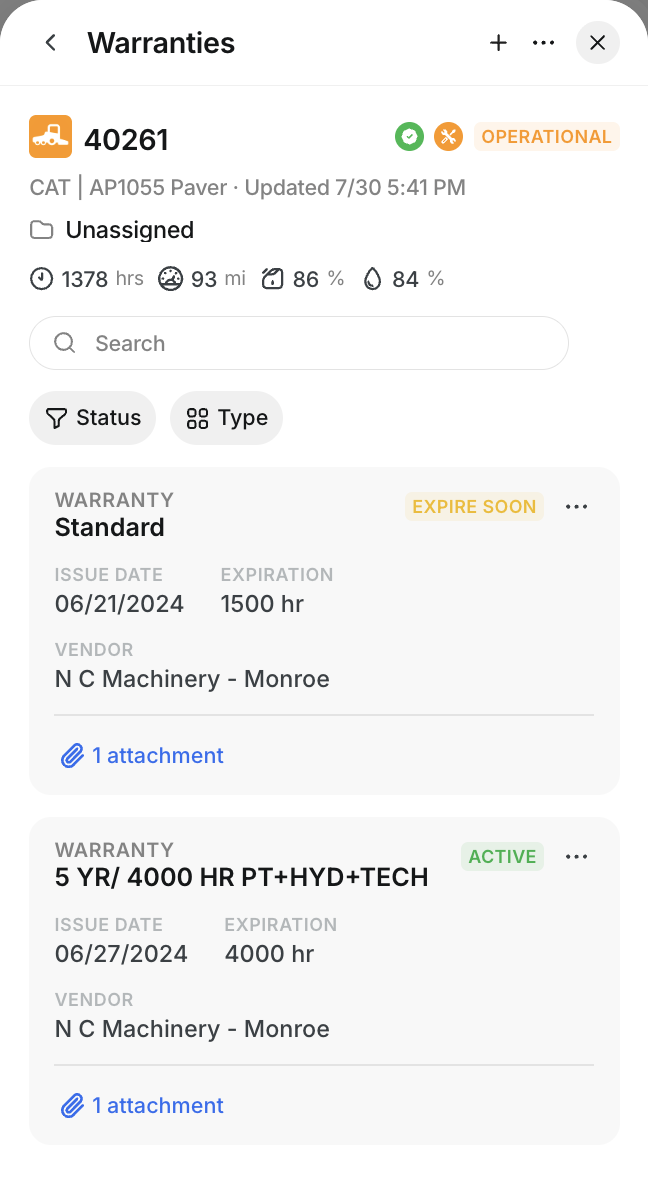
- Keep serial numbers accurate for warranty, service, and equipment history records
- If the asset does not exist yet, create it first using Adding a New Asset