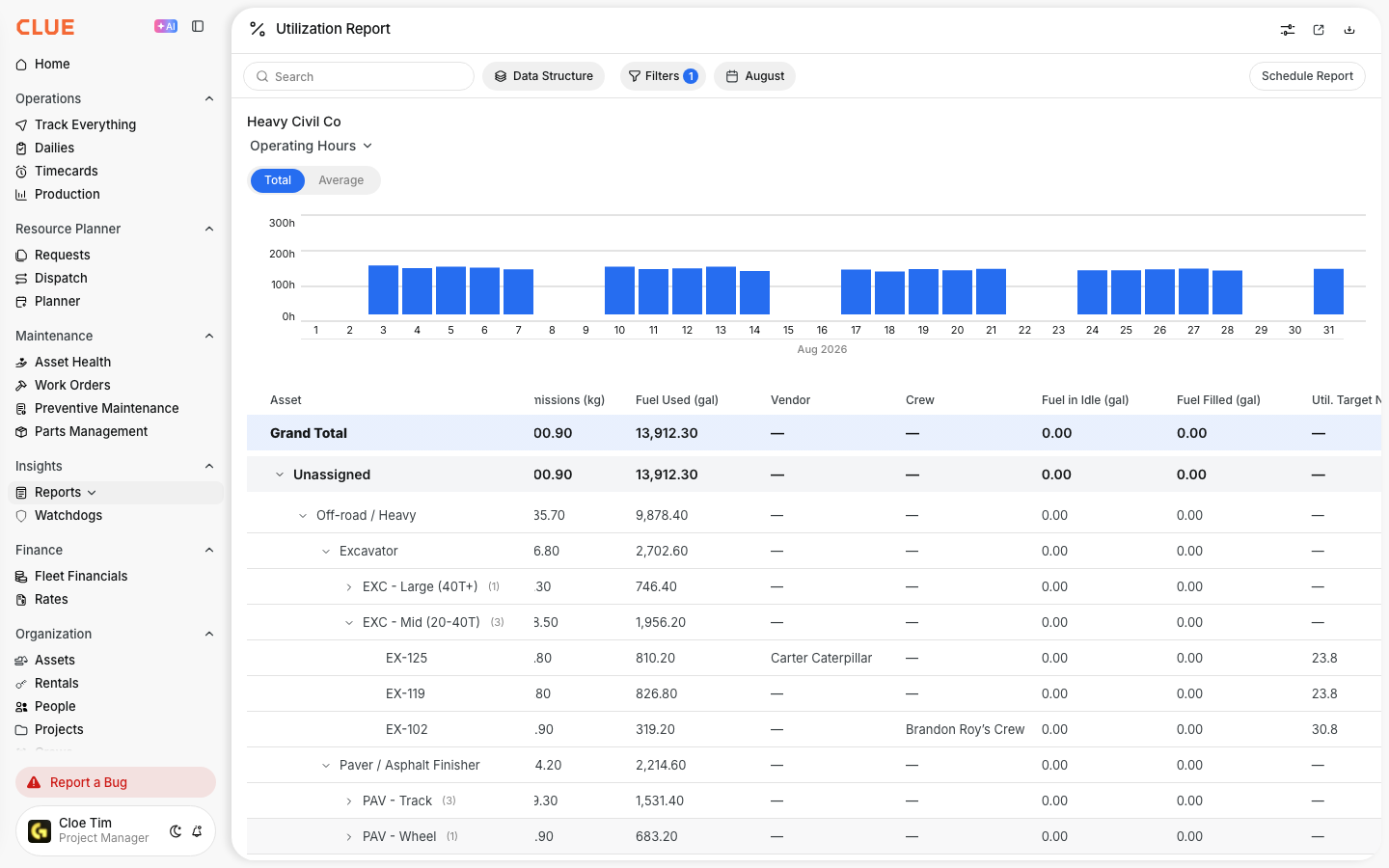
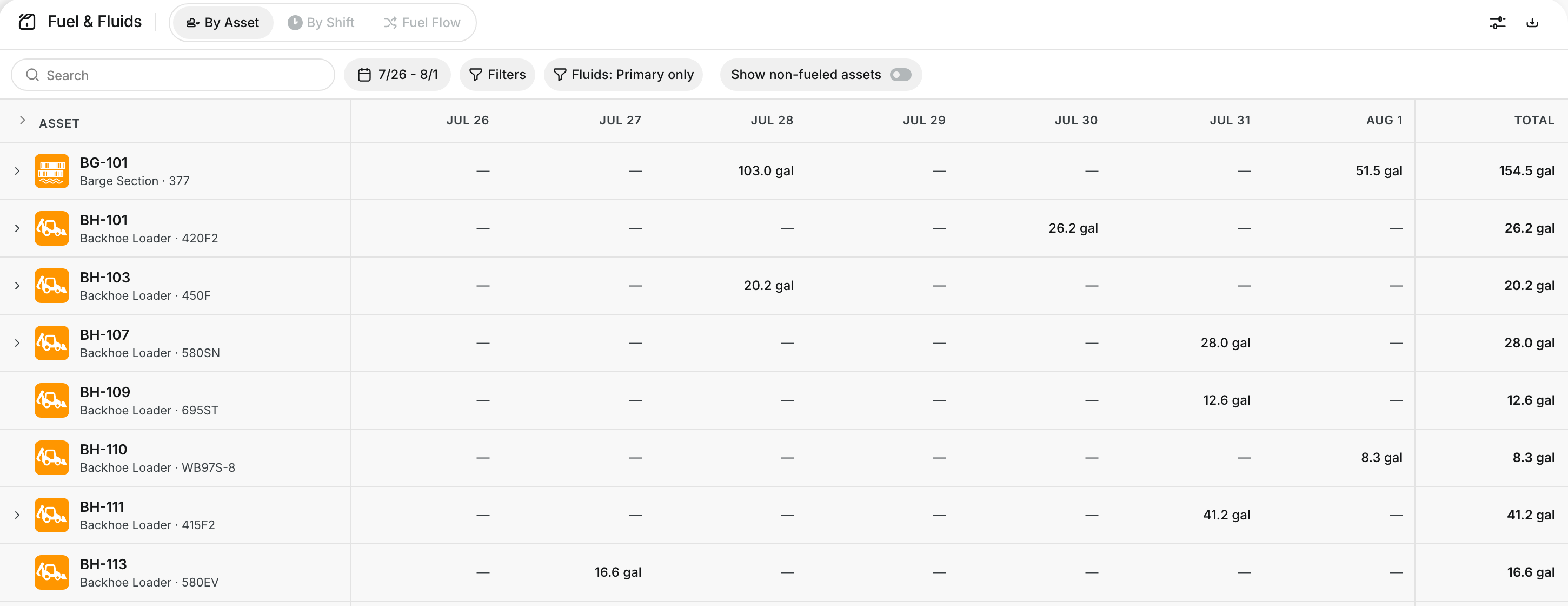
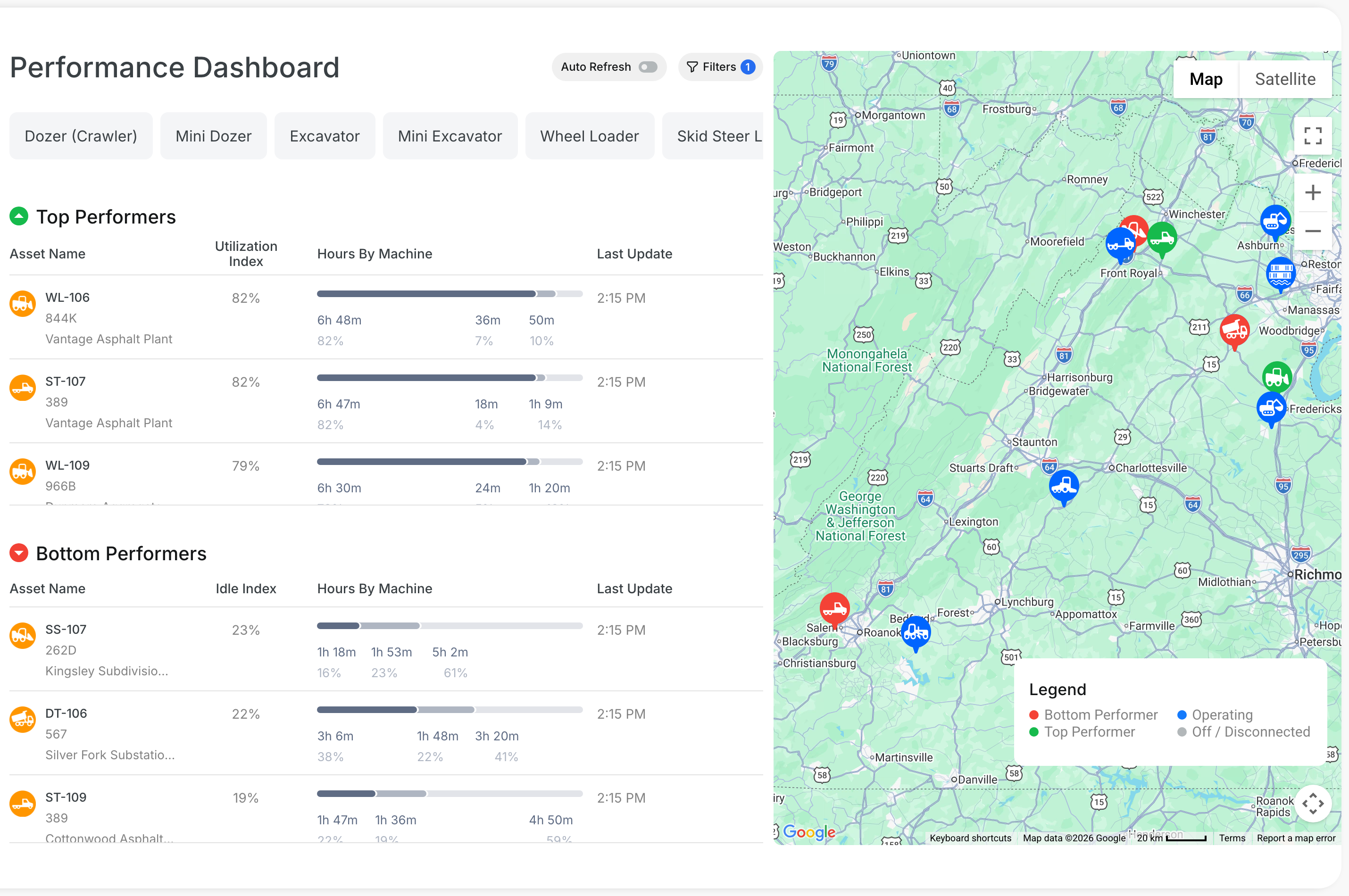
Scheduled Reports let you send reports automatically by email, so your team gets the right data without pulling it by hand every time. This is useful for recurring updates like PM status, cost review, and weekly fleet summaries.
Reports section
Scheduled Reports sit inside the Reports area in Insights. It works well with Managing Scheduled Reports, Using the AI Report Builder, and Understanding Fleet Reports when your team is building a regular reporting process.
Overview
Use Scheduled Reports when you want CLUE to run a report on a set schedule and email it to the right people automatically. This helps cut manual work and keeps the team updated without needing someone to remember to run the report each time.
Accessing Scheduled Reports
Start in the Reports area, where you can review existing schedules or create a new one. This is the main place for setting up recurring report delivery.
Go to Insights > Reports, then open the Scheduled Reports tab. From there, you can view existing schedules or create a new one.

Creating a New Schedule
Creating a schedule is mainly about choosing the report, deciding how often it should run, and setting who should receive it. Keep the setup simple at first, then adjust it once the team starts using it.
Click New Schedule and fill in the main details:
- Report Name - a clear name for the schedule
- Report Type - the report you want CLUE to run
- Frequency - how often it should send
- Recipients - the email addresses that should receive it

Frequency Options
The schedule can be set to run daily, weekly, or monthly depending on how often the team needs the update. Choose the option that matches how the report will actually be used.
- Daily - runs every day at the selected time
- Weekly - runs on selected day or days of the week
- Monthly - runs on a selected day each month
Setting the Schedule
The schedule settings control when the report runs and what reporting period it covers. This is where you make sure the report arrives at the right time with the right date range.
Choose the frequency, select the day or days, set the time, and then choose the reporting period, such as Previous Day or Previous Week. Reports run based on your timezone, so timing should line up with your local schedule.

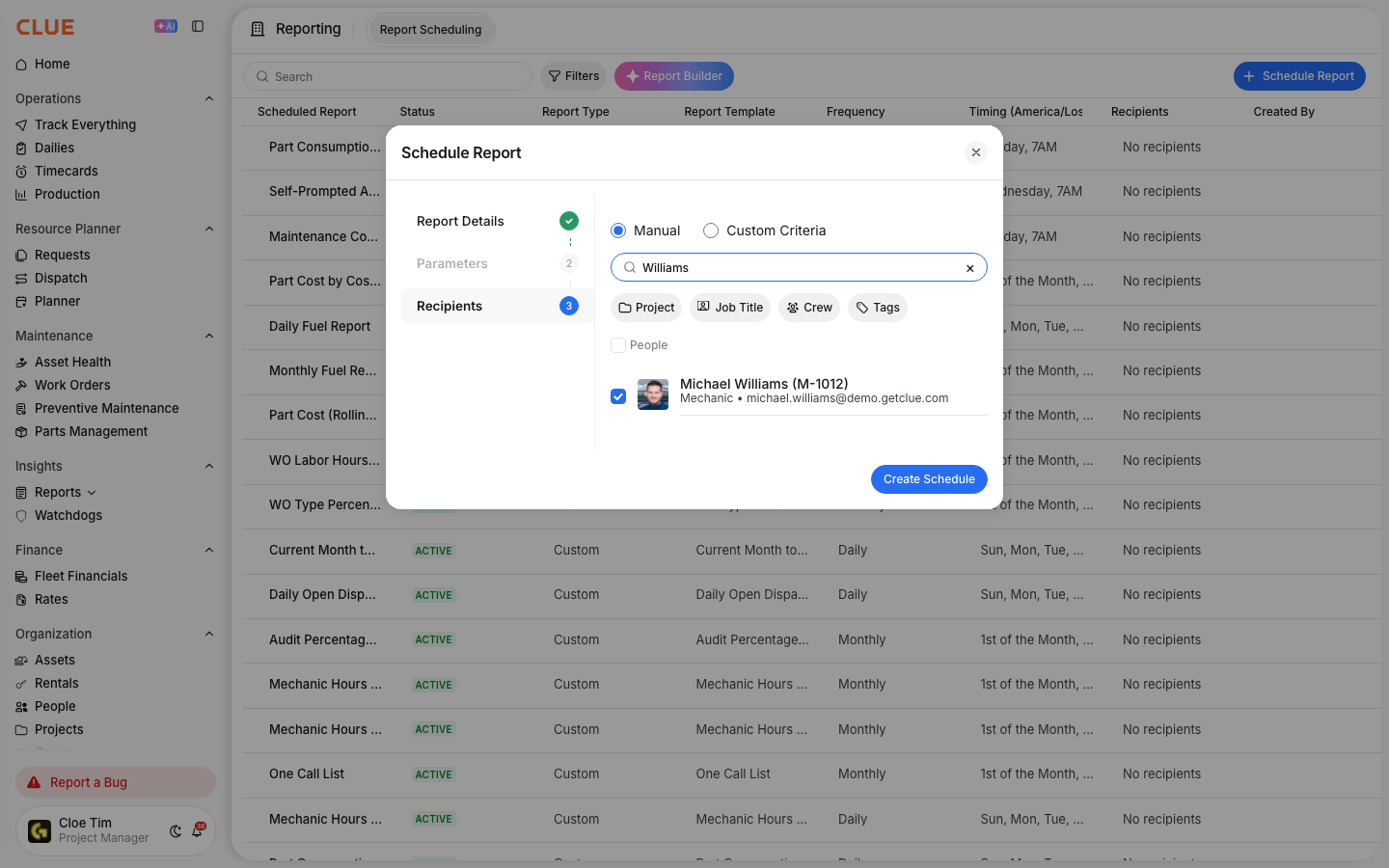
Adding Recipients
Recipients can be added directly in the schedule, so the report goes to the people who need it without extra forwarding. This is useful for managers, supervisors, and others who only need the report output.
Enter one or more email addresses in the Recipients field. Multiple recipients can be added together, and they do not need CLUE accounts to receive the report. It is a good idea to test the schedule with your own email first before adding a wider group.
Report Filters
Filters help make the report more useful by limiting it to the part of the business the recipient actually cares about. This keeps scheduled emails focused and easier to review.
You can apply filters such as:
- Division or Region
- Asset Type
- Project
Managing Schedules
Once a schedule is created, you can update it later as reporting needs change. This makes it easy to keep the schedule useful without starting over.
You can:
- Edit the schedule to change frequency, recipients, or filters
- Pause it if you want to stop delivery for a while
- Delete it if it is no longer needed
- Run Now if you want to trigger the report right away
Tips
A few simple habits make scheduled reports more useful. The goal is to send the right report to the right people on a schedule that actually helps them act on it.
- Schedule fleet summary reports for Monday mornings so managers start the week with fresh numbers.
- Send daily PM status reports to maintenance leads who need to watch overdue work closely.
- Use weekly cost reports for regular financial review.
- Add division managers only to the reports tied to their region or team.
- Use Managing Scheduled Reports when you need to pause, update, or clean up older schedules.