Creating and Managing Parts Kits
Creating and Managing Parts Kits is a feature in Clue's inventory management system that lets you build saved bundles of parts for specific jobs. Instead of searching for every filter, gasket, and belt individually each time a machine is serviced, you create a kit once and reuse it. Name it, fill it with the right parts and quantities, and it is available to apply to any work order from that point forward.
Kits are managed in the Parts Management section of Clue and are available on the web app. Once a kit is created, it can be applied to work orders by mechanics, shop managers, or anyone building a work order for that job type.
Who Is This For?
- Parts Managers build and maintain the kit library. They ensure that standard service kits contain the correct approved parts and quantities so mechanics get the right parts every time without having to search or guess.
- Shop Managers use kits to standardize what goes into each type of service job. A consistent kit means no missing parts halfway through a job and no variation in what gets used across different mechanics doing the same work.
- Maintenance Planners reference kits when building preventive maintenance schedules so that the correct parts are ready before a PM work order is even created.
How to Use It
Step 1: Navigate to the Kits tab
Go to Parts Management in the sidebar and click the Kits tab. The table shows all existing kits with their name, description, item count, who created them, and when they were last updated. Use the search bar to find a specific kit by name.

Step 2: Create a new kit
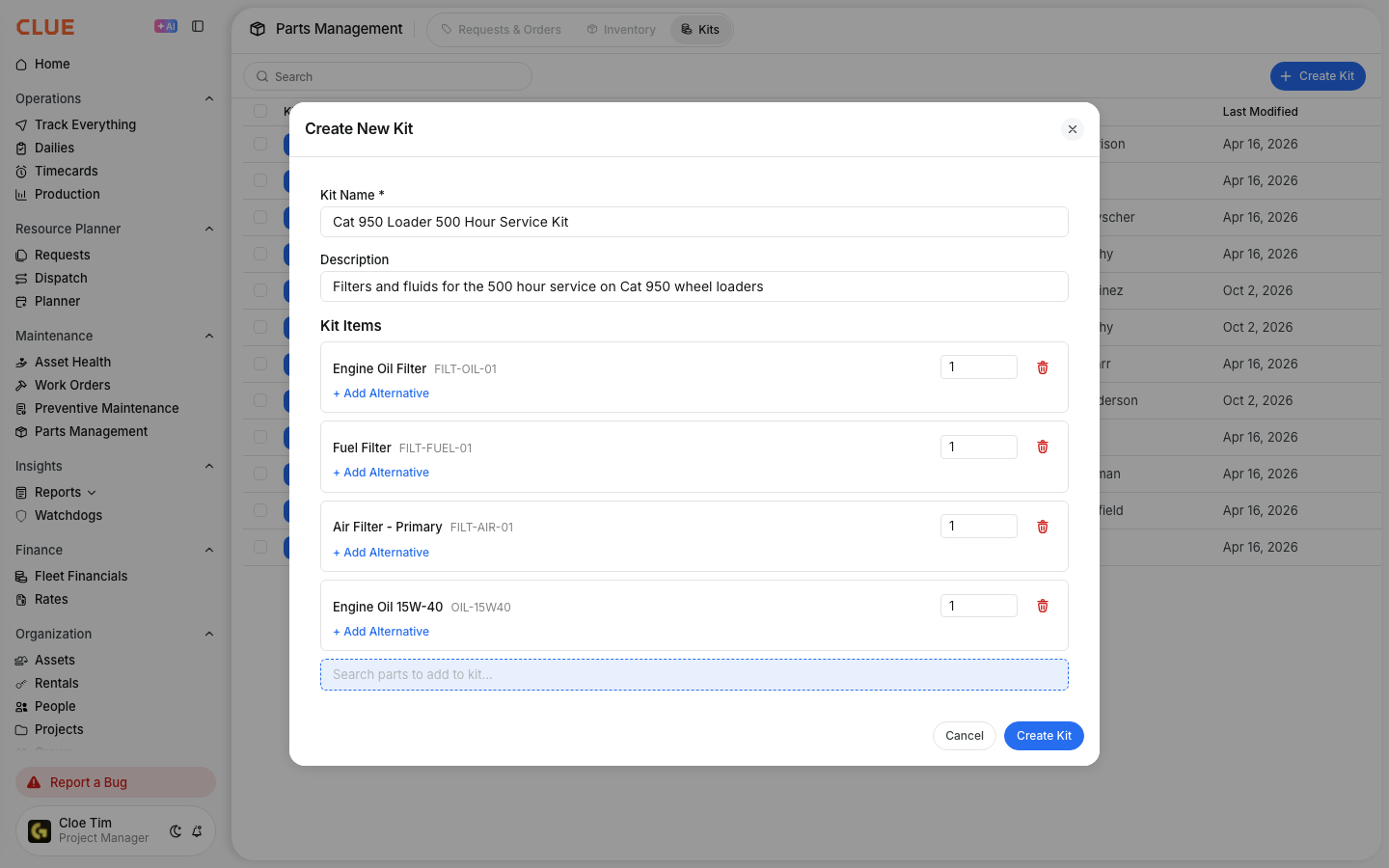
Click + Create Kit. Give the kit a name that your team will recognize at a glance. Be specific: Cat 336 Oil Kit is better than Oil Kit. Add an optional description that tells someone what the kit covers without them having to open it.

Step 3: Add parts to the kit
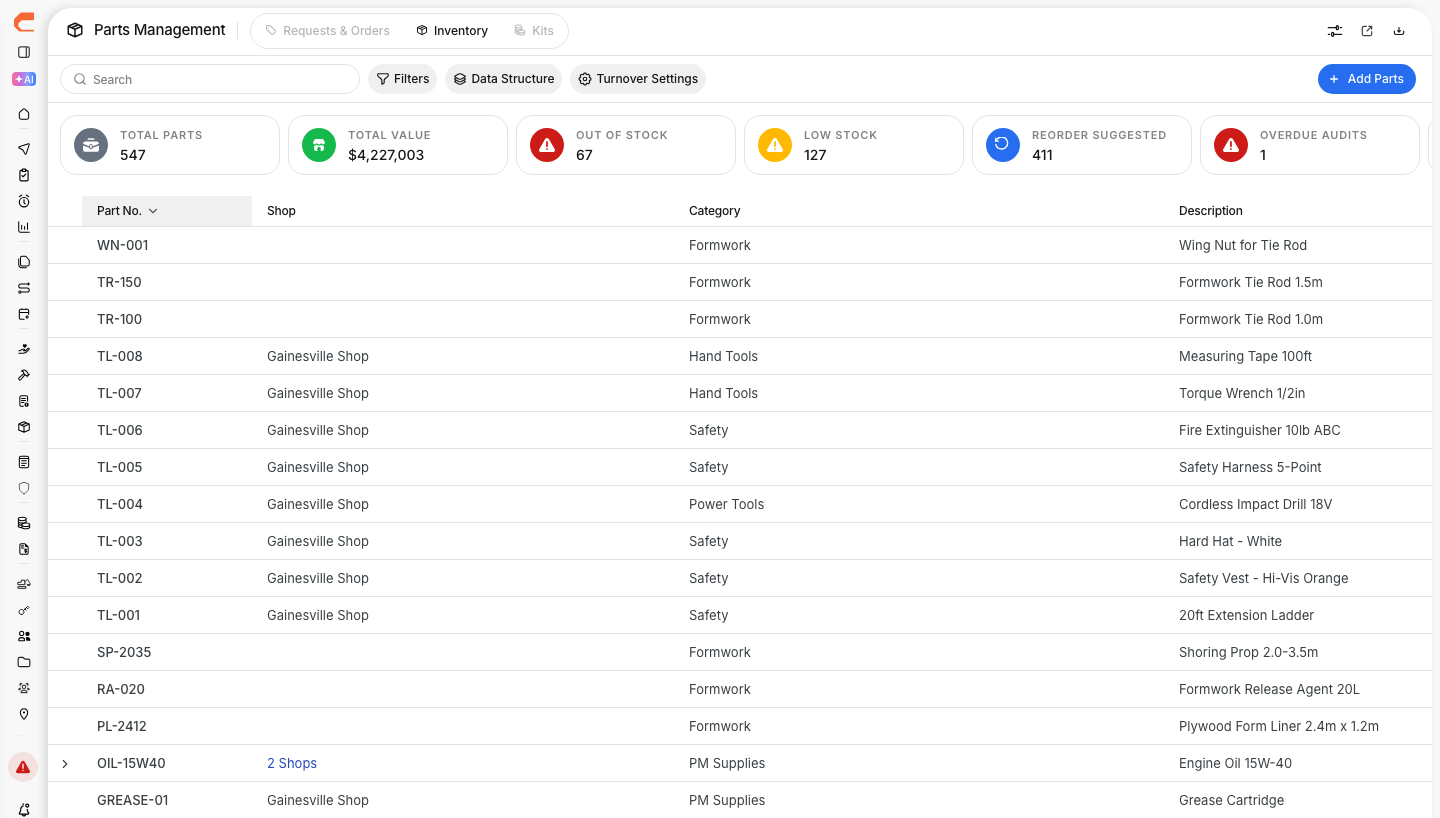
In the Kit Items section, start typing a part name or number. The dropdown shows matching parts from your inventory. Select the part and set the quantity. Repeat for every part the job requires. A kit must contain at least one part before it can be saved.
Step 4: Edit an existing kit
Click any kit row to open it for editing. You can change the name, description, add or remove parts, and adjust quantities. Editing a kit does not affect work orders that have already used it. The parts already on those work orders stay as they were when the kit was applied.

Step 5: Delete kits you no longer need
Check the box next to one or more kits and click the Delete button that appears in the toolbar. Deleting a kit removes it from the kit library. Work orders that previously used the kit are not affected. The parts added from that kit remain on those work orders.

Key Behaviors and Limitations
- Kit names must be unique within your company. You cannot have two kits with the same name. If you are creating variations for different models, include the model in the name.
- A kit must contain at least one part to be saved. Empty kits cannot be saved. Add at least one part and quantity before clicking save.
- Applying a kit copies parts to the work order at that moment. There is no ongoing link between the kit and any work order it has been applied to. Future edits to the kit do not change work orders that already used it.
- Deleting a kit does not affect existing work orders. Parts already added to a work order from a deleted kit stay on that work order. The deletion only removes the kit from the available list going forward.
- This feature is currently in beta. Parts kits will roll out to all Clue users after the beta period concludes.
Tips
- Name kits by equipment model and service type. Examples like Cat 336 Oil Kit, D6 Air Filter Kit, and Conveyor Belt Replacement Kit tell your mechanics exactly what the kit is for before they open it.
- Keep descriptions short but informative. A description like Brake components and caliper grease tells someone what is inside without making them open the kit to check.
- Build kits for your most common jobs first. Oil changes, filter replacements, and belt swaps are the highest-frequency services. Getting kits built for these saves the most time across your shop immediately.
- Review your kits when parts numbers change. If a supplier updates a part number or you switch to a different brand, update the kit so work orders continue using the correct part going forward.