Authentication and Single Sign-On
Passwords create friction and security risk. Forgotten passwords generate IT tickets. Shared passwords undermine accountability. Authentication and Single Sign-On in Clue removes this problem by replacing passwords with phone-based two-factor authentication as the default for every account, and offering Single Sign-On for enterprise teams that need their existing identity provider to manage access.
Every Clue account uses phone-based 2FA out of the box. No setup required, no passwords to manage, and no IT overhead for resets. For organizations that require SSO for compliance or centralized access control, Clue supports both SAML 2.0 and OIDC.
Who Is This For?
- All Clue Users use phone-based 2FA by default. There is nothing to configure. Anyone with a registered phone number can log in securely without a password.
- IT Teams at Enterprise Organizations configure SSO to connect Clue to their existing identity provider such as Azure Active Directory or Okta, enabling centralized user management and meeting enterprise security requirements.
- System Administrators manage user access and ensure that when an employee leaves the organization, their access to Clue is removed through the identity provider without a separate deactivation step in Clue.
How Default Authentication Works?
Every Clue account uses phone-based two-factor authentication:
- Open Clue and enter your phone number
- Receive a one-time verification code via SMS
- Enter the code and you are in
No passwords. No password resets. No password policies to enforce or audit. The phone number is your identity and the SMS code confirms you have access to it. This method is available to all accounts on all plans at no additional cost

Single Sign-On for Enterprise
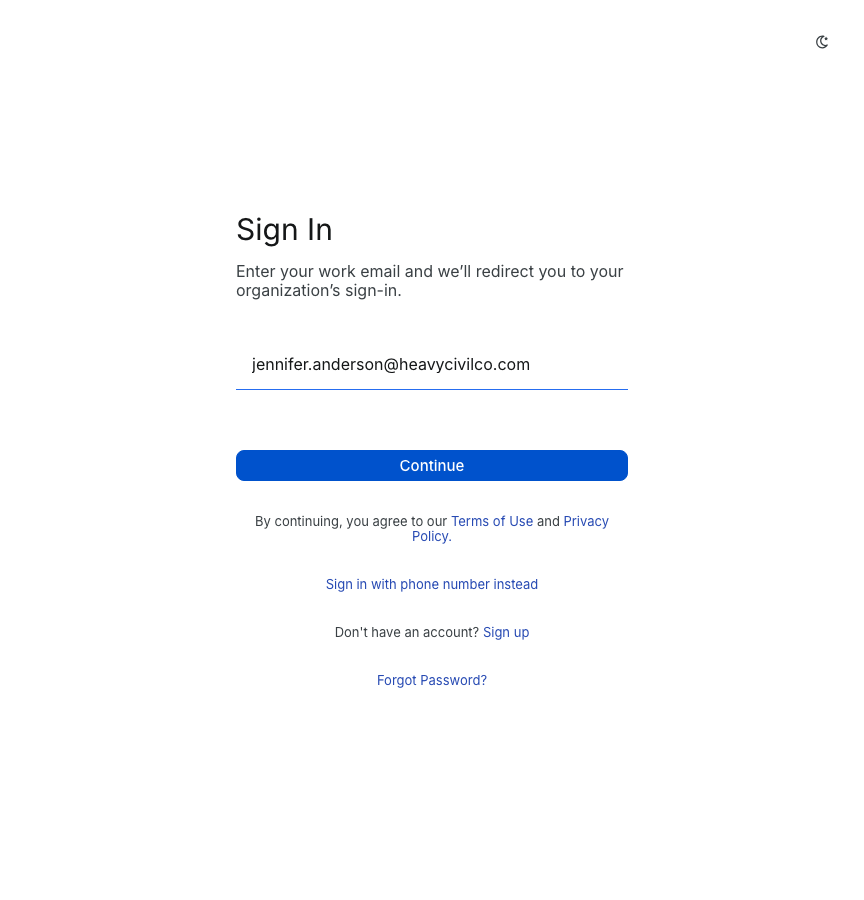
If your organization uses Azure Active Directory, Okta, or another identity provider, Clue can connect to it so your team logs in with the same credentials they use for email and other company systems.
What SSO Provides?
- One login for everything. Your team uses their existing company credentials. No separate Clue password to remember or reset.
- Centralized user management. When IT disables an account in your identity provider, that person loses Clue access automatically. No manual deactivation step required in Clue.
- Compliance support. SSO meets enterprise security requirements for frameworks such as SOC2 and ISO 27001, where centralized identity management is a documented requirement.
Supported Protocols
- SAML 2.0 is the most common enterprise SSO standard and works with Azure AD, Okta, OneLogin, and most major identity providers.
- OIDC (OpenID Connect) is a newer standard supported by Azure AD, Google Workspace, and others.
How to Enable SSO?
SSO is available for Enterprise accounts. Contact your Clue account manager to initiate setup. The process takes approximately one hour and involves the following steps:
- Your IT team provides the identity provider metadata including entity ID, SSO URL, and certificate
- Clue configures the connection on the platform side
- Both teams test authentication with a small group of users
- SSO rolls out to the full team once confirmed

Key Behaviors and Limitations
- Default authentication uses phone-based 2FA via SMS. This is available to all accounts and requires no configuration. It is active from the moment a user is added.
- SSO is available for Enterprise accounts only. Standard and smaller team plans use phone-based 2FA. Contact your account manager if SSO is required for your organization.
- Both web and mobile use the same authentication method. Whether your team accesses Clue on a browser or through the mobile app, the same authentication applies consistently.
- Sessions stay active for an extended period. Users do not need to re-authenticate every day. Sessions remain valid unless explicitly signed out or revoked.
- SSO is included in Enterprise plans. There are no additional per-user fees for enabling SSO.
Tips
- Phone-based 2FA works well for most teams. It is simpler than passwords and more secure. Only consider SSO if your IT security policy specifically requires it or if your team is large enough that centralized identity management provides a meaningful operational benefit.
- Test SSO with a small group before rolling out company-wide. Verify that role assignments and permissions in Clue map correctly to your identity provider groups before enabling SSO for everyone. A misconfiguration at this stage is easier to fix with two users than with two hundred.
- Update a user's phone number through admin settings if their device changes. If a user loses access to their registered phone, a Clue admin can re-verify their identity and update the phone number on their account to restore access.