Adding Parts Kits to Work Orders
Adding Parts Kits to Work Orders is a feature in Clue that lets you apply a pre-built parts kit to a work order in a single action. Instead of adding every filter, gasket, and belt one at a time, you click Add Kit, select the right kit, and all parts land on the work order at once with the correct quantities.
Each part from the kit becomes its own editable line item on the work order. You can adjust quantities, remove parts that are not needed for this specific job, or add extra parts on top of the kit. The kit is a starting point, not a locked list.
Who Is This For?
- Mechanics apply kits to get all the parts they need on a work order without having to remember every component for the job. One selection covers the full parts list for a standard service.
- Shop Managers use kits to standardize parts across common job types. When a kit is applied, the correct parts are on the work order before the mechanic starts, which reduces mid-job delays caused by missing parts. This connects directly to how Clue supports equipment maintenance efficiency across the shop.
- Parts Managers rely on kits to ensure the correct parts are requested consistently. When mechanics apply a pre-built kit, the right part numbers and quantities are used every time instead of whatever someone remembers from the last job.
How to Use It?
Step 1: Open a work order
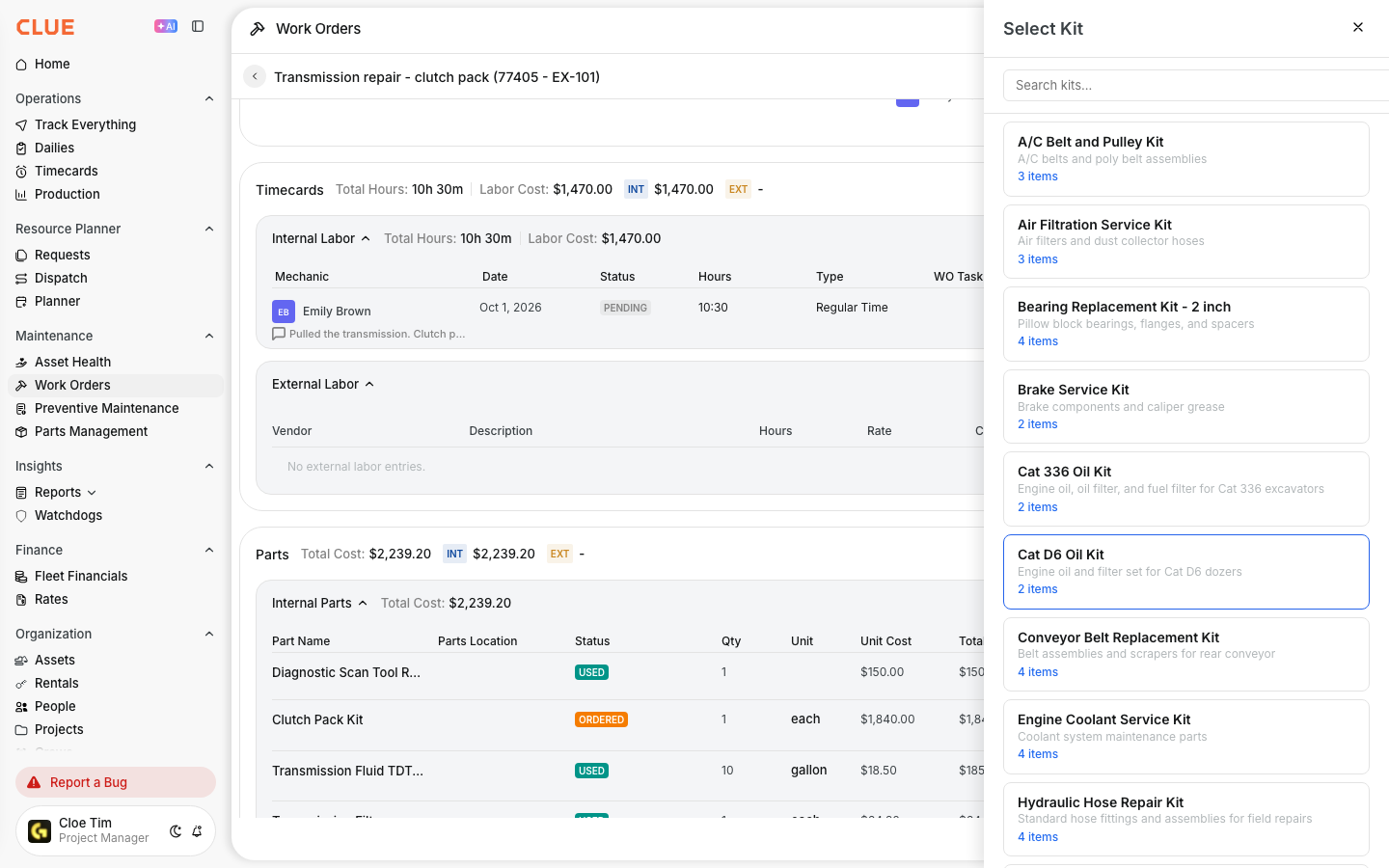
Go to Work Orders and open the work order you are adding parts to. Scroll down to the Parts section. You will see two buttons at the top of that section: Add Kit and Add Part.

Step 2: Click Add Kit and browse available kits
Click Add Kit. A panel slides in showing all available kits. Each card displays the kit name, a brief description, and the number of items in the kit. Use the search bar at the top of the panel to find a specific kit by name or equipment model.
Step 3: Preview the kit before applying
Click any kit card to see what is inside. The panel expands to show every part in the kit with its part number and quantity. Review the contents to confirm this is the right kit for the job before applying it.

Step 4: Apply the kit to the work order
Click Apply Kit to Work Order. All parts from the kit are added to the work order at once with their correct quantities. Each part appears as a separate line item. You can now edit individual quantities, remove parts that do not apply to this specific job, or use Add Part to include anything beyond the kit.
Step 5: Apply additional kits if needed
You can apply more than one kit to the same work order. If a job requires both a filter kit and a belt kit, apply both. Each kit adds its parts as separate line items. There is no limit on how many kits can be applied to a single work order.

Key Behaviors and Limitations
- Applying a kit is a one-time copy. When a kit is applied, the parts are copied to the work order at that moment. There is no ongoing link. If the kit is edited later, work orders that already used it are not affected.
- Each kit item becomes an independent line item. After applying, every part can be edited individually. Quantity changes, notes, and removals on the work order do not affect the kit itself.
- Multiple kits can be applied to one work order. Apply as many kits as the job requires. Each one adds its parts independently.
- Works on the web app only. Kits can be applied to work orders from the web app. The mobile app shows parts added to work orders but kit selection is done on desktop.
- This feature is currently in beta. Parts kits on work orders will roll out to all Clue users after the beta period concludes.
Tips
- Search by equipment model when selecting a kit. If your kits are named well, typing the model number in the search field narrows the list immediately. Good kit naming makes this step take seconds.
- Preview before applying to avoid having to undo. One look at the kit contents confirms you have the right one. It is faster than removing incorrect parts from a work order after applying the wrong kit.
- Apply the kit first, then add any extra parts. Start with the kit to get the standard parts on the work order, then use Add Part for anything specific to this job that falls outside the standard list.
- Use kits for your most common service jobs. Oil changes, filter replacements, and belt swaps are the best candidates. Building kits for high-frequency jobs saves the most time across your shop.