Adding Invoices and Attachments
Add invoices, photos, and documents to a work order so the full repair record stays in one place. This makes it easier to track costs, keep supporting files with the job, and look back on the work later.
Overview
Attachments help turn a work order into a complete maintenance record. Instead of keeping invoices, photos, and paperwork in separate places, you can store them with the work order so the team can review everything together.
This is especially useful if your team already uses Creating and Managing Work Orders, Updating a Work Order, or Viewing Asset Work History to manage repairs and review past jobs.
Adding Invoices to Work Orders
You can add invoices directly from the work order detail view. This keeps vendor charges tied to the repair so cost tracking is easier to review later.
Step 1: Open the work order
Open a work order from the Work Orders list.

Step 2: Go to the Invoices section
In the work order detail view, find the Invoices section.

Step 3: Click Add Invoice
Click Add Invoice to create a new invoice entry.

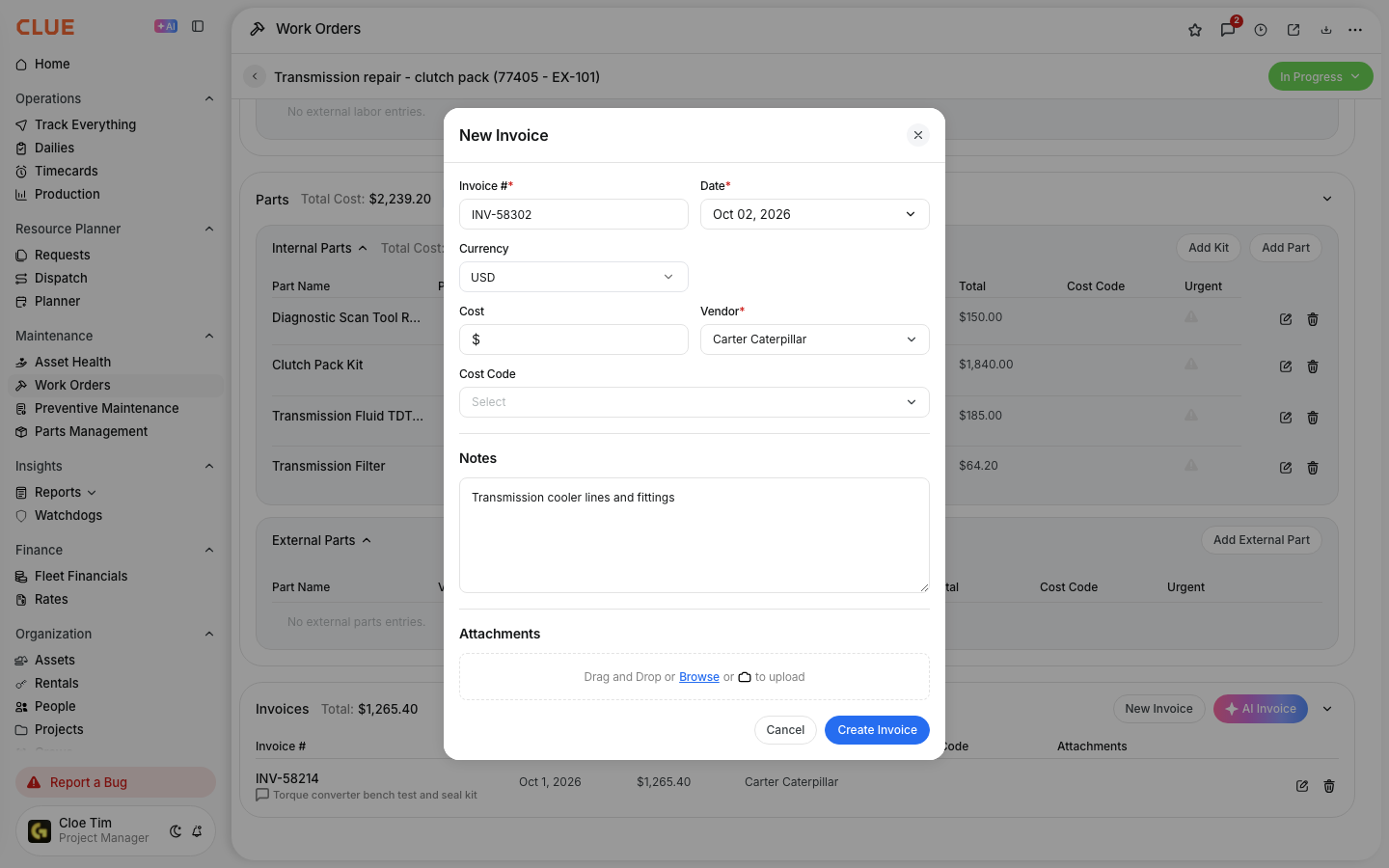
Step 4: Enter the invoice details
Add the basic invoice information so the record is clear and easy to search later. Typical fields include:
- Invoice number
- Vendor name
- Amount
- Invoice date
Step 5: Upload the file
Upload the invoice file, such as a PDF, image, or document. Once it is saved, it stays linked to that work order.
This section is also a good internal link opportunity for Adding Parts to Work Orders, especially when the invoice supports parts cost on the same repair.
Adding Other Attachments
Work orders can also hold other files besides invoices. This helps your team keep all repair-related documents together instead of spreading them across email threads or folders.
You can attach things like:
- Photos - before and after repair photos or damage records
- Documents - warranty details, service bulletins, or spec sheets
- Receipts - parts purchases or shop supply receipts
If the file belongs with the asset long-term and not just one repair, that also creates a natural internal link opportunity to Uploading Manuals and Documents to an Asset.
Best Practices for Documentation
Good documentation makes a work order more useful after the repair is done. It gives your team a clearer record for cost review, warranty follow-up, and future maintenance decisions.
A few good habits include:
- take photos before starting the repair
- add after photos once the work is finished
- include vendor quotes for larger repairs
- attach warranty documents when they apply
This also works well with Viewing Asset Work History, because the attached files stay tied to the repair record when someone reviews the asset later.
Accessing Attachments Later
Attachments stay linked to the work order after they are uploaded. That makes it easy to come back later and review the supporting files without searching somewhere else.
To find them again:
- open the work order from the current list or from history
- go to the Invoices or Attachments section
- click the file to view or download it
This is helpful when reviewing old repairs, checking warranty support, or preparing for an audit.
Tips
A few simple habits can keep attachments easier to manage and easier to use later. Clean file names and accurate invoice amounts make reporting and review much easier.
- use file names that clearly describe the document
- compress very large images before uploading
- make sure invoice totals are entered correctly
- attach supporting files while the repair is still fresh
- keep vendor paperwork with the same work order whenever possible