Using PM Schedules
Maintenance
Reading Time:
5 min read
Overview
Preventive Maintenance (PM) in CLUE helps you stay ahead of equipment issues by tracking scheduled maintenance based on time or usage intervals. The PM module has two main views: PM Status and PM Plans.
PM Status Tab
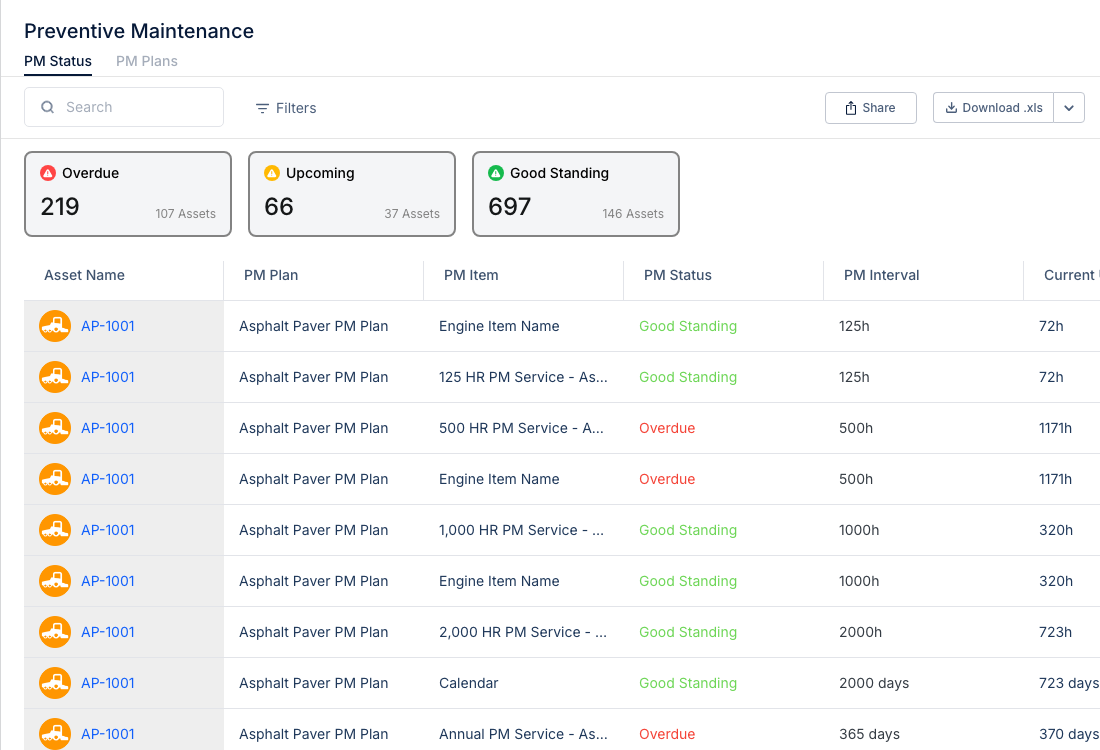
Navigate to Maintenance > Preventive Maintenance to see the PM Status dashboard.
Status Summary Cards
At the top, three cards show your fleet's PM health at a glance:
- Overdue (Red) - PMs that have passed their due date or hours threshold. Click to filter the list.
- Upcoming (Yellow) - PMs approaching their due date. Plan ahead for these.
- Good Standing (Green) - PMs not yet due. Equipment is on schedule.
Header Actions
- Search - Find specific assets or PM items by name
- Filters - Filter by status, asset type, or PM plan
- Share - Share the current view with teammates
- Download - Export PM data to Excel (.xls)
Table Columns
The PM Status table shows:
- Asset Name - The equipment with scheduled PMs
- PM Plan - Which maintenance plan applies
- PM Item - Specific service or task
- PM Status - Current status (Good Standing, Upcoming, Overdue)
- PM Interval - How often the PM is due (hours or days)
- Current - Current hours/days since last service
Viewing PM Details
Click on any row to open the asset's PM detail panel.

The detail panel shows:
- Asset identifier and status
- All PM Services for that asset
- Progress bars showing current vs. threshold hours
- Last reset date with option to edit
PM Plans Tab
Switch to the PM Plans tab to manage your maintenance schedules.
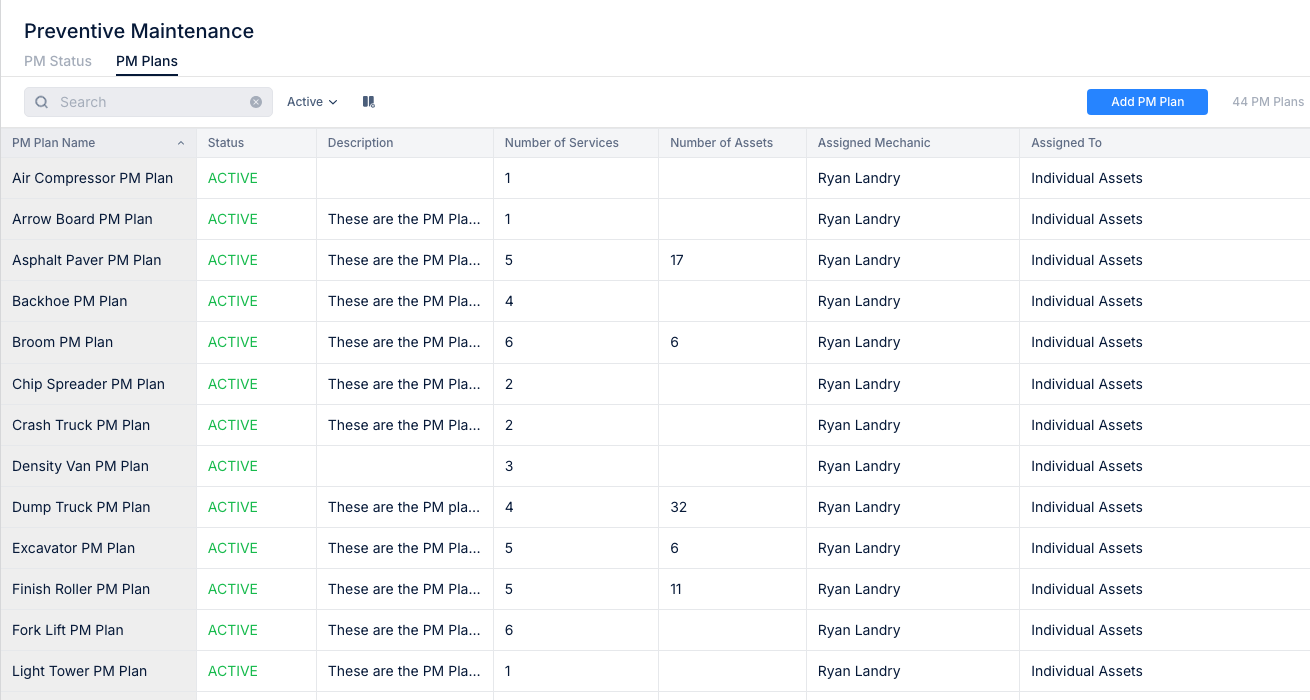
This view shows:
- PM Plan Name - Name of the maintenance schedule
- Status - Active or Inactive
- Description - What the plan covers
- Number of Services - How many PM items in the plan
- Number of Assets - How many assets use this plan
- Assigned Mechanic - Default mechanic for this plan
- Assigned To - Individual or team assignment
Click Add PM Plan to create new maintenance schedules.
Tips
- Check the Overdue card daily to prevent equipment failures
- Click status cards to quickly filter the list
- Use the Download button to create reports for management
- Set up PM Plans by equipment type for consistent maintenance