Using the Mechanic Schedule View
Maintenance
Reading Time:
4 min read
Overview
The Mechanic Schedule view organizes work orders by assigned technician, helping you balance workload and ensure no mechanic is overloaded while others have capacity.
Accessing Mechanic Schedule
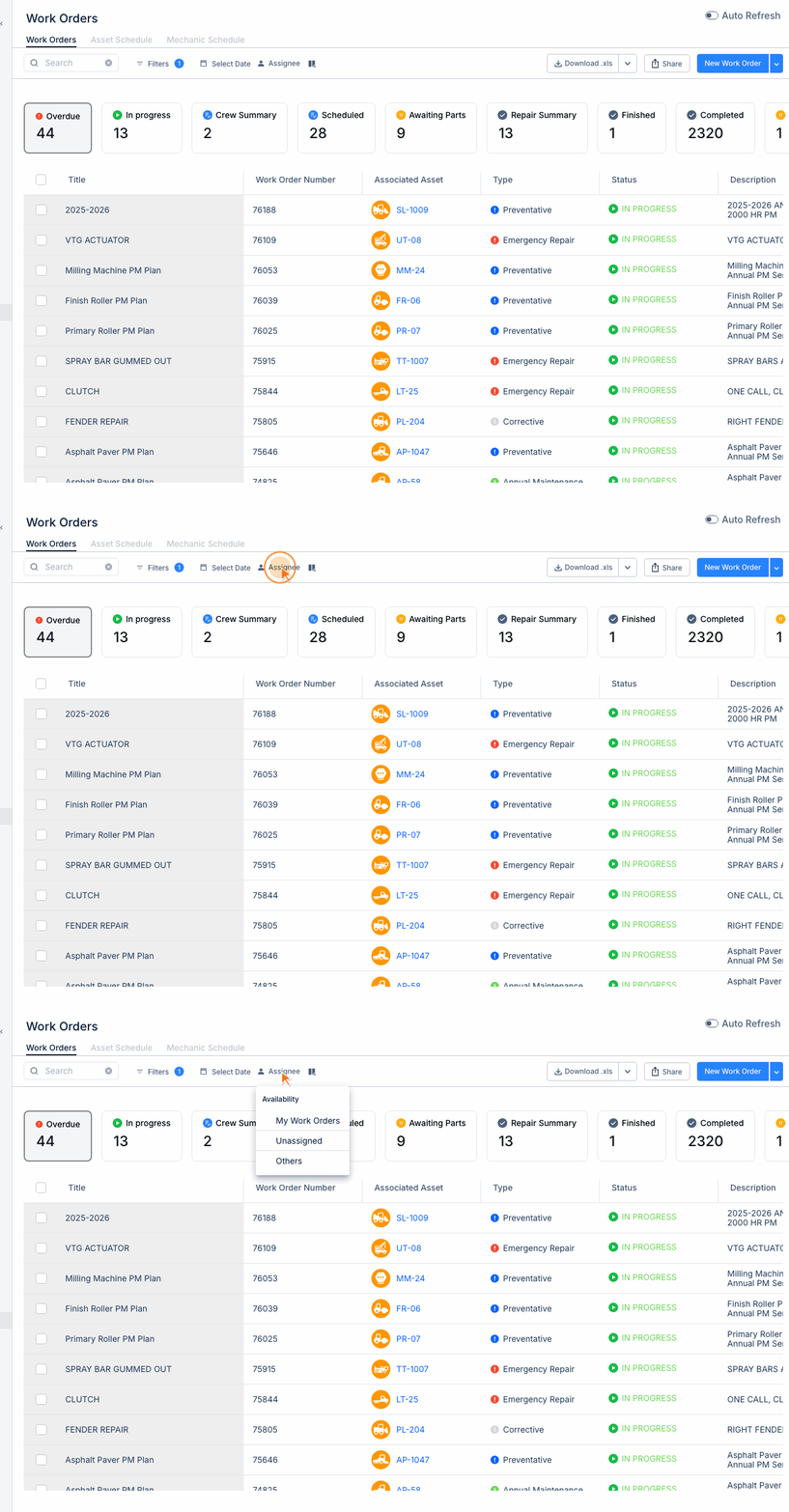
Step 1: Navigate to MAINTENANCE → Work Orders.
Step 2: Click the "Mechanic Schedule" tab at the top of the work orders page.
Understanding the View
The schedule displays:
- Mechanic rows - Each row shows one technician's assigned work
- Timeline - Days or weeks of scheduled work
- Work order blocks - Color-coded by status and type
- Unassigned row - Work orders without an assignee
Balancing Workload
Use this view to:
- Identify mechanics with too many assignments
- Find available capacity for urgent work
- Reassign work orders by dragging between rows
- See upcoming workload for scheduling decisions
Quick Actions
From this view you can:
- Click a work order to open its details
- Drag work orders to reassign mechanics
- Filter by work order type or status
- Change date range to see further ahead
Identifying Issues
Watch for:
- Overloaded days - Multiple work orders stacked on same day
- Unassigned work - Items in the unassigned row need attention
- Skill mismatches - Ensure complex work goes to experienced techs
Tips
- Review this view daily during morning meetings
- Consider mechanic specialties when reassigning
- Keep buffer time for emergency repairs