Using the Asset Schedule View
Maintenance
Reading Time:
4 min read
Overview
The Asset Schedule view displays work orders organized by equipment, showing you which assets have scheduled maintenance and when. Use this view to balance workload across your fleet.
Accessing Asset Schedule
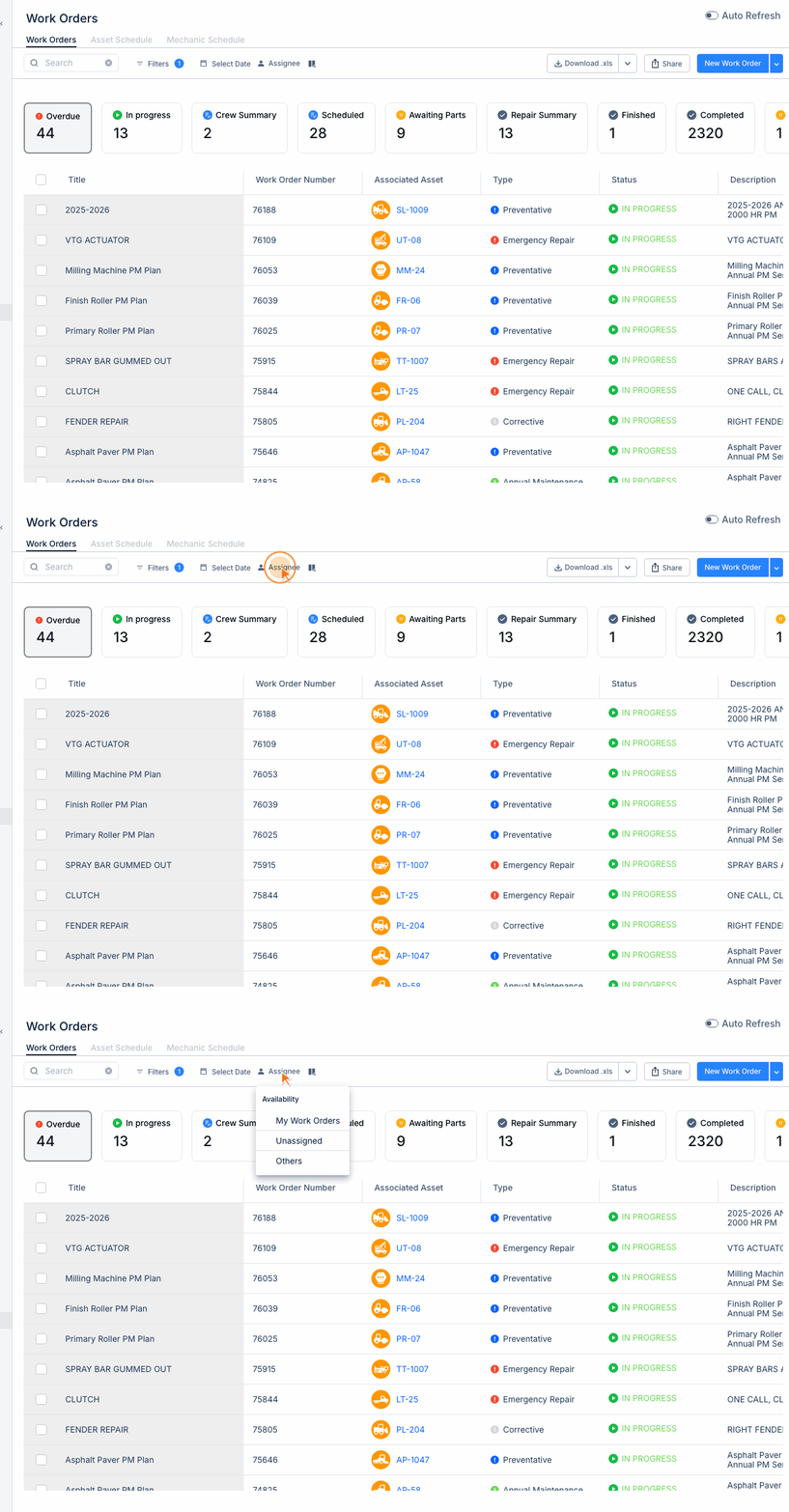
Step 1: Navigate to MAINTENANCE → Work Orders.
Step 2: Click the "Asset Schedule" tab at the top of the work orders page.
Understanding the View
The Asset Schedule displays:
- Asset rows - Each row represents one piece of equipment
- Timeline columns - Days or weeks depending on your selected range
- Work order blocks - Color-coded bars showing scheduled work
Color Coding
Work orders are color-coded by status:
- Blue - To Do (scheduled but not started)
- Yellow - In Progress (work underway)
- Green - Done (completed)
- Red - Overdue or Machine Down
Using the Schedule for Planning
This view helps you:
- See which assets are due for maintenance this week
- Identify assets with no scheduled work
- Spot scheduling conflicts (multiple WOs same day)
- Plan shop capacity around heavy maintenance periods
Filtering the View
Narrow down what you see by filtering:
- By project or location
- By asset type
- By work order status
- By date range
Tips
- Use this view for weekly maintenance planning meetings
- Click on any work order block to open its details
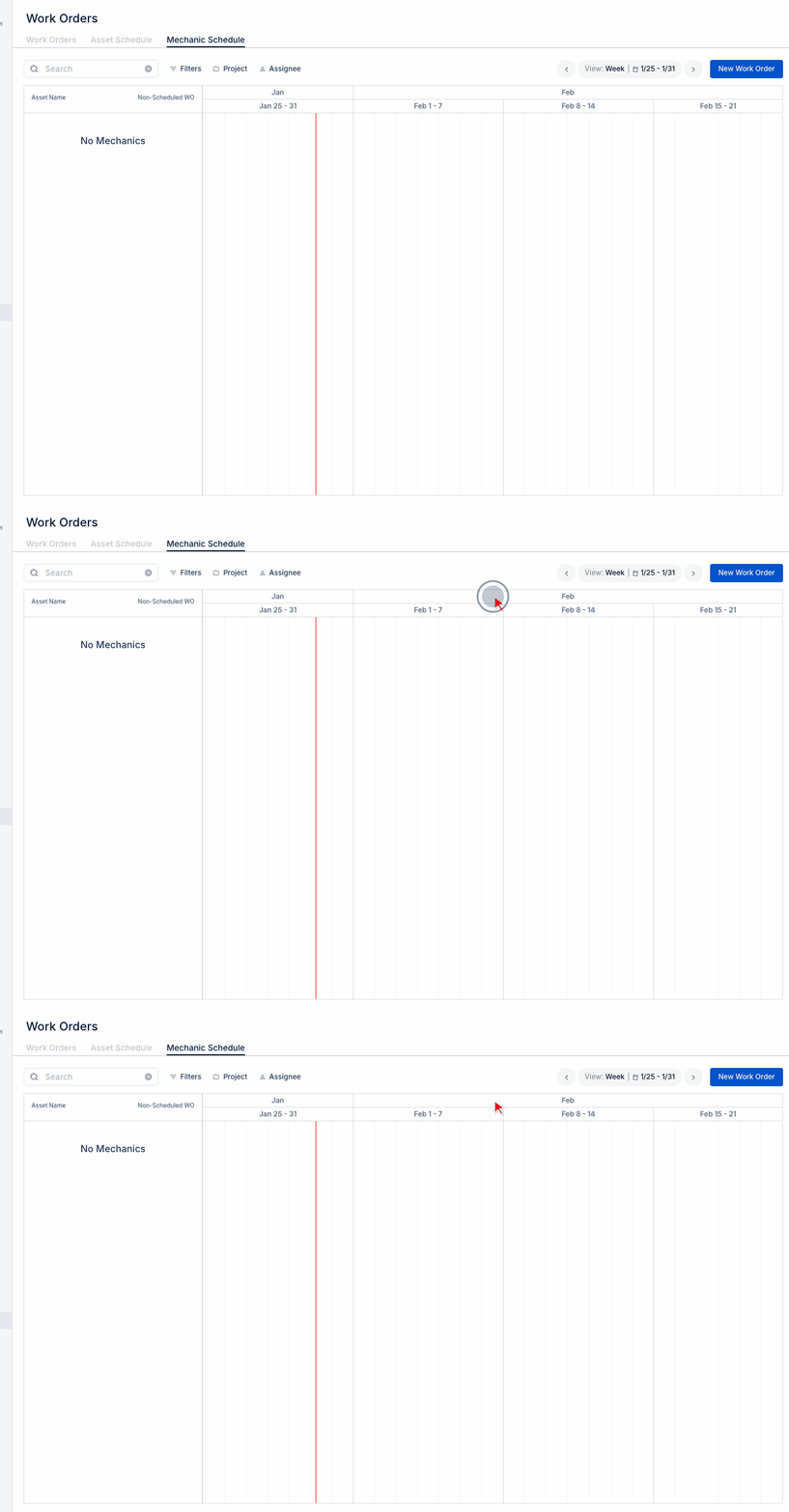
- Compare with Mechanic Schedule to balance workload