Uploading Manuals and Documents to an Asset
Overview
Keep all your important equipment documents — parts manuals, service guides, warranty papers, and more — right on each asset's profile in CLUE. No more digging through filing cabinets or shared drives. Everything your team needs is one click away from the asset itself.
Supported File Types
CLUE accepts the following file types for asset attachments:
- Documents: PDF, Word (.doc, .docx), Plain Text (.txt), Markdown (.md)
- Images: JPEG, PNG, WebP, GIF, HEIC, HEIF, AVIF
Step 1: Navigate to the Asset
From the main menu, go to Directory > Assets. Find the piece of equipment you want to add documents to, and click on it to open the asset detail page.
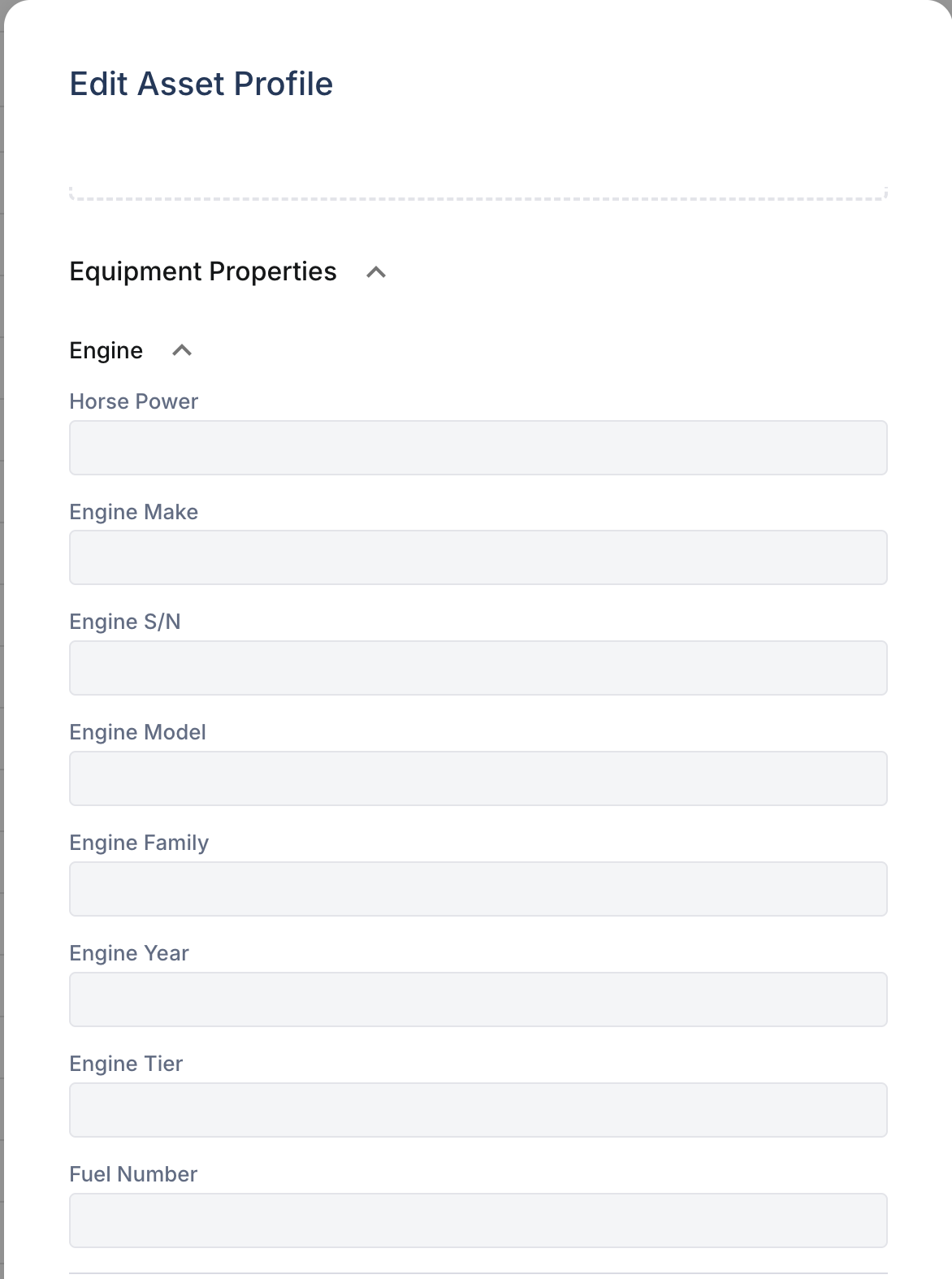
Step 2: Open Edit Asset Profile
On the asset detail page, click the three-dot menu (⋮) in the top-right corner. Select Edit Asset Profile from the dropdown.
Step 3: Scroll to the Attachments Section
In the Edit Asset Profile form, scroll down until you see the Attachments section near the bottom of the form.
Step 4: Upload Your Files
You have two ways to add files:
- Drag and Drop: Drag files directly from your computer into the attachments area
- Browse: Click the Browse link to open your file picker and select one or more files
You can upload multiple files at once. Each file will show a preview or icon once uploaded.
Step 5: Save Your Changes
After uploading your files, click Save at the bottom of the form. Your documents are now attached to the asset and visible to anyone who views the asset profile.
Viewing Attached Documents
Once saved, attachments appear in the Attachments section of the asset detail page. Team members can scroll through attached documents using the left/right arrows if there are multiple files.
Tips
- Name your files clearly before uploading (e.g., "LB-250X3-Parts-Manual.pdf") so your team can quickly identify what they need
- Upload one document per topic — separate the parts manual from the service manual for easier navigation
- PDF is recommended for manuals — it preserves formatting and is viewable on any device
- Any team member with edit access to assets can upload and manage attachments
Troubleshooting
"I don't see the Edit Asset Profile option"
You may not have the required permission. Contact your CLUE administrator to check your role settings.
"My file won't upload"
Make sure your file is one of the supported types listed above. If you're trying to upload a spreadsheet (.xlsx) or other unsupported format, convert it to PDF first.
Need Help?
Contact your CLUE administrator or reach out to support@getclue.com.