Updating a Work Order
Maintenance
Reading Time:
4 min read
Overview
After creating a work order, you may need to update its details as work progresses or circumstances change. This guide shows you how to view and edit work order information.
Step 1: Open the Work Order
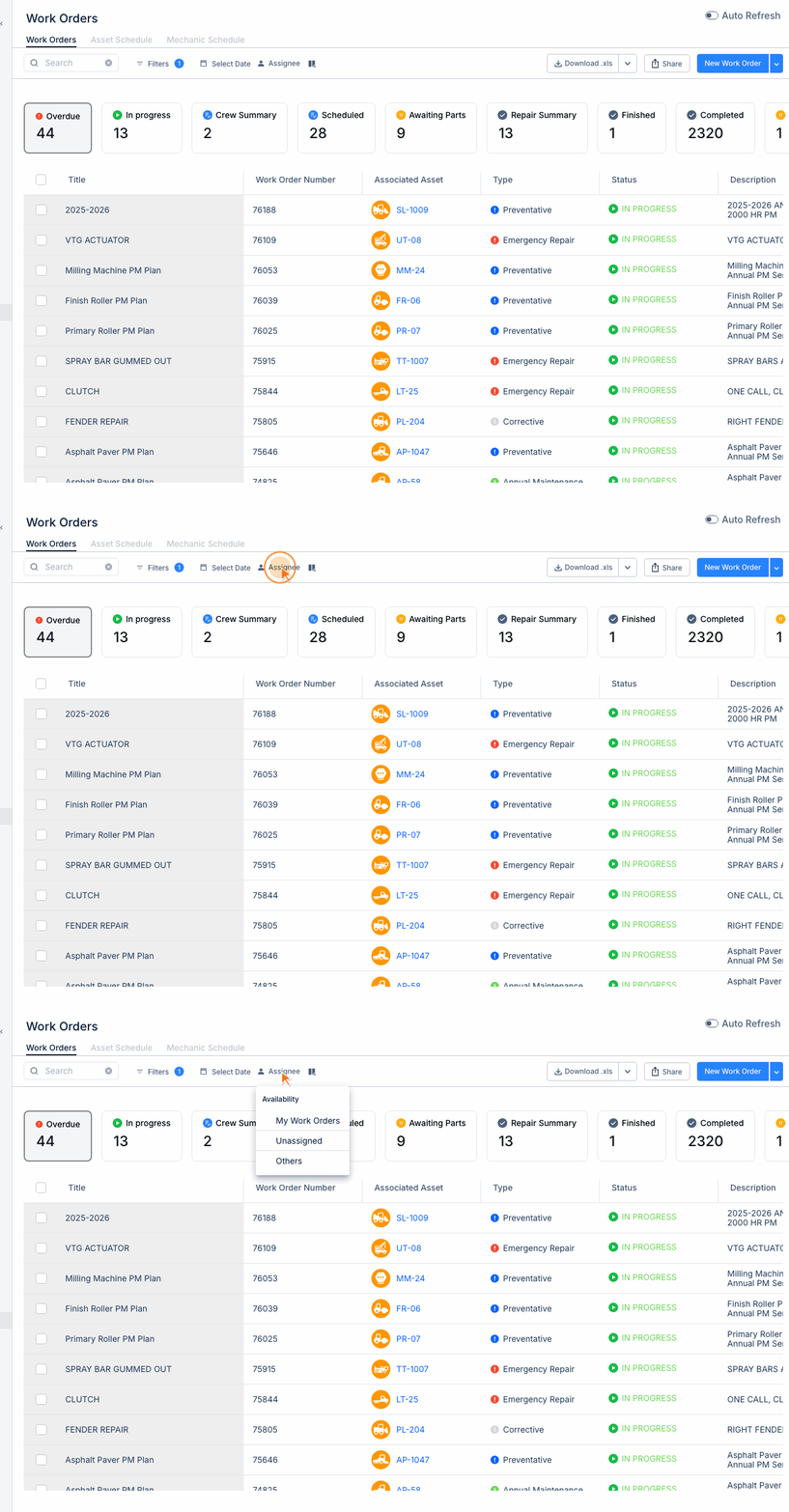
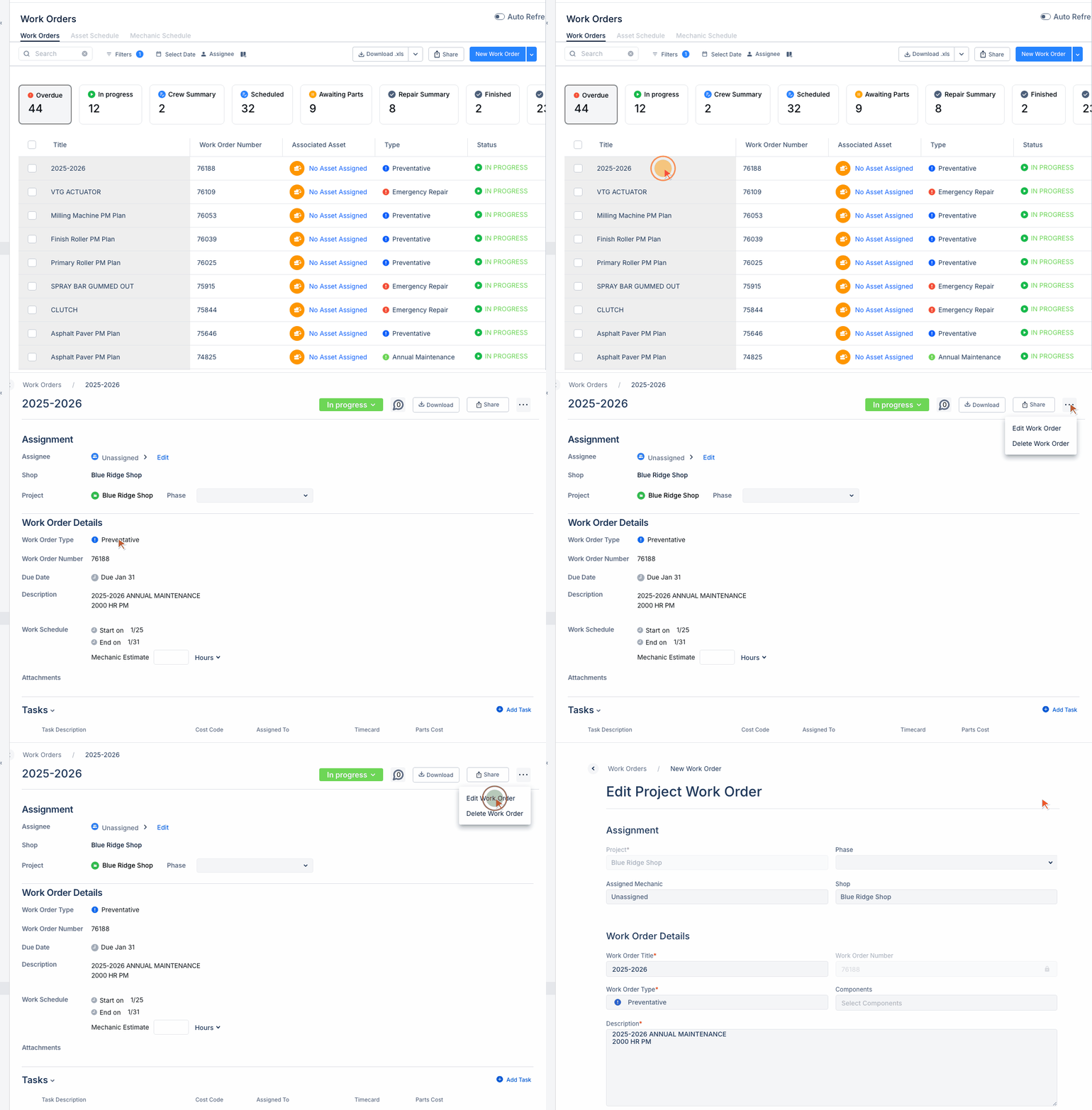
Navigate to Maintenance > Work Orders to see your work orders list.
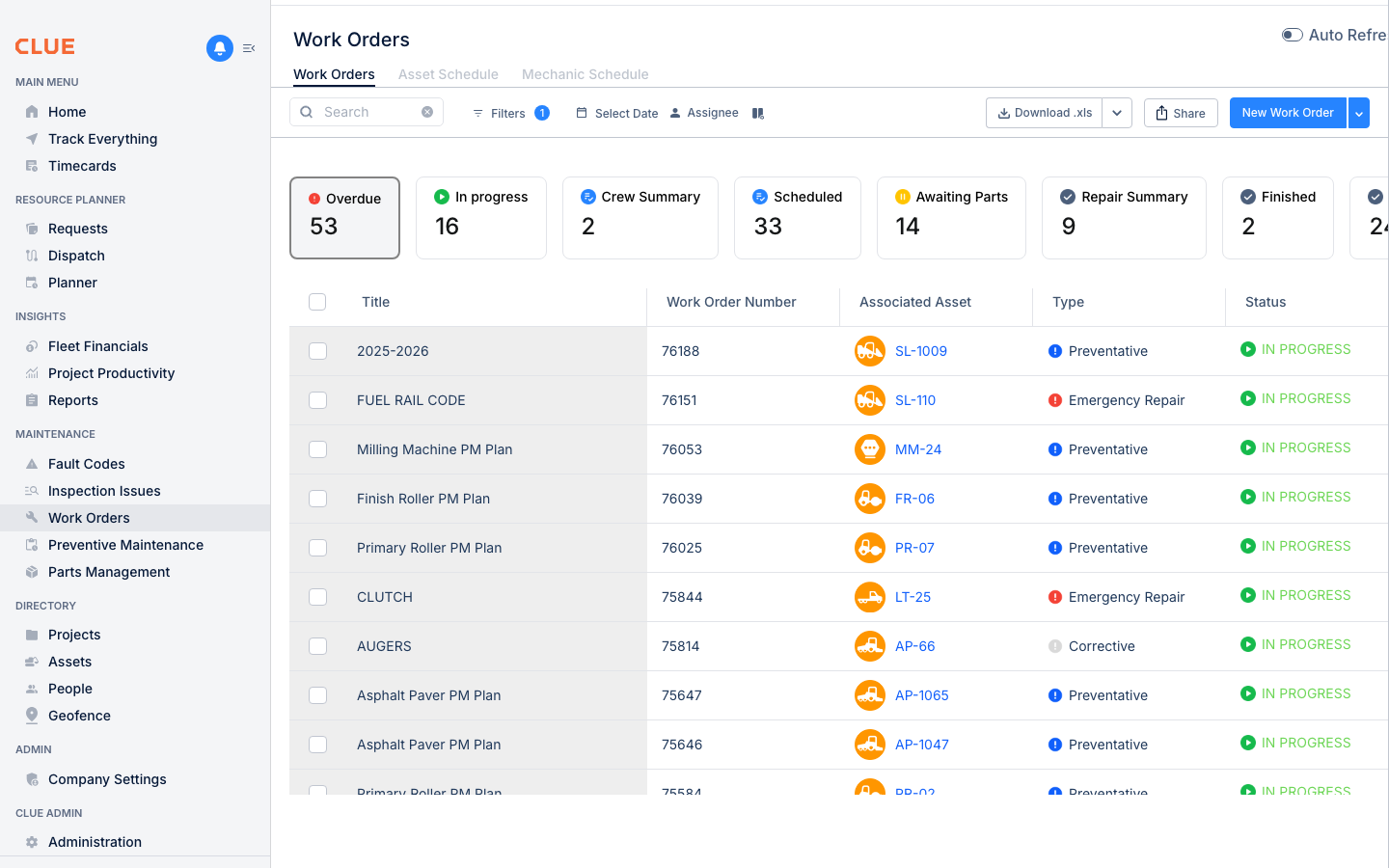
Tap or click on any work order row to open the work order detail view.
Step 2: View Work Order Details
The detail view shows all information about the work order:
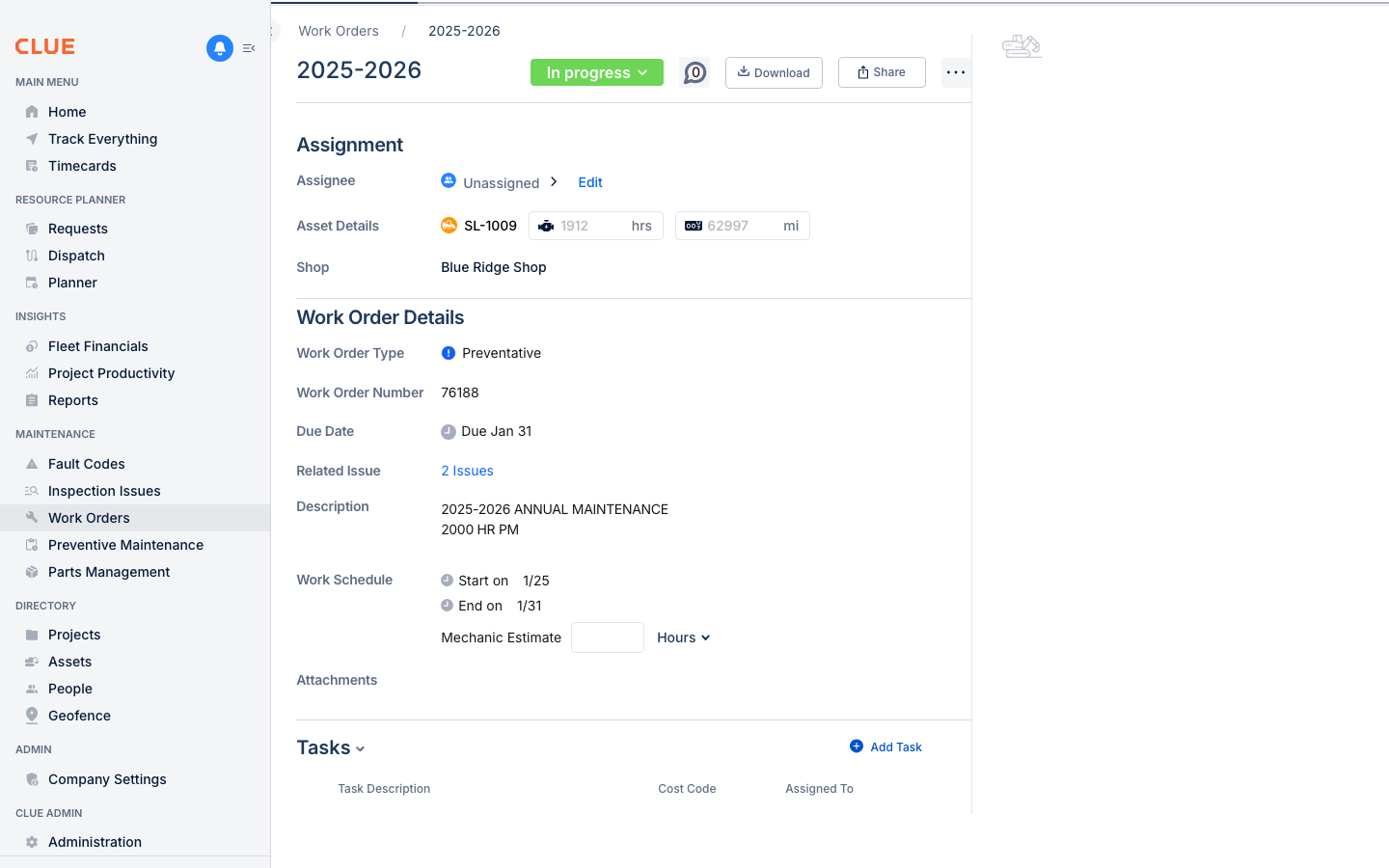
Notice the header area at the top which includes:
- Status dropdown - Change status (To Do, In Progress, On Hold, Completed)
- Download - Download the work order
- Share - Share the work order with others
- Three-dot menu (...) - Access advanced options including Edit Work Order
Step 3: Access the Edit Menu
To edit all work order fields, click the three-dot menu (...) in the top right corner of the header:
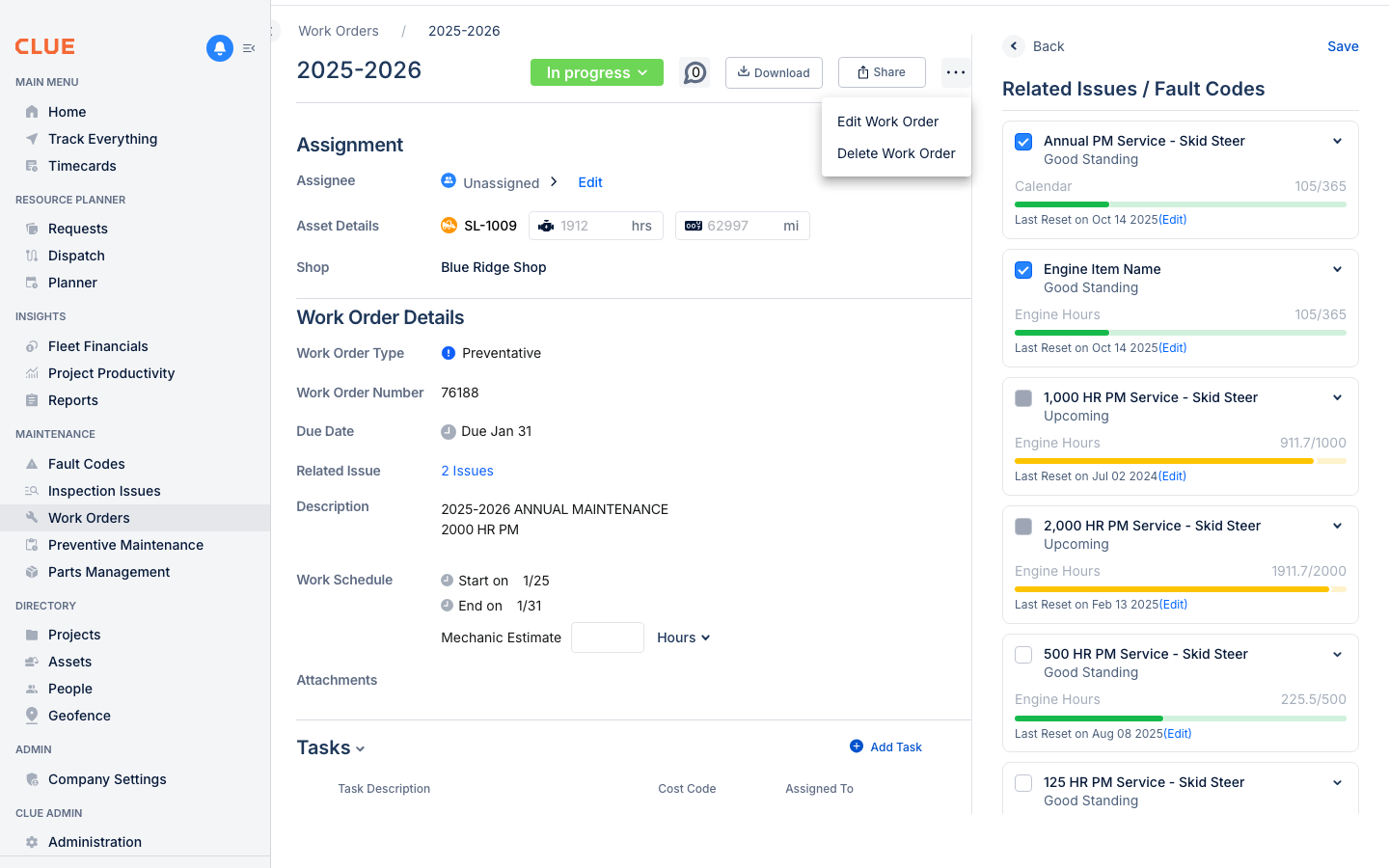
The dropdown menu shows:
- Edit Work Order - Opens the full edit form
- Delete Work Order - Remove this work order (use with caution)
Click Edit Work Order to open the edit form.
Step 4: Edit Work Order Details
The Edit Work Order form allows you to modify all fields:
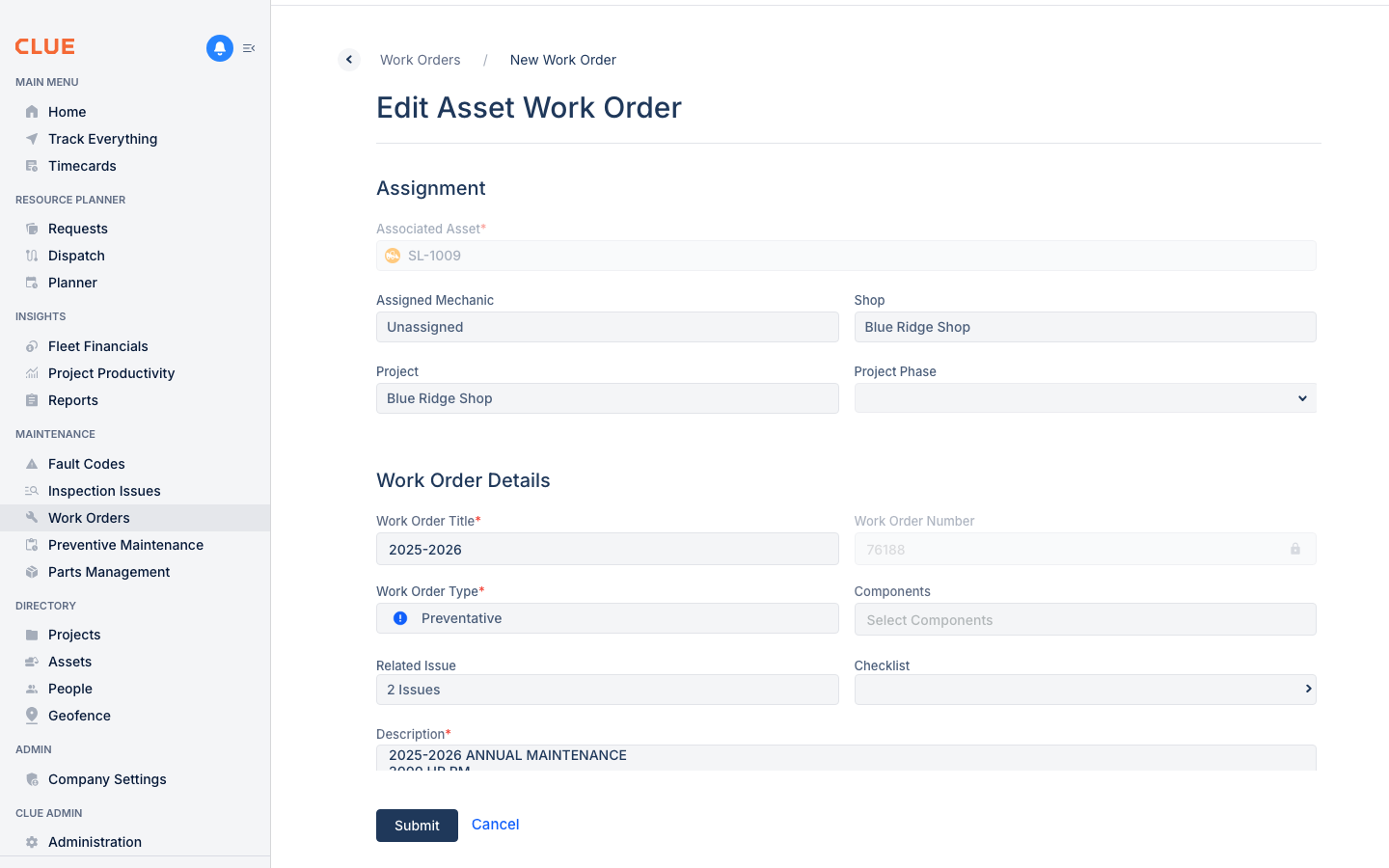
Assignment Section
- Associated Asset - The equipment this work order is for
- Assigned Mechanic - Reassign to a different mechanic
- Shop - Change the service location
- Project - Update the linked project
- Project Phase - Set the project phase
Work Order Details Section
- Work Order Title - Update the description of work needed
- Work Order Number - Auto-generated (read-only)
- Work Order Type - Change between Repair, Preventative, Corrective, Emergency
- Components - Add or remove affected components
- Related Issue - Link to a fault code or inspection issue
- Checklist - Attach or change the maintenance checklist
- Description - Update the detailed work notes
Click Submit when you're done to save your changes, or Cancel to discard them.
Tips
- Use status changes to track progress - move from To Do → In Progress → Completed
- The three-dot menu (...) also gives you access to the Delete option
- Add notes in the Description field to document what was done
- Link Related Issues to maintain a complete maintenance history