Understanding Daily Timecards
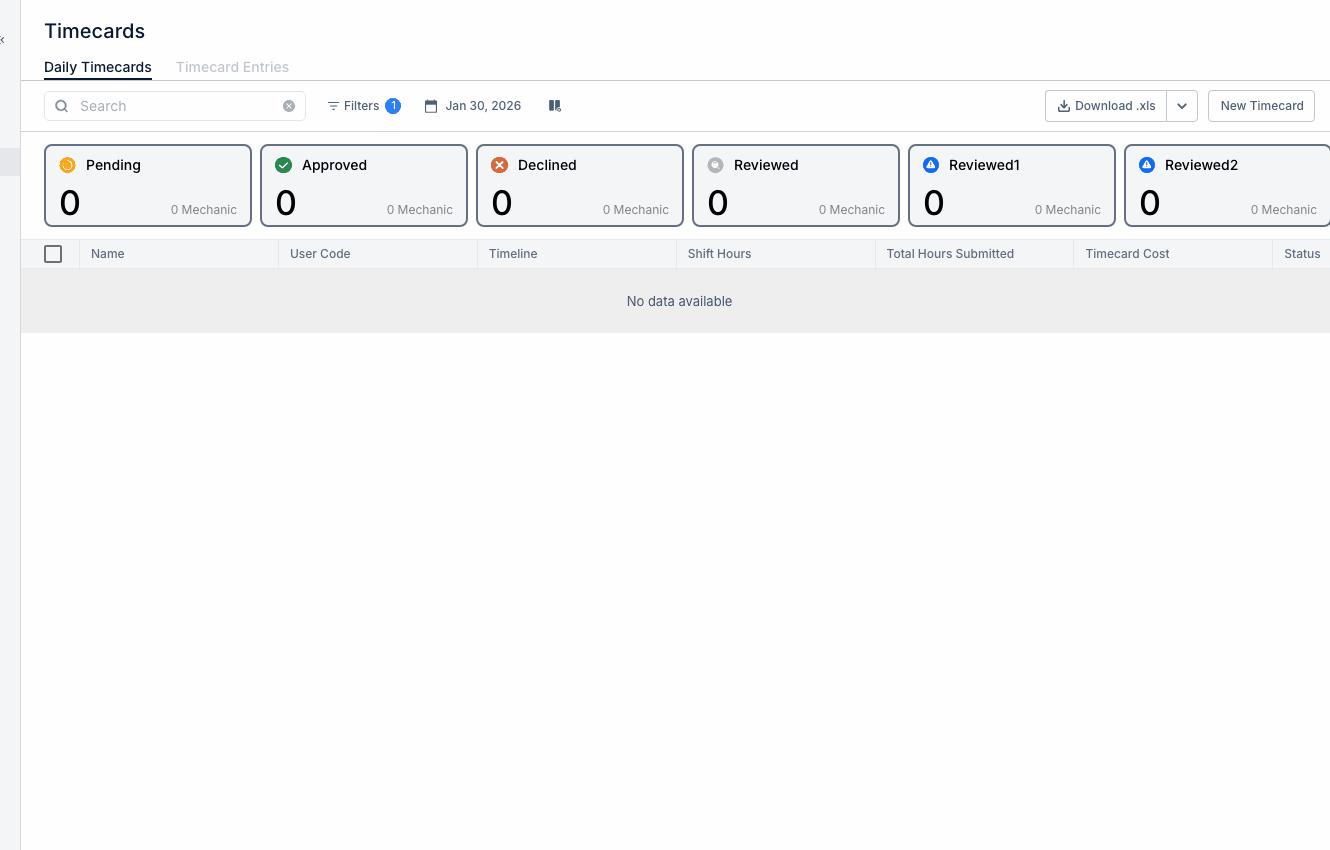
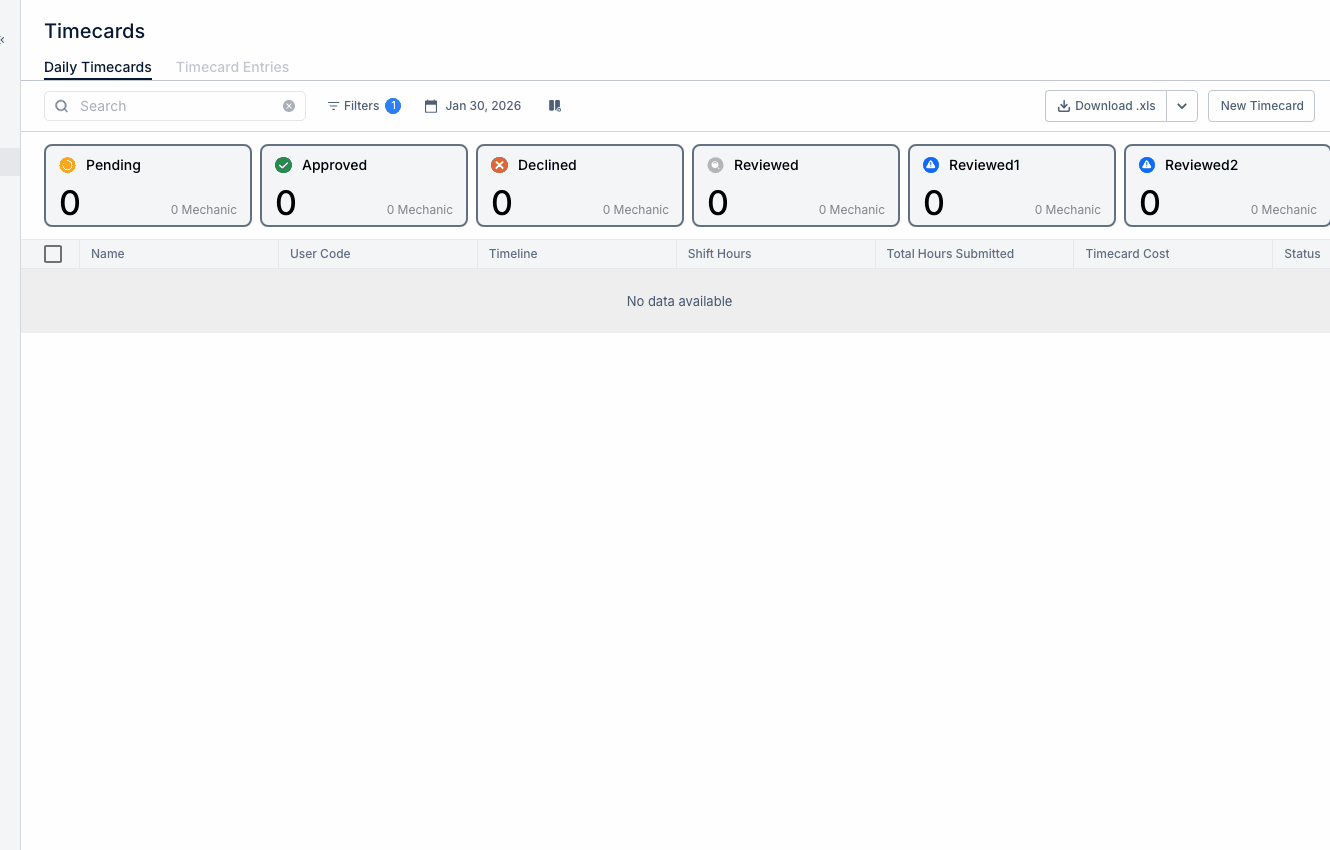
Daily timecards show time logged by day, so managers can review hours, check project coding, and approve entries before they move into payroll or labor reporting.
Overview
The Daily Timecards view gives you a day-by-day look at employee time. It helps you review who logged time, how many hours were entered, and which projects those hours were charged to.
This view works well alongside Logging Time with Timecards, Reviewing Team Timecards, and Managing Timecard Entries if your team needs both a daily summary and a closer look at individual entries.
Accessing Daily Timecards
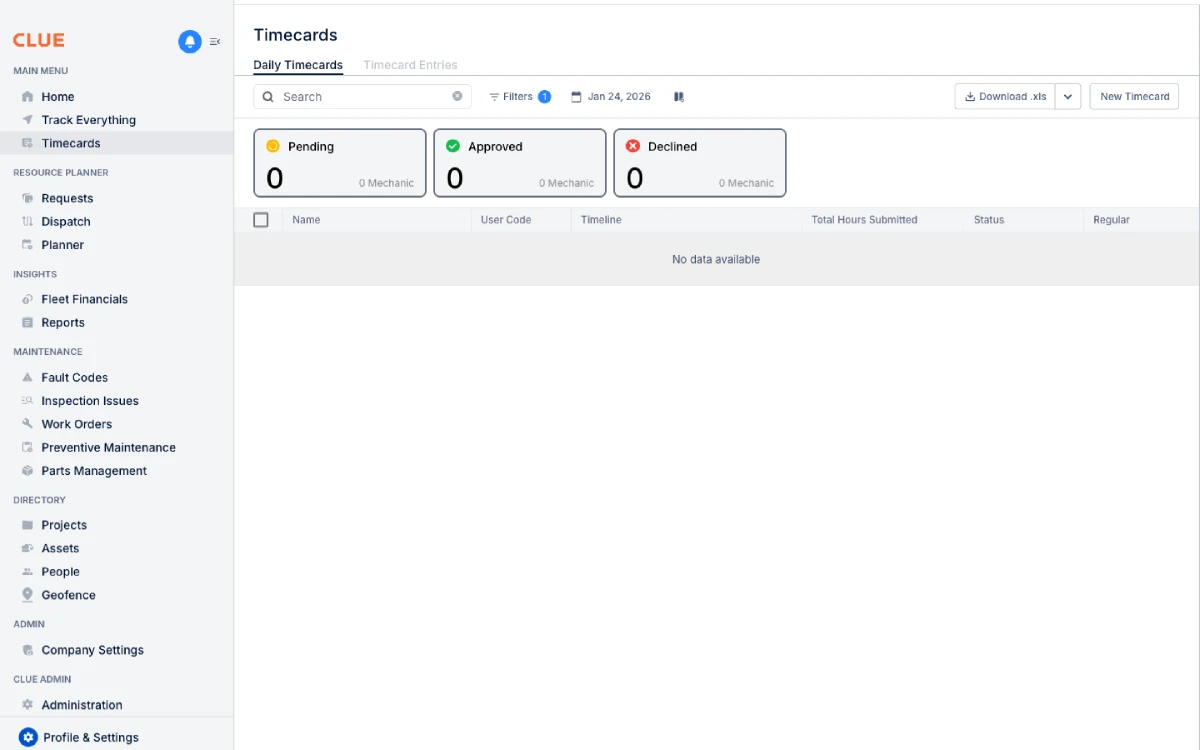
You can open Daily Timecards from the main Timecards area. Once you are there, switch to the Daily Timecards tab to review hours by date.
To get there:
- go to Timecards from the main menu
- click the Daily Timecards tab
Daily View Layout
The daily view is designed to give you a quick summary before you open any individual entry. It helps managers spot missing time, long days, or project coding issues without checking every record one by one.
The view usually shows:
- Date selector - choose the day you want to review
- Employee list - people who logged time that day
- Hours by project - a breakdown of time by person and project
- Total hours - the daily total for each employee or entry group
Reviewing Time Entries
A quick review each day makes it easier to catch mistakes while the details are still fresh. This is especially helpful before time is approved or exported for payroll.
To review entries:
- select a date from the picker
- review the employees who logged time
- click a row to open the entry details
- check start time, end time, hours, and project coding
If you need more detail than the daily summary shows, Managing Timecard Entries gives a more entry-level view of submitted time.
Approving Time
Managers and supervisors can approve time after checking it for accuracy. Once approved, the time is locked so it cannot be changed without further action.
A normal approval flow is:
- review the entry for hours, timing, and project
- click Approve if the entry is correct
- reject or edit it if something is wrong
- keep approved time moving so payroll and labor reporting stay accurate
For team-wide approval, the same process also fits into Reviewing Team Timecards when managers are checking multiple employees at once.
Common Issues
Most daily timecard problems are small, but they can affect payroll and reporting if they are not caught early. A short daily review usually makes these easier to fix.
Common issues include:
- Missing time - the employee did not clock in or did not submit hours
- Overtime - total hours are higher than expected for the day
- Wrong project - time was logged to the wrong job or cost code
- Gaps or overlaps - entries do not line up correctly across the day
If time is being logged directly on repairs, it is also worth checking Adding Labor to Work Orders or Logging Labor and Time Entry on Work Orders so labor stays tied to the right job.
Tips
Daily Timecards work best when managers review it often instead of waiting until the end of the pay period. Small errors are easier to fix on the same day than later during payroll review.
- review timecards daily
- use filters to focus on your team
- check for missing, overlapping, or unusually long entries
- approve valid time promptly
- compare project hours with work order labor when needed