Tracking Rentals and Equipment Costs
Asset Tracking
Reading Time:
5 min read
Overview
The Rentals tab in the Asset Directory helps you track rental equipment separately from your owned assets. Monitor rental costs, durations, and status all in one place.
Accessing Rentals
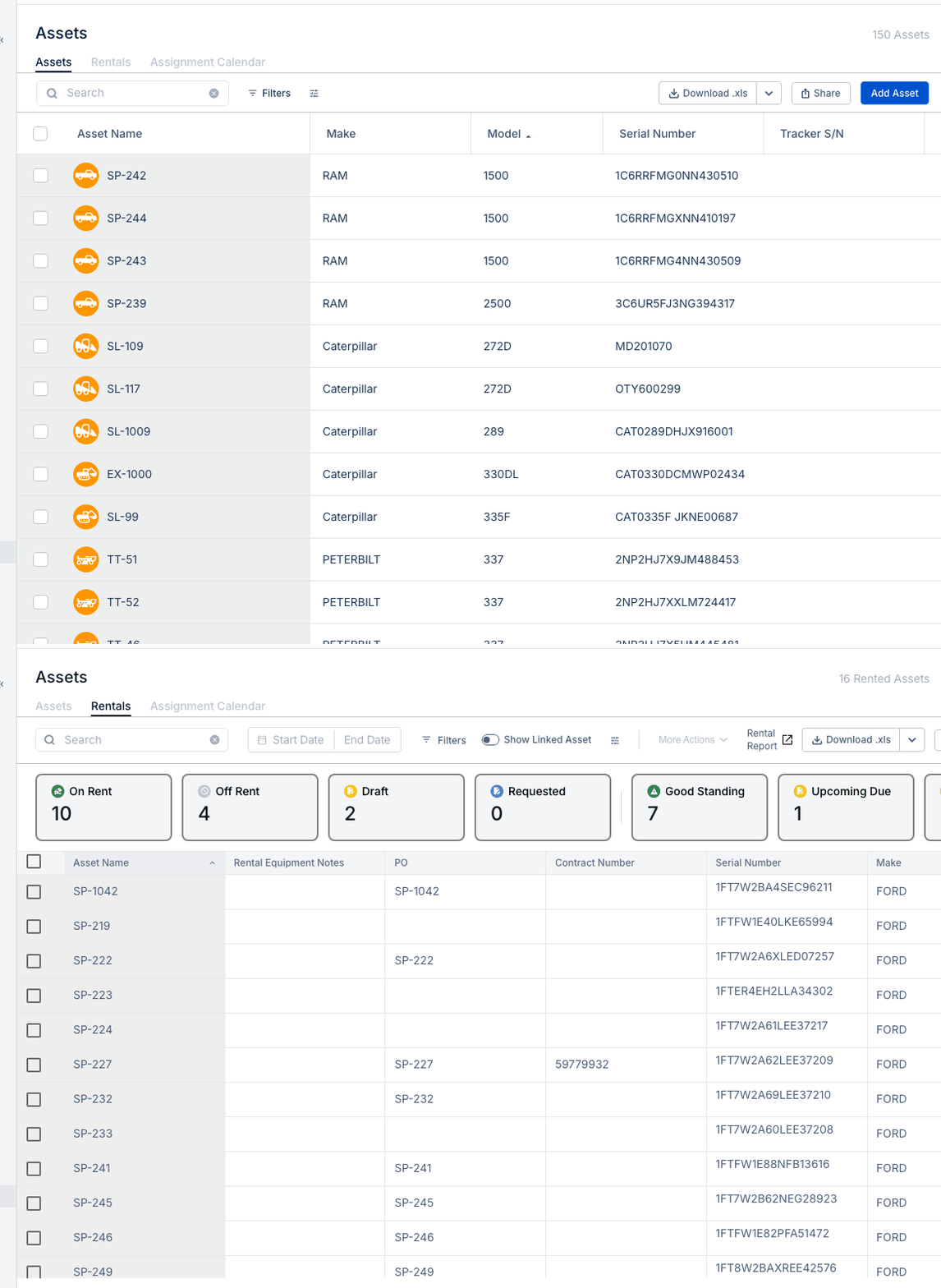
Navigate to Directory → Assets in the sidebar. You'll see three tabs at the top:
- Assets - Your owned equipment
- Rentals - Rented equipment
- Assignment Calendar - Equipment scheduling
Click the Rentals tab to view all rental equipment.
Rental Status Cards
The status cards at the top show a quick breakdown of your rentals:
- On Rent - Currently active rentals
- Off Rent - Returned equipment
- Draft - Rentals being set up
- Requested - Pending approval
- Good Standing - Rentals within budget
- Upcoming Due - Rentals ending soon
Adding a Rental
- Click Add Asset button
- Enter equipment details (make, model, serial number)
- Set the rental start date and expected duration
- Enter daily, weekly, or monthly rate
- Assign to a project if applicable
- Save the rental record
Tracking Costs
The system automatically calculates:
- Total rental duration
- Running cost based on rate
- Cost allocation by project
Tips
- Use filters to view rentals by status or project
- Download the Rental Report for spending analysis
- Set up alerts for upcoming rental due dates