Shared Categories Across Templates
Inspections
Reading Time:
3 min read
What is this?
Shared Categories are reusable groups of inspection items that can be linked to multiple templates. Instead of rebuilding "Engine Compartment" checks on every template, create it once as a shared category and assign it to all the templates that need it. Change it in one place, and every template updates.
Who is this for?
- Equipment Managers - Standardize common inspection areas across all templates. One source of truth.
- Safety Managers - Ensure DOT-required checks appear consistently on every relevant template.
How to use it
Step 1: Open Shared Categories
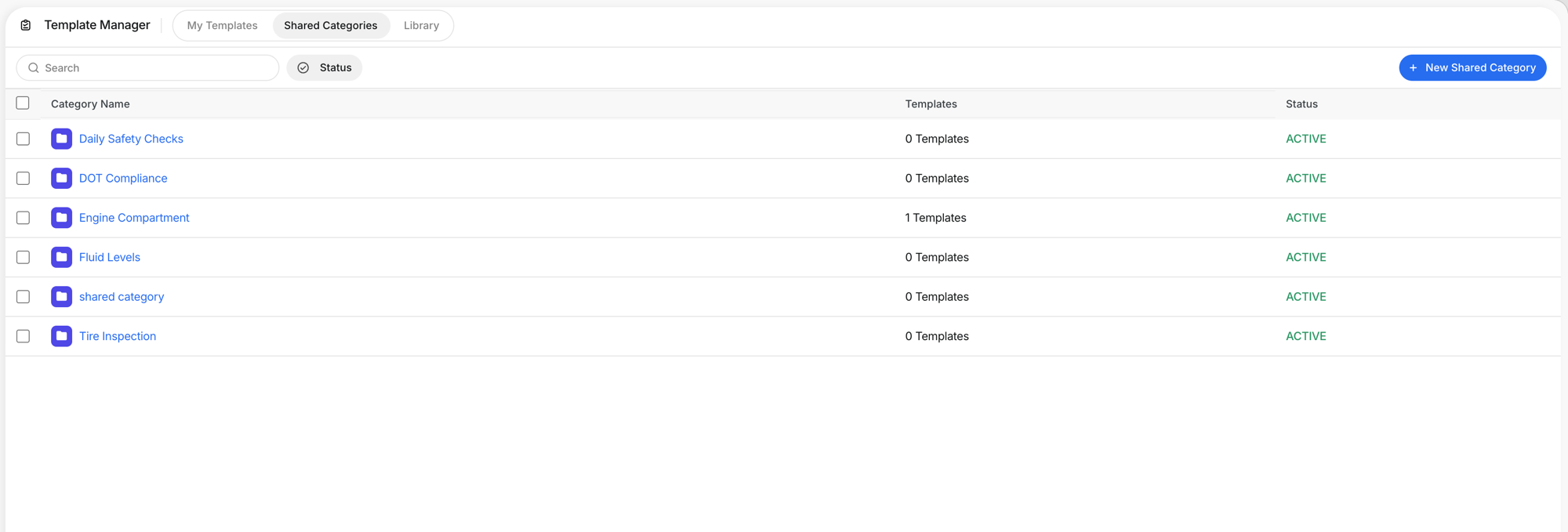
Go to Template Manager > Shared Categories. You see all shared categories with their name, how many templates use them, and status.
Step 2: Create or edit a shared category
Click a category to edit it, or click + New Shared Category. Set the category name, add items with response types (Pass/Fail, Report, etc.), and assign it to templates.

Step 3: Assign to templates
Click + Add to Template to link this shared category to one or more templates. The category and all its items appear on every selected template.

The full details
- One change updates everywhere. Edit the shared category and every template using it gets the update.
- Items are the same. Response types, instructions, and required flags carry through to all templates.
- Templates can mix shared and custom categories. Use shared categories for common areas, add template-specific categories for unique checks.
Tips
- Create shared categories for areas that appear on most templates. Engine Compartment, Fluid Levels, Safety Equipment, Tire/Track checks.
- Use the Templates column to track usage. If a shared category shows "0 Templates", it is not linked anywhere yet.
- Standardize DOT items as a shared category. Every DOT-required inspection gets the same items, guaranteed.