Managing Timecard Entries
Timecards
Reading Time:
4 min read
Overview
The Timecard Entries view shows individual time records submitted by employees. Review, edit, and approve entries to ensure accurate payroll and labor cost tracking.
Accessing Timecard Entries
Step 1: Navigate to MAIN MENU → Timecards.
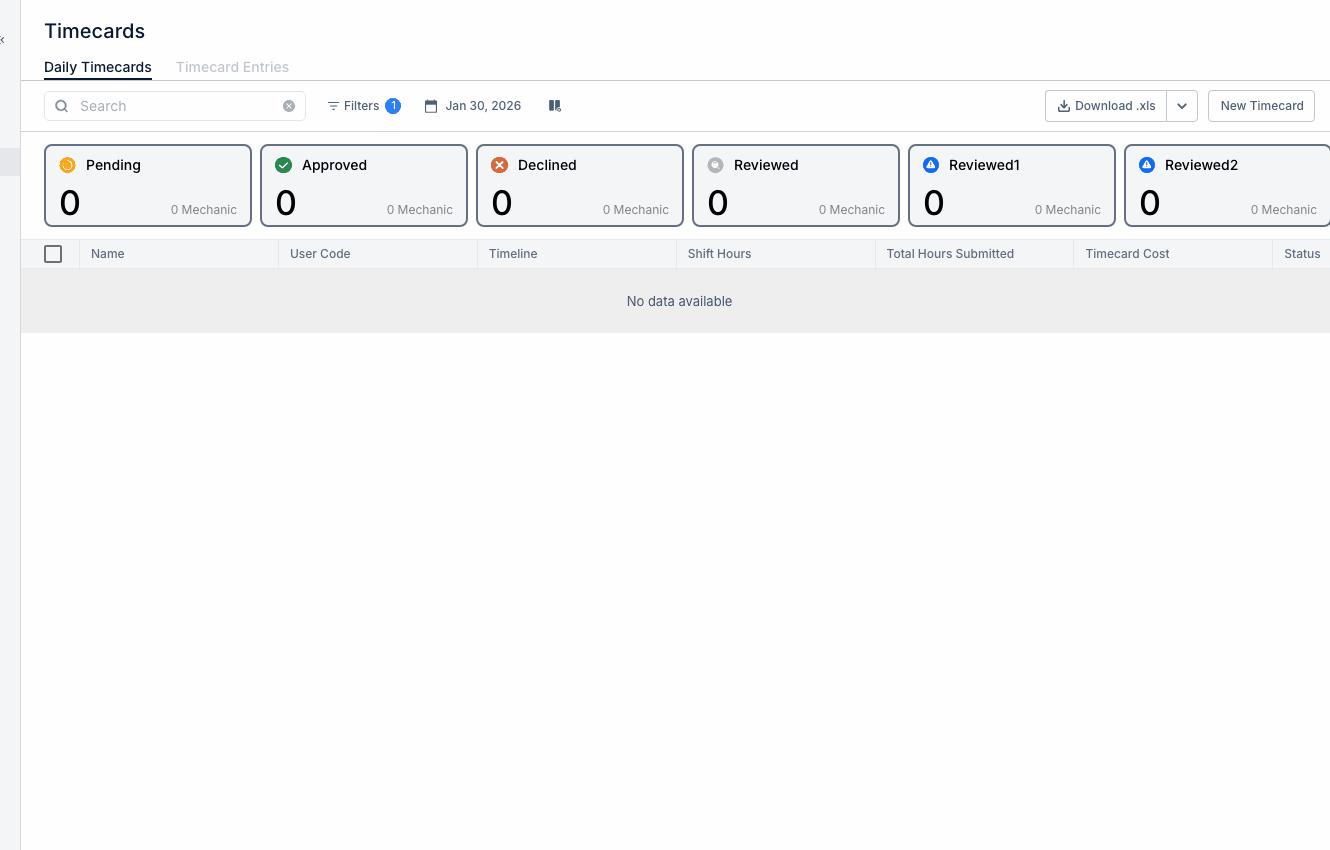
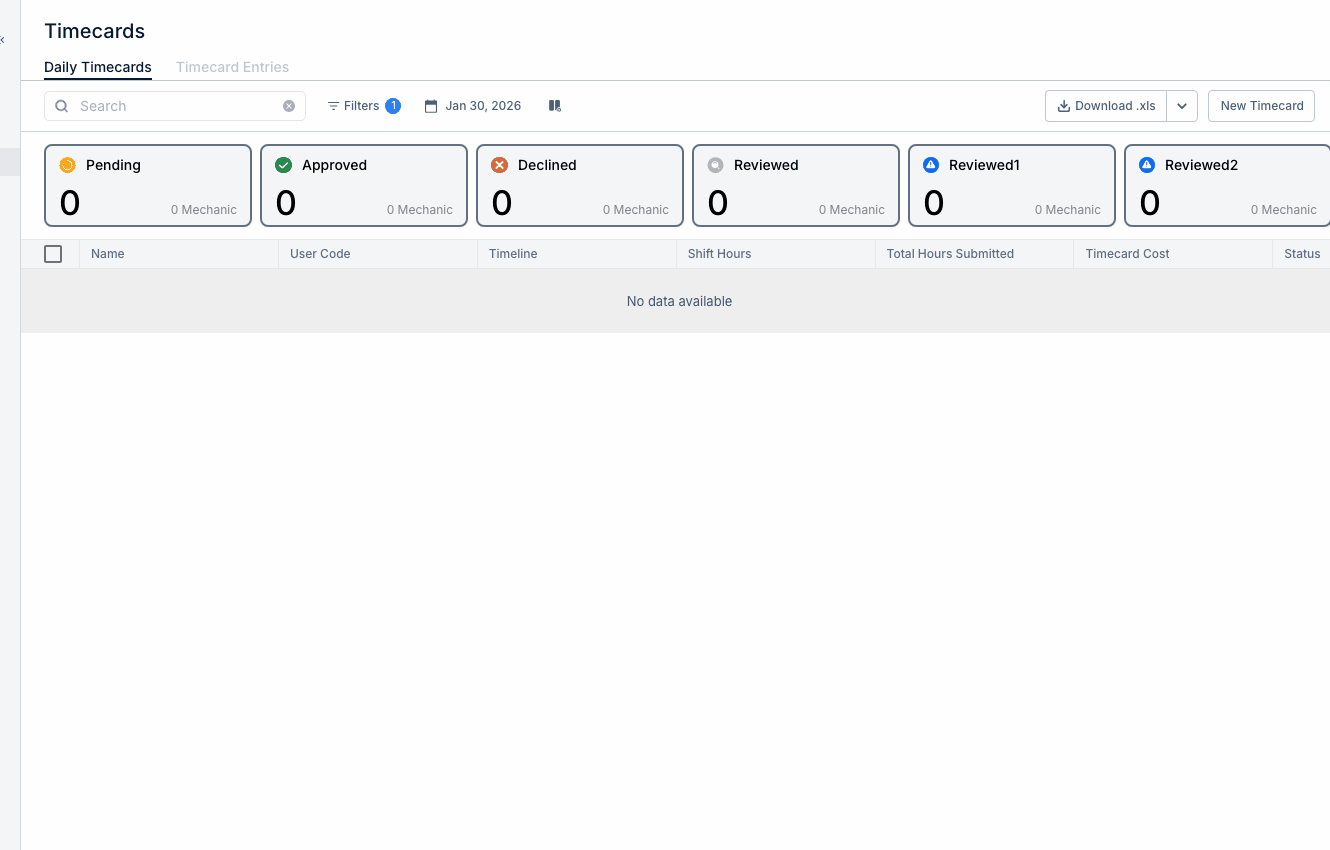
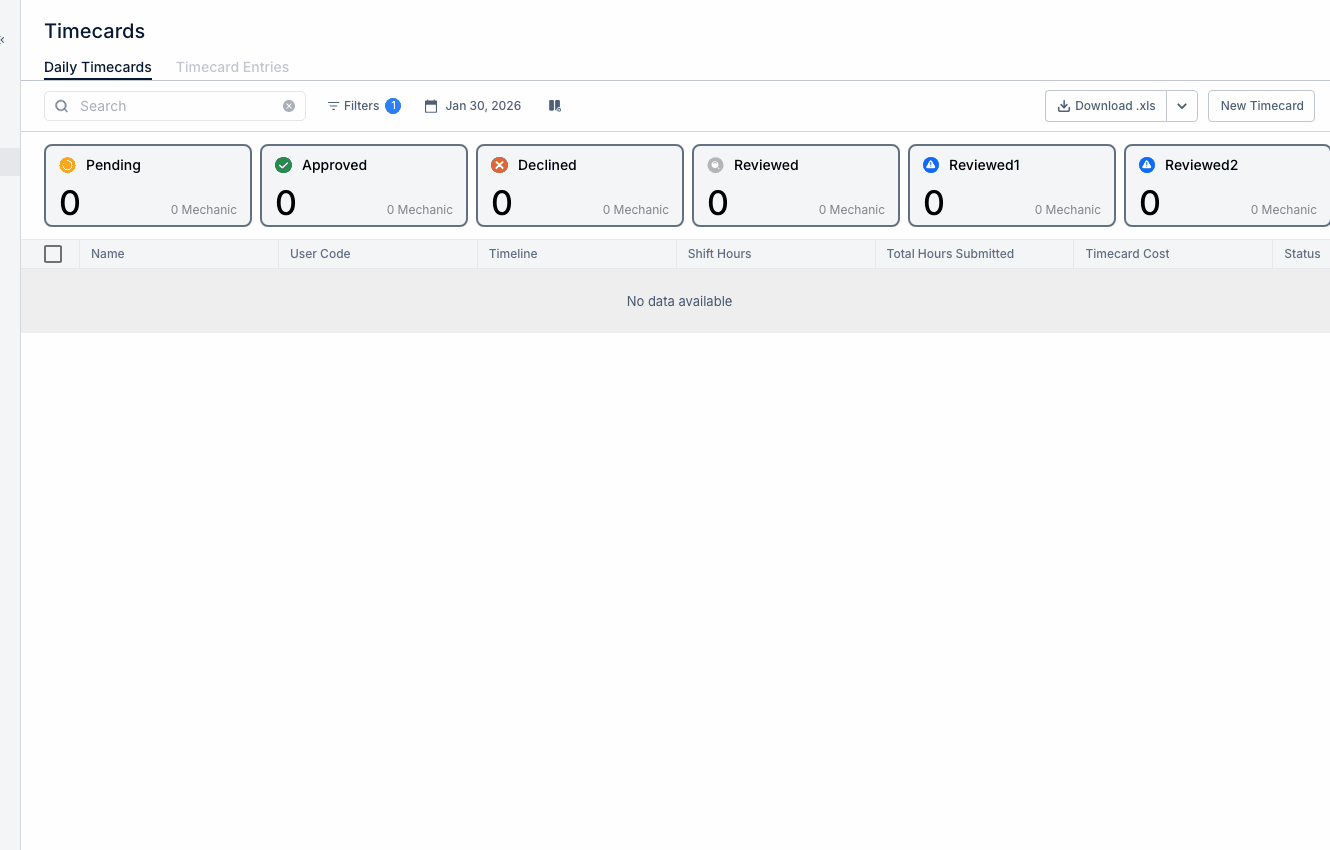
Step 2: Click the "Timecard Entries" tab.
Understanding the Entries View
Each entry shows:
- Employee name - Who submitted the time
- Date - When the work occurred
- Hours - Duration of work
- Project - Job site or cost center
- Work Order - If linked to maintenance work
- Status - Pending, Approved, Rejected
Editing an Entry
Step 1: Click on an entry to open details.
Step 2: Modify fields as needed:
- Adjust hours
- Change project assignment
- Link to different work order
- Add notes
Step 3: Save changes.
Approving Entries
If your organization uses approval workflow:
- Review entry details for accuracy
- Click Approve or Reject
- Add comments if rejecting
Filtering Entries
Find specific entries by:
- Date range
- Employee
- Project
- Approval status
Tips
- Review entries weekly before payroll cutoff
- Check for unusual hours (too high or too low)
- Verify project assignments match actual work locations