Managing the Projects Directory
Reports
Reading Time:
5 min read
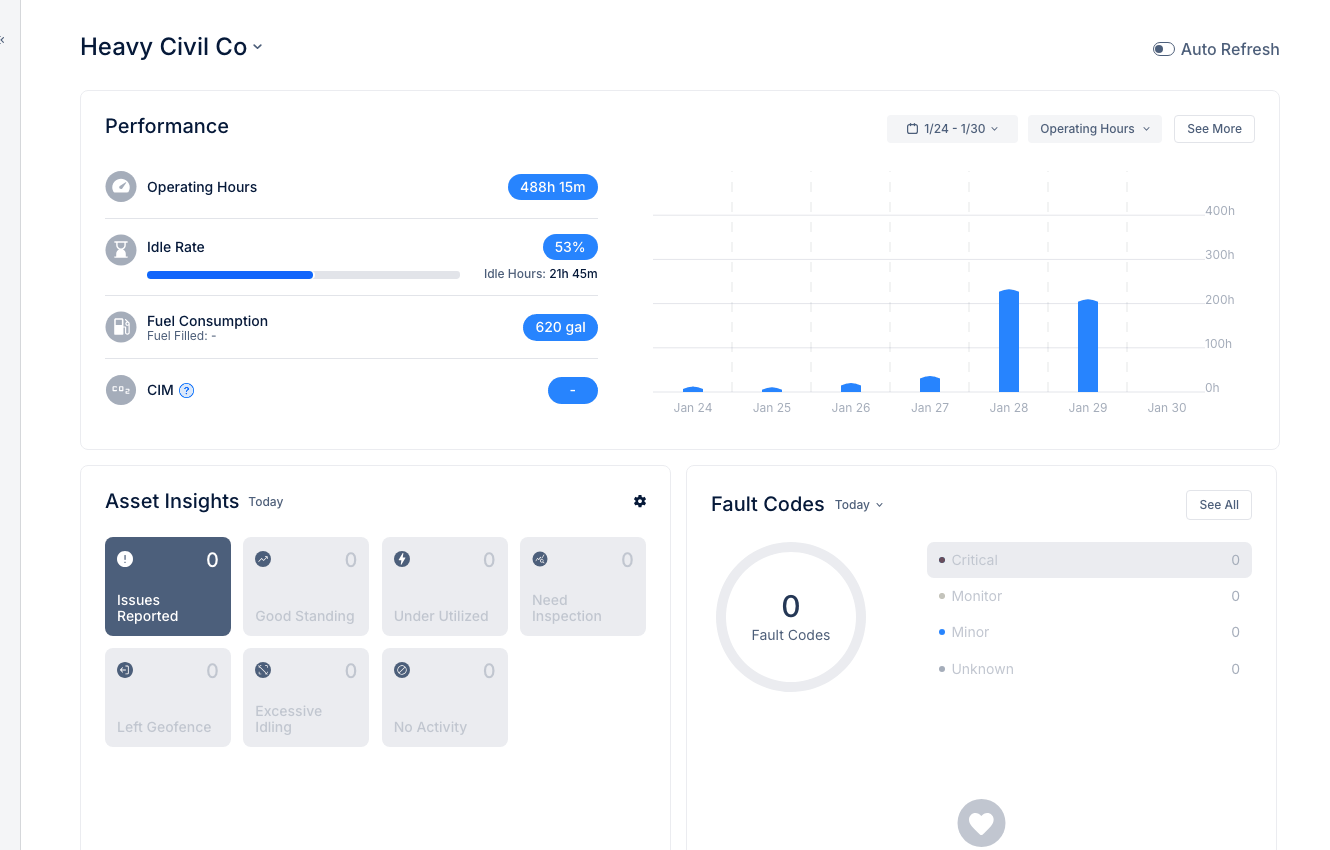
The Projects Directory in CLUE helps you manage all your job sites, construction projects, and work locations. Learn how to view, search, and manage your organization's projects.
Accessing the Projects Directory
To access the Projects Directory:
- Click Projects in the DIRECTORY section of the main navigation menu
- The Projects Directory displays a list of all your organization's projects
Understanding the Projects List
The Projects Directory displays key information about each project:
- Project Name - The name/identifier for the project
- Address/Location - Physical location of the job site
- Status - Active, Inactive, or Completed
- Assigned Assets - Number of equipment pieces assigned to this project
- Assigned Personnel - Team members working on this project
Searching and Filtering Projects
Use the search bar at the top of the list to quickly find projects by name or location. You can also use filters to narrow down the list:
- Status Filter - Show only Active, Inactive, or Completed projects
- Region Filter - Filter by geographic region or division
Viewing Project Details
Click on any project row to open the Project Detail slide-in panel. The detail view shows:
- Overview Tab - Basic project information and status
- Assets Tab - Equipment currently assigned to this project
- Personnel Tab - Team members working on this project
- Activity Tab - Recent activity and history
Creating a New Project
To add a new project to the directory:
- Click the Add Project or + button in the Projects Directory
- Enter the project name and location details
- Set the project status (typically "Active" for new projects)
- Optionally assign assets and personnel
- Click Save to create the project
Tips
- Keep project names consistent with your organization's naming conventions
- Use the address field to enable location-based features like geofencing
- Archive completed projects to keep your active list manageable
- Assign equipment to projects to track utilization by job site