Managing the People Directory
Reports
Reading Time:
5 min read
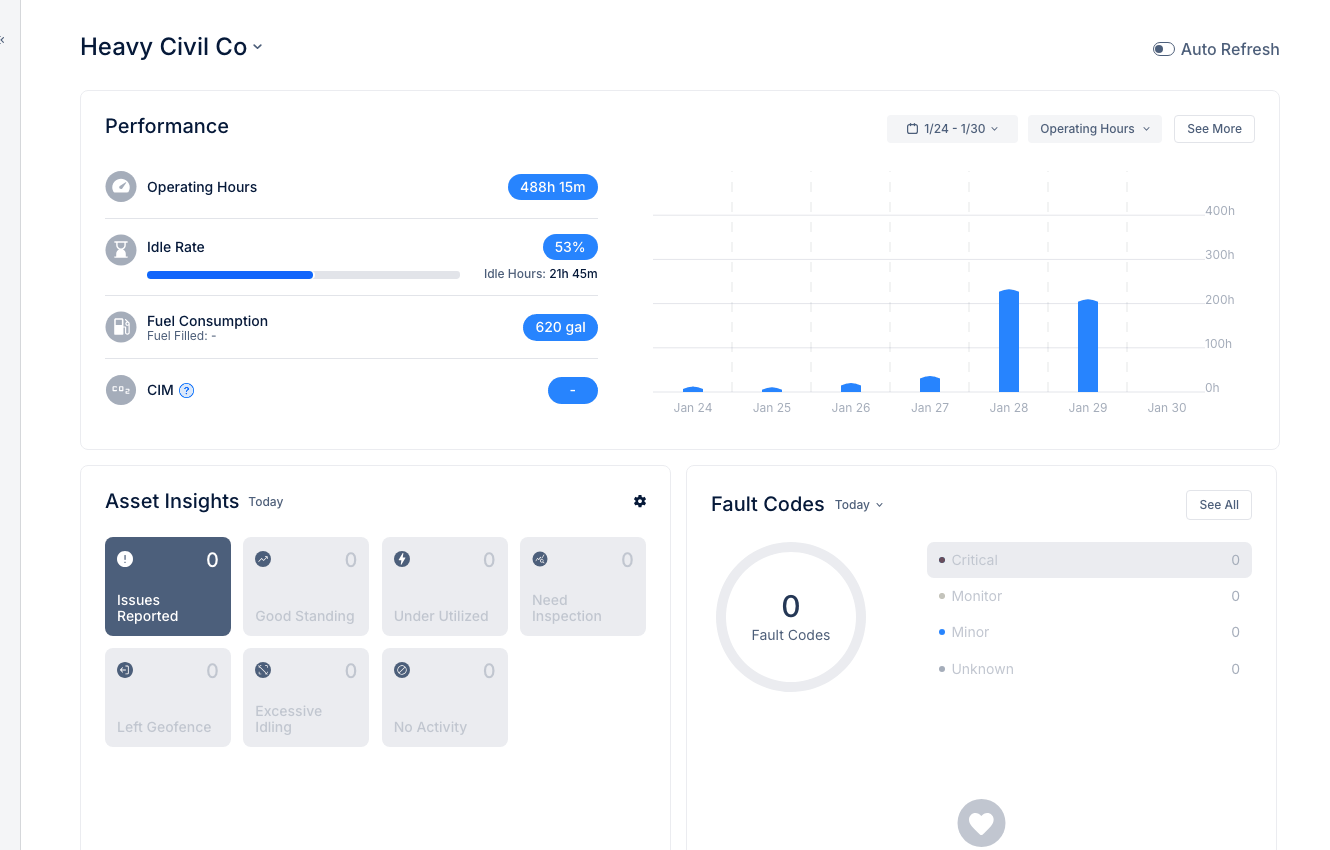
The People Directory in CLUE is your central hub for managing all users in your organization. Learn how to view team members, manage roles, and keep your directory organized.
Accessing the People Directory
To access the People Directory:
- Click People in the DIRECTORY section of the main navigation menu
- The People Directory displays a list of all users in your organization
Understanding the People List
The People Directory displays key information about each user:
- Name - Full name of the team member
- Role - User's role (Mechanic, Operator, Manager, Admin, etc.)
- Phone Number - Contact number for the user
- Email - User's email address
- Status - Active or Inactive
- Assigned Projects - Projects the user is assigned to
Searching and Filtering People
Use the search bar to quickly find users by name, phone number, or email. Additional filters help narrow down the list:
- Role Filter - Show only specific roles (Mechanics, Operators, etc.)
- Status Filter - Show Active or Inactive users
- Division/Region - Filter by organizational unit
Viewing User Details
Click on any user row to open the User Detail slide-in panel. The detail view shows:
- Profile Tab - Contact information and profile details
- Assignments Tab - Projects and equipment assigned to this user
- Permissions Tab - Access level and role permissions
- Activity Tab - Recent activity including timecards and work orders
User Roles in CLUE
CLUE supports several user roles with different access levels:
- Operator - Equipment operators who submit inspections and timecards
- Mechanic - Maintenance technicians who complete work orders
- Dispatcher - Manages equipment dispatch and scheduling
- Equipment Manager - Oversees equipment and maintenance operations
- Admin - Full administrative access to system settings
Adding New Users
To add a new user to the directory:
- Click the Add User or + button in the People Directory
- Enter the user's name, phone number, and email
- Select the appropriate role for the user
- Optionally assign to projects or divisions
- Click Save to create the user
Note: New users will receive an invitation to download the CLUE mobile app and set up their account.
Tips
- Keep user contact information up to date for accurate communication
- Use role-based permissions to control access to sensitive features
- Deactivate users instead of deleting to preserve historical data
- Assign users to specific projects for accurate timecard and productivity tracking