Linking Telematics and GPS Devices
Asset Tracking
Reading Time:
4 min read
Overview
Connect your telematics devices and GPS trackers to CLUE to monitor equipment location, engine hours, and operational data in real-time. This guide covers linking devices to assets and understanding connectivity status.
Understanding Telematics in CLUE
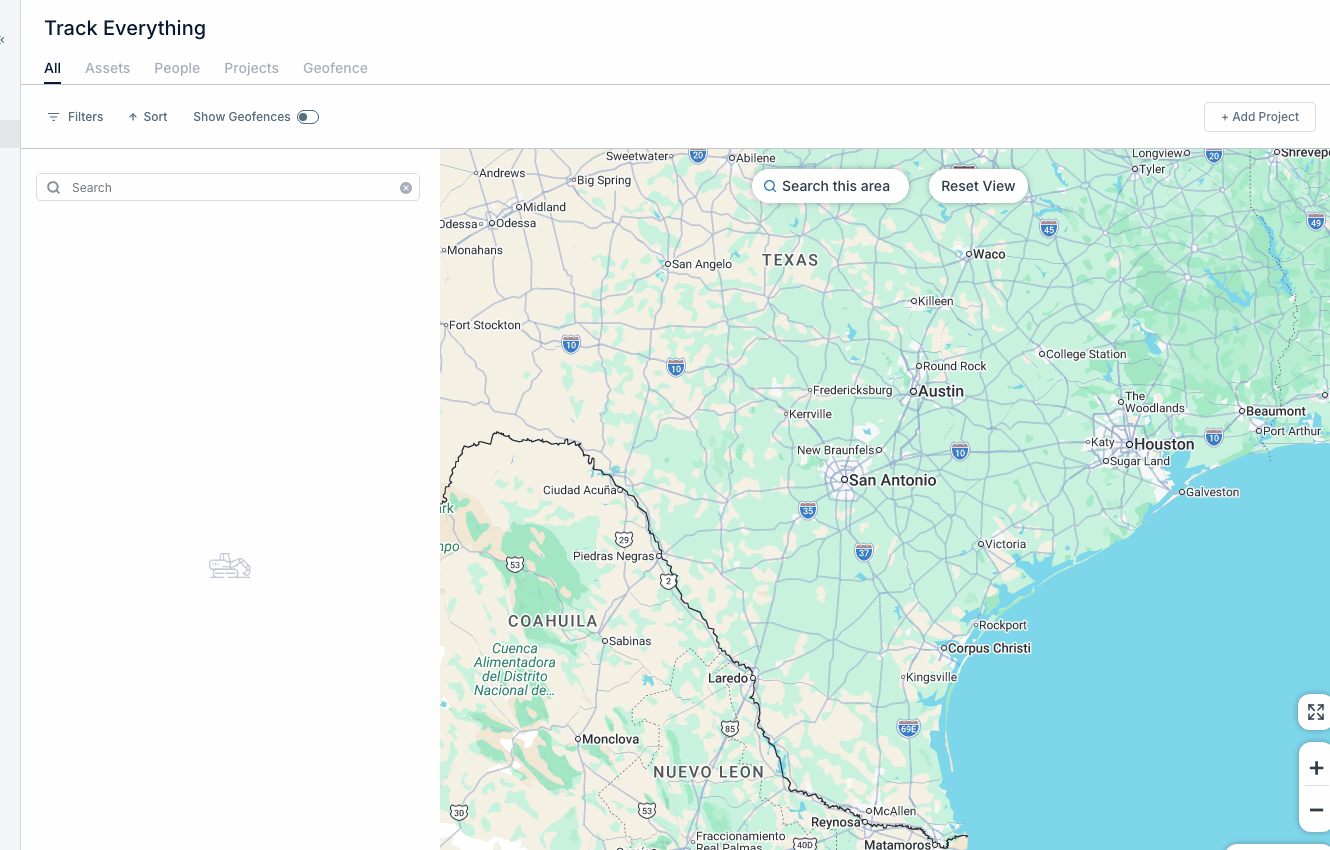
Telematics devices transmit location and engine data from your equipment to CLUE. When properly linked, you can track:
- Real-time GPS location
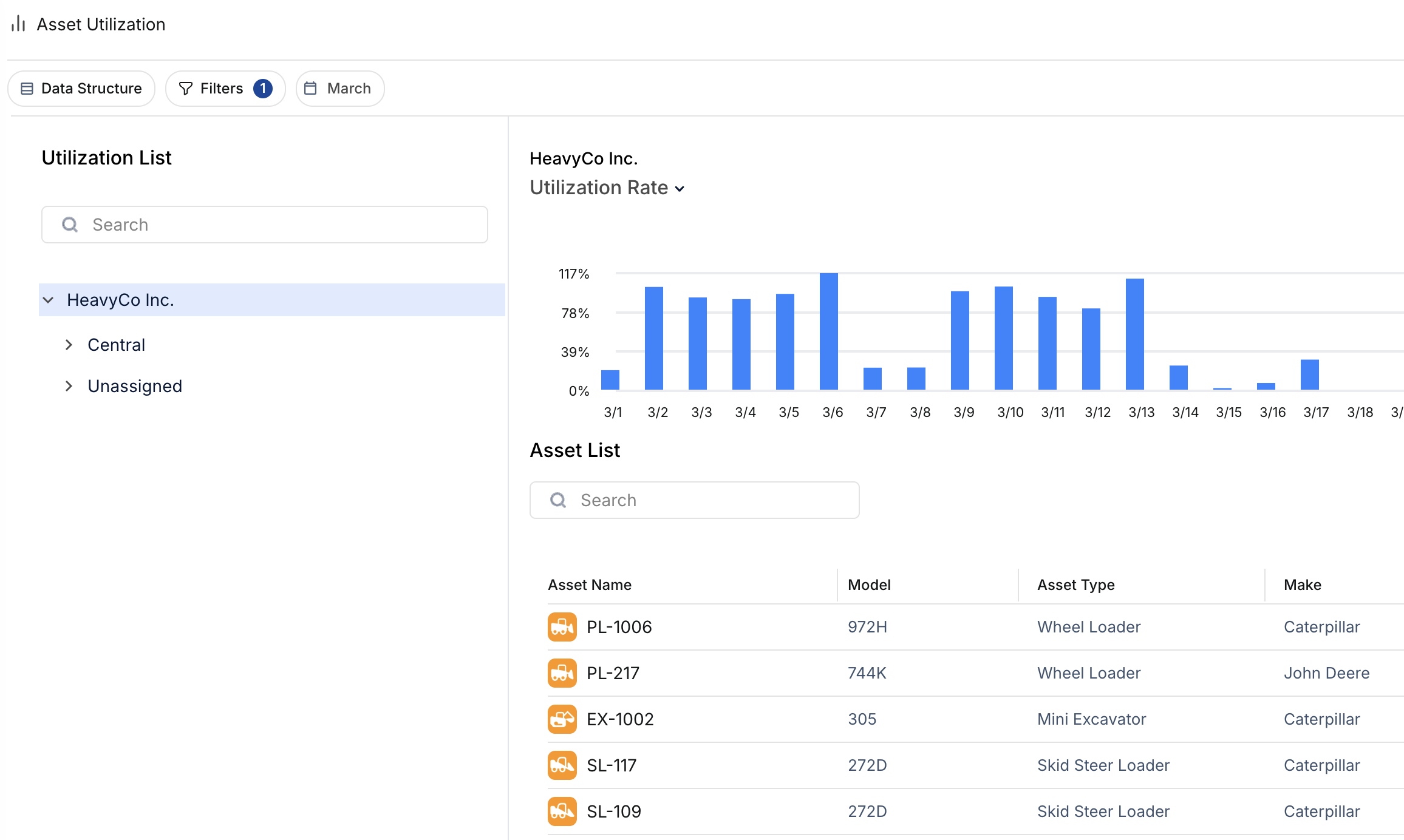
- Engine hours and usage
- Idle time and fuel consumption
- Movement history
Viewing Device Information
Step 1: Navigate to DIRECTORY → Assets and select an asset.
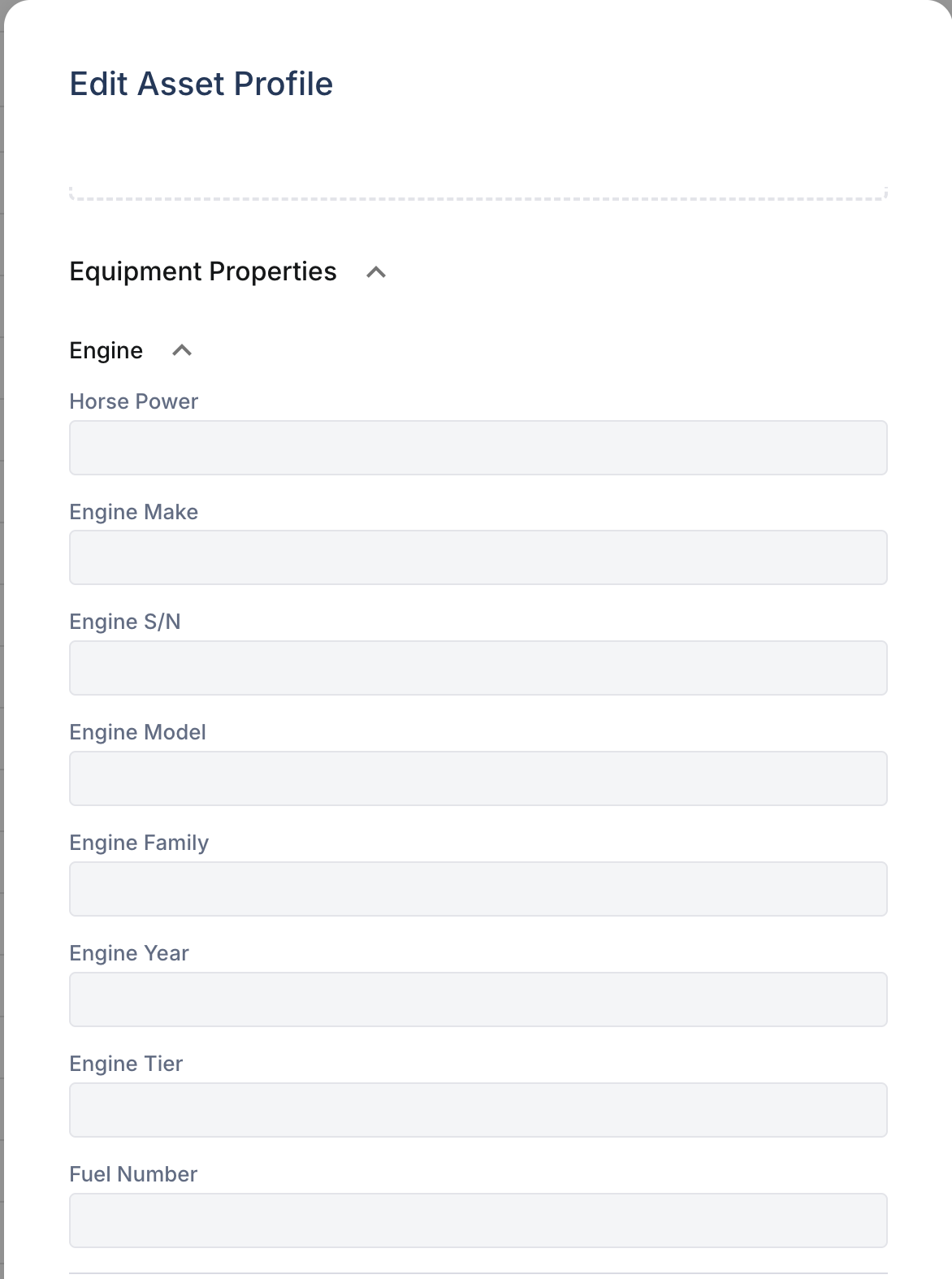
Step 2: In the asset detail panel, look for the telematics section showing:
- Tracker S/N - Serial number of the connected device
- Tracker Model - Device manufacturer and model
- Last Connected - When the device last reported data
Understanding Connectivity Status
CLUE displays connectivity indicators to show device health:
- Connected (Green) - Device reporting normally within expected intervals
- Delayed (Yellow) - Device hasn't reported recently but may still be active
- Offline (Red) - No communication for extended period
Troubleshooting Connection Issues
If a device shows as offline:
- Verify the equipment has power (engine running or battery connected)
- Check if equipment is in an area with cellular coverage
- Confirm the device subscription is active
- Contact your telematics provider if issues persist
Tips
- Devices typically report every 2-5 minutes when equipment is running
- Parked equipment may report less frequently to conserve battery
- The "Last Connected" timestamp helps identify communication gaps