Equipment Classification: Categories, Types and Product Classes
What is this?
A visual tree that shows how all your equipment is organized. Every asset in Clue fits into three levels: Category (like "Off-road / Heavy"), Type (like "Excavator"), and Product Class (like "CAT 336 with GPS"). The Classification page lets you browse this structure and manage your own product classes.
Who is this for?
- Fleet Managers - See and manage how your equipment is classified. Create product classes that match how your company groups machines.
- Admins - Set up the classification structure that drives reporting, PM schedules, and parts catalogs.
How to use it
Step 1: Open the Classification page
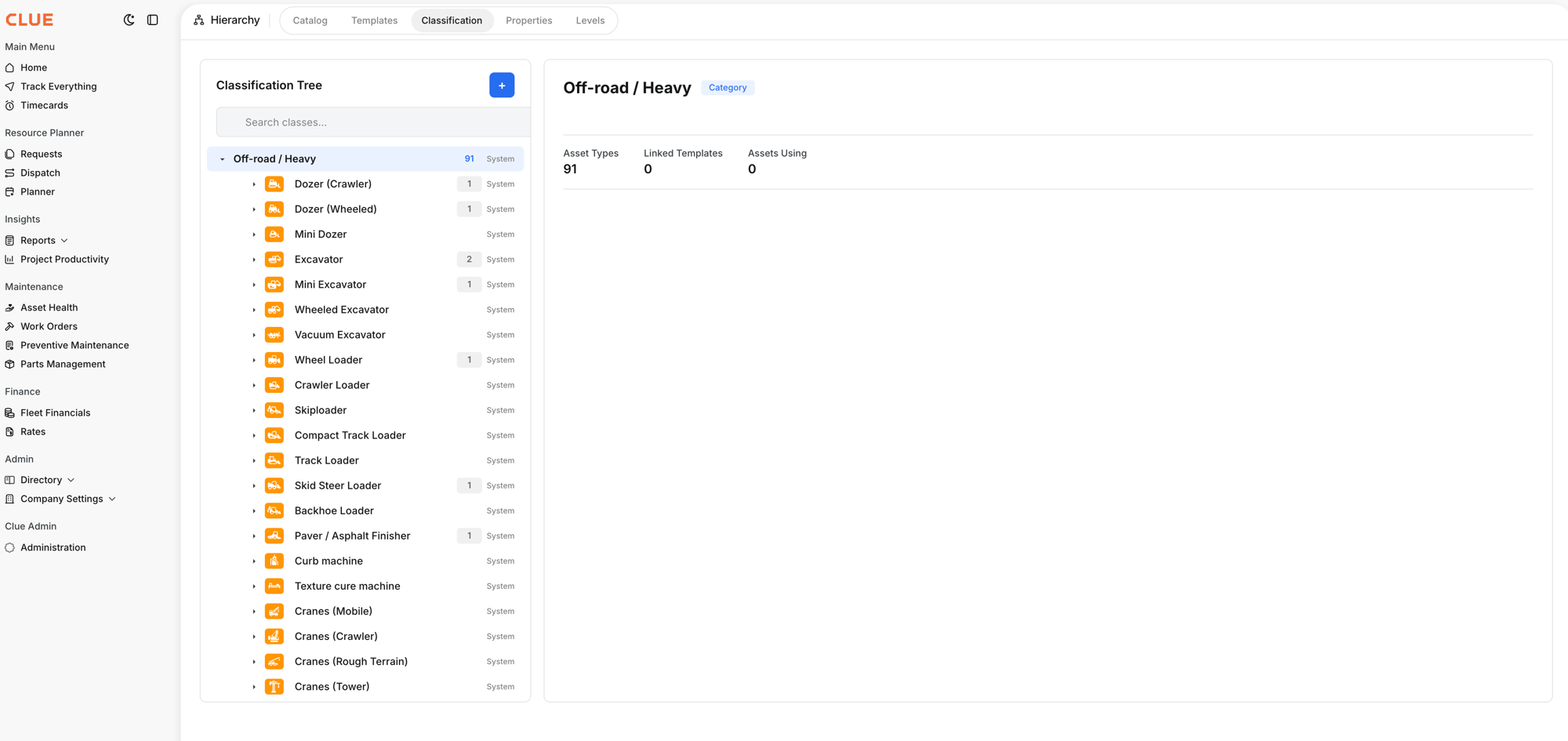
Go to Company Settings in the sidebar, then Hierarchy, then click the Classification tab. The left side shows a tree. The right side shows details for whatever you select.
Step 2: Browse the tree
The tree has three levels:
- Level 1: Asset Categories - Off-road/Heavy, On-road, Attachments, Tools, Stationary, Marine. System-defined.
- Level 2: Asset Types - Excavator, Dozer, Wheel Loader, Paver, Cranes, etc. System-defined, with icons for each type.
- Level 3: Product Classes - Your company-specific groupings. You create and manage these.
The right panel shows stats for the selected item: how many asset types it contains, linked templates, and assets currently using this classification.
Step 3: Create a product class
Select an Asset Type in the tree (like "Dozer (Crawler)"), then click the blue + button at the top. Give your product class a name, code, and description. For example: "D3 to D5 Dozer with GPS" under Dozer (Crawler).
The full details
- Works on: Web app
- Location: Company Settings > Hierarchy > Classification
- ISO-14224 standard: The classification follows the international equipment taxonomy
- Categories and Types are shared across all Clue customers. Product Classes are yours alone.
- Badges show "System" for Clue-managed items. Your custom product classes show your company name.
- Search: Use the search bar to find any type or class quickly
Tips
- Name product classes the way your team talks. If everyone says "big Cats" and "small Cats", use that language.
- Use product classes to group machines that share PM schedules. All your CAT 336 excavators get the same filters? Put them in one class.
- Check the count badges. The number next to each type (like "2" next to Excavator) shows how many product classes exist under it.