Creating Equipment Templates
What is this?
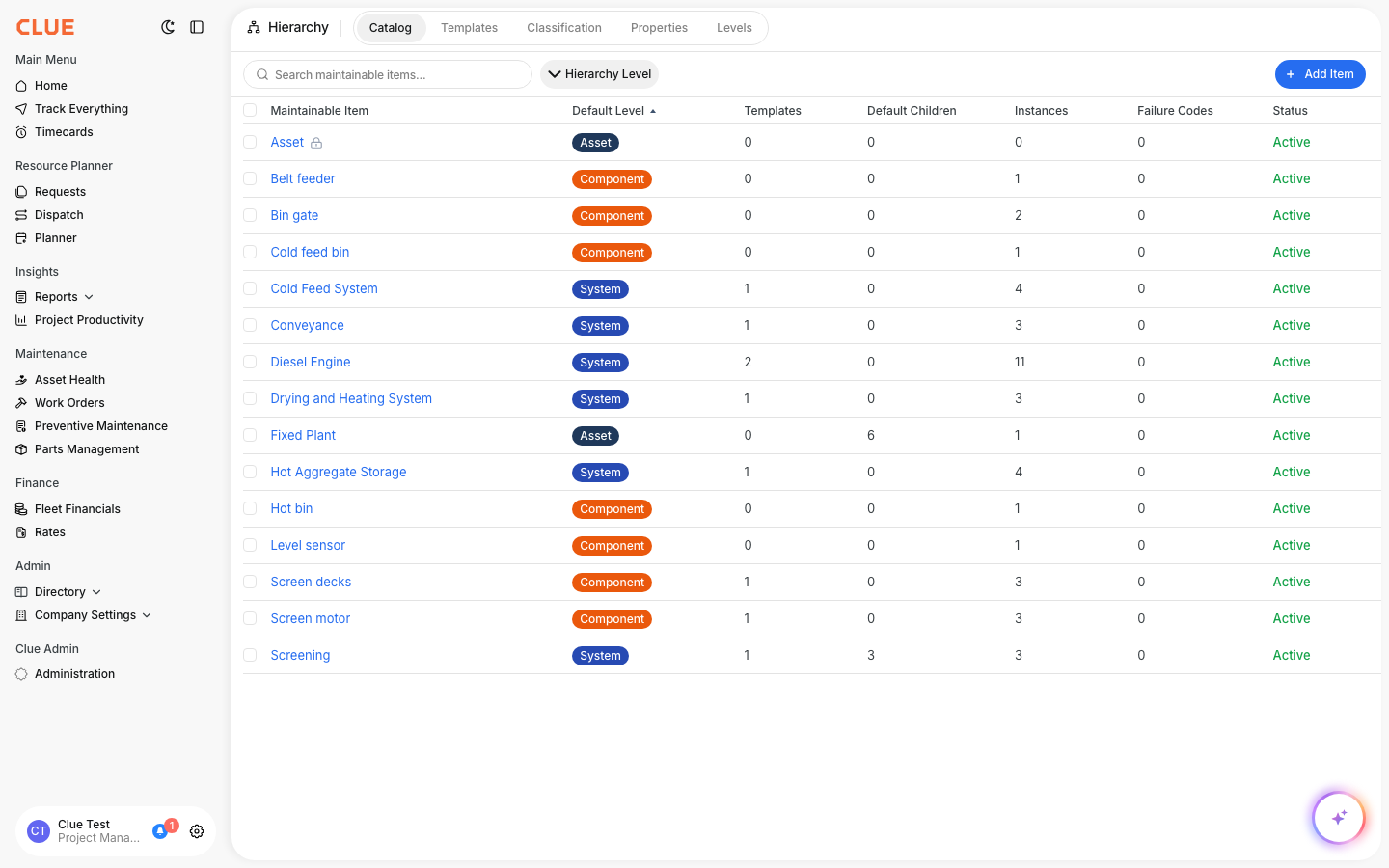
A template is the bill of materials for a type of equipment. It says: "An Asphalt Plant contains these 9 systems and components." Build the template once, then apply it to every machine of that type. Each machine gets its own set of individually tracked components.
How to use it
Step 1: View your templates
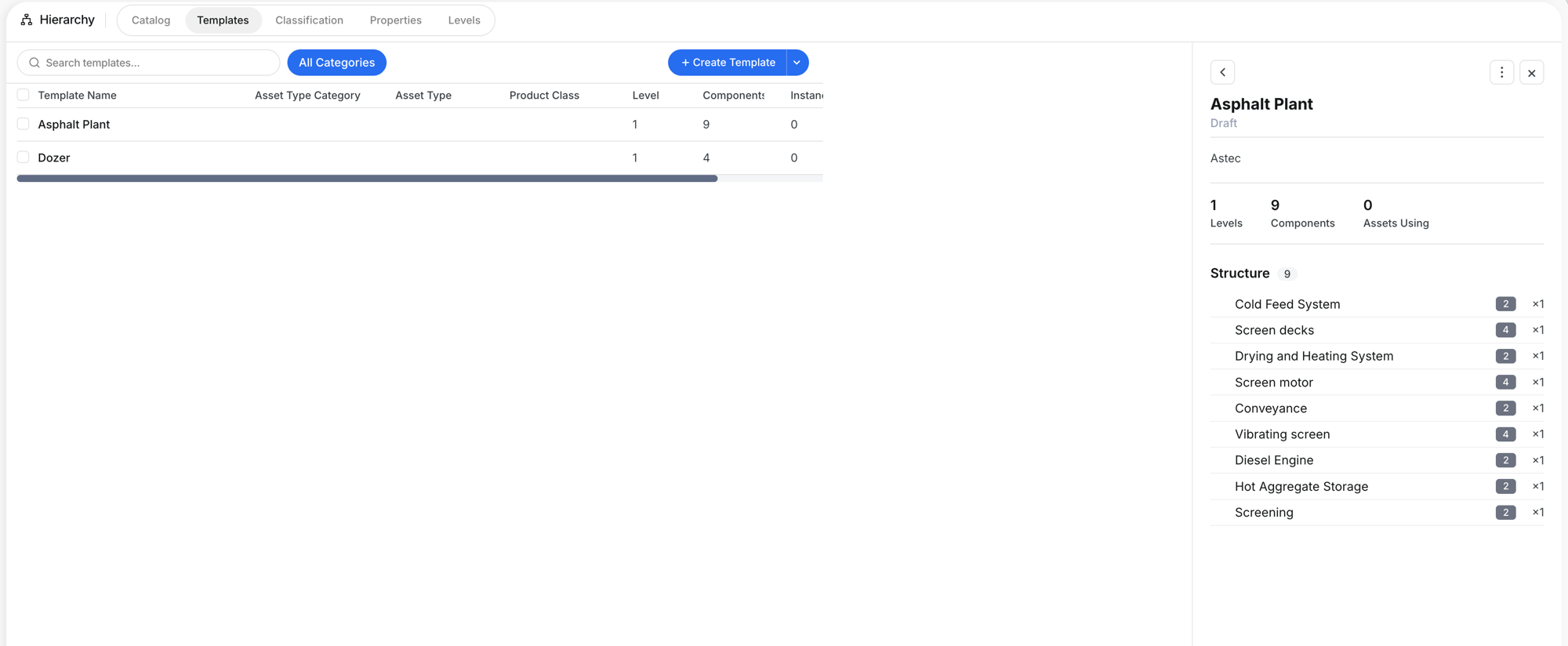
Go to Company Settings > Hierarchy > Templates. Click any row to open the detail panel showing the component structure.
Step 2: Review the structure
The detail panel shows the template name, status, manufacturer, key stats (Levels, Components, Assets Using), and the full component list with hierarchy level badges.

Step 3: Edit, clone, or create an instance
Click the three-dot menu:
- Edit -- Change template details or BOM structure
- Clone -- Copy this template to create a variation for similar equipment
- Create Instance -- Apply this template to a specific asset

Step 4: Edit template details
The Template Details tab sets the maintainable item type, name, asset type, product class, and status (Draft or Active).

Step 5: Build the BOM structure
Switch to Structure (BOM). Each row is a component with its level badge, quantity, and controls. Drag to reorder. Click + Add Position to add components. Click Reset to Defaults to revert to the catalog defaults.

Step 6: Add child components
Click + Child on any component to nest a sub-component. A searchable dropdown shows all catalog items.

The full details
- Works on: Web app
- Location: Company Settings > Hierarchy > Templates
- Draft vs Active: Keep Draft while building. Set Active when ready for use.
- Create Instance creates real component records on a specific asset. This is how a template becomes useful.
- Changing a template does not change existing instances. Only new instances pick up changes.
Tips
- Build templates for your highest-volume equipment first. 20 excavators with a template beats 200 machines tracked ad-hoc.
- Use Clone for equipment families. CAT 320, 330, and 336 share 80% of components. Clone one and adjust.
- Keep Draft until you are confident. Changes to the template do not flow to existing instances. Get the structure right before creating instances.
- Use + Child for nested structures. An Engine contains a Fuel System, which contains Fuel Injectors. Build the tree as deep as you need.
- Check Assets Using before editing. If 15 machines already have instances, edits only affect future instances.