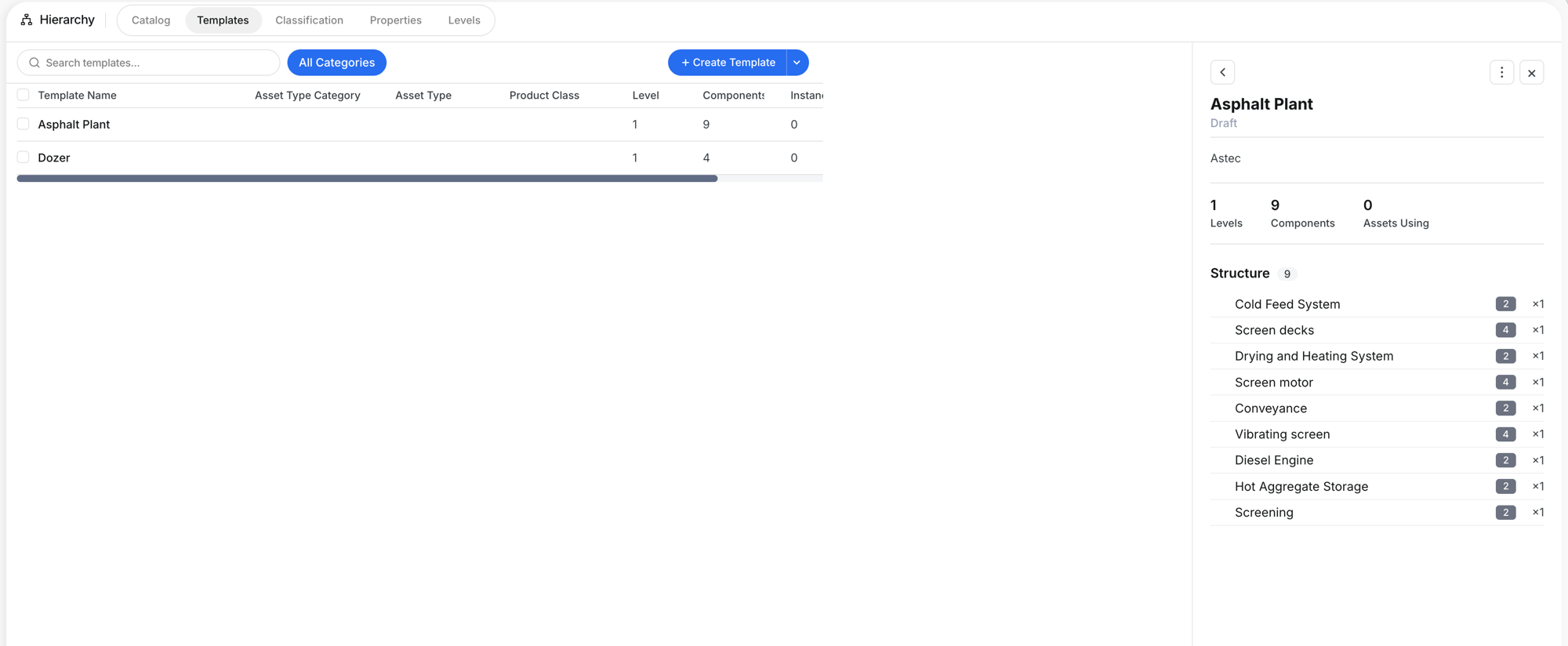
Managing the Component Catalog
What is this?
The Catalog is your master list of every component type your fleet uses. It is the foundation for everything else in the hierarchy. Before you can build a template, the components need to exist here.
How to use it
Step 1: Browse the catalog
Go to Company Settings > Hierarchy > Catalog. The table shows every maintainable item with its default level, template count, default children, instances, and failure codes.
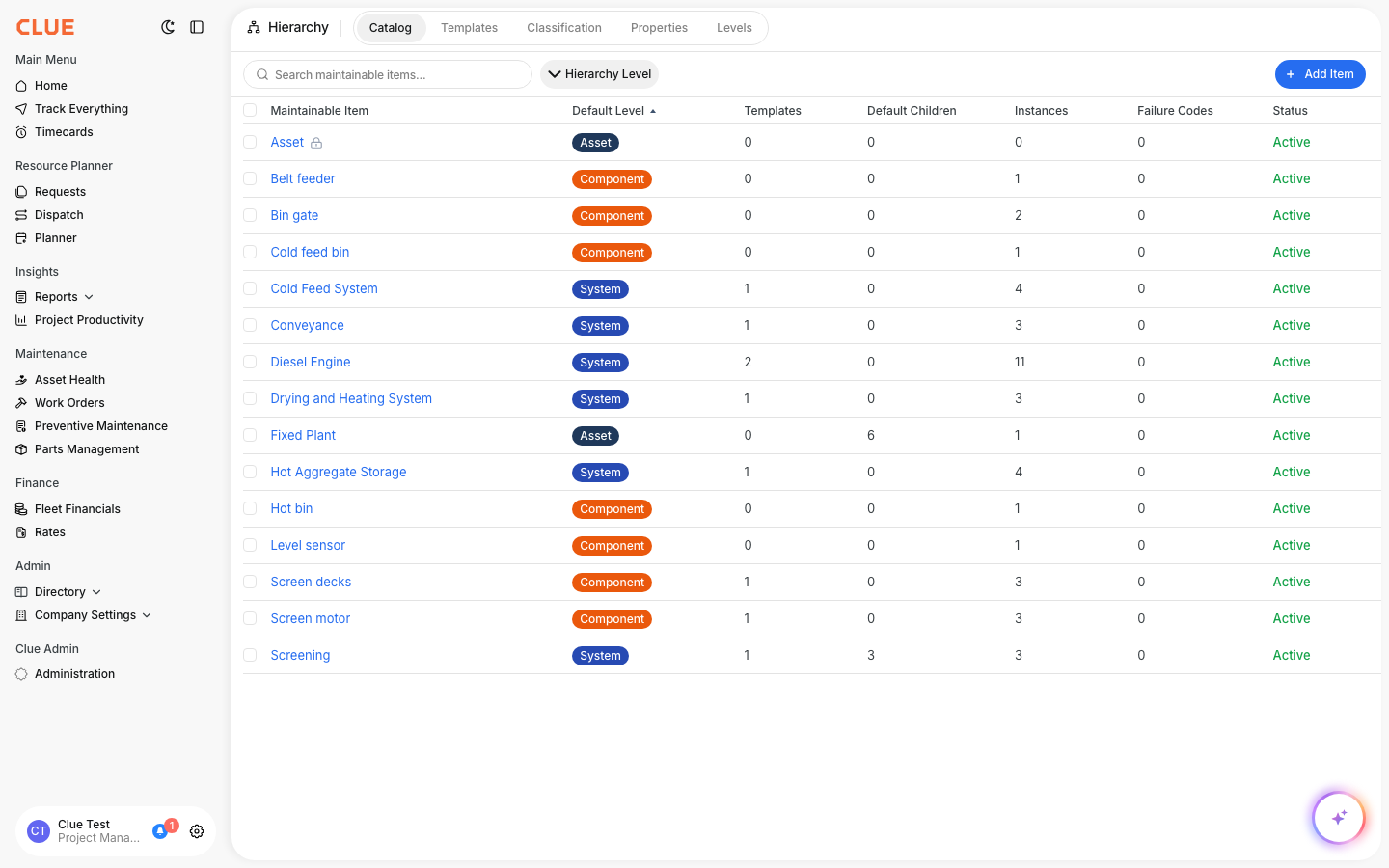
Clue comes with a standard set of items based on ISO-14224. You can use them as-is, customize them, or add your own.
Step 2: Edit an item
Click any item to open the edit dialog. It has four tabs:
- Item Details -- Name, description, and which hierarchy level it sits at
- Properties -- Custom fields to track on this component (serial number, hours)
- Failure Codes -- Fault codes associated with this component type
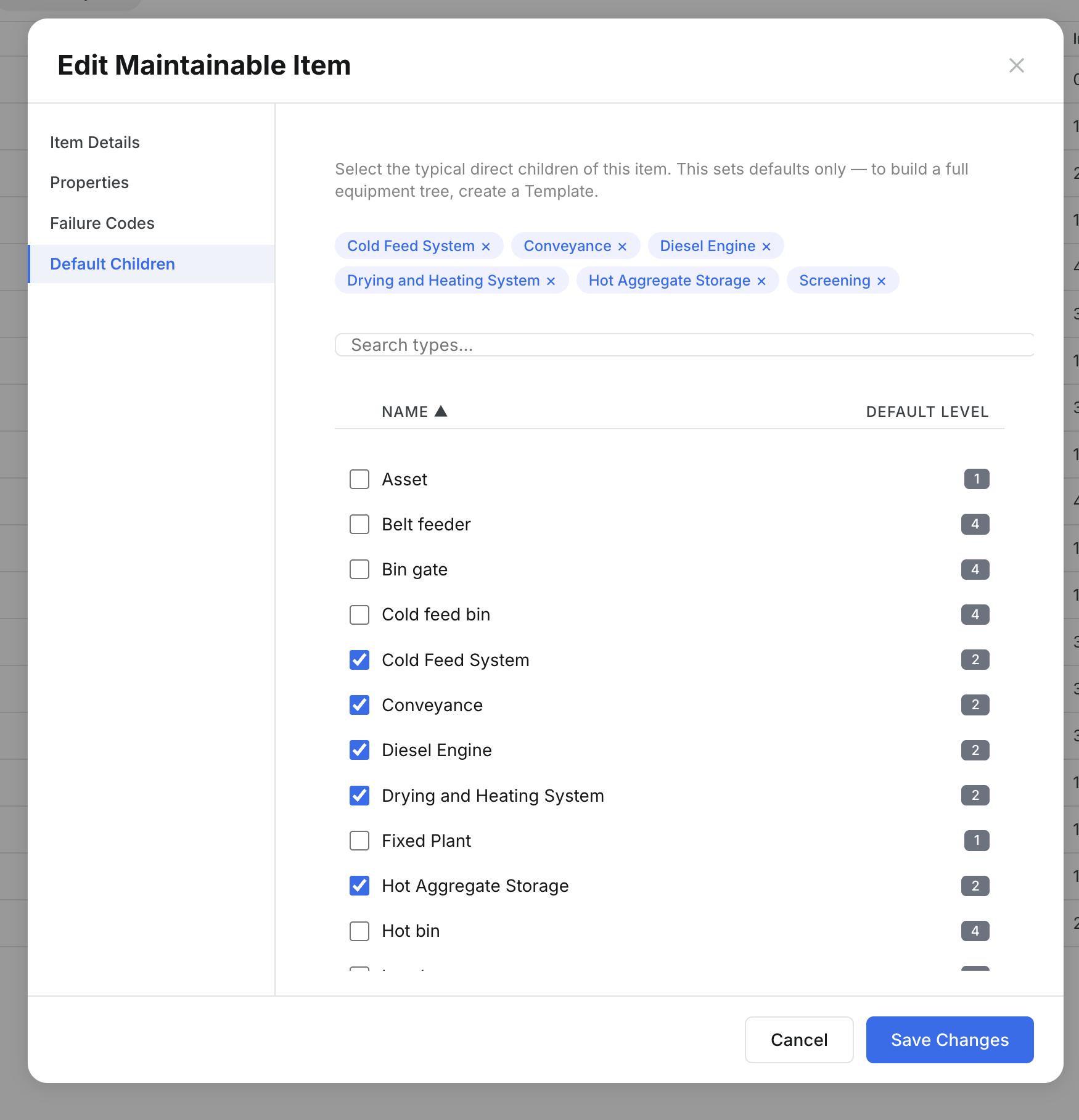
- Default Children -- Sub-components that typically belong under this item
Step 3: Set default children
This is the key time-saver. If a Diesel Engine always has a Fuel Injector, Turbocharger, and Oil Pump inside it, check those as default children. When someone adds a Diesel Engine to a template, those sub-components come along automatically.
The full details
- Works on: Web app
- Location: Company Settings > Hierarchy > Catalog
- Filter by hierarchy level using the dropdown to see only Systems, only Components, etc.
- Templates column shows how many templates reference this item. Check before deleting.
- Instances column shows real component records on assets. Items with instances cannot be deleted.
Tips
- Set default children before building templates. This is the single biggest time-saver.
- Link failure codes to components. Clue can trace fault codes to the right component automatically if the mapping exists.
- Use the ISO-14224 defaults as a starting point. Delete what you do not need rather than building from zero.
- Check the Templates column before editing. Changes affect all future templates that use this item.