Creating Scheduled Reports
Reports
Reading Time:
4 min read
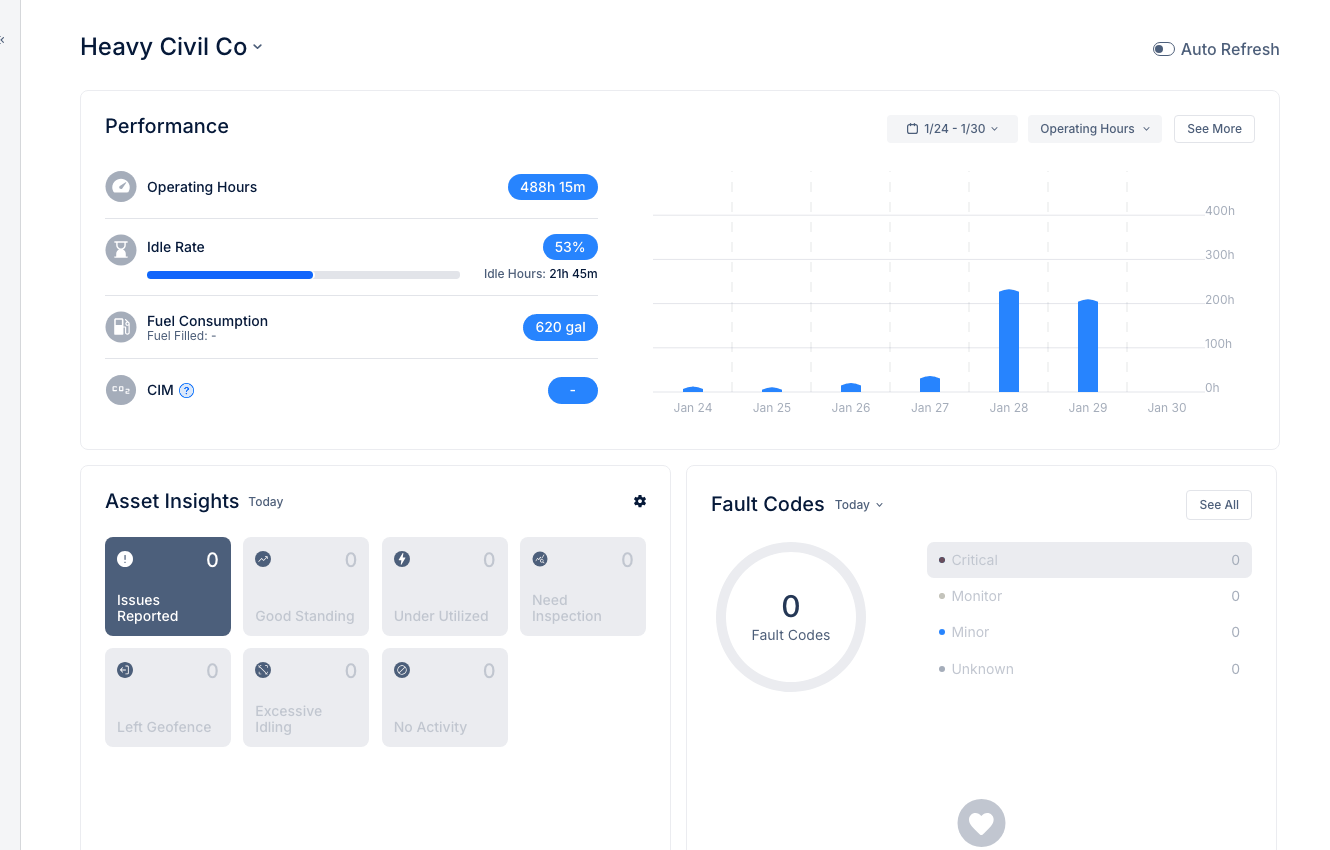
Automate report delivery by scheduling reports to run and email automatically. Get the data you need without manual effort.
Accessing Scheduled Reports
- Navigate to Reports in the Insights section
- Click the Scheduled Reports tab
- View existing schedules or create new ones
Creating a New Schedule
- Click New Schedule
- Configure the schedule:
- Report Name - Name for this scheduled report
- Report Type - Which report to run
- Frequency - How often to send
- Recipients - Email addresses for delivery
Frequency Options
- Daily - Report runs every day at specified time
- Weekly - Report runs on selected day(s) of the week
- Monthly - Report runs on a specific day each month
Setting the Schedule
- Choose frequency (Daily, Weekly, Monthly)
- Select the day(s) to run
- Set the time (reports run in your timezone)
- Choose the reporting period (Previous Day, Previous Week, etc.)
Adding Recipients
- Enter email addresses in the Recipients field
- Add multiple recipients separated by commas
- Recipients don't need CLUE accounts to receive reports
- Test with your own email first
Report Filters
Apply filters to customize report content:
- Division/Region - Limit to specific organizational units
- Asset Type - Include only certain equipment types
- Project - Filter by job site
Managing Schedules
- Edit - Modify frequency, recipients, or filters
- Pause - Temporarily stop a schedule
- Delete - Remove a schedule permanently
- Run Now - Trigger immediate delivery
Tips
- Schedule fleet summaries for Monday mornings
- Send daily PM status reports to maintenance managers
- Use weekly cost reports for financial review
- Include division managers on their region's reports