Completing Daily Inspections (DVIR)
Inspections
Reading Time:
6 min read
Daily Vehicle Inspection Reports
DVIR (Daily Vehicle Inspection Report) ensures your equipment is safe and operational before use.
Starting an Inspection
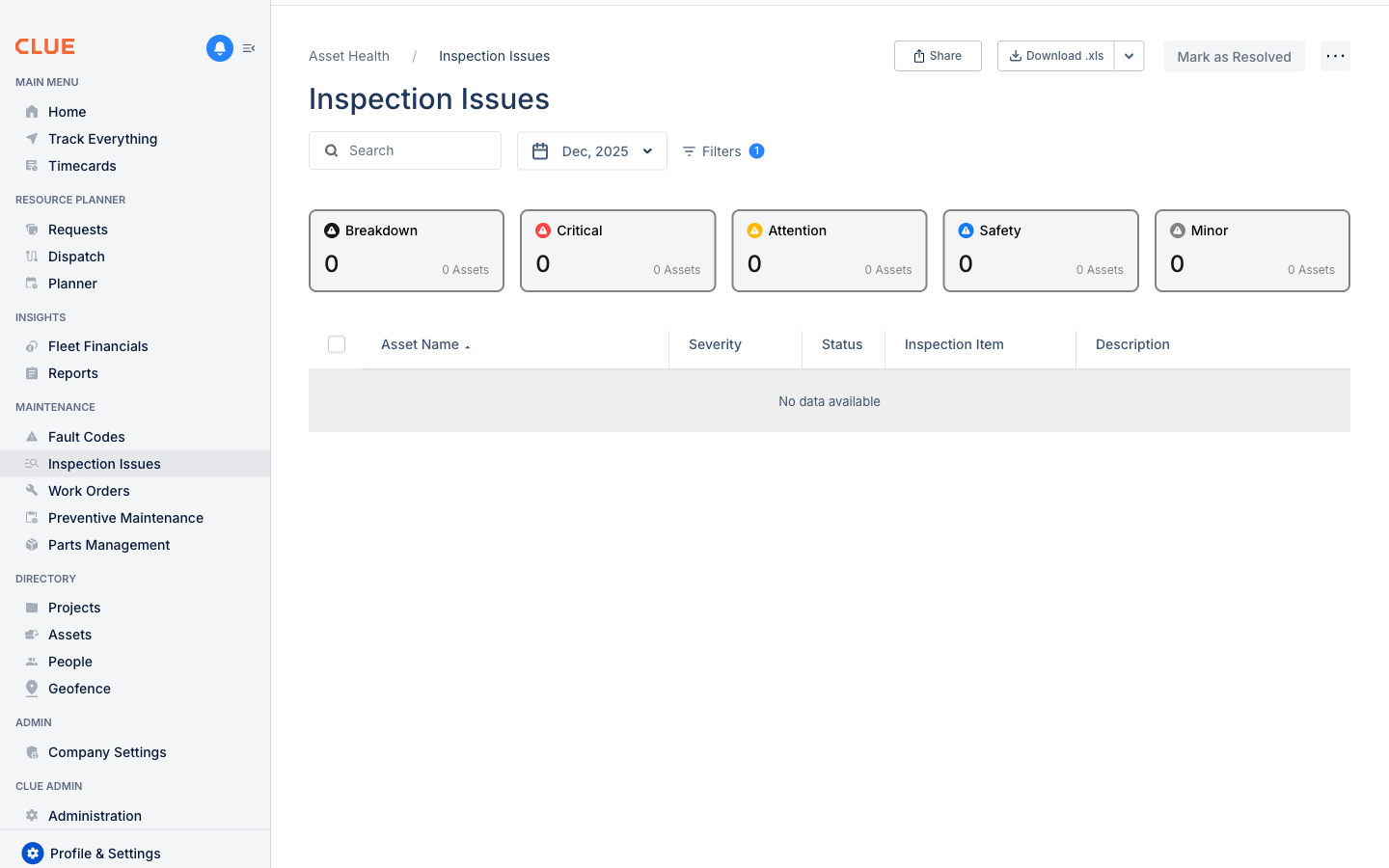
Navigate to Maintenance → Inspection Issues or access inspections directly from an asset's detail view.
Step-by-Step Inspection Process
- Select the Asset - Choose the equipment or vehicle to inspect
- Choose Template - Select the appropriate inspection form (DVIR, Safety Check, etc.)
- Complete the Checklist - Go through each item, marking Pass, Fail, or N/A
- Add Photos - Take pictures of any issues or damage found
- Add Notes - Describe any problems in detail
- Sign and Submit - Add your signature and submit the report
Viewing Inspection History
Go to Maintenance → Inspection Issues → Inspection Log to see all completed inspections. Filter by date, asset, or inspector.
Handling Failed Items
When an inspection item fails:
- The issue is automatically logged
- You can create a work order directly from the issue
- The asset may be flagged until the issue is resolved
Exporting Reports
Use the download menu to export inspection data as CSV or Excel for compliance records.