Using the Mechanic Schedule View
Use the Mechanic Schedule view to see work orders by technician instead of in one long list. This makes it easier to balance workload, spot open capacity, and keep work moving across the shop.
Overview
The Mechanic Schedule view groups work orders by assigned mechanic so your team can quickly see who is booked, who has room, and which work still needs an owner. It is a helpful planning view for daily scheduling and shop coordination.
This view works especially well alongside Creating and Managing Work Orders, Assigning Work Orders, and Filtering and Finding Work Orders if your team is already using those pages to manage maintenance work.
Accessing Mechanic Schedule
You can open this view from the main Work Orders page. Once you switch to the schedule tab, the layout changes from a list view to a technician-based schedule view.
Step 1: Open Work Orders
Go to Maintenance → Work Orders.
Step 2: Open the Mechanic Schedule tab
At the top of the page, click Mechanic Schedule.
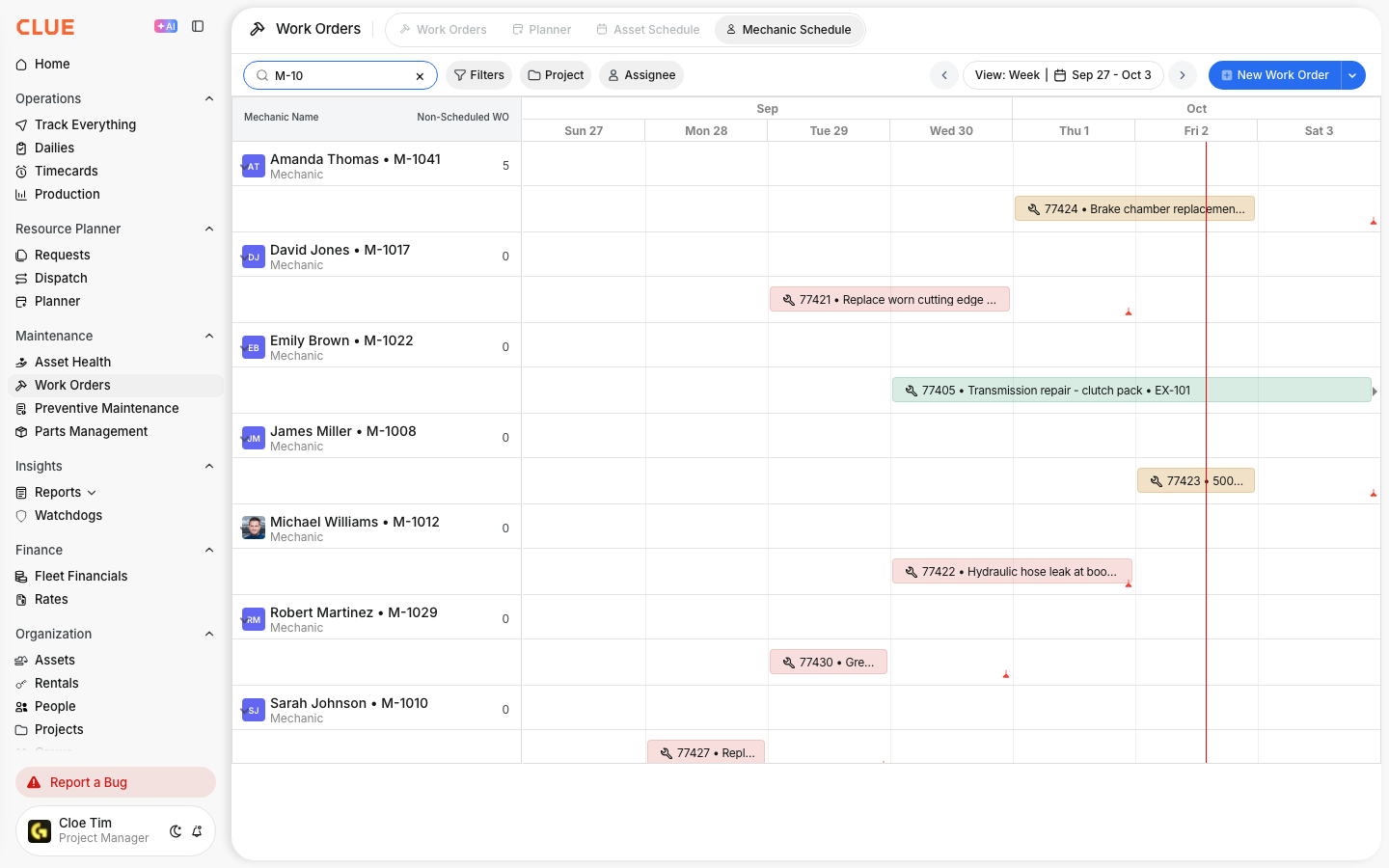
Understanding the View
The schedule is built to show work by person and by time. This helps you look ahead, shift work between mechanics, and review what is still unassigned.
The view includes:
- Mechanic rows - each row shows work assigned to one technician
- Timeline - shows scheduled work by day or week
- Work order blocks - scheduled jobs shown on the timeline
- Unassigned row - work orders that still need a mechanic
If your team also uses the Asset Schedule View, this gives you a people-based view to compare against the equipment-based schedule.
Balancing Workload
This view is useful when you need to spread work more evenly across the team. Instead of checking one work order at a time, you can see workload across the full shop and make faster scheduling decisions.
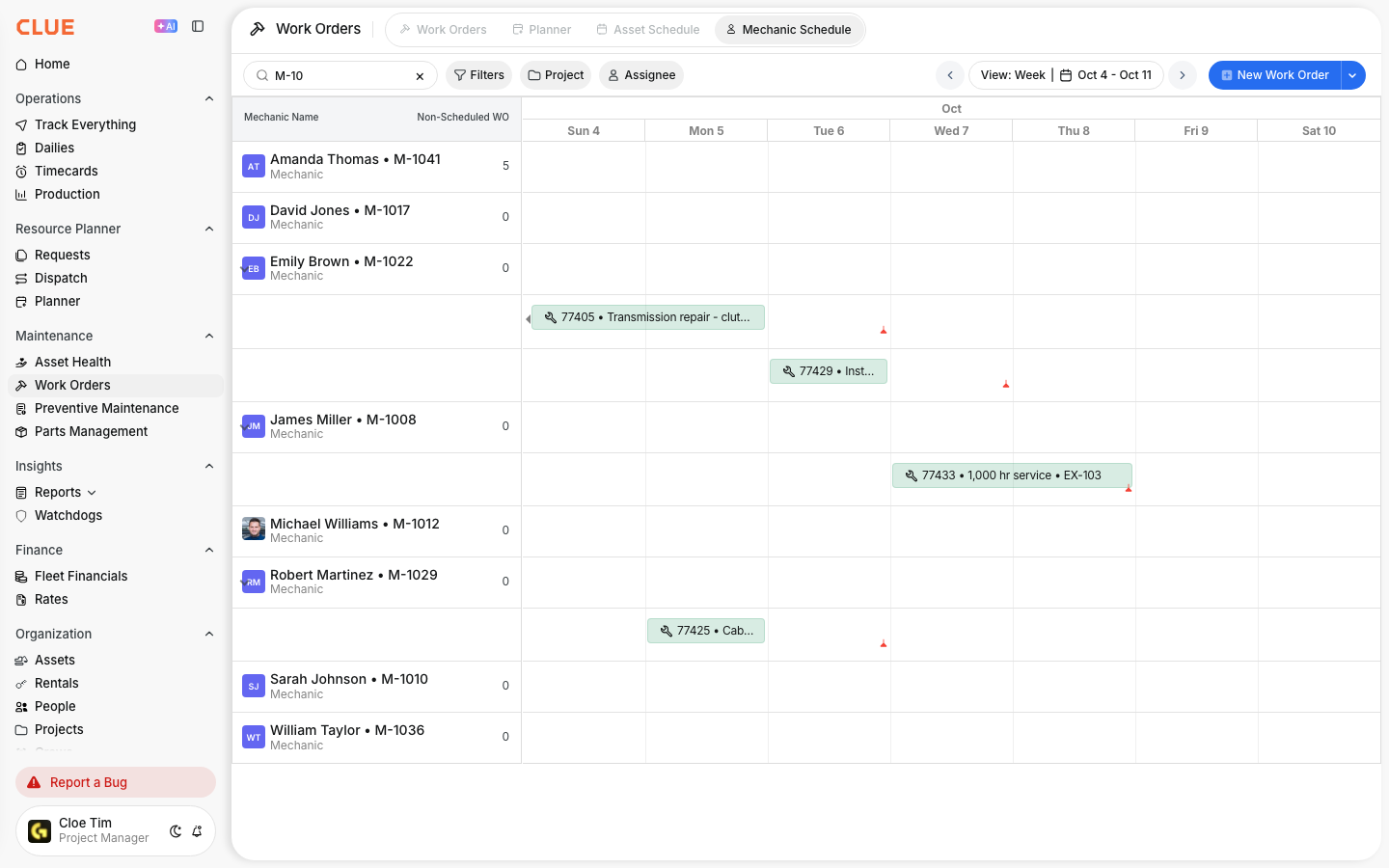
Use this view to:
- spot mechanics with too many assignments
- find open time for urgent work
- move work between technicians
- review upcoming workload before scheduling new jobs
This also creates a natural internal link opportunity to Assigning Work Orders when the next step is to change ownership of a job.
Quick Actions
The Mechanic Schedule view is not just for viewing workload. You can also use it to open jobs, update assignments, and narrow the schedule to what matters right now.
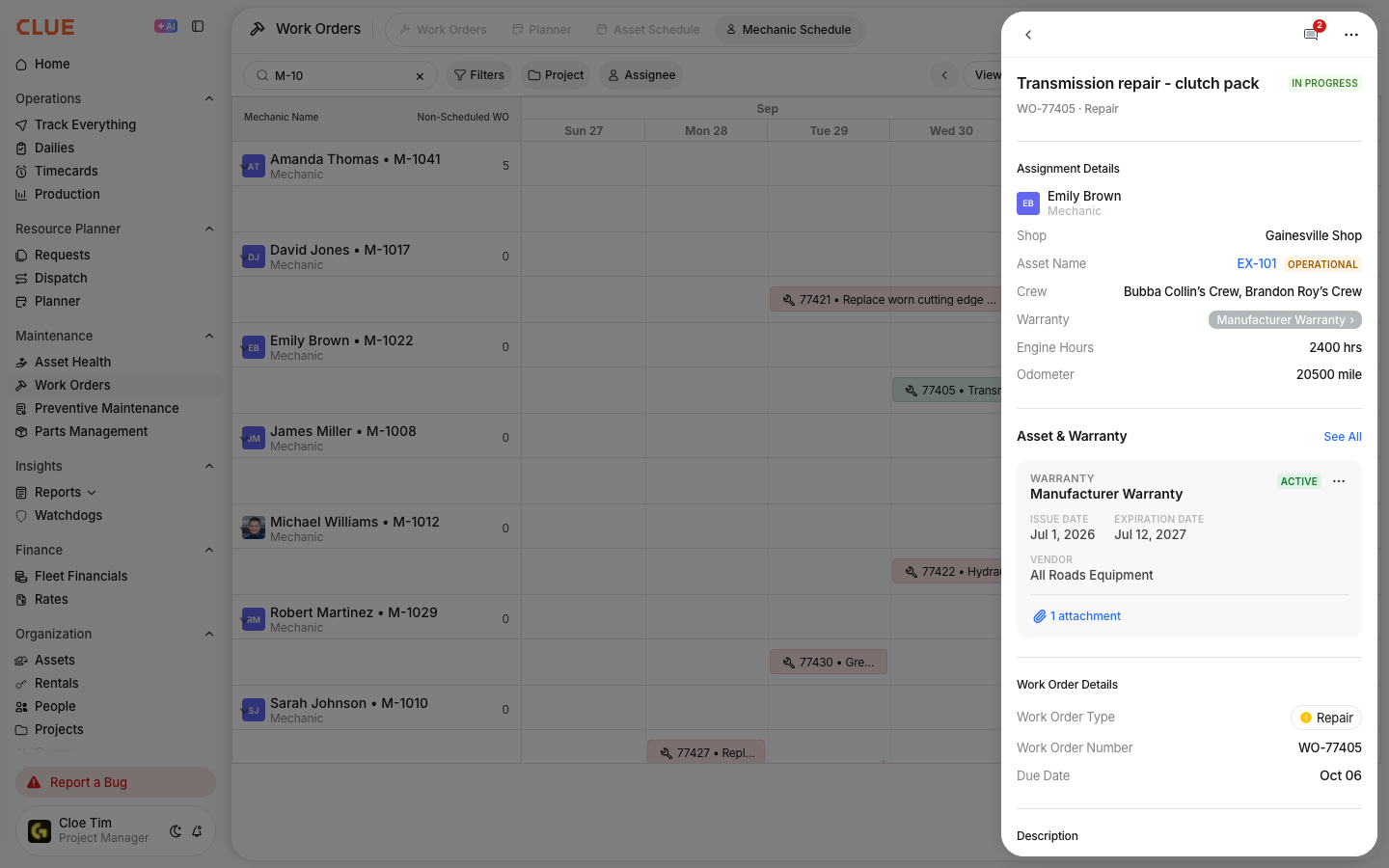
From this view, you can:
- click a work order to open its details
- drag work orders between rows to reassign them
- filter by work order type or status
- change the date range to look further ahead
These actions connect well with Updating a Work Order and Understanding Work Order Status when a job needs more than a schedule change.
Identifying Issues
The schedule view can also help you catch planning problems early. A quick review can show where work is piling up or where jobs may be sitting without action.
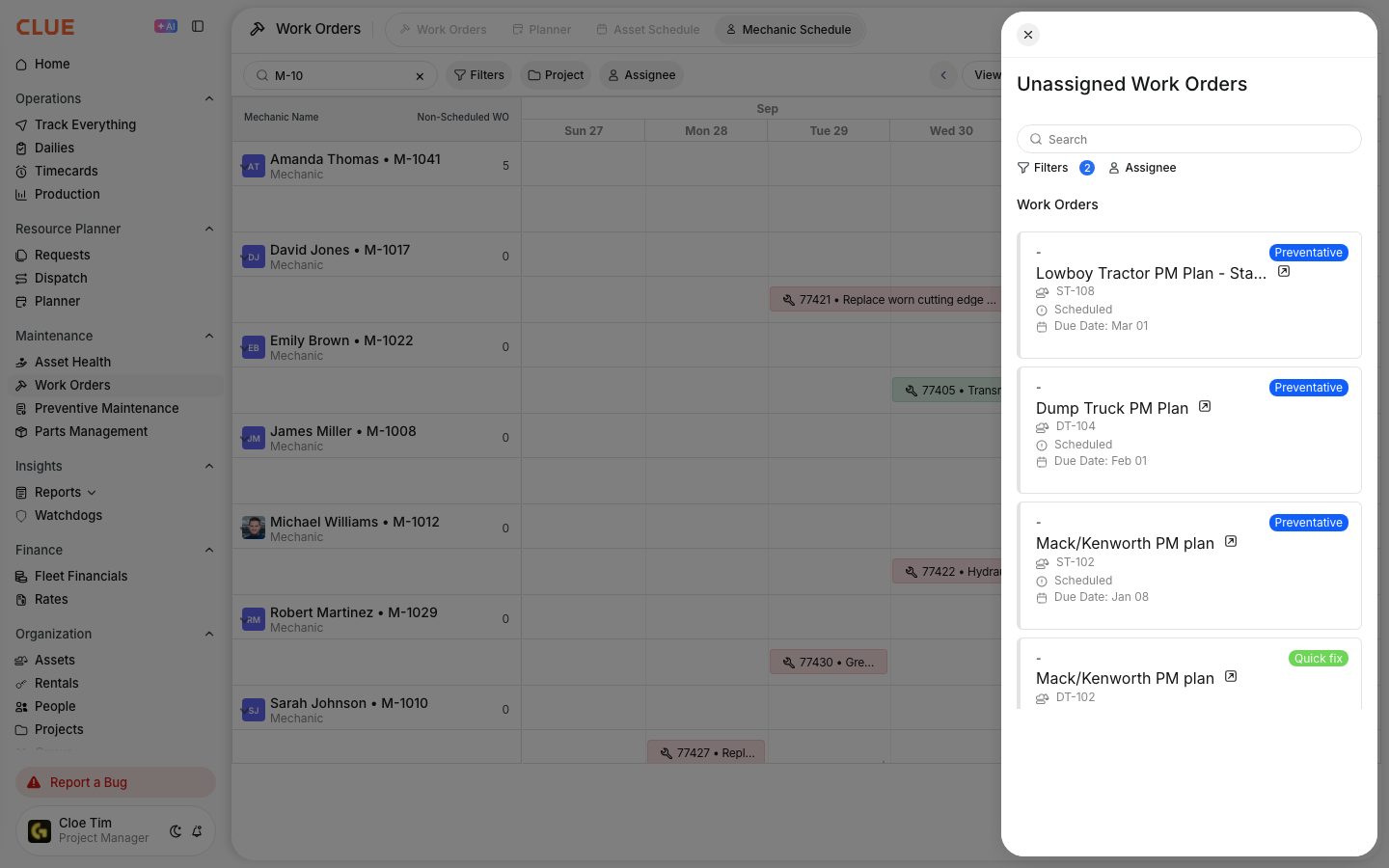
Watch for:
- Overloaded days - several work orders stacked on the same day
- Unassigned work - items in the unassigned row that still need attention
- Skill mismatches - complex work assigned to the wrong technician
This is especially useful before daily planning meetings or when adding new jobs from Creating Work Orders from Issues or fault-related repairs.
Tips
A quick daily review of the schedule can make shop planning easier and help avoid last-minute bottlenecks. The more current your assignments are, the more useful this view becomes.
- review this view during morning planning meetings
- consider mechanic experience before reassigning work
- leave some open time for emergency repairs
- check the Unassigned row often
- compare this view with Using the Asset Schedule View for a fuller planning picture