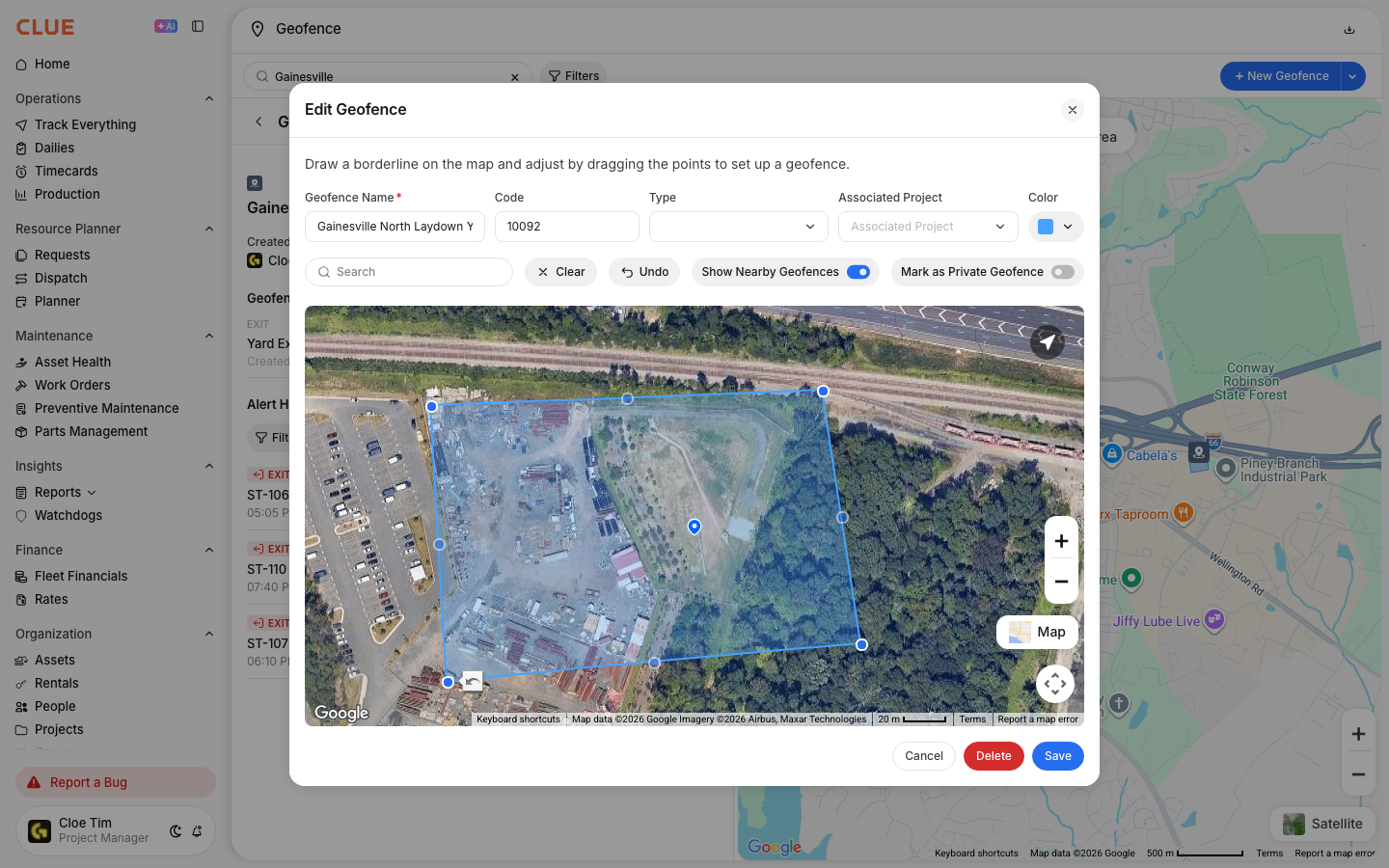
Use geofences in Dispatch to make pickup and dropoff locations more accurate. When a geofence is linked to a project, CLUE can use that location in dispatch and help the team track when equipment reaches the site.
Dispatch board with geofence assignments
Geofences work with Dispatch so the team can use real site boundaries instead of vague location notes. This also fits naturally with Creating a New Dispatch, Dispatching Assets to Projects, and Understanding Geofences.
Overview
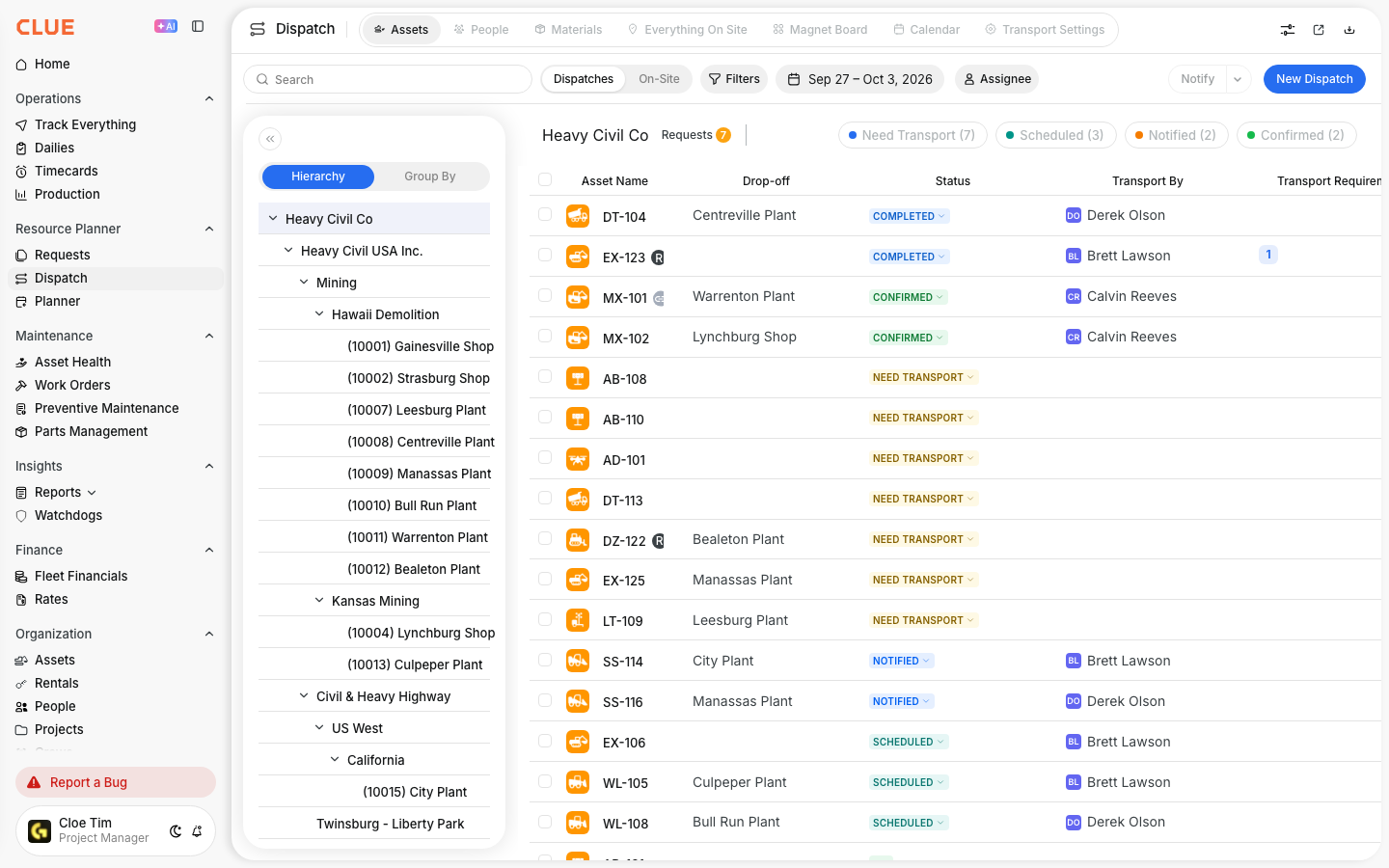
Geofences help define where a project starts and ends on the map. When they are connected to Dispatch, the team gets a clearer pickup point, a clearer dropoff point, and better tracking once equipment is on the move.
Geofences and Projects
When a project has a linked geofence, CLUE can place that project on the map using the geofence location. This makes it easier for Dispatch to use the site as a pickup or dropoff point and helps the system track when equipment arrives.
This setup is especially useful when the team wants better site visibility without typing the same location details into every dispatch. It is also a strong internal linking spot for Creating a New Project and Creating a New Geofence.
Using Geofences as Dispatch Locations
Once geofences are in place, they can be used during dispatch setup as location choices. This helps the team create moves with more consistent site information and fewer manual errors.
Step 1: Create a new dispatch
Open the Dispatch area and start a new dispatch.
This is the same flow used in Creating a New Dispatch when scheduling asset movement between locations.
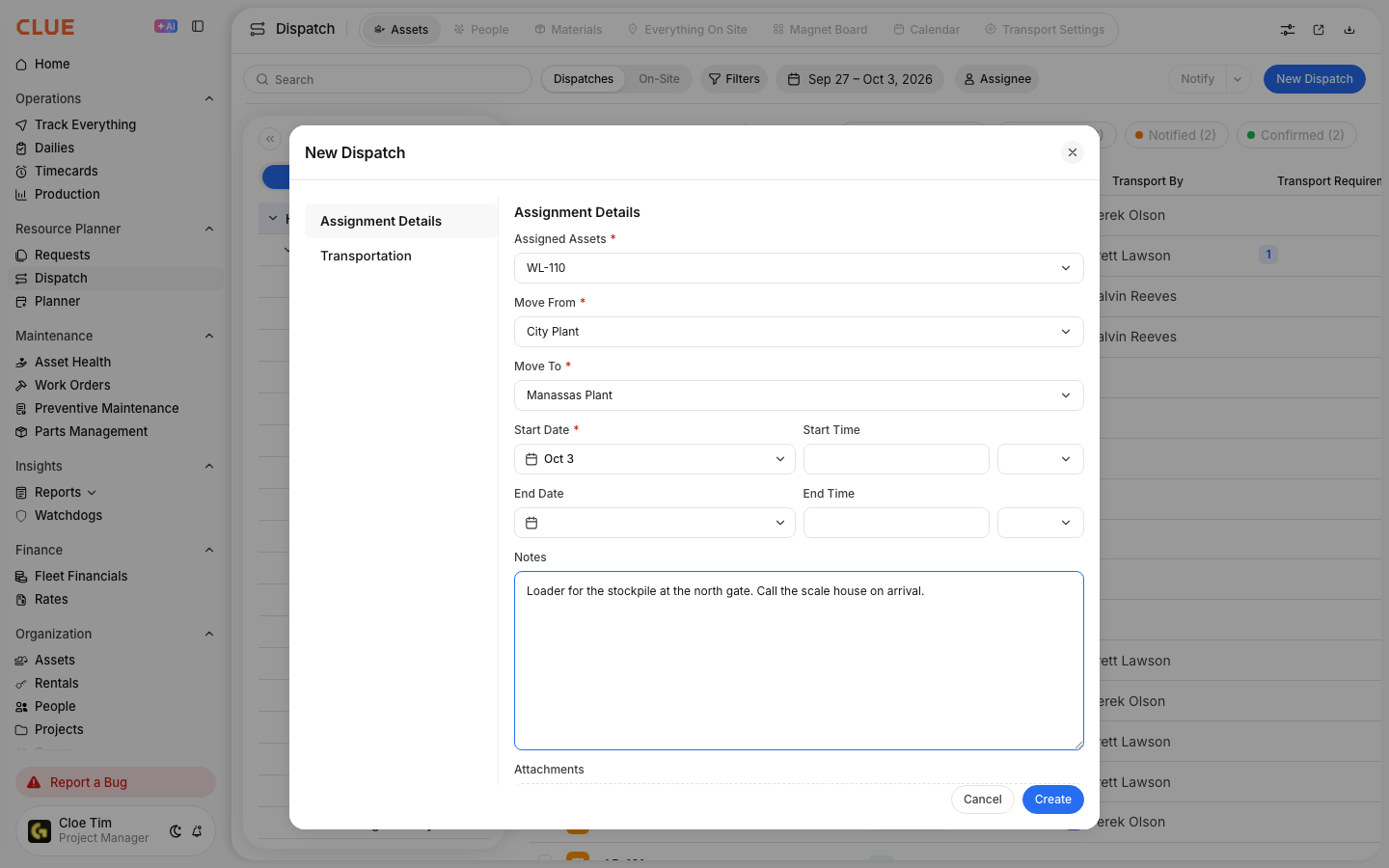
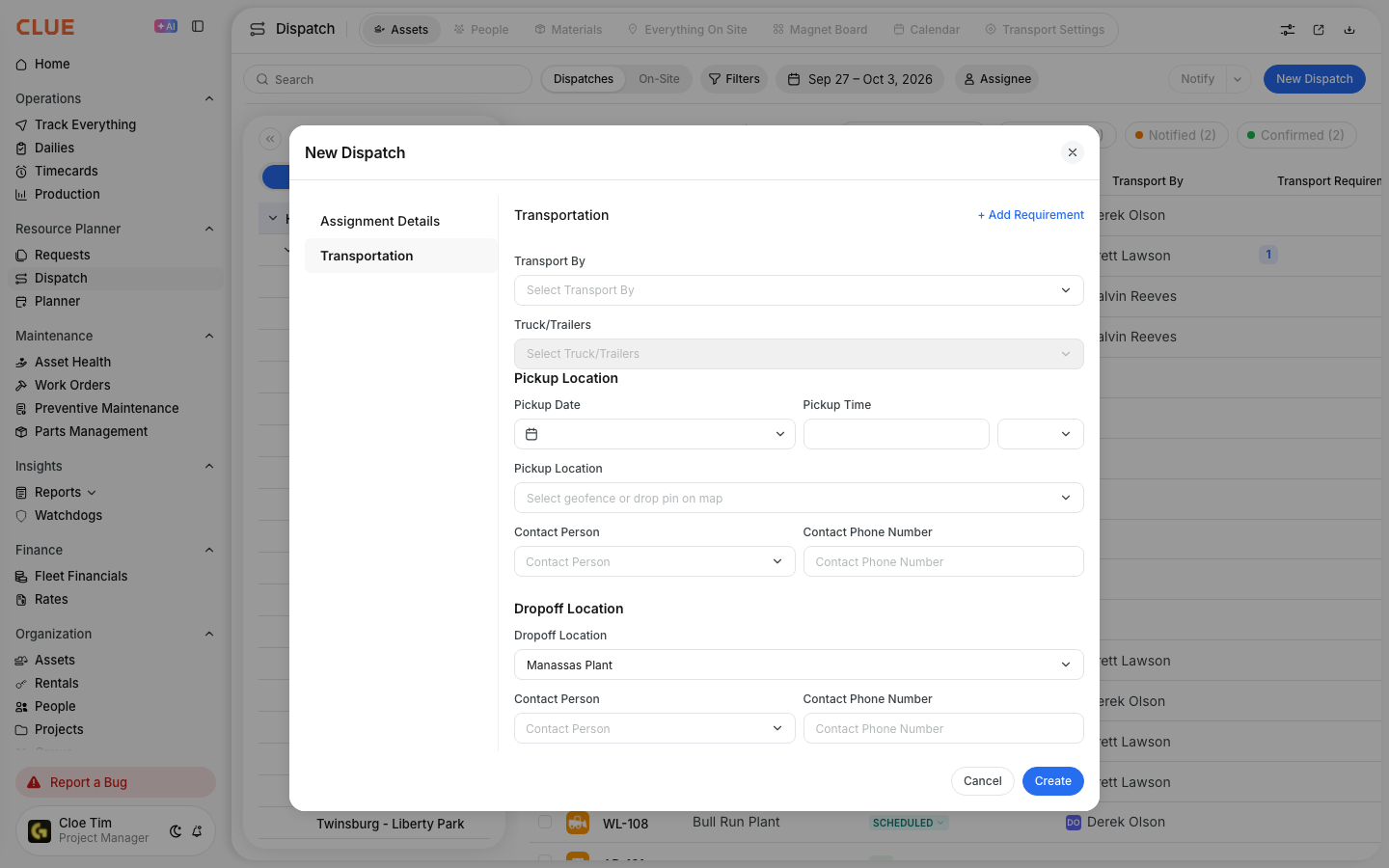
Step 2: Choose the geofence as the pickup or dropoff location
For Pickup Location or Dropoff Location, select from the available geofences.
This gives the dispatch a defined site location instead of a loose text entry.

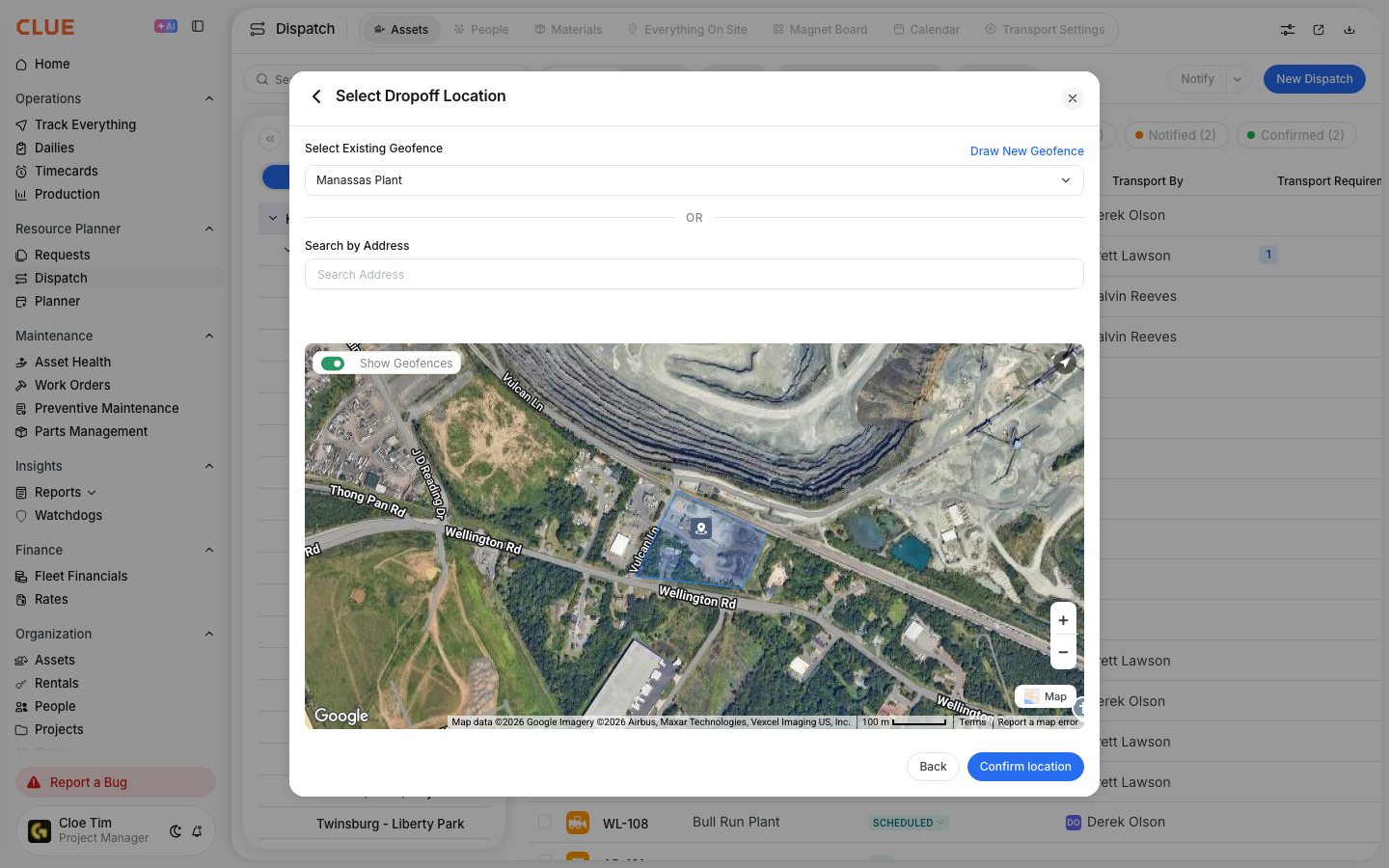
Step 3: Use the geofence details during the move
When a geofence is used in dispatch, it gives the team a clear map reference and supports location-based tracking.
That can help with arrival visibility and make site activity easier to follow.
Benefits of Geofence-Linked Dispatch
Geofence-linked dispatch makes site movement easier to track and easier to trust. It gives the team a more exact location for the move and helps reduce confusion around where equipment is supposed to go.
Main benefits include:
- Accuracy - drivers and planners use a clearly defined site location
- Automation - the system can detect arrival activity based on the geofence
- Tracking - the team can see when equipment reaches the destination
- Reporting - site-based metrics are easier to review when location boundaries are defined
Setting Up Integration
Before geofences can be used in Dispatch, they need to be created and tied to the right project or site. Once that setup is done, the locations become easier to reuse across dispatch workflows.
Start by creating a geofence for each project location. Then link that geofence to the project record. After that, the geofence becomes available in dispatch location dropdowns and can be reused whenever equipment is moved to or from that site. This is a natural linking spot for Creating a New Geofence and Creating a New Project.
Tips
A few simple setup choices make this feature easier to use. The goal is to keep site names clear and make sure the dispatch team can quickly choose the right location.
- Name geofences to match project names so they are easy to find
- Create geofences for yards and shops as well as project sites
- Use separate geofences for different entrances when a site has more than one access point
- Keep this workflow connected to Dispatching Assets to Projects and Creating a New Dispatch so site moves stay consistent across the team