Equipment Properties let you build a more complete record for each asset in CLUE. You can store extra details like engine specs, tire information, lease data, license details, internal rates, and more, all on the asset profile.
Overview
CLUE includes a large library of Equipment Property fields that can be turned on for your organization. You can enable one category, several categories, or the full catalog, depending on how much detail you want to track. If you are still setting up the asset itself, start with Adding a New Asset, then come back to add these extra property fields.
Where to Find Equipment Properties
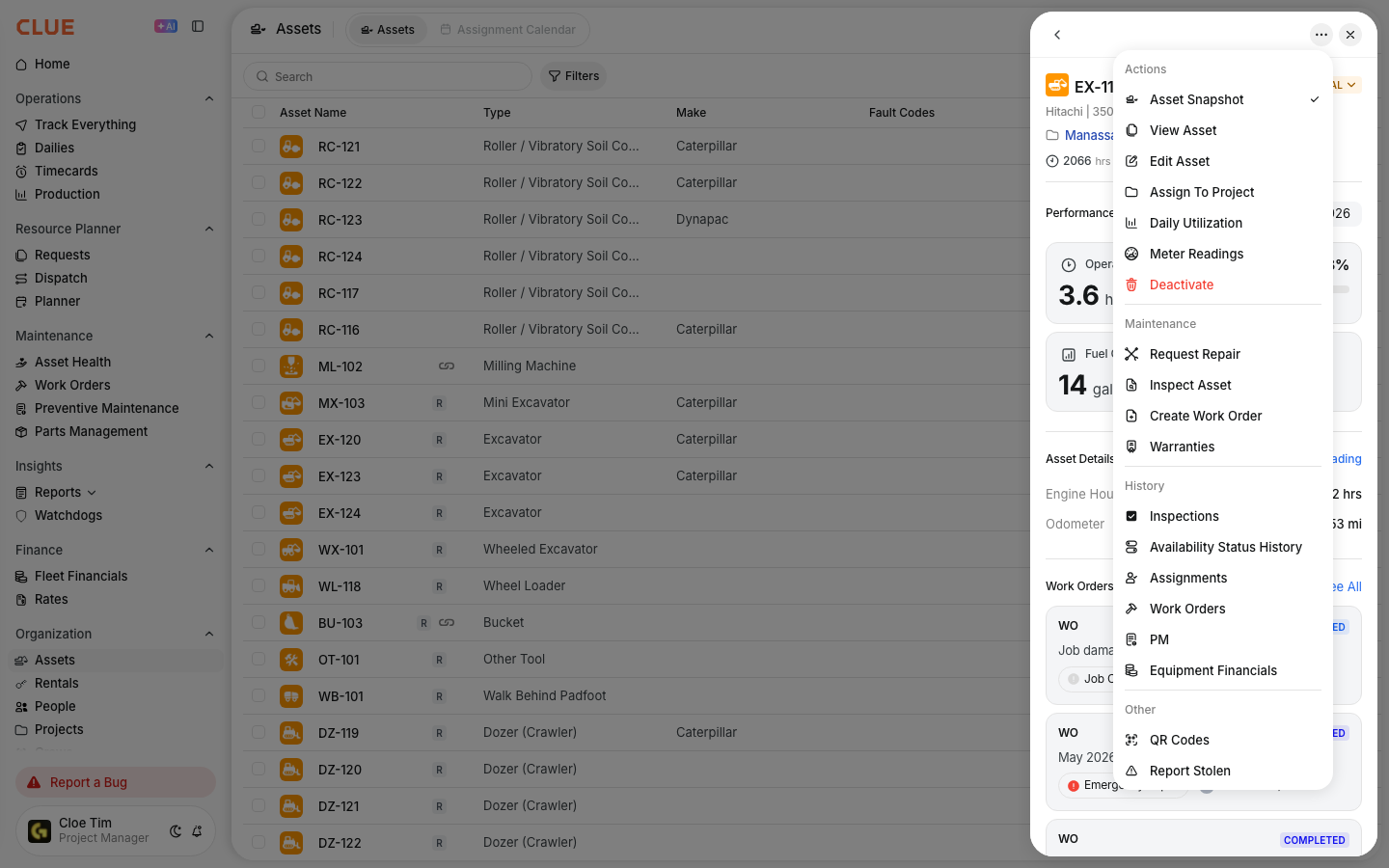
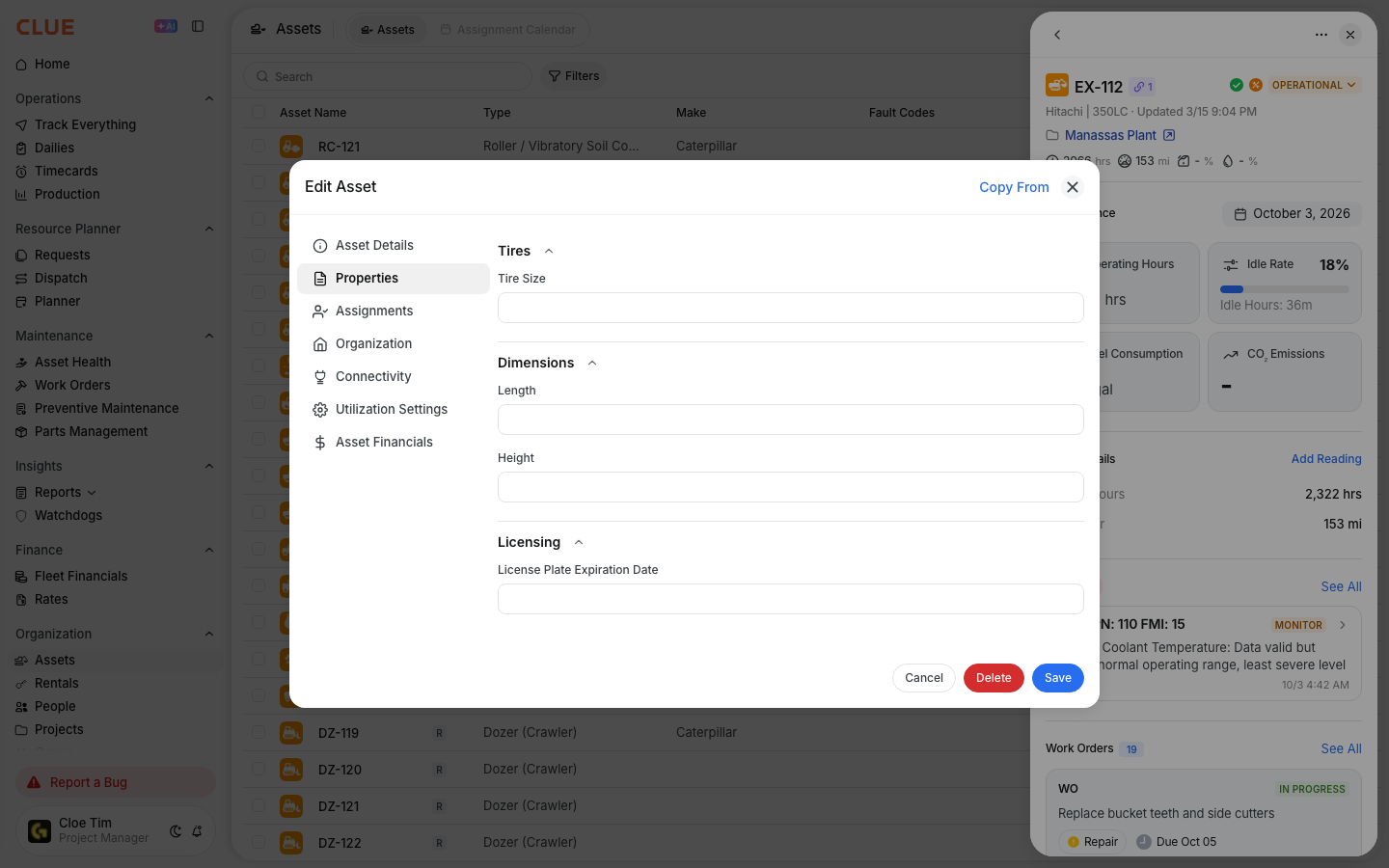
Equipment Properties are stored on the asset record in edit mode. To get there, open the asset first, then scroll down to the Equipment Properties section. If you need help finding the right asset, go to Managing Your Asset Directory. If you want a better view of the asset panel before editing, Understanding Asset Detail View will help.
- Go to Directory > Assets
- Click any asset to open the asset detail view
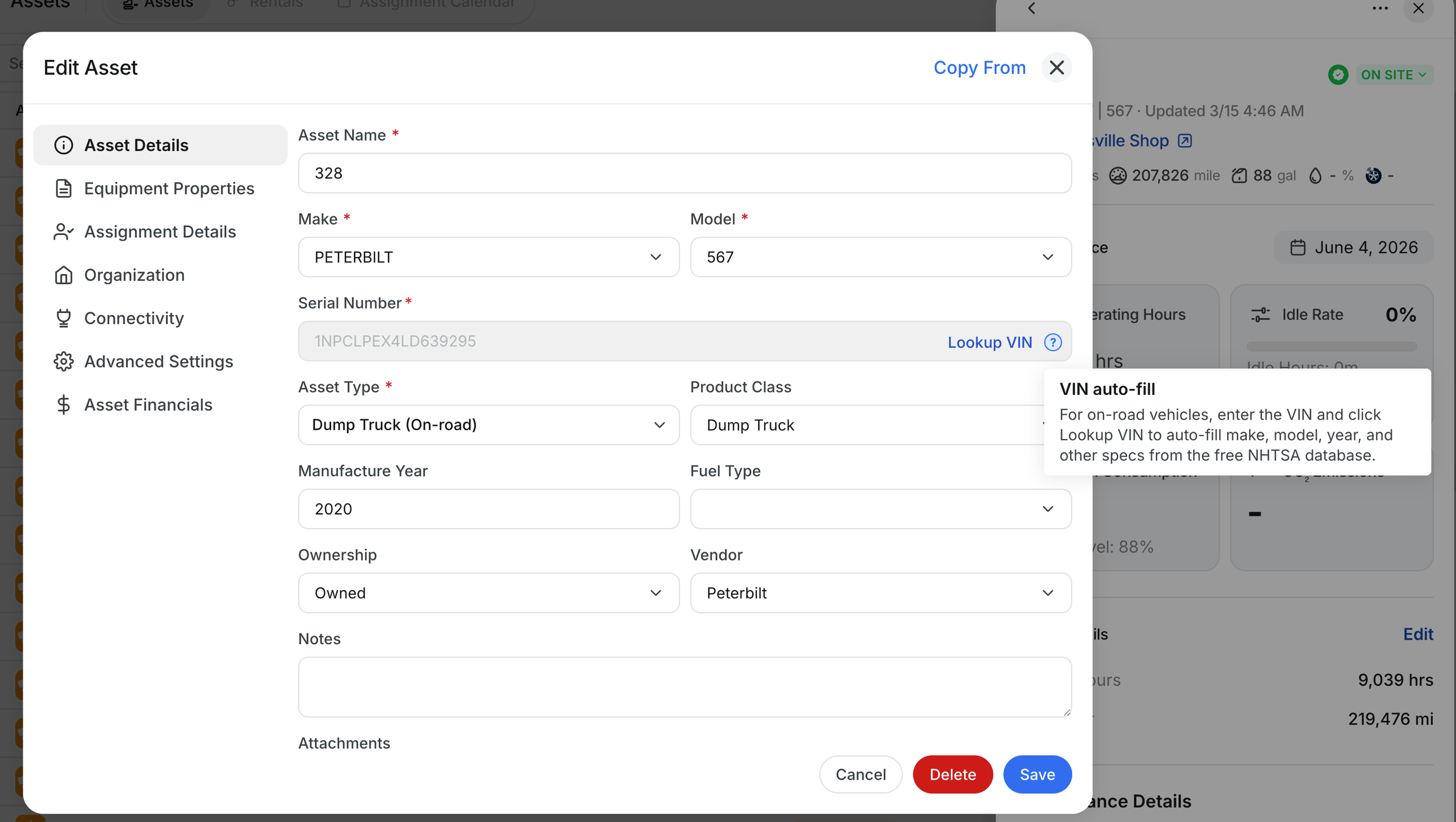
- Click the Edit button
- Scroll past the standard asset fields to the Equipment Properties section
- Click a category name to expand it.
How to Fill In Properties
Once you are in edit mode, open the category you want and enter the values you have. You can fill in as many or as few fields as you want. None of these fields are required. If you only need to update standard asset details like make, model, project, or linked user, use Editing Asset Information.
- Open the asset and click Edit
- Scroll to the Equipment Properties section
- Click a category name, such as Engine
- Enter values into the fields you want to use
- Click Save when you are done.

Full Property Catalog
CLUE can support all of the categories below on asset records. You can turn on only the categories your team needs now and add more later.
Engine
Use this section for engine details and serial information.
- Horse Power
- Engine Make
- Engine S/N
- Engine Model
- Engine Family
- Engine Year
- Engine Tier
- Fuel Number.
Dimensions
Use this section for size, weight, and axle details.
- Length
- Height
- Gross Vehicle Weight
- Tare Weight
- Volume
- Wheel Base
- Number of Axles.
Tires
Use this section for tire sizes and wheel torque details.
- Tire Size
- Tire Size Front
- Tire Size Rear
- Tire Size Tag Axle
- Tire Info
- Wheel Torque Front
- Wheel Torque Rear
- Wheel Torque Tag Axle.
Licensing
Use this section for registration and compliance details.
- License Plate Number
- License Plate State
- License Plate Expiration Date
- License Type
- IFTA State
- Safety Check Expiration Date.
Lease
Use this section for leased equipment.
- Leasing Company
- Lease Contract Number
- Lease Start Date
- Lease End Date
- Lease Payment
- Lease Residual Value.
Rates
Use this section for internal cost and billing rates.
- Daily Rate
- Hourly Rate
- Monthly Rate
- Daily Ownership Rate
- Hourly Operating Rate
- Minimum Hours Charged.
Acquisition & Disposal
Use this section for purchase and disposal records.
- Acquisition / Purchase Price
- Acquisition / Purchase Date
- Disposal Proceeds
- Disposal Date.
Asset Profile
Use this section for added identity and profile details. If you need to update classification or core asset setup, see Editing Asset Information.
- Class
- Owner Entity
- Former Unit Number
- Short Description
- Long Asset Name
- Gross Weight
- Assigned Driver
- Machine Attachment.
Emissions
Use this section for emissions and compliance tracking.
- CARB EIN.
Filters
Use this section for maintenance-related filter references.
- Filter Information.
Hauling
Use this section for hauling capacity details.
- Weight Capacity
- Volume Capacity.
Parts
Use this section for PM parts lists that support scheduled service.
- PM1 Parts List
- PM2 Parts List
- PM3 Parts List
- PM4 Parts List.
Telematics
Use this section for device and provider details tied to tracking.
- Subscription Level
- Device Type
- Telematics Source
- Tracker Serial Number.
Tracking
Use this section for GPS and related tracking identifiers.
- GPS Required
- GPS ESN
- I-Pass Serial Number.
Technical Specs
Use this section for specialized component details on equipment that needs them.
- Collapsed Length
- Elements
- Cog Style
- Tooth Style
- Flight Thickness
- Wall Thickness
- Box Type
- Flight Type.
Dispatch
Use this section for special dispatch notes or requirements. If the asset is tied to a job, you may also want to review Assigning Assets to Projects.
- Dispatch Requirements.
How to Get Categories Enabled
All of these categories are available in CLUE, but they need to be turned on for your organization. You can ask your CLUE administrator to enable them in CLUE Admin, or contact CLUE support and tell them which categories you want. CLUE’s article says support can enable individual categories or the full catalog, and once enabled, the new categories appear on assets right away.
Tips
Start with the categories your team will actually use, then add more over time. That keeps the asset profile useful without making data entry harder than it needs to be. If you also want manuals, warranty files, or service documents on the same asset, add them through Uploading Manuals and Documents to an Asset.
- Fill in property fields when you first set up the asset so you do not have to come back later
- Engine serial numbers and plate details are useful for warranty, parts, and compliance work
- Lease and rate fields can help finance and operations teams track equipment costs in one place
- Many teams start with a few categories first, then enable more as their process grows.