Using the Asset Schedule View
The Asset Schedule view shows work orders by asset on a timeline. Use it to see which machines already have work booked, what is coming up next, and where your schedule is getting heavy.
Overview
This view is useful when you want to plan maintenance by equipment instead of by mechanic. If you need to compare asset load with technician load, switch to Using the Mechanic Schedule View to see the same work grouped by assigned mechanic instead.
Accessing Asset Schedule
Open the Work Orders page first, then switch to the schedule tab.
- Go to Maintenance > Work Orders
- Click the Asset Schedule tab at the top of the page.
Understanding the View
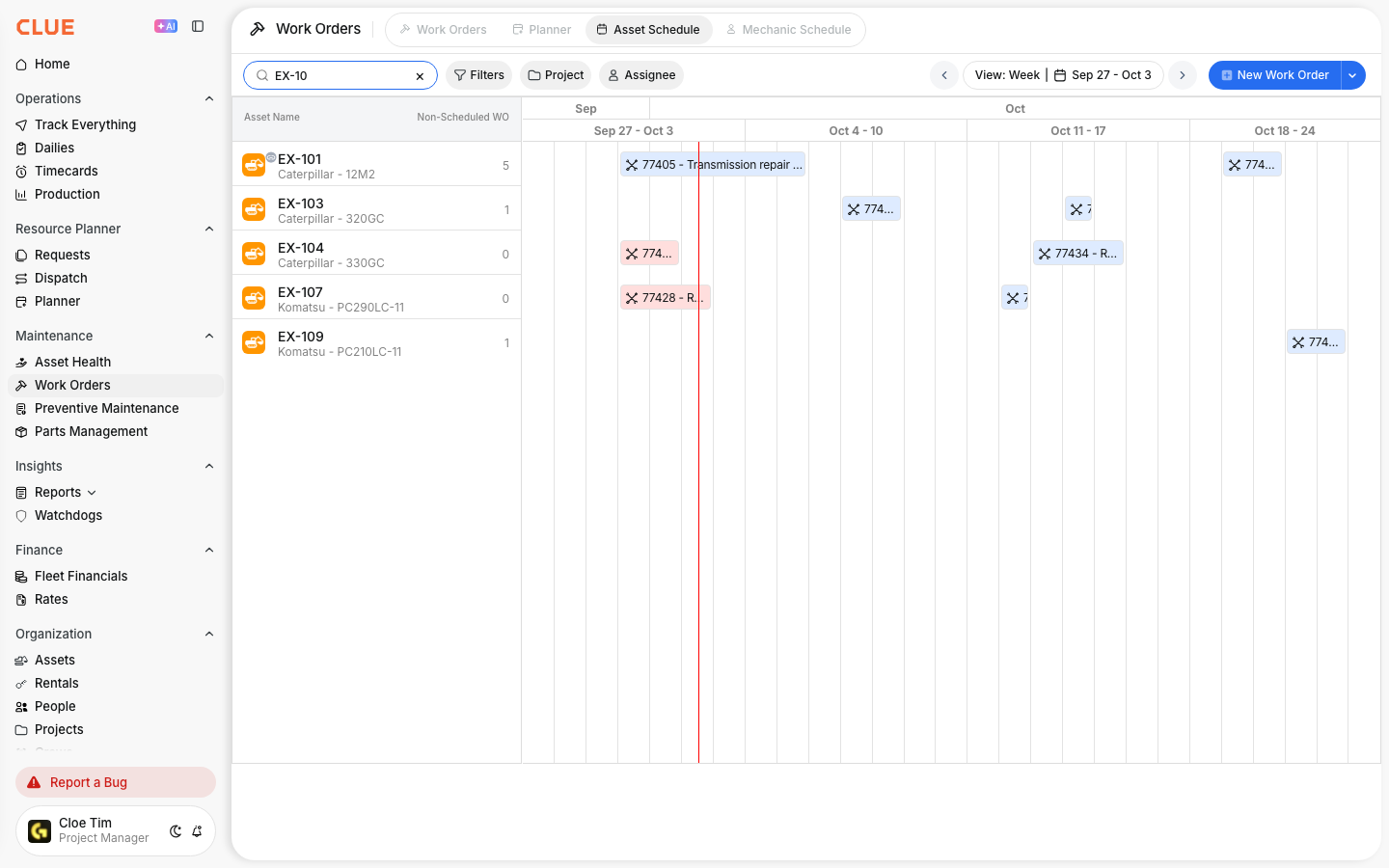
The Asset Schedule lays work out by equipment so you can scan the schedule faster. Each row is one asset, the columns show time, and the colored blocks show scheduled work orders.
- Asset rows - each row is one piece of equipment
- Timeline columns - days or weeks, depending on the range you choose
- Work order blocks - scheduled work shown as colored bars.
Color Coding
Work orders use color so you can read the schedule quickly without opening every record. The colors match the work order status shown in CLUE.
- Blue - To Do
- Yellow - In Progress
- Green - Done
- Red - overdue work or Machine Down work.
Using the Schedule for Planning
Use this view when you are planning the week or looking ahead at shop load. It helps you see what assets are already booked, where multiple jobs land on the same day, and which equipment has no work scheduled yet. If you spot a job that needs to move or be reassigned, open Updating a Work Order or Assigning Work Orders from there.

- See which assets are due for maintenance this week
- Find assets with no scheduled work
- Spot scheduling conflicts on the same day
- Plan shop capacity around busy maintenance periods.
Filtering the View
Filters help you narrow the schedule so you only see the work that matters right now. If the page feels too busy, start with Filtering and Finding Work Orders, then come back to the schedule with a smaller set of work orders.

You can filter the schedule by:
- Project or location
- Asset type
- Work order status
- Date range.
Tips
This view works best for short planning checks and weekly shop meetings. When you need to balance people instead of equipment, compare it with Using the Mechanic Schedule View. If you notice gaps in the schedule, that is also a good time to review Creating and Managing Work Orders.
- Use this view during weekly maintenance planning
- Click any work order block to open its details
- Compare it with the mechanic schedule to balance workload better.