Finding Assets on the Map
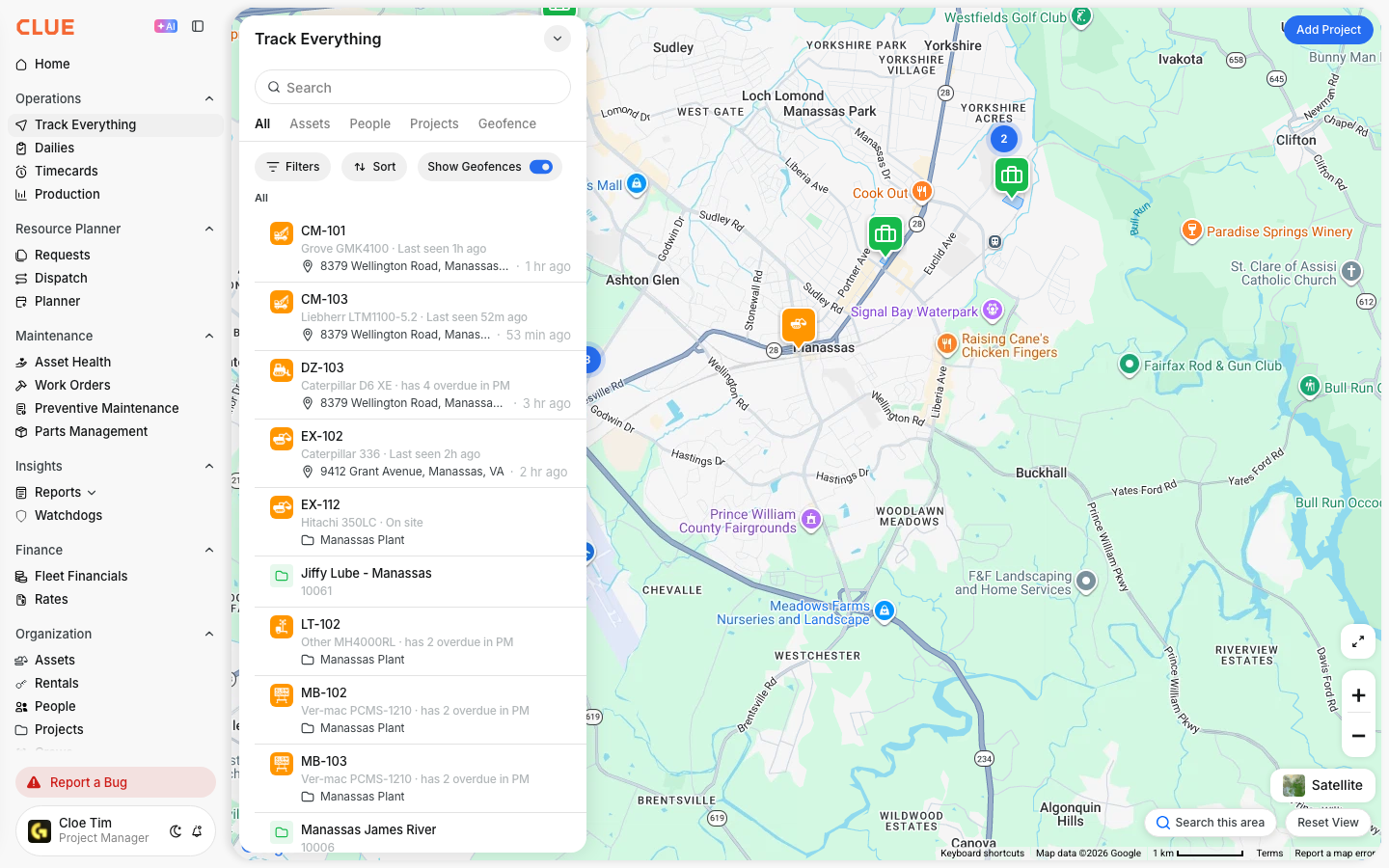
Use search and filters on the Track Everything map to quickly find equipment in the field. This makes it easier to locate a specific asset, narrow the map to a job site, or focus on the equipment that needs attention.
Overview
The map helps you find assets faster without scrolling through the full fleet view. You can search for a single asset, filter the map by project or status, and refresh the map to show only what is in the area you are viewing.
This works especially well if your team already uses Using the Track Everything Map, Using Search and Filters, or Assigning Assets to Projects to manage daily equipment visibility.
Using Search
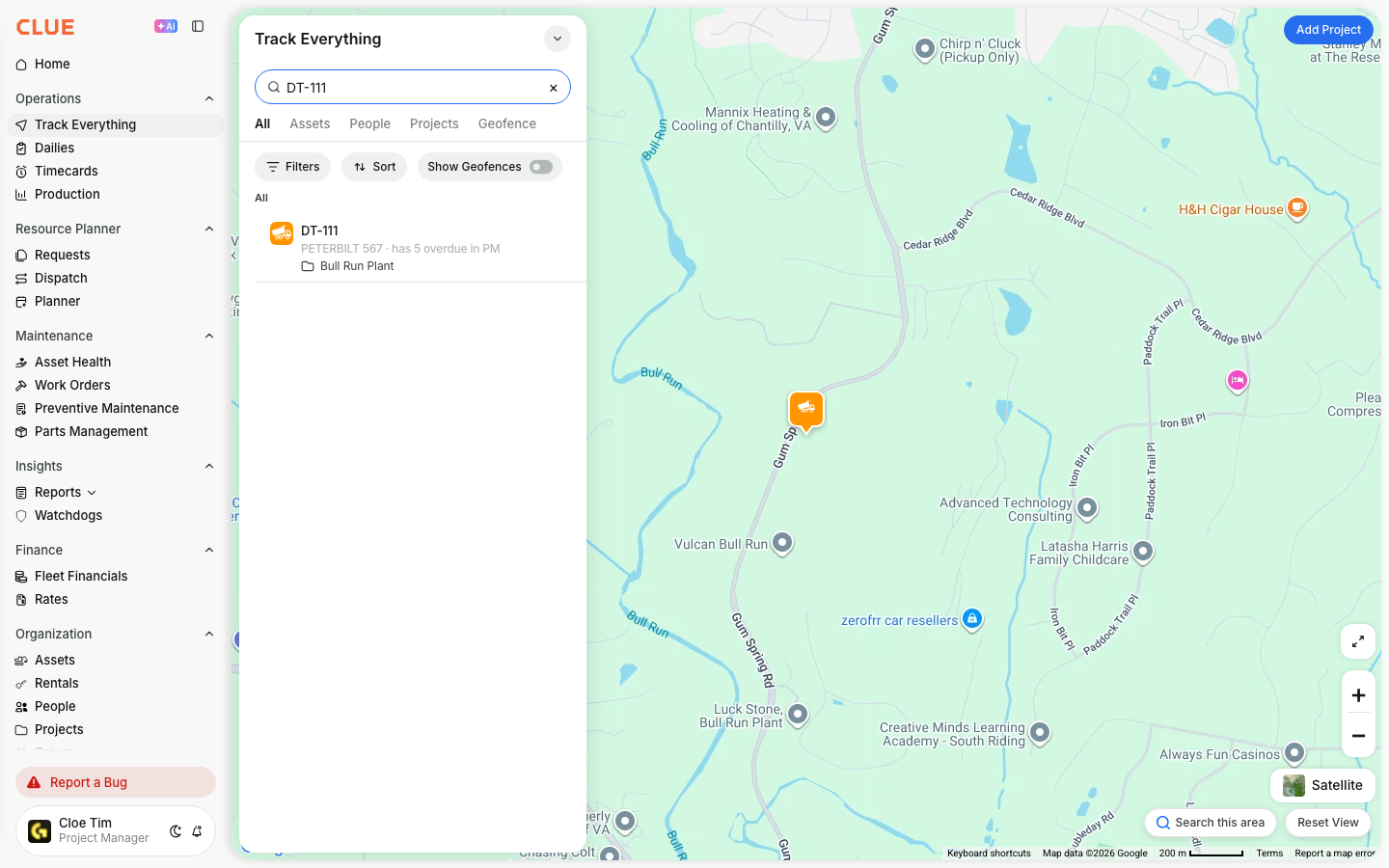
The search bar is the fastest way to find one asset on the map. It works well when you already know the asset name, equipment ID, or serial number.
To search for an asset:
- click the search bar on the map
- type the asset name or serial number
- select the correct result from the list
- the map will zoom to that asset’s location
This is useful when dispatch, operations, or field teams need to jump straight to one machine.
Filtering Assets
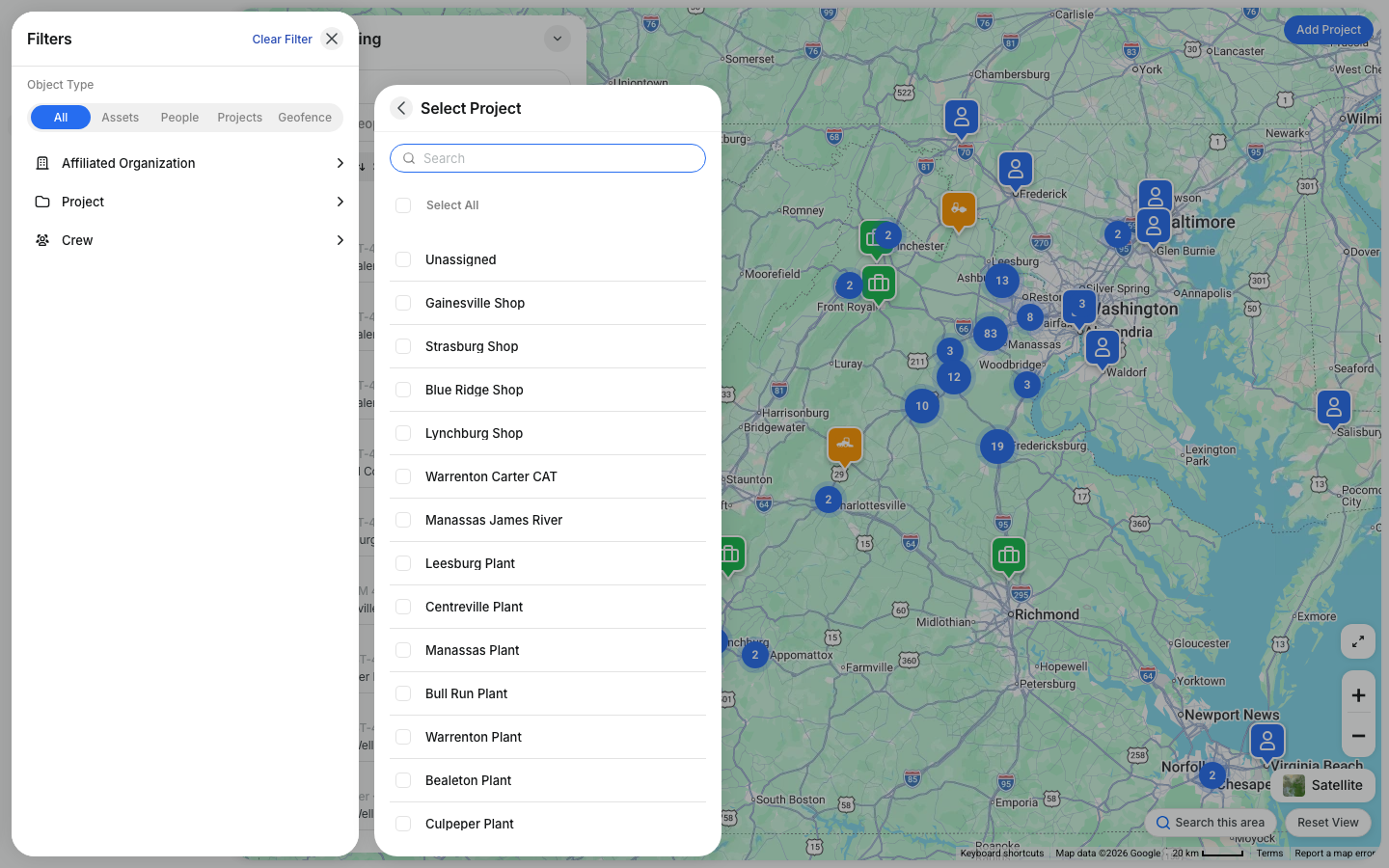
Filters help you narrow the map when too many assets are showing at once. This makes it easier to focus on the equipment that matters for a specific crew, site, or job.
You can filter by:
- Asset Type - show only vehicles, equipment, or other asset groups
- Project - show assets assigned to a specific job site
- Division - narrow the map by organizational group
- Status - view assets by activity, such as active, idle, or moving
This section creates a good internal link opportunity to Filtering Assets by Status and Asset Types and Categories.

Search This Area
After moving around the map, you can refresh the results for the area on screen. This helps when you want to focus on one region instead of the full fleet.
To use Search This Area:
- zoom or pan to the area you want to review
- click Search This Area
- the map refreshes and shows assets in the current view
This is useful when checking equipment in a certain city, project area, or region. It also pairs well with Viewing Everything On Site and Creating a New Geofence.
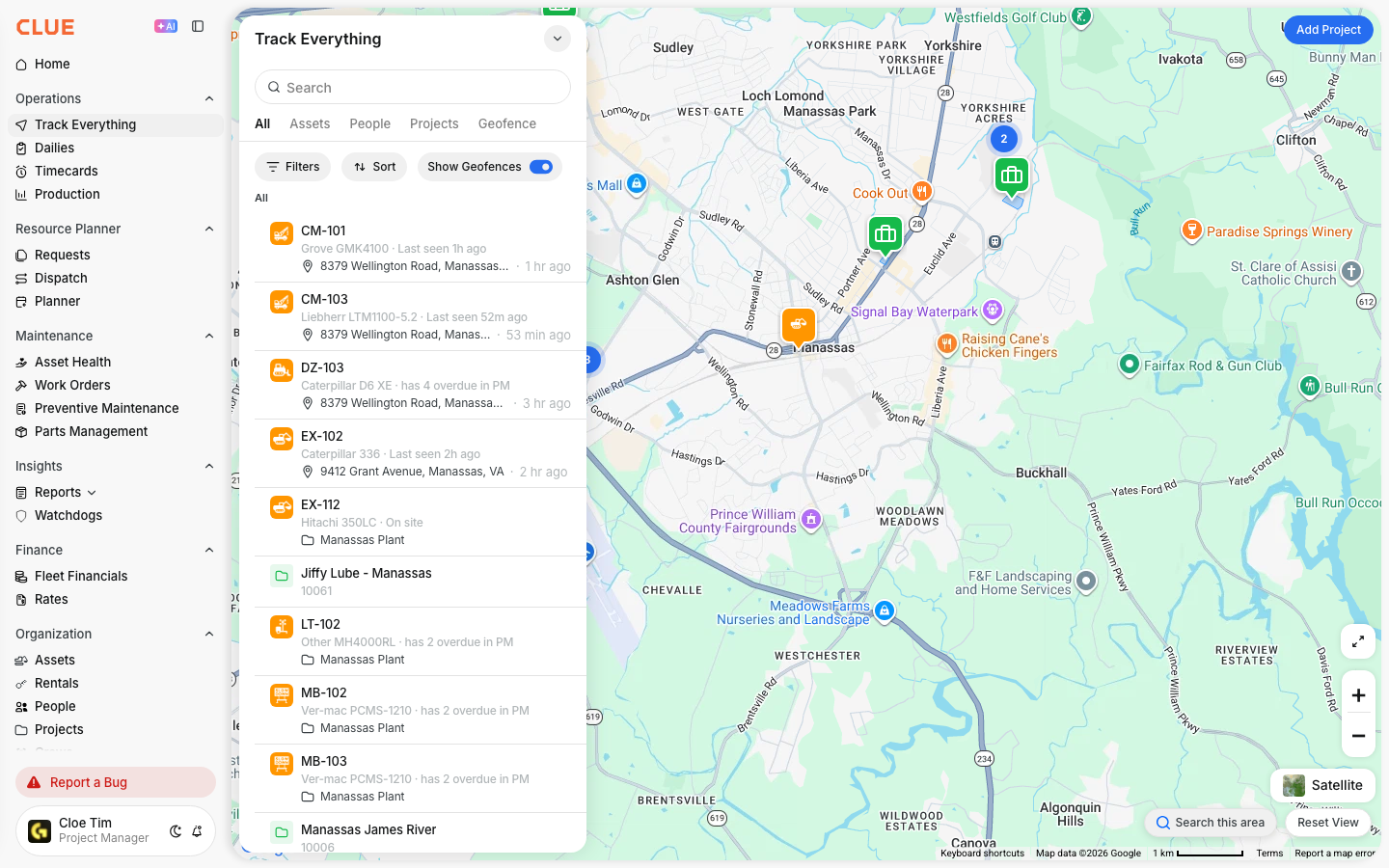
Asset Clusters
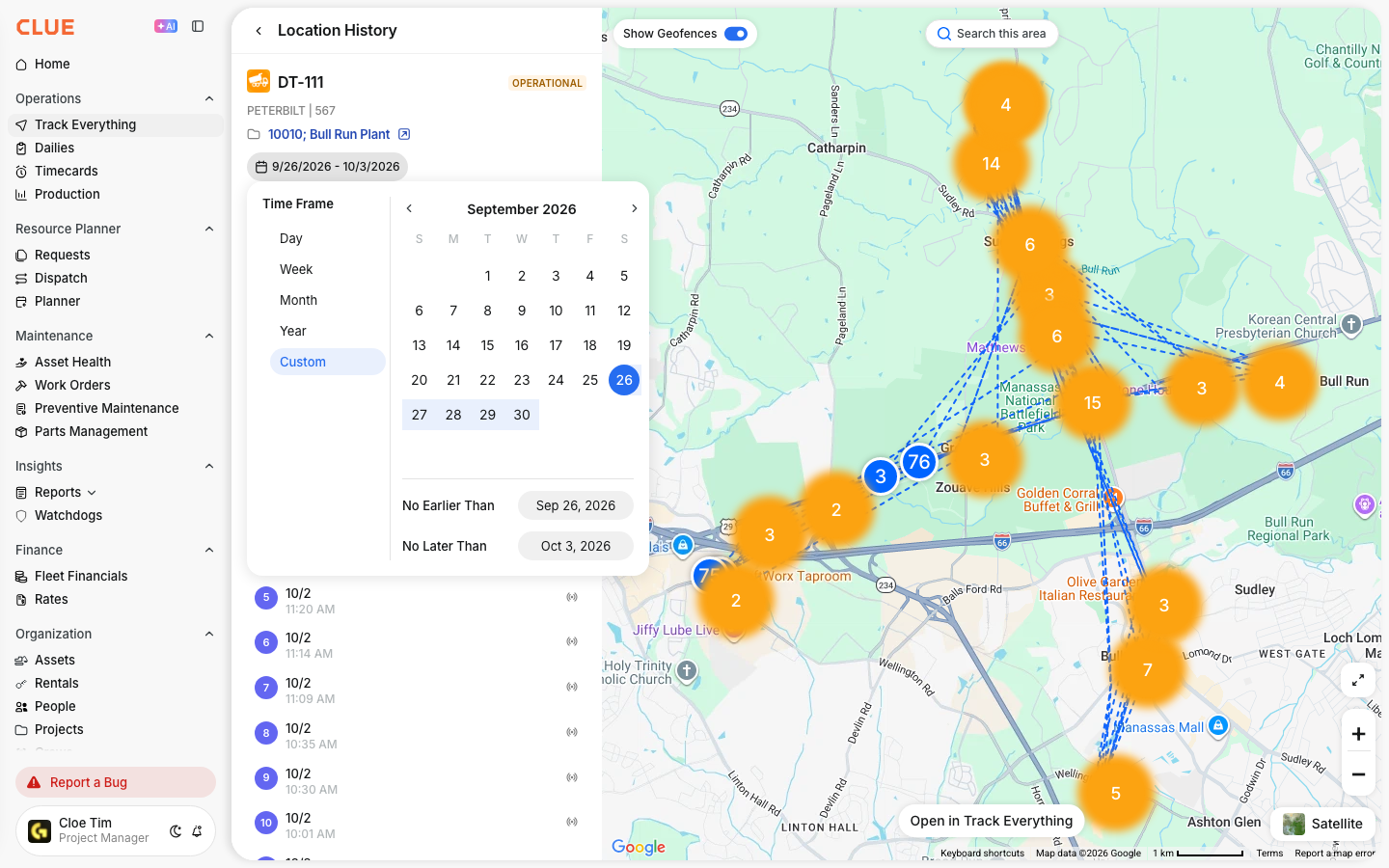
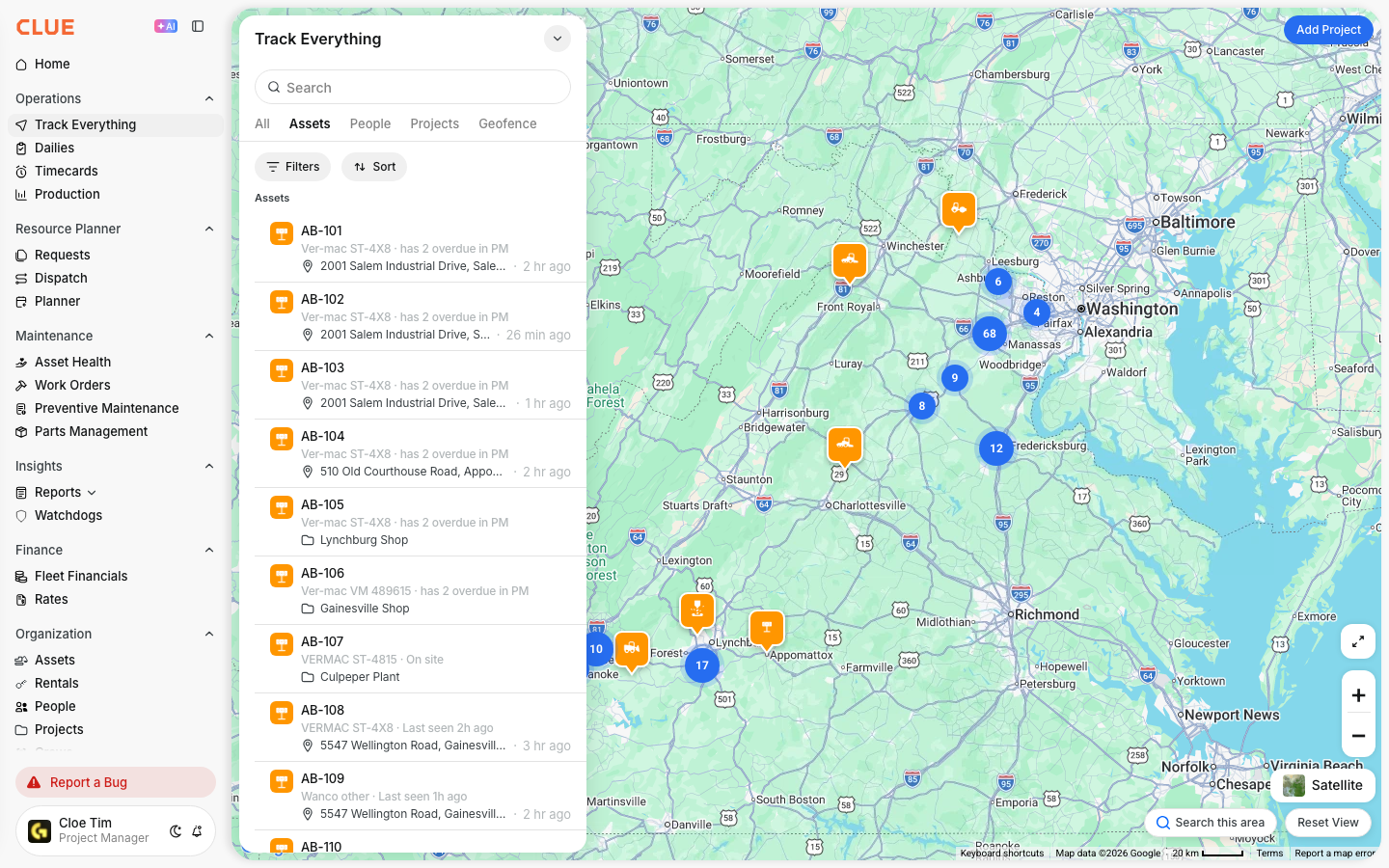
When many assets are close together, the map groups them into clusters. This keeps the map easier to read and helps you avoid overlapping markers.
When assets are clustered:
- they appear as a numbered group on the map
- the number shows how many assets are in that cluster
- click the cluster to zoom in and view individual assets
Clusters are especially helpful when reviewing busy project sites or areas with a large amount of equipment.
Tips
A few simple habits can make map search faster and more useful for the team. The more consistent your naming and project setup is, the easier it is to find the right asset.
- search by partial asset name for faster results
- combine filters to narrow the map more quickly
- use the Project filter when looking for equipment at one site
- check asset status when reviewing what is moving or idle
- keep project assignments up to date so map filters stay useful