Filtering and Finding Work Orders
Use filters and search to find the right work order faster. This is especially useful when your team is managing a large backlog across different mechanics, assets, projects, and statuses.
Work order management
The Work Orders list gives you a few quick ways to narrow what you see without opening each job one by one. This fits naturally with Creating and Managing Work Orders, Assigning Work Orders, Using the Mechanic Schedule View, and Work Order Workflow.
Overview
When you have a lot of work orders in the system, filters help you find the right job by status, assignee, asset, date, and other details. Search helps when you already know part of the work order number, asset name, or keyword.

Quick Filters
At the top of the Work Orders list, CLUE shows quick filter chips so you can narrow the list in one click. The most common quick filters are Assignee and Status.
- Assignee - shows work orders for one or more selected mechanics
- Status - shows only work orders in selected statuses, such as To Do or In Progress
Using the Assignee filter
Use the Assignee filter when you want to see work assigned to a specific mechanic or compare workload across a few people. This is also a good internal linking spot for Assigning Work Orders.
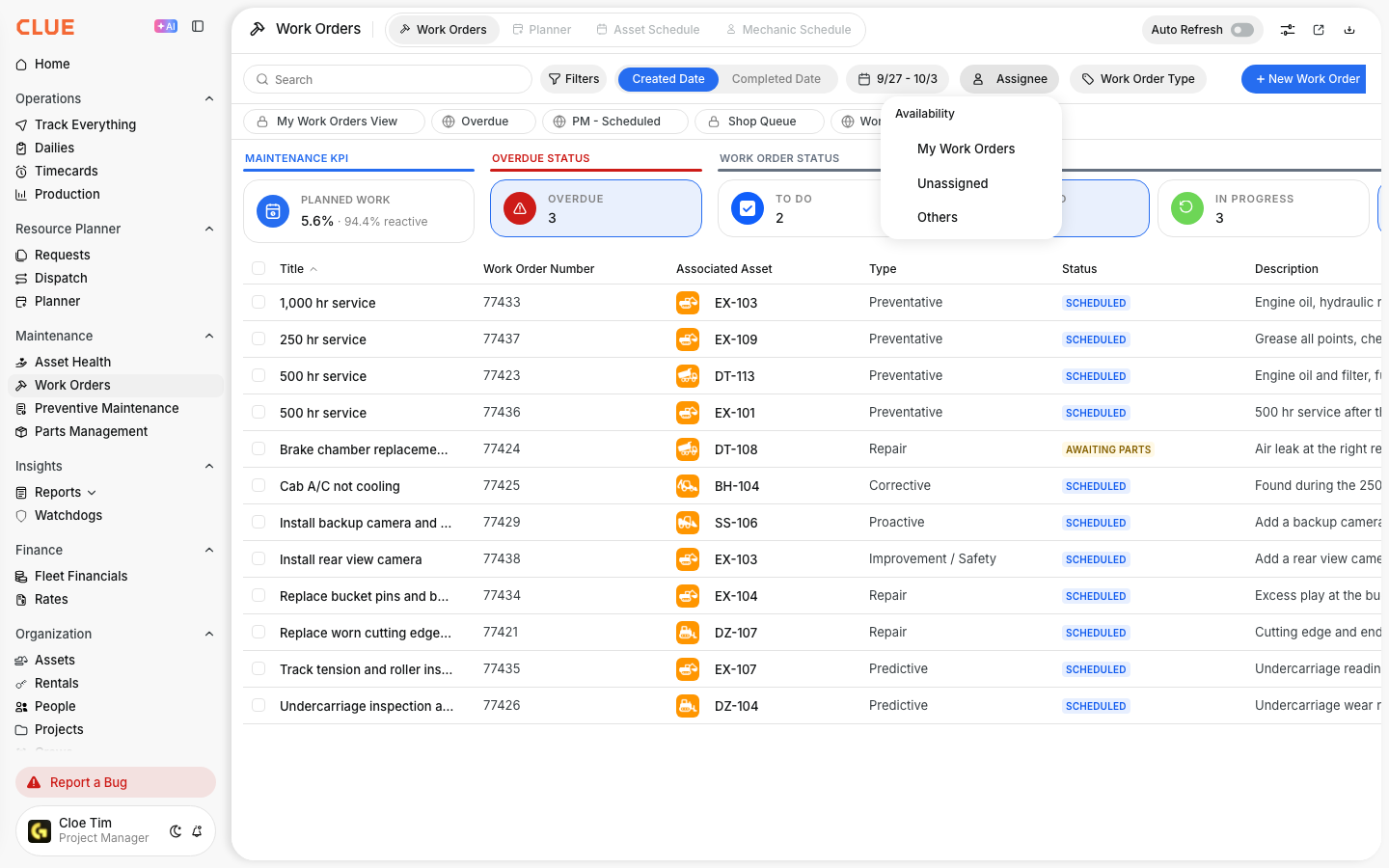
Click the Assignee chip, choose one or more mechanics from the list, and the page updates to show only their work orders. To clear the filter, click the X on the chip.
Status filtering
Status filters help you focus on where work stands right now. They are useful when the team wants to review open jobs, paused jobs, or completed work without scrolling through everything.
Common statuses include:
- To Do - work has been created but not started
- In Progress - work is actively being done
- On Hold - work is paused, often waiting on parts or more information
- Done - work has been completed
- Cancelled - the job is no longer needed
Advanced filters
Use More Filters when the quick chips are not enough. This gives you more control over the list and helps when you are looking for a smaller group of jobs.
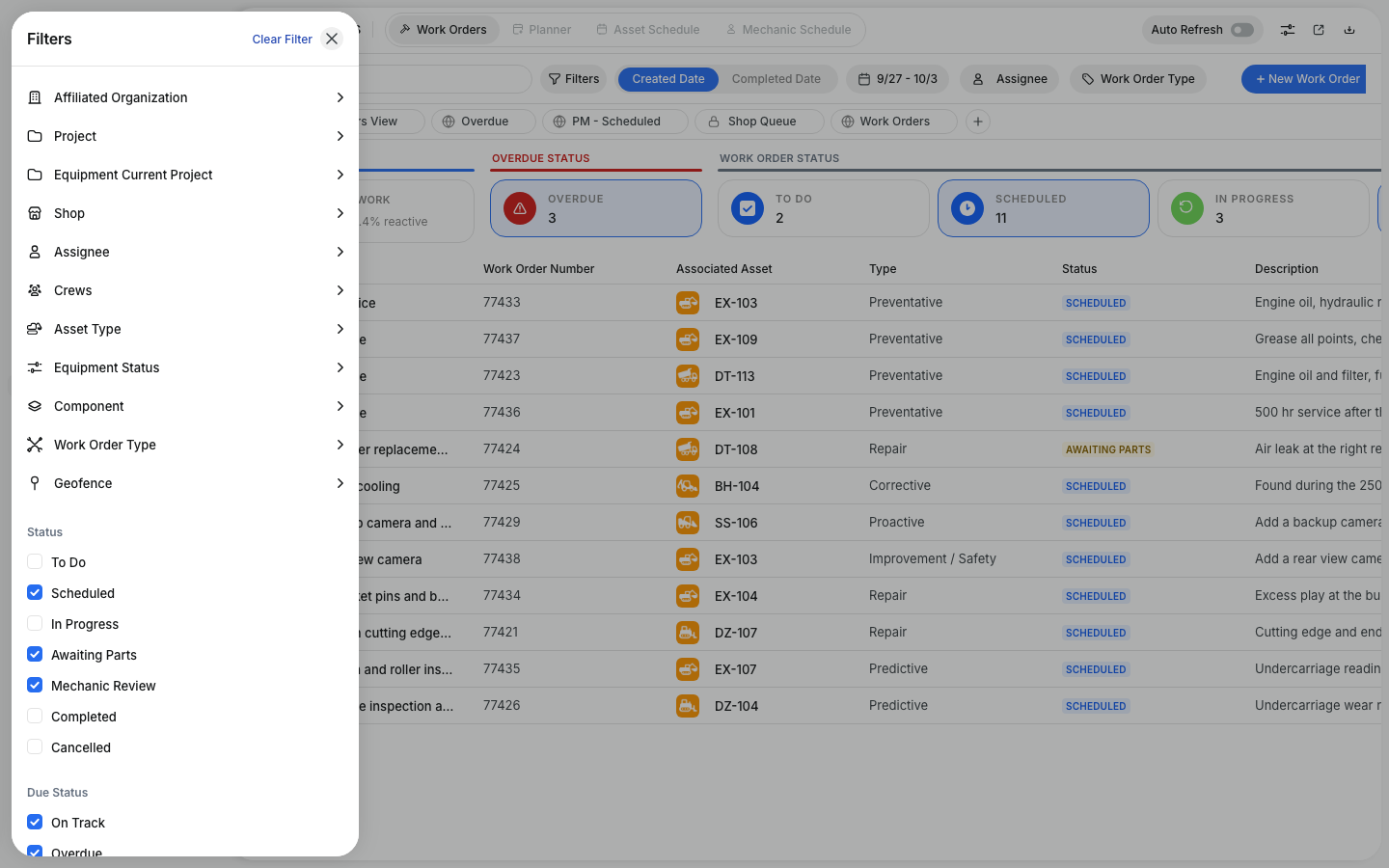
You can filter by things like Project, Asset Type, Work Order Type, Date Range, and Priority. This section also pairs well with Work Order Types Explained when readers need help narrowing jobs by category.
Search
Use the search box when you know part of what you are looking for but do not want to build a filter first. Search is the fastest option when you have a work order number, asset name, or a word from the description.
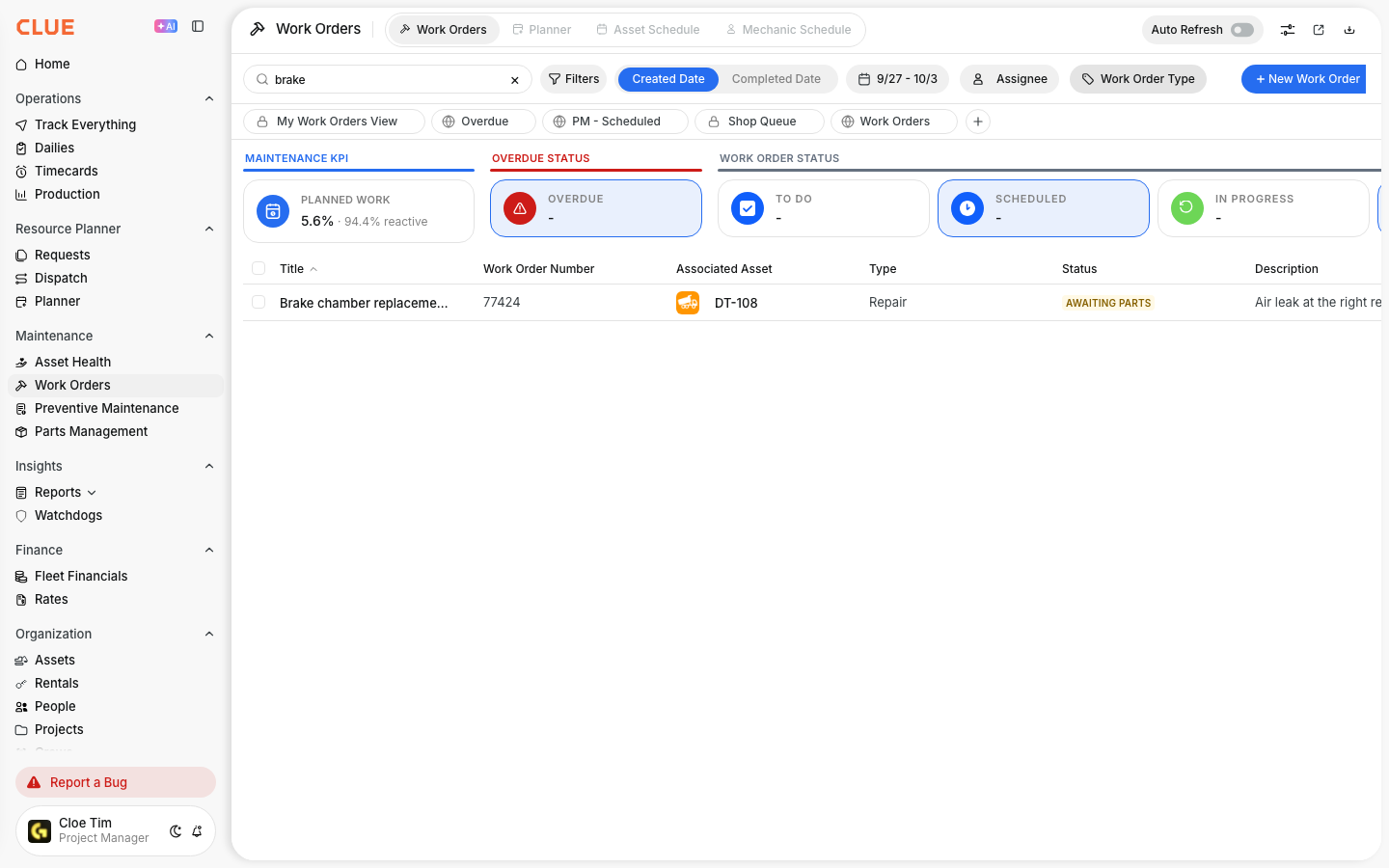
You can search by:
- Work order number
- Asset name
- Description keywords
Tips
A few simple habits make the Work Orders list much easier to use. The goal is to narrow the list quickly, avoid missing active jobs, and help the team focus on the work that matters first.
- Combine filters to narrow the list faster, like In Progress plus a specific mechanic.
- Save common filter combinations when your team checks the same view often.
- Clear filters when you want to go back to the full work order list.
- Use this view alongside Using the Mechanic Schedule View when you need to balance work across the team.