Assigning Work Orders
Assigning work orders makes it clear who is responsible for the repair and helps the right mechanic get the job. In CLUE, you can assign a work order when you create it or update the assignee later if the plan changes.
When to Assign
Assign a work order as soon as you know who should handle the repair. This keeps the schedule clear and helps the shop avoid confusion later.
Common times to assign a work order include:
- when creating a new work order
- when workload needs to be rebalanced
- when mechanic availability changes
- when a certain repair needs a mechanic with the right skills.
Assigning During Creation
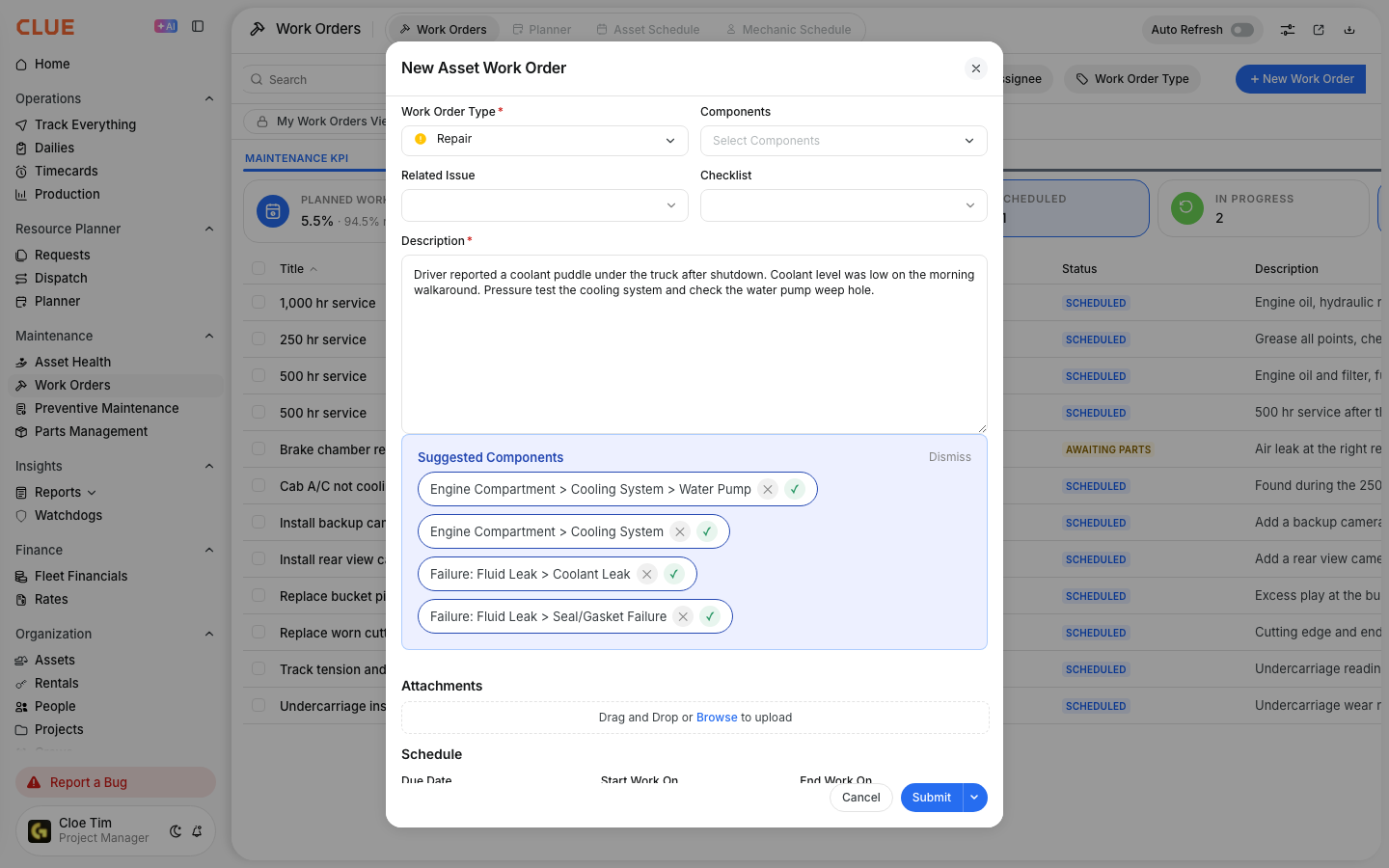
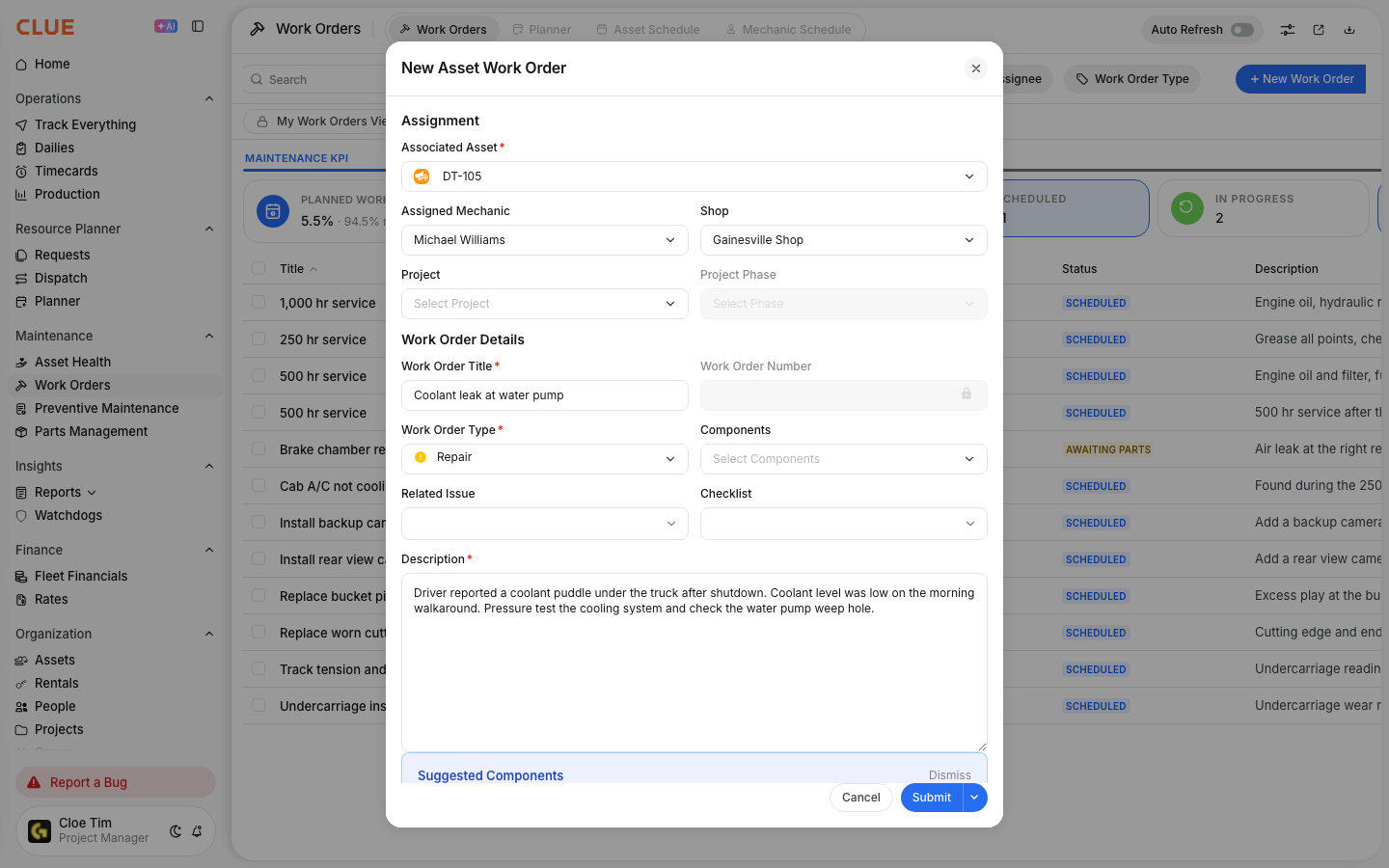
If you already know who should handle the job, assign the work order while you are creating it. If you need help with the full setup, start with Creating Your First Work Order.
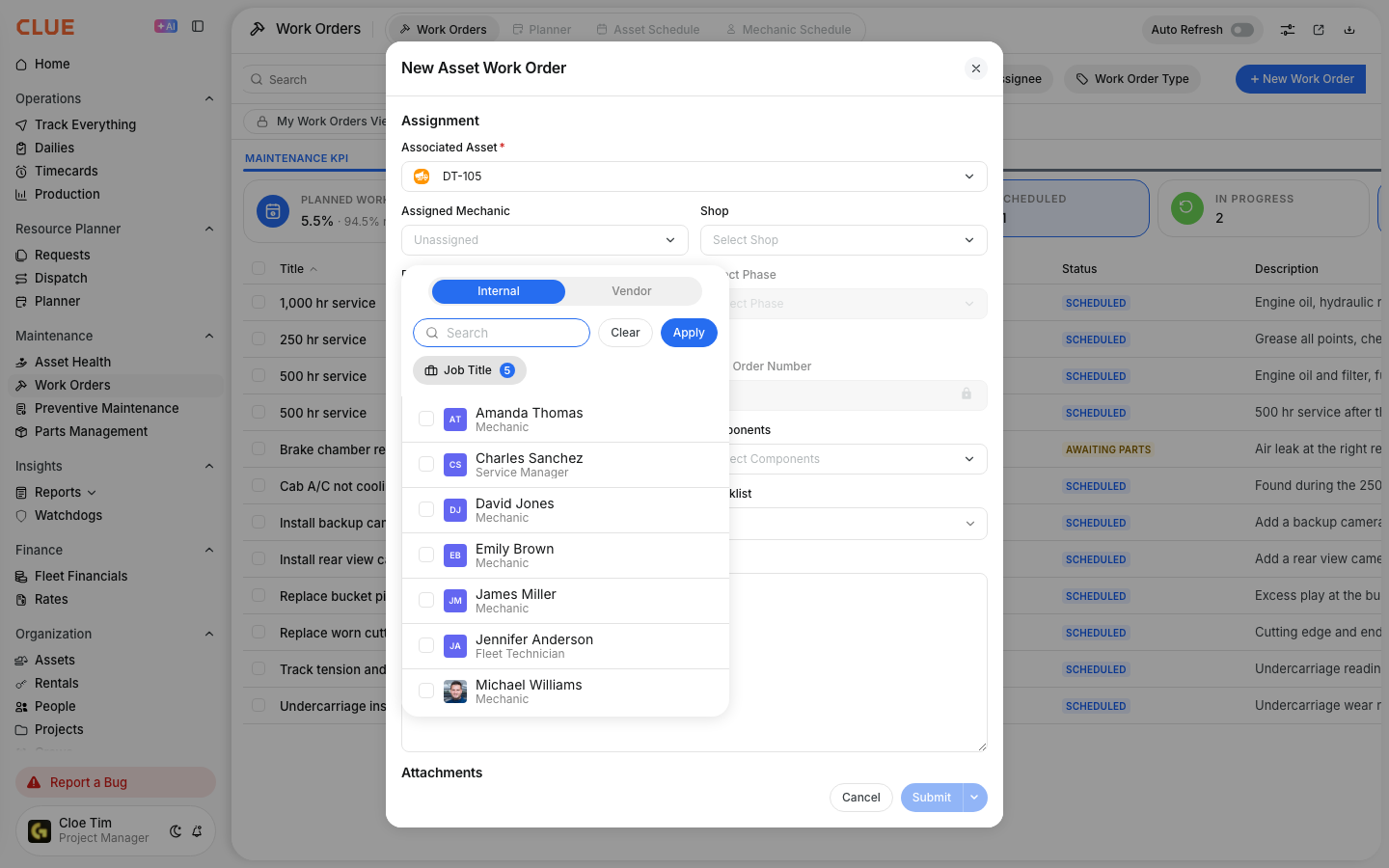
- Create a new work order
- Find the Assignee field
- Select the mechanic from the dropdown
- Complete the other fields and save the work order.
Reassigning Existing Work Orders
You can change the assignee later if the work needs to move to another mechanic. This is useful when schedules shift or a different technician is a better fit for the repair. If you are already editing the work order, the steps also fit naturally with Updating a Work Order.

- Open the work order
- Click Edit
- Change the Assignee field
- Save your changes.
CLUE’s learning article says the new assignee receives a notification when the assignment is updated.
Finding Available Mechanics
Before assigning a job, it can help to check who has room in their schedule. Using the Mechanic Schedule View is the best place to compare current workload and see who has open capacity.

Use the schedule view to review:
- current workload by mechanic
- open capacity
- skills and certifications.
Unassigned Work Orders
If you want to find jobs that still need an owner, filter the list to show only unassigned work orders. For a broader walkthrough of work order filters, see Filtering and Finding Work Orders.
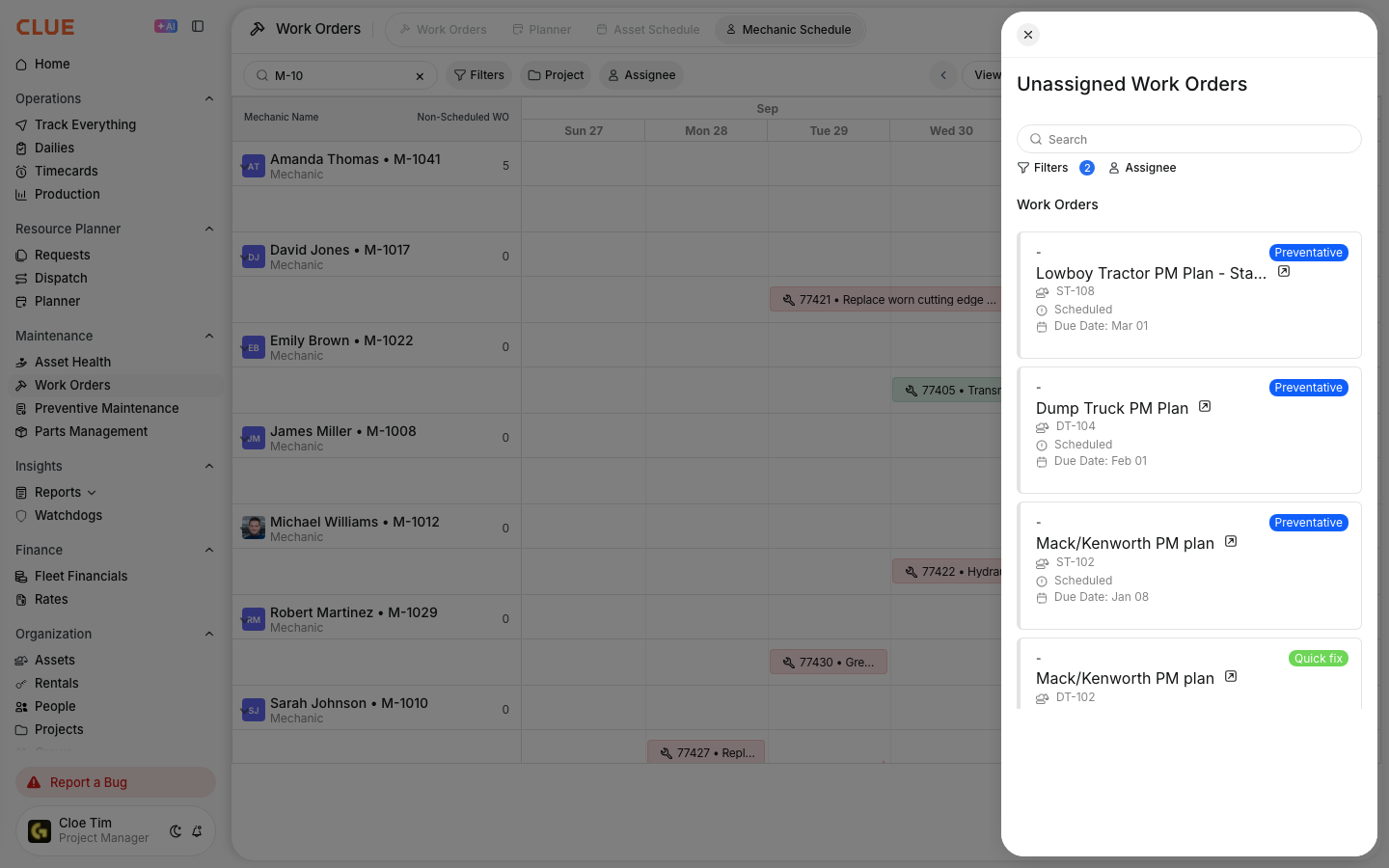
- Go to Work Orders
- Open the Assignee filter
- Select Unassigned
- Assign the work orders as needed.
Tips
Good assignment habits make the maintenance schedule easier to manage and help repairs move faster.
- Balance work across mechanics instead of giving too many jobs to one person
- Match the repair to the mechanic’s skills when the job is more complex
- Reassign the work order if the original mechanic is unavailable
- Consider location so you do not create extra travel time
- If the work order is already scheduled, compare it with Using the Asset Schedule View or Using the Mechanic Schedule View before moving it.