Adding Tasks to Work Orders
Use tasks to break a work order into smaller pieces of work. This helps the team see what needs to be done, track progress more clearly, and make sure important steps are not missed.
Understanding Tasks
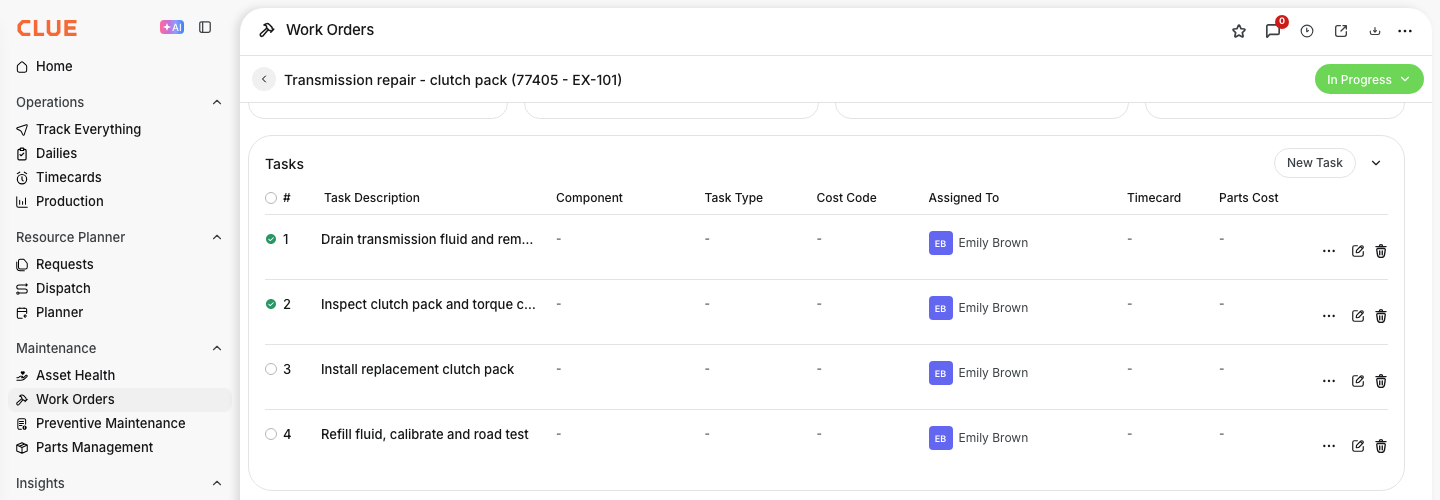
Tasks are individual action items inside a work order. Instead of keeping the whole job in one short description, you can list the actual steps the mechanic needs to complete. This makes work orders easier to follow and easier to review later.
Tasks help your team:
- define the specific work to be performed
- track completion step by step
- make sure nothing gets missed
- document what was actually done
This also works well with Creating and Managing Work Orders when setting up a job and Updating a Work Order as the work moves forward.
Adding a Task
You can add tasks from the work order detail view. This is usually done when the job is first created, but tasks can also be added later if the scope of work changes.
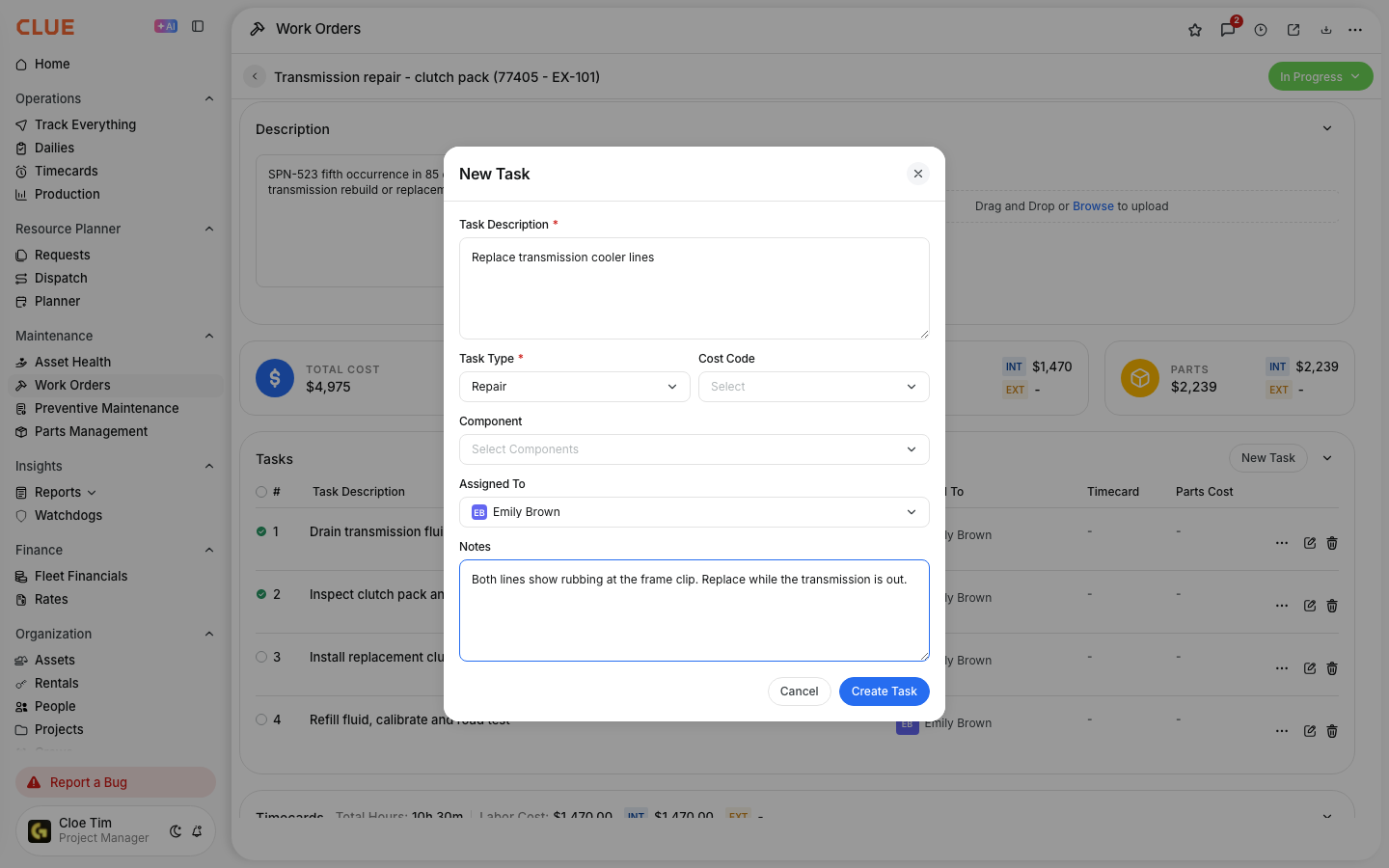
To add a task:
- open the Work Order detail view
- go to the Tasks tab
- click Add Task
- enter the task details
- click Save
Task details usually include:
- Task Name - a short description, such as Replace air filter
- Description - extra instructions or notes
- Estimated Time - how long the task should take
If your team is already using Work Order Workflow, tasks help make the scope of work more clear before the repair starts.
Task Checklist
Once tasks are added, they appear as a checklist inside the work order. This gives mechanics a simple way to work through the job and see what is still left to do.
Tasks usually move through these stages:
- Unchecked - task has not started
- In Progress - work is underway
- Completed - task is finished
This checklist view is useful when several steps need to happen on one repair and the team wants a clearer record of what was completed.
Completing Tasks
Mechanics can update tasks as the work is being done. This keeps the work order current and makes it easier for foremen or other team members to review progress.
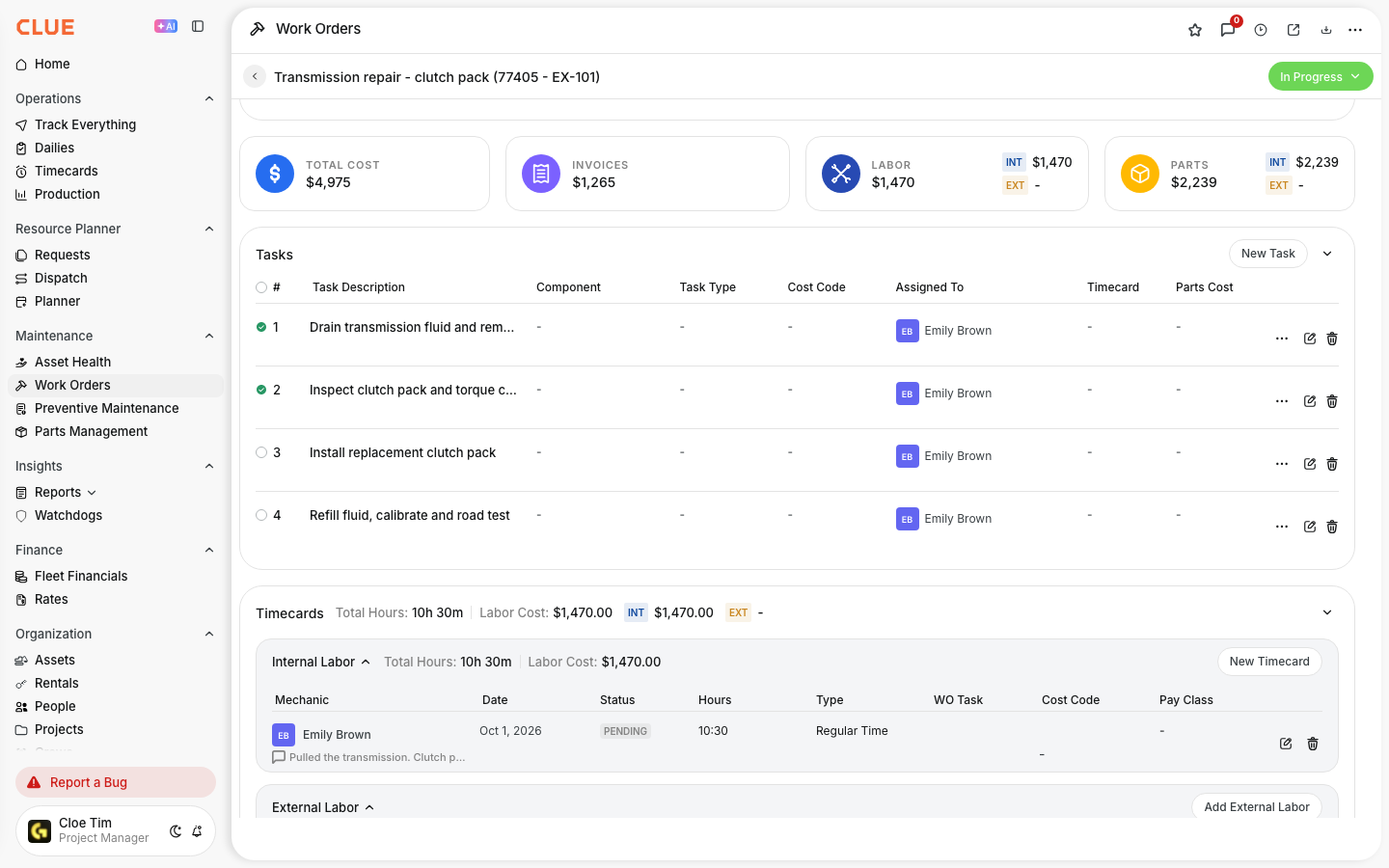
To complete tasks:
- open the work order in the web app or mobile app
- go to the Tasks section
- check off each task as it is completed
- add notes if needed
This section connects naturally with Adding Labor to Work Orders and Adding Parts to Work Orders when the job also needs time or parts recorded.
Task Templates
For common jobs, task templates can save time and keep the process more consistent. They help your team avoid rewriting the same steps every time a routine repair or service comes up.
Task templates are useful because:
- PM service tasks can be pre-filled from PM plans
- common repairs can use the same default task list
- the setup is faster and more consistent across the team
This is especially helpful for repeat jobs where the steps stay mostly the same from one work order to the next.
Tips
A simple task list usually works better than a long, overly detailed one. The goal is to make the work order clearer, not harder to manage.
- keep task names short but clear
- use the description field for extra instructions
- group related tasks together
- use tasks to define the scope before work starts
- review completed tasks before closing the work order
- For larger repairs, tasks also work well alongside Adding Parts to Work Orders and Adding Labor to Work Orders so the full job record stays complete.