Viewing Parts Inventory
Use the Inventory tab to see what parts you have in stock, where they are stored, and when it may be time to reorder. It gives your team one place to review quantity, cost, and availability before work starts.
Overview
The Inventory tab shows your current parts stock in one list. It helps your team keep quantities accurate, avoid running out of common parts, and make sure needed items are available for maintenance work.
This works well with Understanding Parts Management, Adding Parts to Inventory, and Adding Parts to Work Orders because inventory is where the part record starts before it is ordered, received, or used on a repair.
Accessing Inventory
You can open Inventory from the Parts Management area. Once you are there, the Inventory tab shows all stocked parts and their current details.
Step 1: Open Parts Management
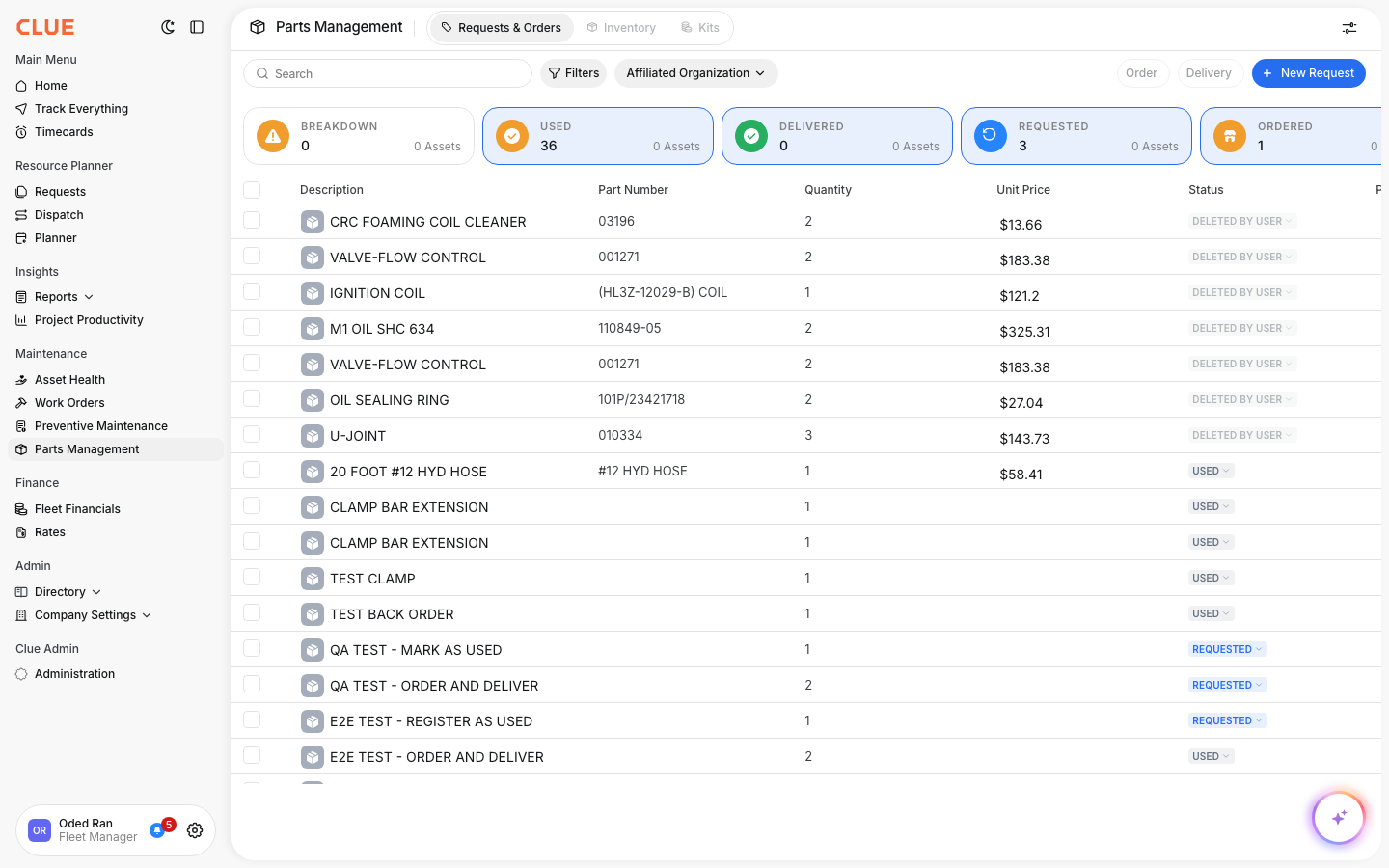
Go to Maintenance → Parts Management.
Step 2: Open the Inventory tab
Click Inventory at the top of the page.
Inventory List View
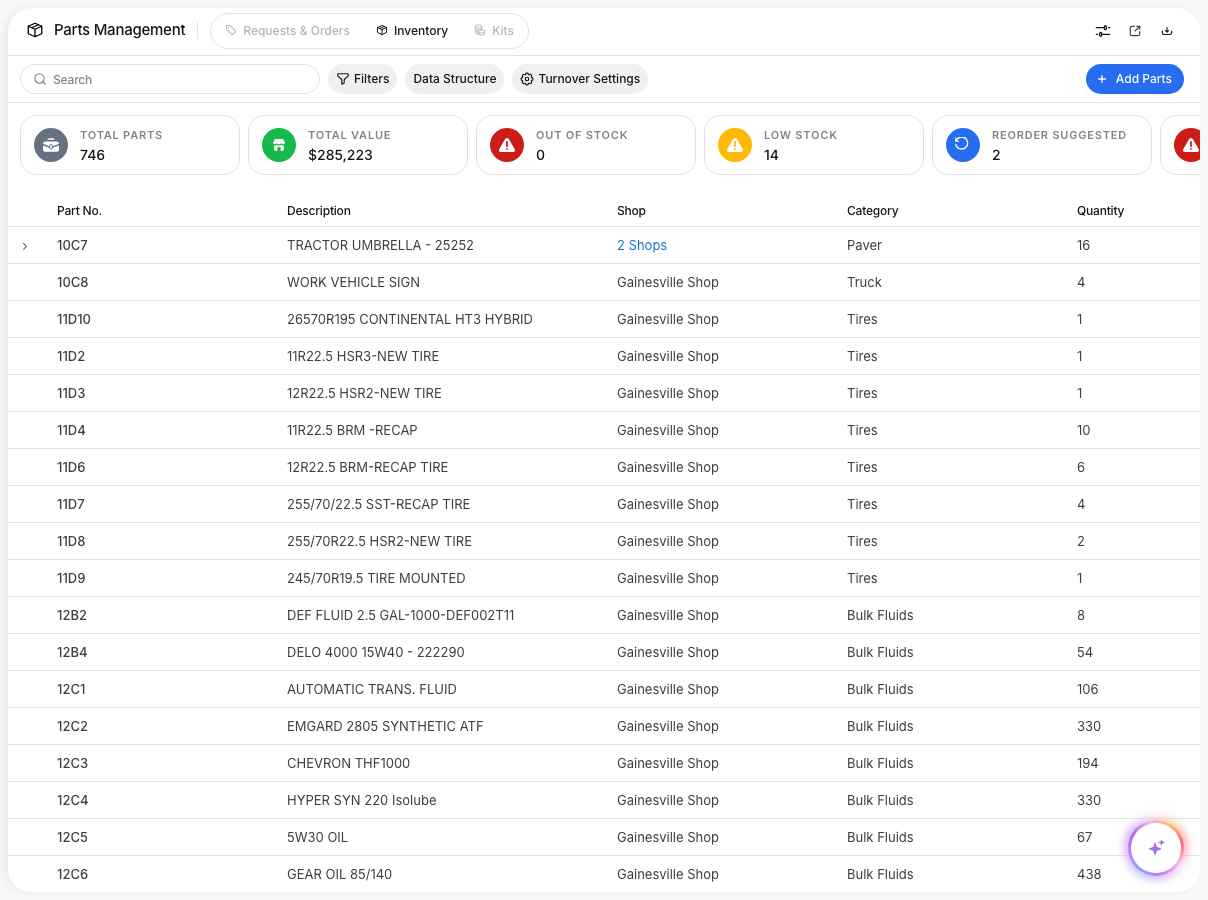
The Inventory list gives you the main details for each part so your team can review stock quickly without opening every record. It is useful for day-to-day checks, reorder planning, and parts lookup during repairs.
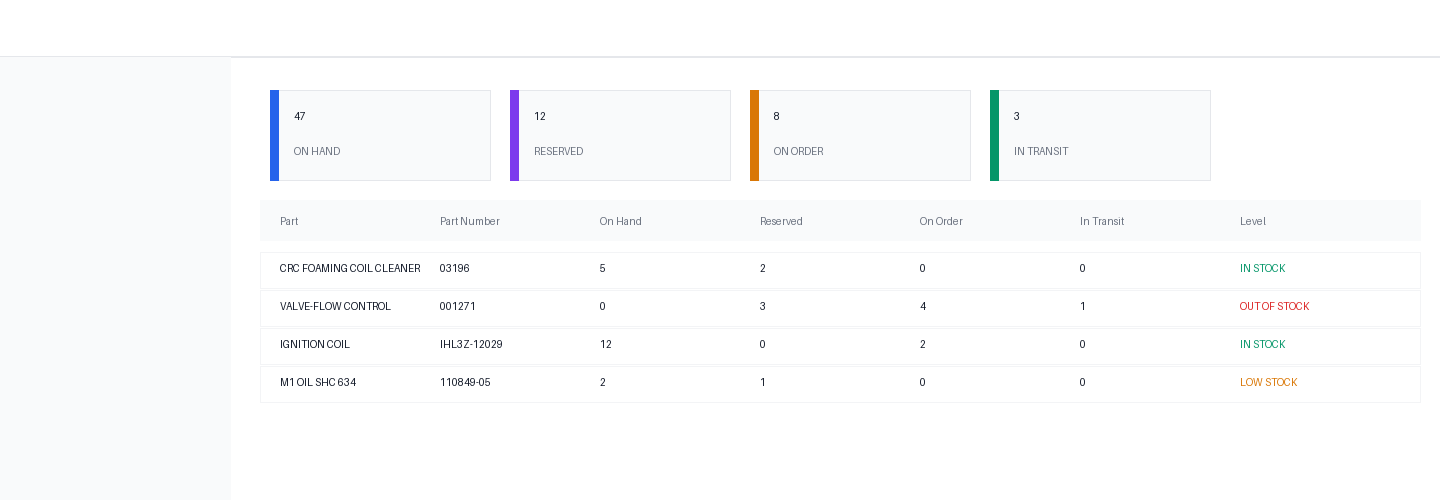
The list typically shows:
- Part name and number
- Quantity on hand
- Location
- Unit cost
- Total value
- Reorder point
These fields help the team see both stock level and cost in one place, which is useful when reviewing Tracking Parts Costs or planning upcoming work.
Finding Parts
Search and filters help narrow the inventory list when you need one specific part or want to focus on certain stock conditions. This is especially helpful for larger inventories with many locations or categories.
You can usually:
- search by part name or part number
- filter by location
- filter by category
- show only low-stock items
This makes it easier to find the right part before creating a request or adding inventory items to a work order.
Part Details
Clicking a part opens more detail about that item. This gives your team a better view of how the part is used and whether it is the right one to order, stock, or issue to a repair.
Part details may include:
- full description and specifications
- transaction history
- assets that use the part
- vendor information
- recent usage patterns
This is useful when checking repeat usage, reviewing vendor costs, or deciding whether a part should stay in stock.
Low Stock Alerts
Low-stock indicators help your team catch shortages before they affect repair work. When a part drops below its reorder point, it can be reviewed and reordered before the shelf is empty.
A simple process is to:
- review low-stock items regularly
- create orders before parts run out
- adjust reorder points based on actual usage
This also works well with Creating Parts Requests and Understanding Parts Management when stock needs to move into the request and ordering flow.
Tips
A clean inventory is easier to trust and easier to use. Small updates made regularly usually work better than trying to fix stock records all at once later.
- do regular physical counts
- keep part locations accurate
- watch high-use items closely
- update reorder points when usage changes
- keep part names and numbers consistent across the system