Using Search and Filters
Getting Started
Reading Time:
4 min read
Master CLUE's search and filter capabilities to quickly find assets, work orders, people, and more. Effective filtering saves time and helps you focus on what matters.
Global Search
The search bar at the top of most screens lets you quickly find items:
- Click in the search bar or press Ctrl+K (Windows) or Cmd+K (Mac)
- Type your search term (asset name, serial number, person name, etc.)
- Results appear instantly as you type
- Click a result to navigate directly to that item
Using Filter Chips
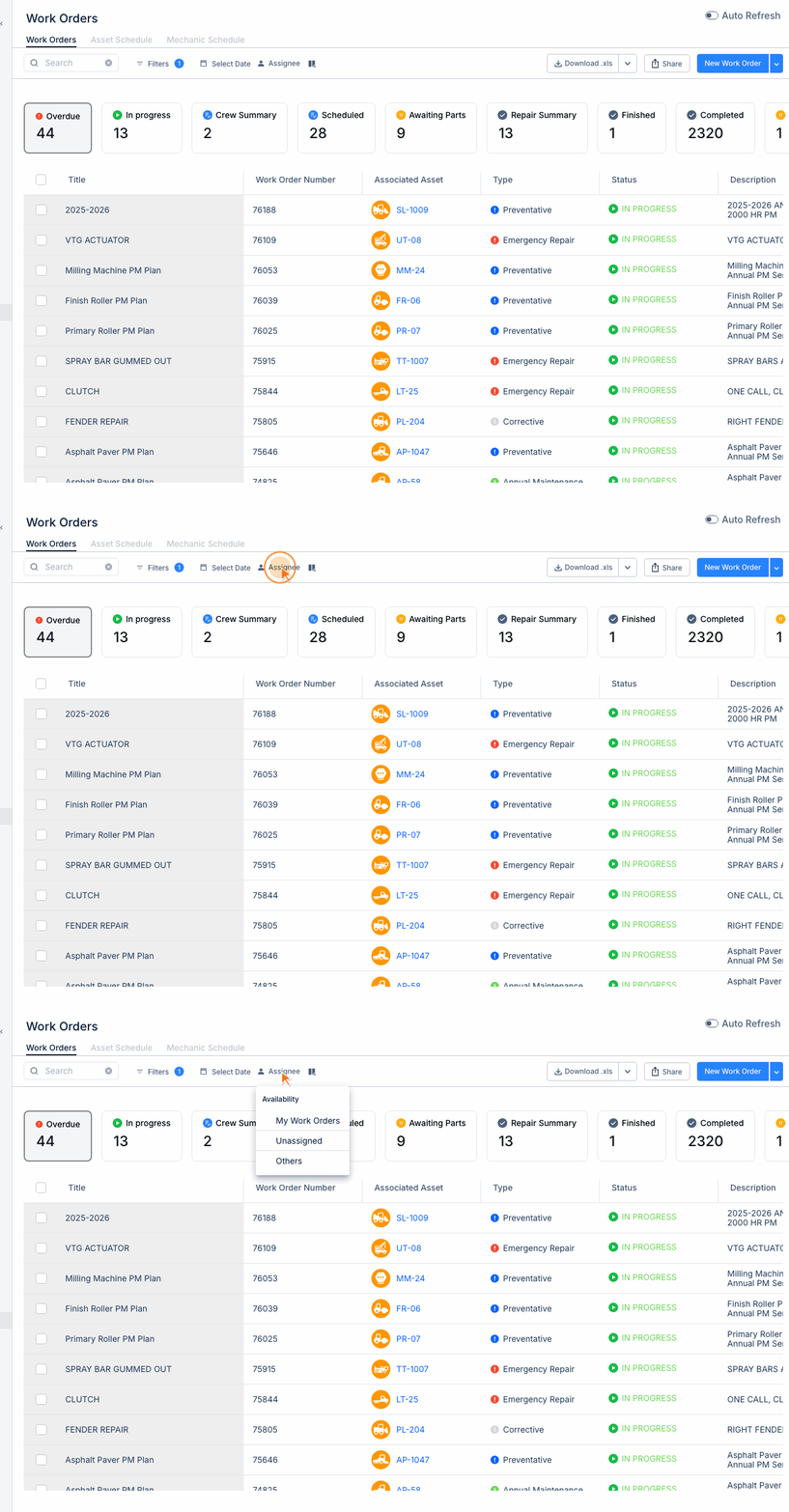
Filter chips appear at the top of list views and provide quick filtering:
- Quick Filters - Pre-configured filters like Status, Assignee, Type
- Click to expand - Click a chip to see available options
- Multi-select - Select multiple values within a filter
- Clear filters - Click the X on a chip to remove that filter
Common Filter Types
Status Filters
Filter by item status (Active, Inactive, In Progress, Completed, etc.)
Date Range Filters
Filter by date using preset ranges (Today, This Week, Last 30 Days) or custom dates.
Assignment Filters
Filter by who items are assigned to (Assignee, Project, Division).
Type Filters
Filter by category (Asset Type, Work Order Type, etc.).
Combining Filters
Apply multiple filters to narrow down results:
- Apply your first filter (e.g., Status = "In Progress")
- Add additional filters (e.g., Assignee = "John Smith")
- Results update automatically to match ALL selected criteria
Clearing All Filters
To start fresh:
- Click Clear All or Reset Filters button
- Or remove individual filters one by one
Tips
- Use partial text in search - "CAT 320" will find "CAT 320D Excavator"
- Filter first, then search within filtered results for best performance
- Note which filters you use frequently - consider bookmarking filtered views
- Search works across multiple fields (name, serial number, description)