Using Geofences in Dispatch
Geofences
Reading Time:
3 min read
Overview
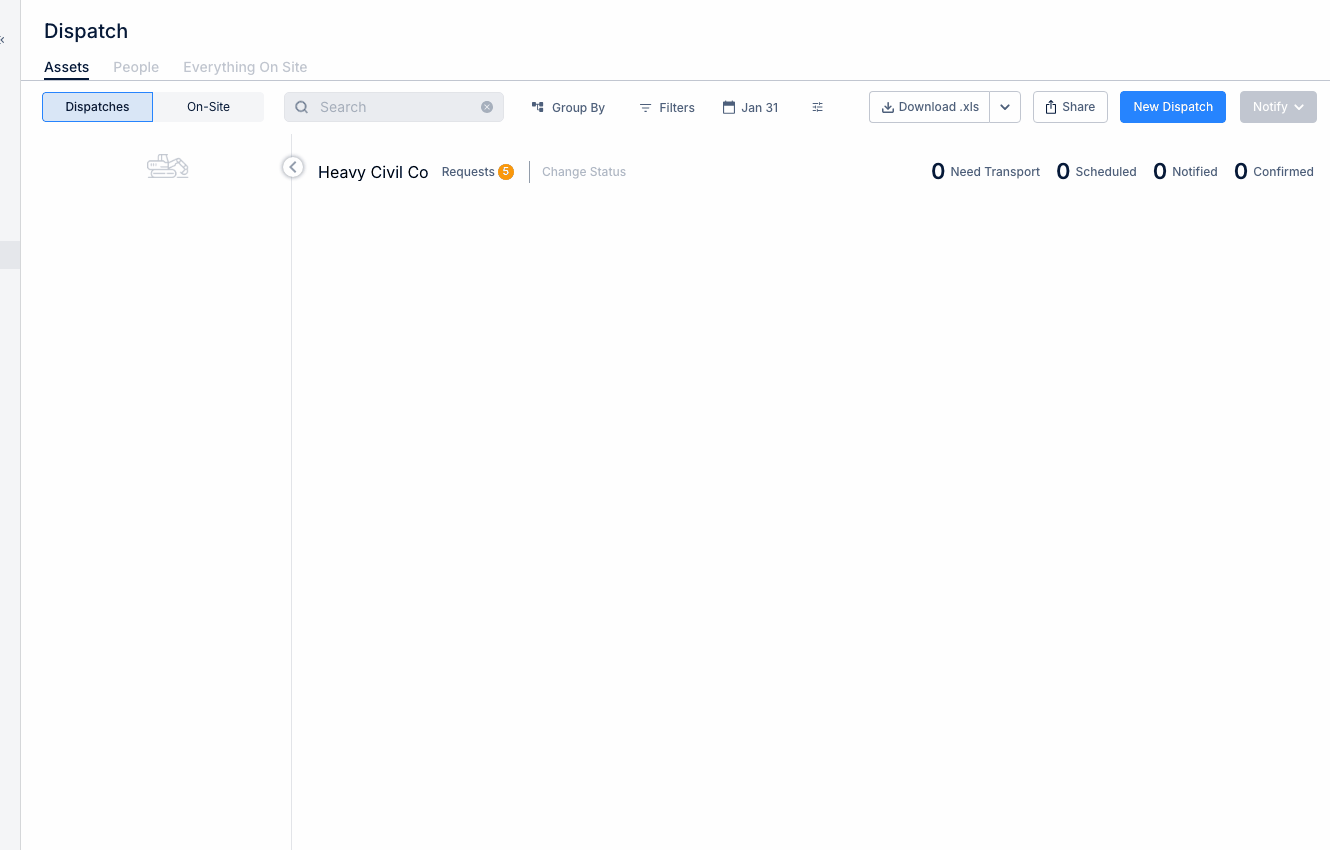
Geofences integrate with the dispatch system to provide accurate pickup and dropoff locations. Link geofences to projects for streamlined dispatch operations.
Geofences and Projects
When a project has a linked geofence:
- The project appears on the map at the geofence location
- Dispatch can use the geofence as pickup/dropoff point
- GPS tracking shows when equipment arrives at the project
Using Geofences as Dispatch Locations
Step 1: Create a new dispatch.
Step 2: For Pickup or Dropoff Location, select from available geofences.
Step 3: The geofence provides:
- Precise coordinates
- Visual map reference
- Automatic arrival detection
Benefits of Geofence-Linked Dispatch
- Accuracy - Clear location definition for drivers
- Automation - System detects actual arrivals
- Tracking - Know exactly when equipment reached destination
- Reporting - Time-on-site metrics by geofence
Setting Up Integration
- Create geofence for each project location
- Link geofence to project record
- Geofence automatically available in dispatch location dropdowns
Tips
- Name geofences to match project names for easy selection
- Create geofences for yards and shops too
- Use specific geofences for different site entrances if needed