Navigating the CLUE Dashboard
Getting Started
Reading Time:
5 min read
Understanding the CLUE Interface
The CLUE dashboard is your central hub for managing fleet operations. Learn how to navigate efficiently.
The Sidebar Menu
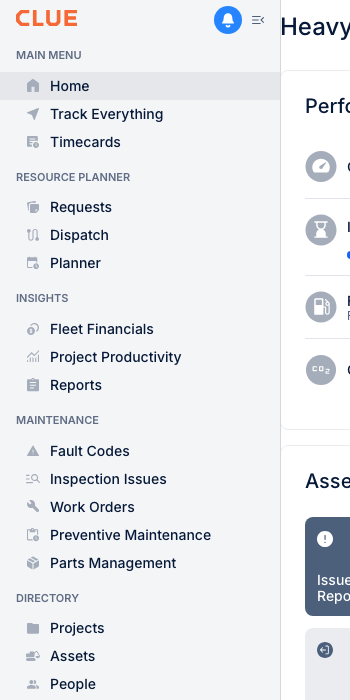
The left sidebar contains six main sections:
- MAIN MENU - Home, Track Everything, Timecards
- RESOURCE PLANNER - Requests, Dispatch, Planner
- INSIGHTS - Fleet Financials, Project Productivity, Reports
- MAINTENANCE - Fault Codes, Inspection Issues, Work Orders, PM, Parts
- DIRECTORY - Projects, Assets, People, Geofence
- ADMIN - Company Settings, Administration
The Home Dashboard
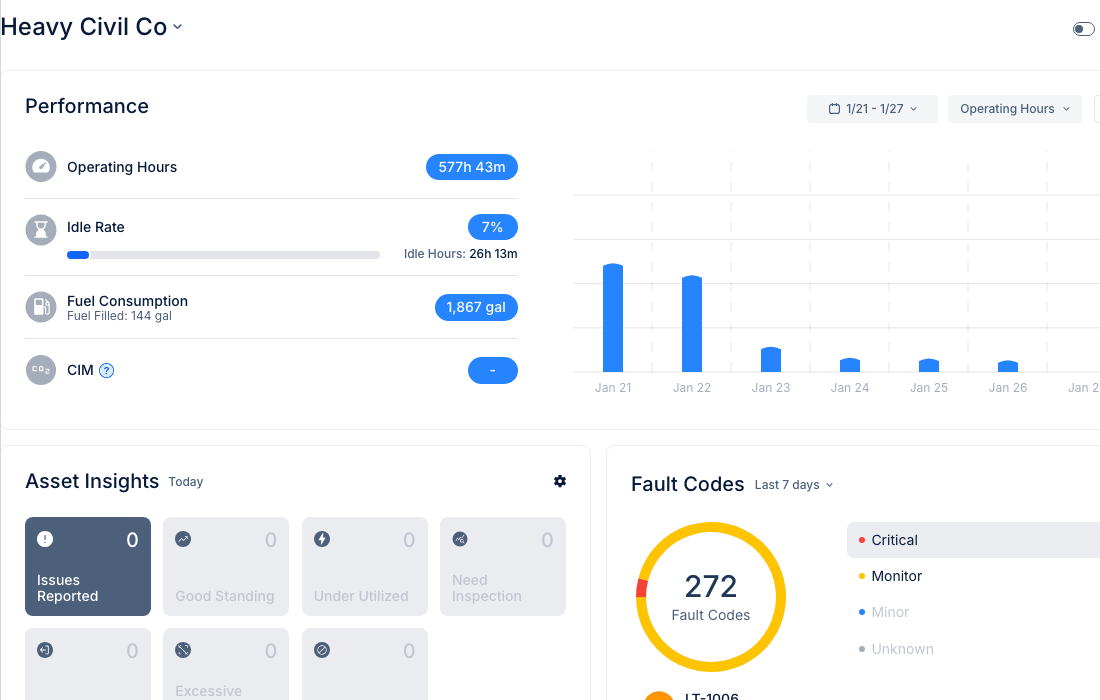
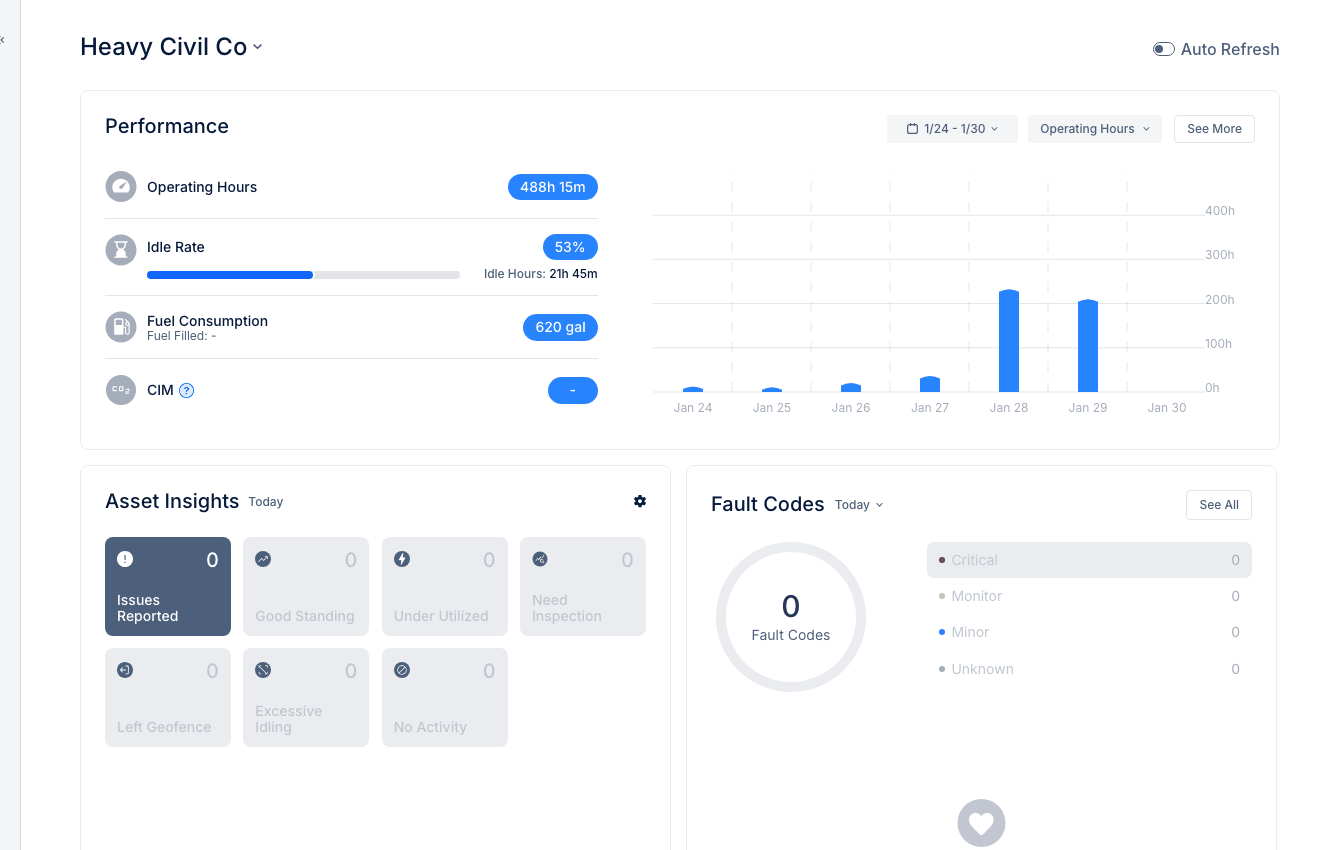
Your Home screen displays:
- Performance metrics - Operating Hours, Idle Rate, Fuel Consumption
- Asset Insights - Quick view of fleet health status
- Fault Codes - Active diagnostic alerts by severity
- Operating Hours chart - Daily usage trends
Organization Switcher
If you have access to multiple organizations, click the organization name at the top to switch between them.
Profile & Settings
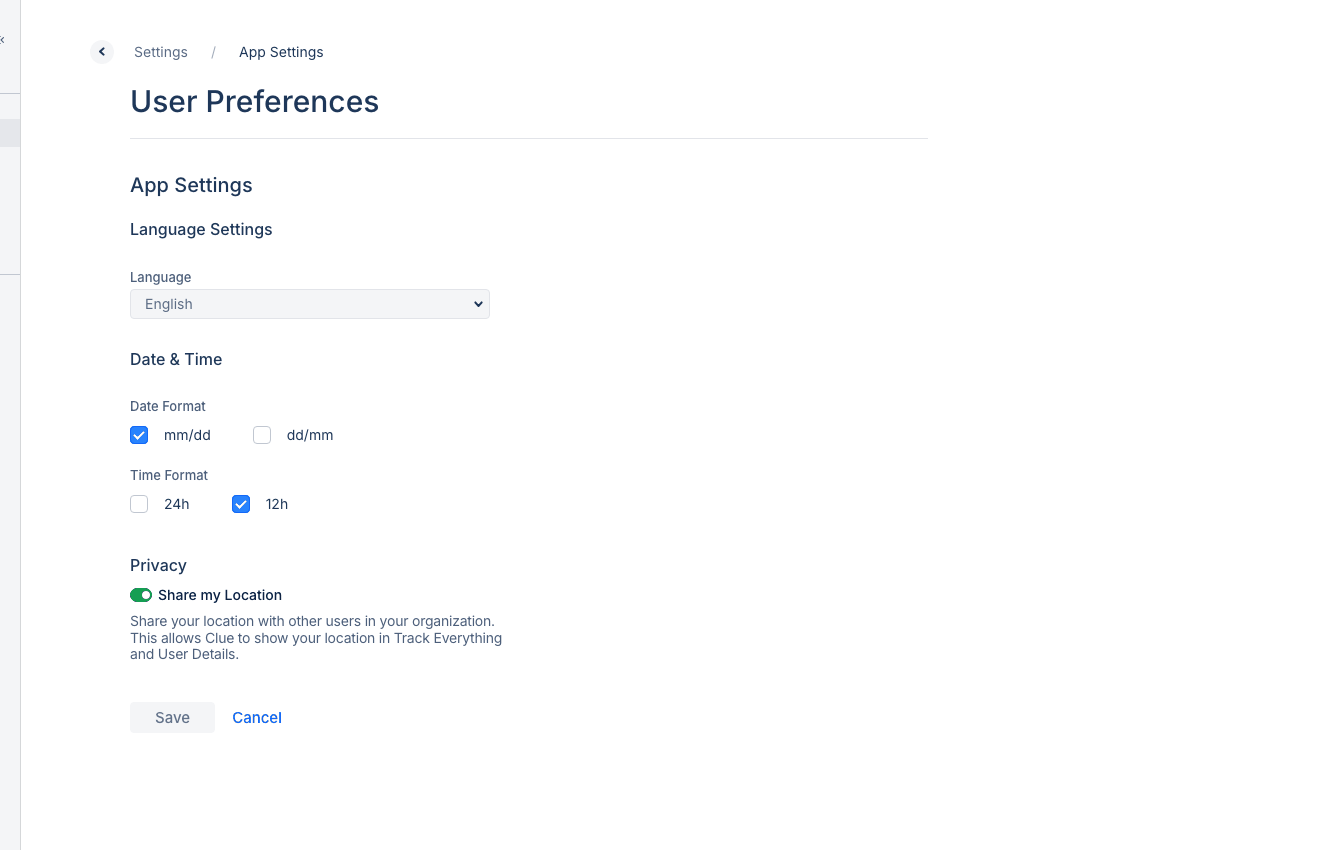
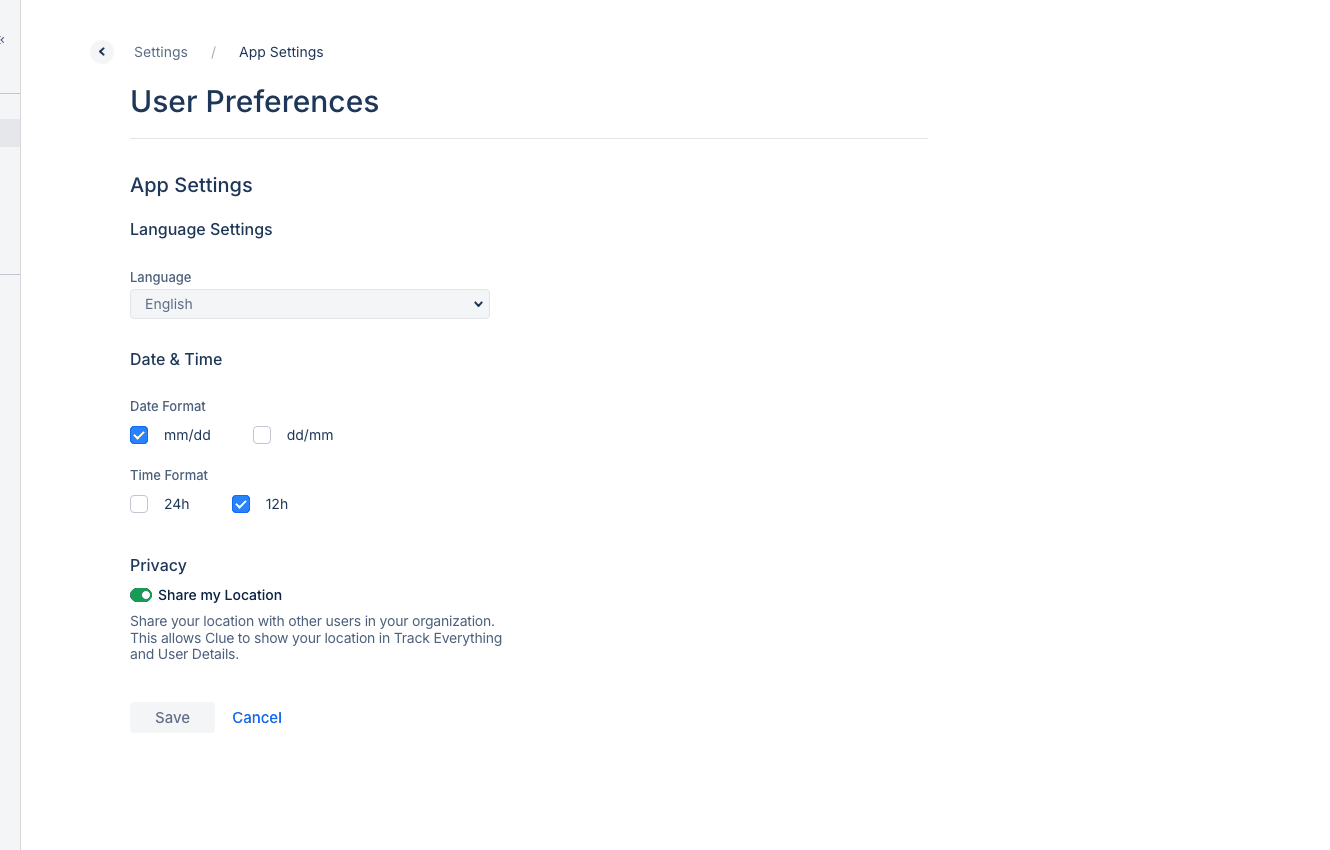
Click Profile & Settings at the bottom of the sidebar to access your personal preferences, language settings, and notification controls.
Navigation Tips
- Click any menu item to navigate to that section
- The current section is highlighted in the sidebar
- Use breadcrumbs at the top of pages to go back
- The notification bell shows alerts and updates