Jobsite Allocation: Days on Site
Projects
Reading Time:
3 min read
Available now on Beta — This feature is in beta testing and will roll out to everyone soon.
What is this?
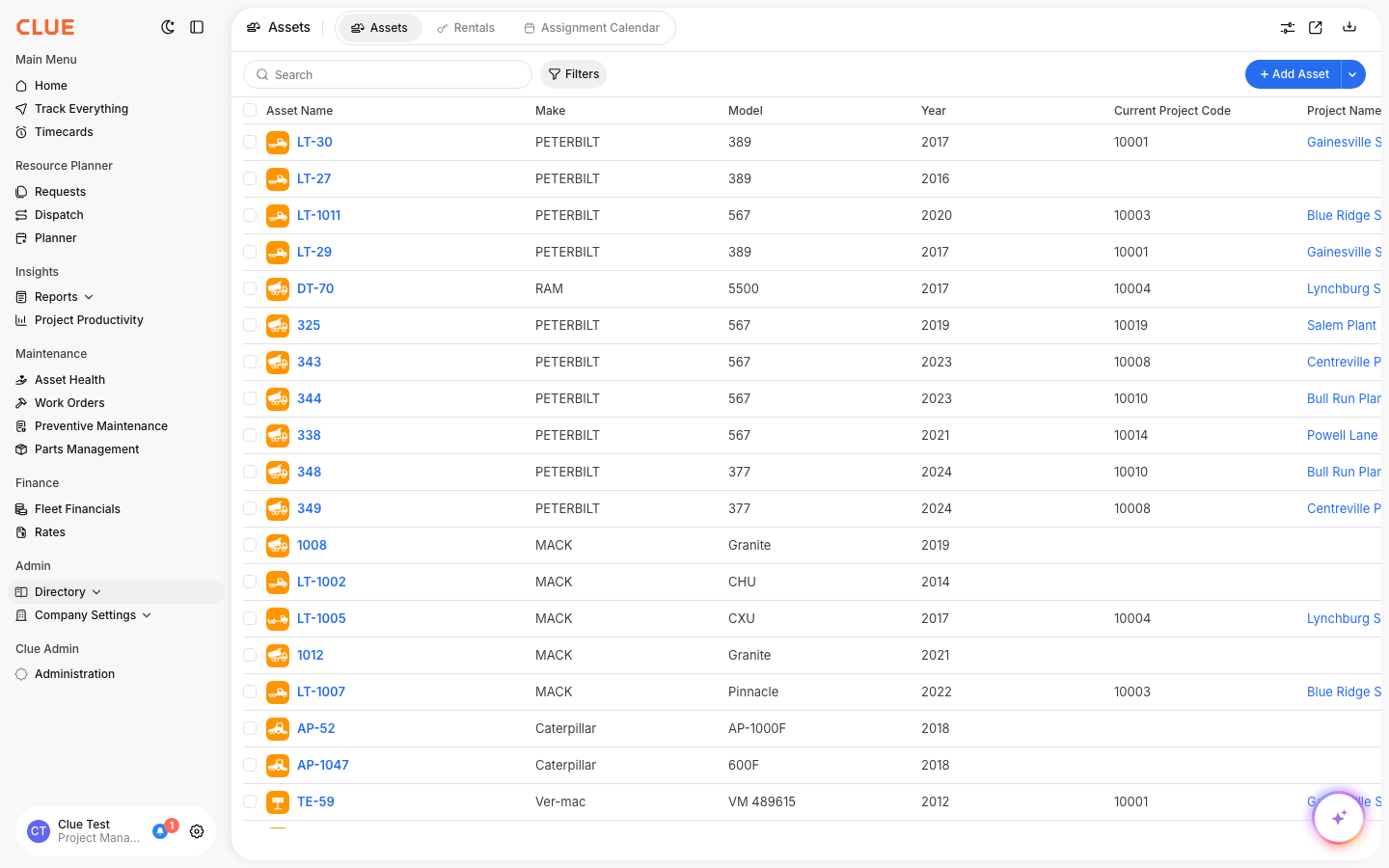
Every asset assigned to a project now shows how many days it has been there. This number appears in the Project Detail view and can be added as a column in the Asset Directory. If a machine has been sitting at a jobsite for 60+ days, you will know about it.
Who is this for?
- Dispatchers - Find hoarded or forgotten equipment and get it moving to where it is needed.
- Project Managers - Plan equipment returns and avoid keeping rentals longer than necessary.
- Fleet Managers - Spot underutilized assets across all jobsites at a glance.
How to use it
Step 1: Check days on site in Project Detail
Go to Projects in the sidebar and click any project. The Assets section now shows days on site next to each asset. Assets sitting longer than expected are easy to spot.

Step 2: Enable the column in Asset Directory
Go to Directory > Assets and open the column settings. Enable the Days on Site column. Sort by it descending to find equipment that has been at a project the longest.
The full details
- Works on: Web app
- Calculation: Number of days since the asset was assigned to its current project
- Resets automatically: When an asset moves to a different project, the counter starts over
- Color coding: Over 30 days shows in amber. Over 60 days shows in orange.
- Hidden by default: Enable the column from the Asset Directory column picker
- No assignment: Shows "-" if the asset is not on any project
Tips
- Sort descending to find your longest-sitting equipment first. Assets over 60 days at one site are worth a phone call.
- Check days on site before approving rental extensions. If a rented machine has been at a jobsite for 90 days, it might be time to buy or return it.
- Combine with utilization data. An asset with 60 days on site and low utilization hours is probably forgotten.